The shape of the app
Two ideas explain nearly all of KitSlate. Learn these and the rest of the manual is just detail.
1. A production holds five documents
You never create a loose call sheet or a floating quote. You create a production, and it carries five documents that share its name, client, dates, location and letterhead:
They feed each other. Gear you pick shows up priced on the quote; crew on the quote can be pulled onto the call sheet; the quote turns into the invoice; the call sheet's talent list fills the agreement.
Not every production needs all five. An equipment-only rental has no call sheet; a favour for a friend has no invoice. Any document can be marked not required — it stays, subdued and restorable, and stops counting against you. Say nothing and all five apply, exactly as they always have.
The app calls this thing a production on the create button, a project in the page title, and a job or a shoot in a few older screens. Same object every time.
2. The company switch filters everything
The top row of the sidebar carries the KitSlate mark and, beside it, the company you are working in with its coloured bar. Click it for the switcher. It is a filter that applies to Today, Projects, the Calendar, All Documents and most Reports.
- Click a company — the whole app now works as that company.
- All companies — every light on.
Each company in the menu also tells you what it is doing today — "on location — Rooftop Series", "client in the studio", or "quiet today". With only one company there is no switcher at all; the row is the logo and the company name, and it opens the KitSlate website.
Check the company switch before you assume something was lost. An empty Projects page usually means a company is switched off — which is why several empty states end with "…or switch the company filter in the sidebar".
The sidebar, top to bottom
The sidebar carries navigation and nothing else. Status moved to the topbar, and everything about you moved into the account button at the bottom. It is designed to fit a laptop screen without scrolling.
| Row | What's in it |
|---|---|
| Workspace | The KitSlate mark and the company switch above. |
| Search / + | Search or jump to… (or ⌘K) opens any screen by name — and searches everything in the workspace: see Search everything below. + is Create Production. |
| FAVOURITES | Only appears once you pin something. Drag to reorder. |
| Work | Home, All Projects, All Documents, Calendar, To do (everything waiting on you) and Activity (with its unread count). |
| Records | Inventory / Equipment, Clients, Crew, Invoices, Quotes, Camera Settings — the things you reuse on every job, plus the two documents that also stand on their own. |
| Business | Reports and External Rentals. |
| Network | Rate Guide, Market and Profile — the shared, opt-in parts, and the public face that goes with them. |
| Transfer-first | With the production suite off (see Only here to send files?), the sidebar holds only Media Center, Activity and Profile, with one card to turn the rest on. |
| Your name | The account button. Profile, Companies, Settings, Billing, keyboard shortcuts, the manual, and Sign out. |
Search everything
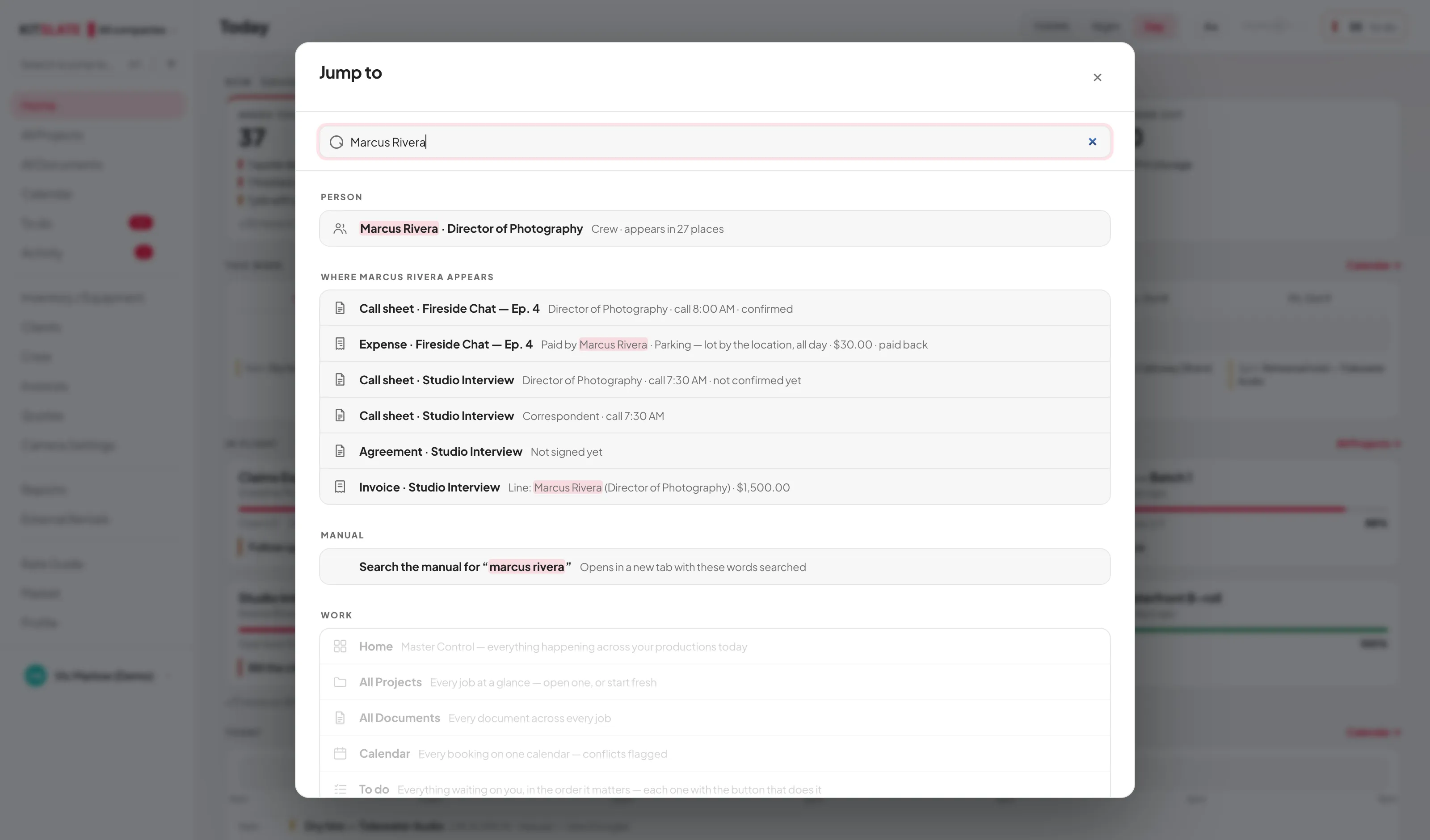
Search or jump to… (⌘K) is the one box that searches the whole workspace. Type a screen and Enter opens it. Type anything else and the results arrive grouped, each row opening the exact place, with the words that matched marked:
- A person — a crew member or client by name, email or phone. Their record comes first, then where they appear: call sheets (their role, call time and whether they confirmed), agreements (signed or not), their lines on quotes and invoices, expenses they paid, a client’s jobs, payments and holds, and what came back from them in Activity.
- An amount — 2.92 or $2.92 finds that exact amount as money: an expense (with what its receipt says), a line, a document total, a payment received. Near misses, such as $2,920.00 or $12.92, sit apart under Also close.
- A number — an invoice or quote number, including invoices imported from Wave or QuickBooks.
- Words — in call sheet, quote and invoice notes; on receipts; a calendar hold or pencil; a name that is on a call sheet or agreement but not in Crew or Clients.
- Activity — what you sent and what came back. It is read from the server, so these rows can arrive a moment after the rest.
Settings and the manual are in the same results: a setting by what you call it, and a line that searches this manual for the same words. Inside Settings there is a second, narrower box — Search settings — that finds settings only.
Pinning and hiding — make it your sidebar
Hover any nav row and a ⋯ appears at its right (right-click does the same thing).
- Pin to Favourites — the row moves up into a Favourites block under the search box. Drag pinned rows to reorder them.
- Hide from sidebar — the row disappears from the list. It is not removed: ⌘K still opens it, and so does every link to it elsewhere in the app. Home cannot be hidden.
- Edit sidebar… — turns on a mode where the pin controls are always visible and a HIDDEN block appears at the bottom listing what you have suppressed, with Reset to put everything back.
Pins, hidden rows and the Continue list are stored on the device you are using, per person. They are not synced, so a colleague in the same workspace does not see or change yours.
The status button
Top right of every page is a small button reading either Clear or a count and to do. Click it for the operational panel: what needs attention, shoots today, what is coming up, equipment out and faulty, unread messages, and where your data last saved. Every row in it is clickable and goes to the page that can fix it.
The number on it is the number of rows on To do — the same list, counted the same way. When you clear one, the count goes down by one. It reaches zero.
There is no longer a Settings button in the sidebar. It is in the account menu at the bottom, alongside Billing and the manual.
Signing in
There are no passwords anywhere in KitSlate.
- Continue with Google — one click, straight in.
- Email link — Or use any email address: type it and press Email me a sign-in link. You get "Check <your address> for a sign-in link". The link expires shortly and works once. Any address works; a Gmail address can use Continue with Google too. Ask for several links in a row and it says Too many sign-in links were asked for just now. Wait a minute, then try again.
Open the app signed out on a device that has no workspace saved and it opens on that Welcome card. If you came from a link — a production, a document, a transfer — the link is kept for a day and opens once you have signed in.
Those two buttons sign existing accounts straight in, and a new address gets a free account on the Profile plan — the Media Center (sending files), your public page and the market.
The paid plans (Solo, Studio and up) are by invitation. Without one, choosing a plan offers Request access. If you were sent an invitation, accept it from the email first, then sign in with the exact address it was sent to — another address cannot use it.
You can also press Play in the demo sandbox — no account, which is the workspace every screenshot in this manual was taken in. It is pretend data you cannot break, and it needs no invitation.
What signing in actually changes
Your own workspace needs you signed in. Signed out, you can still open and read what is on screen, but anything that would change it — typing in a field, flipping a switch, choosing from a list — brings up the sign-in card instead, headed Sign in to change anything here. Only the sandbox works without an account. Signed in, every change saves to your account and the server copy is the real one. Sign in on a new laptop and your work is there.
Signing in is also what unlocks Activity, the Market, feedback, team seats, billing, and handing documents off to guests.
If the email on your account is ever changed, the change waits for a confirmation: a KitSlate email headed Confirm your new email address goes to the new address, and until its link is used you keep signing in with the address you have now.
Top right of every page, the last row of the status panel tells you where your data is: Saved to your account 5m ago is what you want. Saved on this device means you are signed out: you can read the workspace, but nothing new is saved until you sign in — see Your data & backups.
Two smaller things worth knowing: a brand-new account opens on Pick your plan before anything else opens, and signing out clears the workspace off that device — it is parked on the server and comes back when you sign in again.
↑ ContentsYour first half hour
The app is most useful once it knows your gear, your people and your rates. Do these in order.
- Set up your company. Settings → Your business → Companies & branding. Name, address, email, phone, logo and brand colour. This is the letterhead on every document you send, so it is worth ten minutes.
- Get your gear in. Inventory / Equipment. Add items by hand, or — on Studio and up — use Import / Export ▾ to bring in your gear list spreadsheet, an insurance schedule or even a photo of an old list. Purchase receipts import on every paid plan. Set day rates as you go — they are what price your quotes.
- Add your people. Crew → + Add crew. Role, day rate and contact details are enough to start; you can fill in tax paperwork and certifications later.
- Add a client or two. Clients → + New client.
- Start a production. + Create Production. Pick where you are starting from, give it a name, a client and a date, and it produces the gear list, call sheet and quote in one pass.
- Export a backup. Settings → Connections & data → Data & backup → Export backup (.json). Do this now so the habit sticks.
The sandbox is a complete second workspace full of realistic demo data, reachable from Play in the demo sandbox — no account on the sign-in screen or by adding #demo to the app URL. Nothing you do there touches your real work.
Today
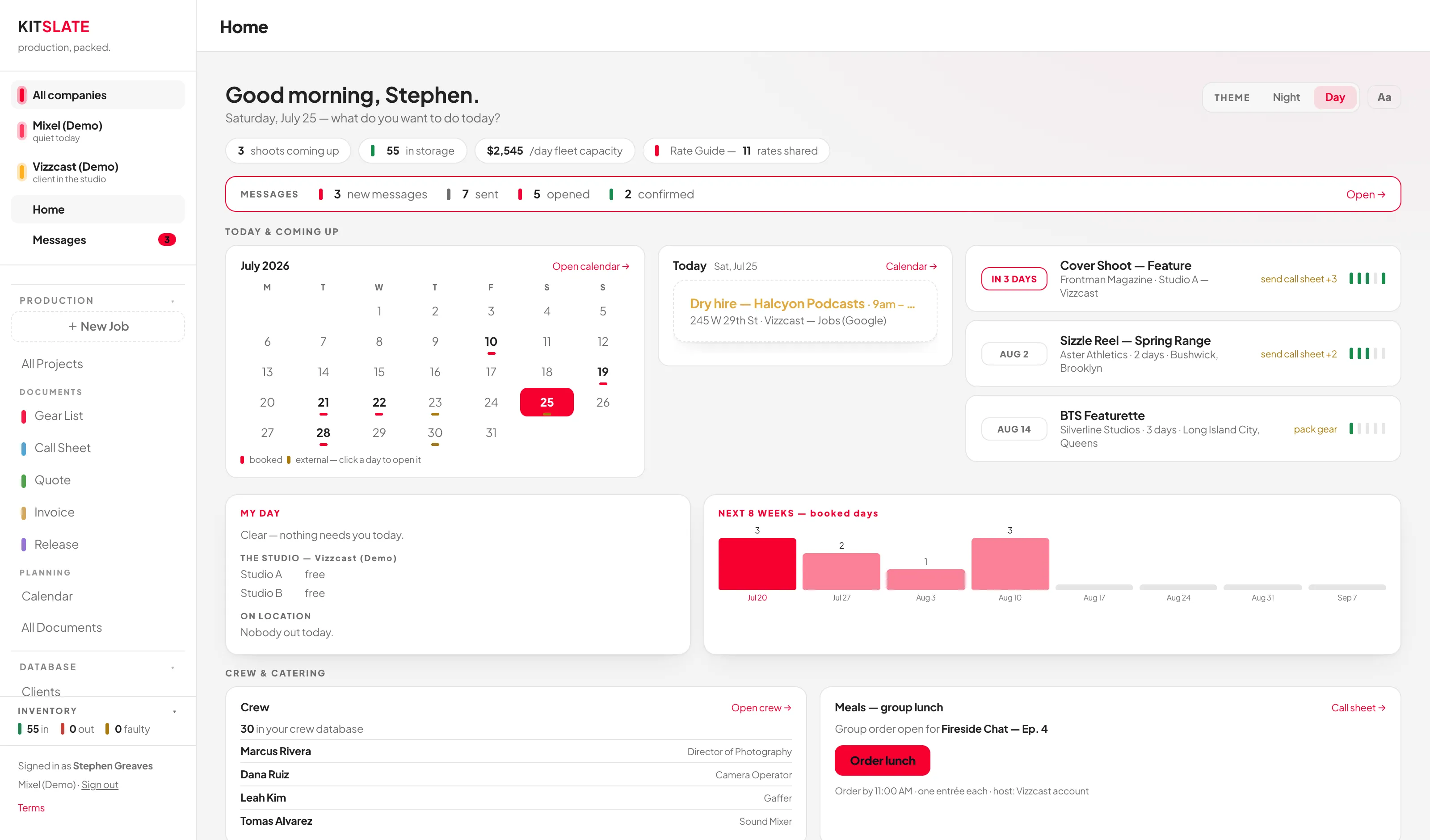
The operations centre. What needs you, what the week looks like, what is in flight, and what today holds.
The sections, in order
The page reads top to bottom as: what needs you, what the week looks like, what is in flight, what today holds. Everything below that is supporting.
- Four tiles under NOW and today's date:
- Needs you — everything waiting on you: critical items first (overdue invoices, declined quotes, an imminent shoot with no crew, agreement failures), then what requires action (call sheets not sent, crew confirmations, gear to pack, quotes and agreements not sent). The tile names the top three — every line is clickable and opens exactly that thing, or All Projects filtered to the jobs behind it — and +N more in To do opens the full list.
- Waiting on others — what somebody else owes you, such as an invoice not yet paid.
- Owed to you — what your unpaid invoices add up to, and how much is overdue, the same figure the Unpaid tab on Invoices shows. It is hidden until you press Show, and while it is hidden no amount appears anywhere on Today — not here, not in Due back, not on the week. Hide puts it away again. The choice is kept on that device only, so hiding it on a shared screen does not hide it on yours.
- Gear out — items out, with how many are in storage, faulty, or due back.
- THIS WEEK — seven days from today. Each shoot is one bar across the days it takes, edged in the colour of its most pressing problem; under each day are its other commitments — call times, calendar events, gear and invoice dates — up to three, then +N more. Click a day's name to open it on the Calendar.
- IN FLIGHT — up to six jobs, soonest first, as small cards: client and when, the overall progress bar, crew and gear before the shoot (gear back and crew pay after it), and the one next step — click it to do it, or click the card to open the job.
- TODAY — the day's hours as one bar, every timed commitment on it and a red line at now, then the same commitments as a list, all-day items first. Commitments with a real time come from the call sheet's key times and schedule rows and from any connected calendar; anything dated but not timed — a shoot day, gear due back, an invoice due — is listed as All day rather than being given an hour nobody entered.
- AT A GLANCE — the counters in three groups. Operations: shooting today, coming up, crew working. Inventory: out, in storage, faulty, due back. Communications: unread, awaiting reply, market enquiries. Every counter opens the list it counts.
- SUPPORTING — three smaller cards. Crew (roster size and who is booked next), Due back (gear due back and invoices due, with anything overdue flagged), and Meals (the group-lunch card, which becomes an Order lunch button once a call sheet carries an order link — and says so if what was pasted is not a web address).
- RECENT ACTIVITY — the four most recent things that happened, newest first: documents sent, handoffs filled in, call sheets opened and confirmed, agreements signed, invoices viewed and paid, enquiries received. Each row says which direction it went (← came in, → went out) and how long ago. View history → opens Activity in full.
- CONTINUE — the documents you had open most recently, newest first. Only appears once you have opened something.
- CREATE — a compact launcher: Production, Equipment list, Call sheet, Quote, Invoice, Agreement, Camera settings, Marketplace listing, Rate Guide. The same launcher is on the sidebar's + and on ⌘K.
- BUSINESS HEALTH — collapsed by default. Opens to the MY DAY card and booked days per week for the next eight weeks.
- INSIGHTS — collapsed by default. The stats tiles with their Curious / Serious toggle.
If a day looks emptier than it is, the call sheet has no key times and no schedule rows against it. Fill those in on the call sheet and they appear here. KitSlate never invents an hour for something that only has a date.
To do
Everything waiting on you, in the order it matters, each with the button that does it.
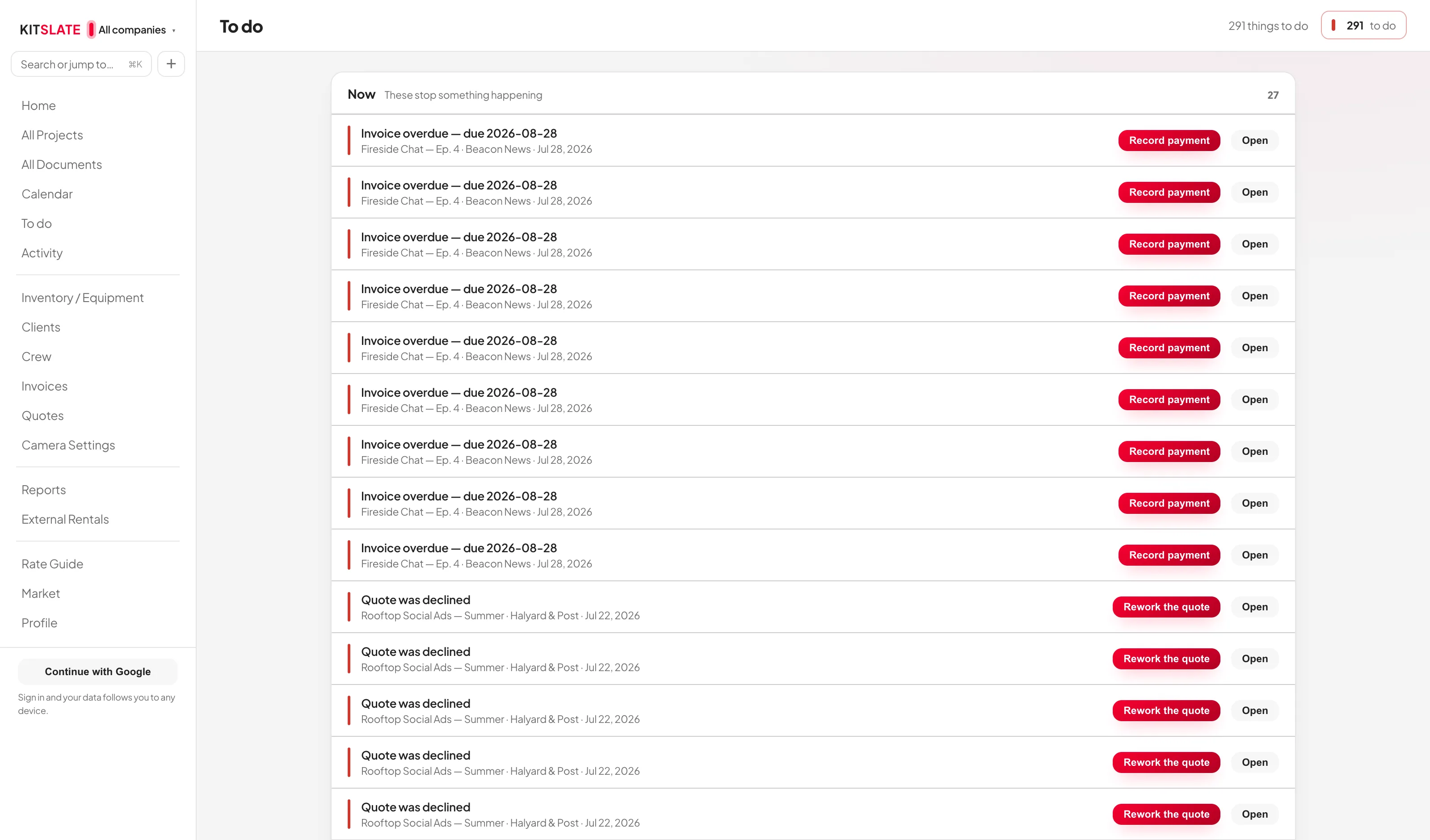
KitSlate already works out what is outstanding on every production — an invoice past its due date, a quote that came back declined, a shoot that has wrapped with no invoice raised, a call sheet nobody has sent, crew who have not confirmed, signatures still owed, gear not packed. This is that list, flattened across every job and sorted so the things that stop something happening sit at the top.
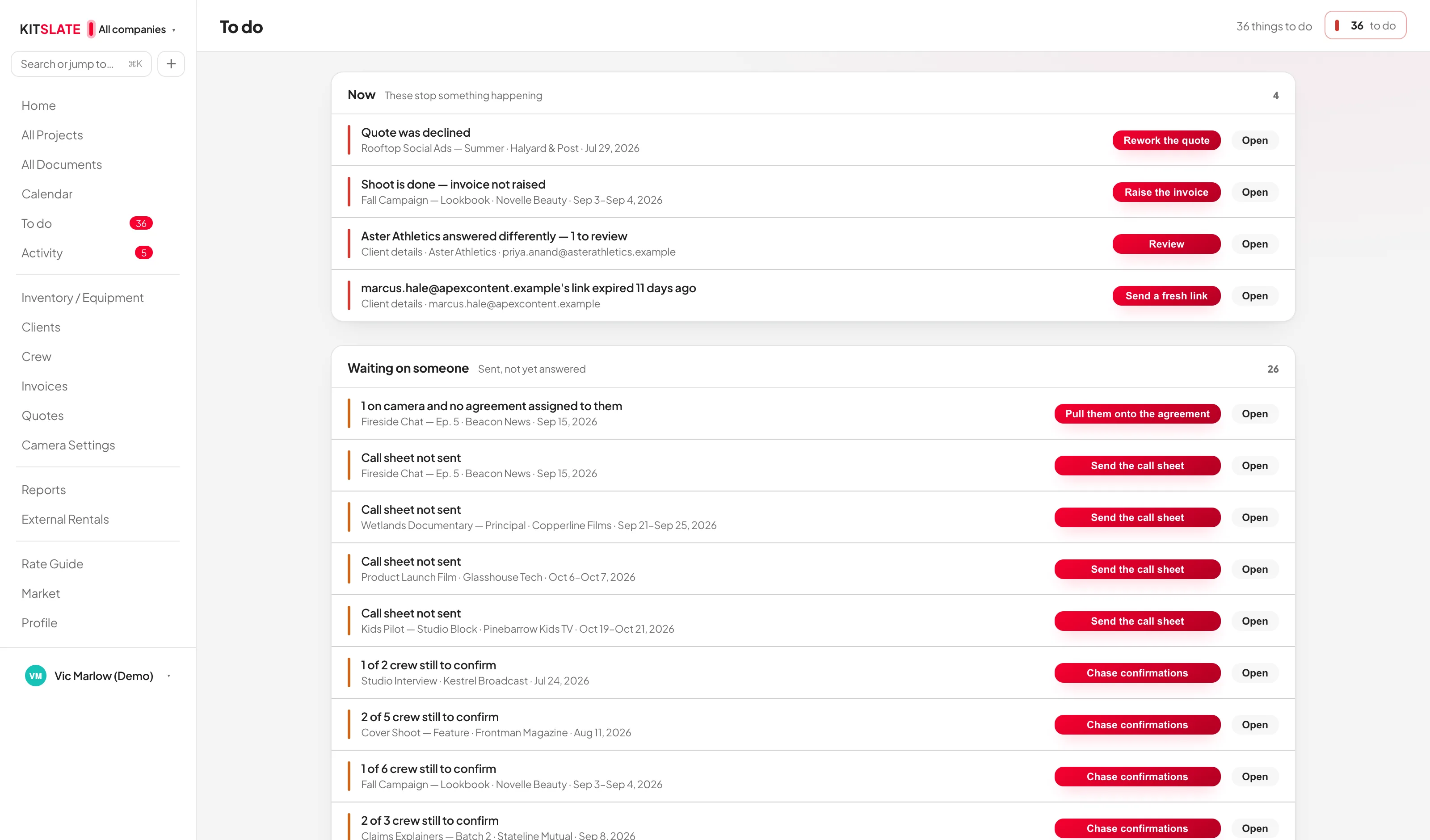
Three bands
| Band | What is in it |
|---|---|
| Now | These stop something happening — an overdue invoice, a declined quote, a wrapped shoot with no invoice, an imminent shoot with nobody on the call sheet. |
| Waiting on someone | Sent, not yet answered: confirmations, signatures, quote approvals. Nothing here is yours to do; it is here so you know who to chase. |
| When you get to it | Nothing is blocked by these. |
How to use it
- The button on the row is the fix. Record payment opens that invoice; Send the call sheet opens that call sheet; Chase confirmations opens the despatch dialog for that production. You do not have to find the job first.
- Open, beside it, goes to the production itself if you would rather see the whole picture.
- Each row is one thing. A production with four things outstanding appears four times, because each has a different answer.
- The count in the topbar is this list. Clear something and it leaves both together. With nothing outstanding the button reads Clear.
Requests you have sent out
When you ask a client or a crew member to fill in their own details (see Requests & approvals), each request is a row here for as long as it needs you. Waiting on someone holds the ones still out — Waiting on Leah Kim — sent 2 days ago with Copy the link, which becomes Send a reminder once it has waited a few days. Now holds the ones that need a decision: an answer that disagrees with what you already hold (Review), an answer held for your approval if you have that switched on, and a link that has expired (Send a fresh link). An answer that fills blanks and contradicts nothing folds into the record on its own and never appears here.
You cannot add to this list and there is nothing to tick off. Every row comes from the state of a real production, so the way to clear one is to do the thing — send the sheet, take the payment, pack the gear. Snooze sets a row aside until Later today, Tomorrow, In 3 days, Next week, In a month or a date you pick, and takes it out of the count until then. Snoozed rows wait under Snoozed with Wake now.
Activity
One chronological record of everything that moved — what you sent, what came back, and what is still owed a reply.
This page was called Messages, and it showed two columns: enquiries coming in, and documents going out. That answered "who wrote to me" but not the question you actually have each morning — what happened since I last looked. A guest filling in an equipment list, a crew member confirming a call sheet, a client signing an agreement: all of it was recorded, but only ever visible inside the job it belonged to, so you had to already suspect something had happened to go and find it.
Activity is one feed, newest first, grouped by day. Every line is something KitSlate recorded happening — nothing here is inferred.
What arrives here
- Documents — every quote, invoice, gear list, call sheet and agreement you send, and each time a recipient opens one.
- Handoffs — when you hand a document to a guest, and again when they fill it in and it folds back into the job.
- Call sheets — sent, opened, and confirmed when a crew member taps the confirm link.
- Agreements — every signature, as it is signed.
- Requests — a client or crew member asked to fill in their own details: when the link went out, when they opened it, when their answers came in, and when you took or discarded a held answer.
- Invoices — sent, first viewed by the client, and paid.
- Enquiries and replies — from your public booking page and in answer to documents you have sent.
The four filters
Everything is the default and is what you want most mornings. Incoming narrows to things other people did; Outgoing to things you did. Needs reply shows only enquiries nobody has answered — the same set that appears in REQUIRES ATTENTION. Each filter carries its own count, so you can see whether a view is worth opening before you open it.
Direction is a filter, not a layout: if incoming and outgoing were separate panes you would have to check both to answer one question.
Enquiries look different
Almost every line is a compact one-row record of something already finished. An enquiry is the exception — it is the one thing on this page you can act on, so it renders as a full card with the message body and its Reply, Mark read, Archive, Mail app ↗ and Delete buttons. Bigger means "this one wants you".
Archive marks it read and takes it out of the way without deleting it, and drops it out of the unread badge and out of Needs reply. It stays in the feed as a permanent record of the enquiry having arrived.
Delete removes the message from the database. KitSlate holds no second copy and there is no undo, so it asks first — archive instead if you only want it out of sight.
Updates arrive without opening anything
Opening Activity asks the server for every handoff that has been submitted and every call sheet that has been opened or confirmed, across all of your jobs at once, and folds them in wherever they belong. That is what makes the feed current: previously each job only checked for its own updates, and only while you had it open.
Two kinds of message live elsewhere
- Market enquiries collapse into a single MARKET pointer card and badge the Market nav item instead — they are kept out of your work feed.
- Feedback threads with the KitSlate team appear as one card each, tagged FEEDBACK and KITSLATE REPLIED, opening a chat window with your screenshots attached.
If a line is stamped with a date that has not arrived yet, the day heading says Dated ahead rather than filing it under today. That normally means a clock difference between a device and the server; the event is real, its timestamp just cannot be taken at face value.
Projects & jobs
A dashboard, not a list. It answers two questions in order: what is blocked, and what comes up next.
Requires attention — the production inbox
The panel across the top pools every blocker on every visible job into one line each: "2 invoices overdue", "1 quote declined", "3 call sheets not sent", "4 jobs with gear still to pack". Beside the heading is the total and how many jobs it spans.
Each row is a filter. Click "2 invoices overdue" and the board below narrows to just those two jobs; click it again, or Clear filter ×, to go back. The rows are ordered by how much they should worry you — overdue invoices and declined quotes first, credential warnings and undated jobs last.
When nothing is blocked the panel says "Nothing is blocked — every job is on track" in green, and stays where it is. It is a permanent fixture, not something that appears only in a crisis.
Deadlines and workload
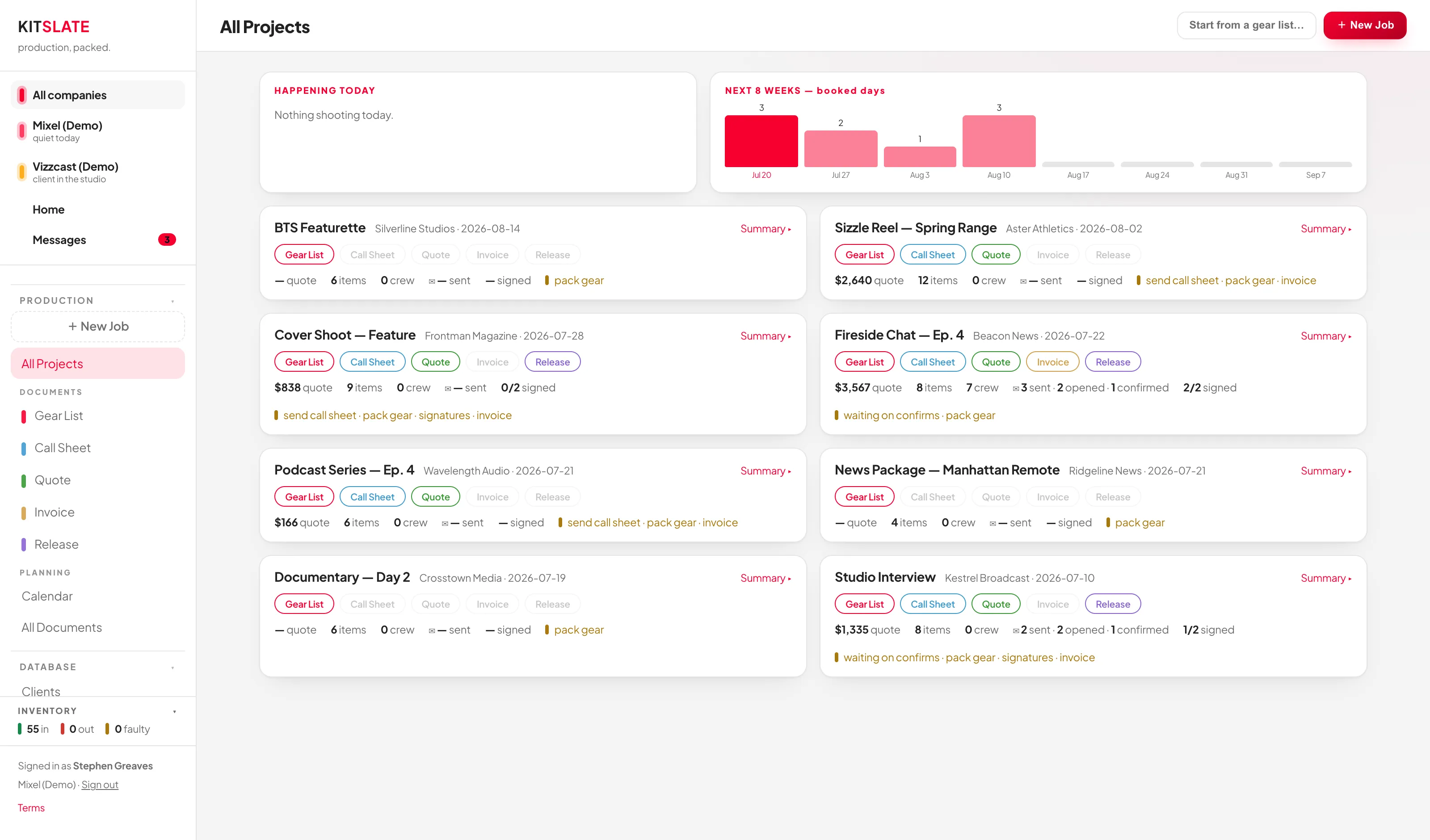
Under the attention panel sit two cards, the second of which the BUSINESS HEALTH fold on Today shares. UPCOMING DEADLINES lists real dated commitments in order — "Invoice due — $1,182 · Fireside Chat — Ep. 4" marked 4d overdue, "Shoot day 1 of 2 · Sizzle Reel — Spring Range" marked tomorrow. NEXT 8 WEEKS — booked days is a bar per week, so a quiet month or a collision is visible before you have read a single job card.
When things happen
Below those, jobs sit in date buckets rather than one long list: SHOOTING TODAY, TOMORROW, NEXT 7 DAYS, NEXT 30 DAYS, LATER, NO DATE YET, WRAPPING UP (past but not finished), COMPLETED and ARCHIVED. Empty buckets are not drawn.
Reading a job card
Top line is the name, then client · date · days · location, with a status pill and the date phrase on the right — today and tomorrow are shown in red. Under that, the call and wrap times from the call sheet and the job's overall percentage, green at 100%.
The four tiles change with the job's stage, so a card shows what matters at that moment:
- Before the shoot — CREW (confirmed out of sent, or "call sheet not sent"), GEAR (packed out of listed), QUOTE (the total and where it stands) and AGREEMENTS (signed out of sent).
- After the shoot — INVOICE (what is still owed, its status and due date — or "Not raised"), GEAR BACK (returned out of listed), EXPENSES (what is still to bill the client) and CREW PAY (crew invoices in, and what is still to pay them).
Every tile opens its own page. Beneath them:
- NEXT ACTION — the single most useful next move, with a Do it → button that performs it without opening the job.
- Document chips — the documents plus Crew pay, each with its state written on it, struck through when marked not required. Clicking one opens it; before an invoice exists, the INVOICE tile turns the quote into one.
- ⤢ Expand — the whole job in one large window: nine headline figures (quote, invoice, balance due, gear, items, crew, agreements signed, expenses, crew to pay), a card each for gear, call sheet, quote, invoice, agreements, expenses and crew pay, and a What's left list. The same window is Expanded view in a job's Actions ▾ menu.
Clicking the card body opens the Gear List.
Starting one — + Create Production
The old four-step New Job wizard is gone. One button, + Create Production, opens a launcher that asks a single question: how would you like to start this production? The answers are a list, heaviest first:
| Section | Routes |
|---|---|
| START NEW | Blank Production — name, client, date, nothing else. Production Template — interview, corporate, podcast, live broadcast and more, matched against your own crew and kit. From Quote — converts an approved quote, bringing the gear it was priced on. From Calendar — reads title, date, time, client and location off an existing event. |
| START WITH A DOCUMENT | Gear List, Call Sheet, Quote or Agreement — creates the production the same way Blank Production does and opens straight onto that tab. For when the thought in your head is “I need to write a call sheet” rather than “I need to create a production”. |
| REUSE EXISTING | Duplicate Production (choose what comes across; no history follows), Reuse Gear List, Reuse Quote — the pricing only, as an unsent draft — and Reuse Call Sheet. |
| IMPORTS & INTEGRATIONS | Studio Booking — turn a booking into a production. Calendar Import — connect Google, iCal or Outlook. Marketplace Rental — turn a rental into a production. Import Production — read a call sheet CSV or PDF. Import Invoice — start from an invoice you already have. |
| Describe your production | The panel at the bottom. Type a sentence — "two-day corporate interview for Northwind at the Brooklyn studio starting the 14th" — and it is read into the fields for you to check. |
Whichever route you pick, the same three fields finish it: a name, a client and a date. Everything else is filled in while you work, and the health panel on the job says what is still missing.
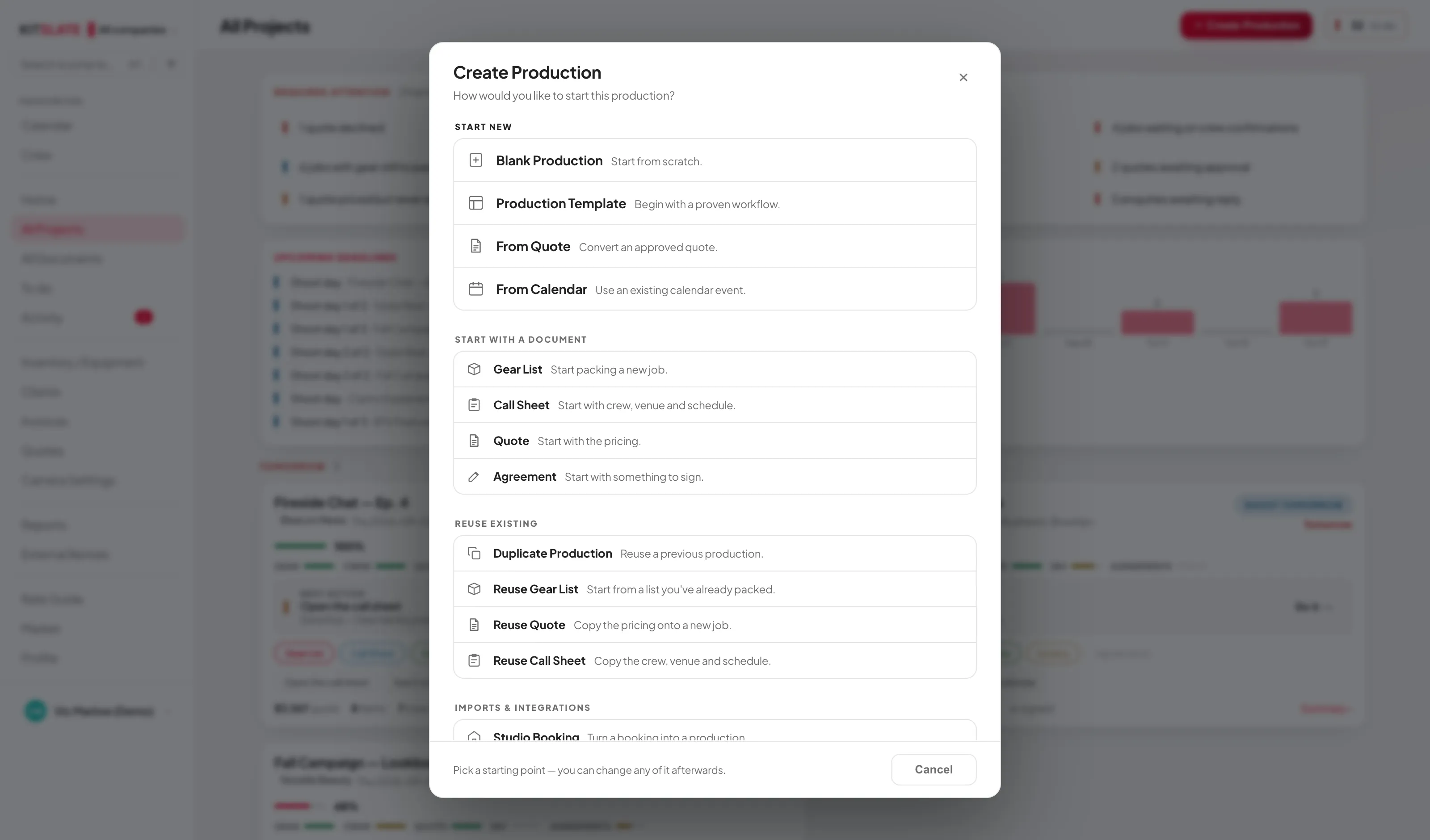
Every route uses the same code the four-step wizard used. Studio rental lines still go on the quote, crew bundled into a kit still bill at $0, the call sheet is still seeded, new clients are still created, camera presets are still inherited, and double-booking detection still fires. Only the four screens went away.
Anything already committed on those dates is flagged, and saving lists them under "N double-bookings on these dates" with Book anyway You can always overbook — the app assumes you know something it does not.
This covers gear, kits and crew already on another call sheet those days. It does not check studio rooms — Studio availability shows what holds each one — or the External Rentals ledger.
Inside an open production
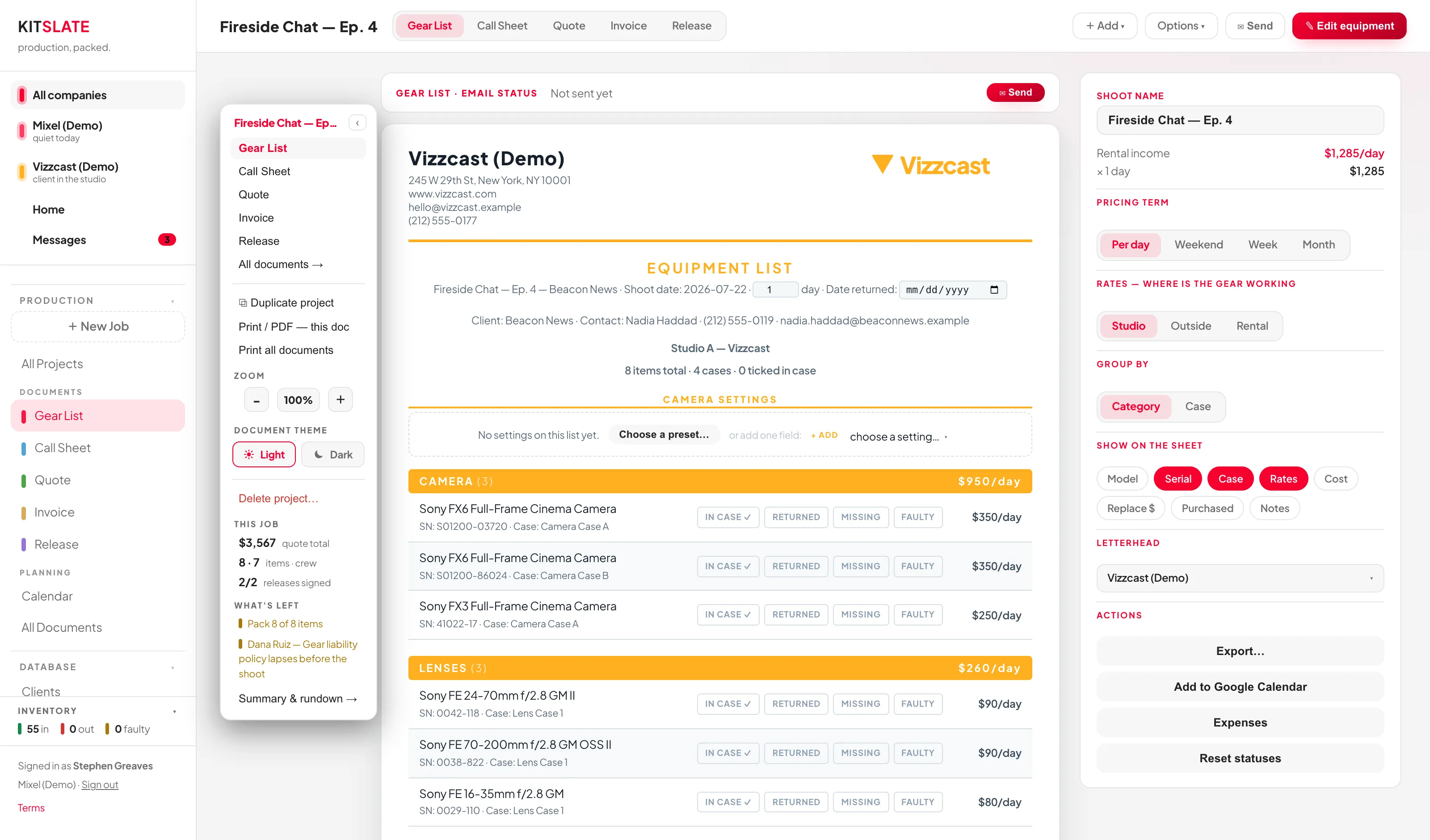
The top bar becomes the document toolbar: the production name, then the tabs — Settings, the five documents, Expenses and, on a job with people, Crew pay — then the action bar, in the same order on every document:
- The primary action, and only ever one, in filled green. It is the thing that finishes the job on that document: + Add equipment on a gear list, ✉ Send to crew on a call sheet, ✉ Send quote, Approve invoice then Send invoice, ✎ Send for signature on an agreement.
- One secondary action, plain — the next most useful verb for that document. Preview on a call sheet, View as client on an invoice, → Turn into invoice on a quote, ✉ Send on a gear list, ✉ Send a copy on an agreement.
- Actions ▾ — everything else, grouped in a fixed order: Add, Document, Download, Print, Project, Sharing, Payments, Danger. At 1280px and wider, Add and Document are buttons of their own — Add ▾ and Document ▾. A document may leave a group empty but never reorders them, so the same thing is always in the same place.
The bar cannot wrap and cannot change height. Previously each document built its own row: the quote carried six controls and two filled-green buttons and spilled onto a second line even on a wide screen, while the invoice detail page reached eleven. Documents now supply only their content — the layout is one shared component and is not theirs to change.
The bar shows the primary action and •••. The secondary action is not dropped — it moves to the top of the menu, so it is never in both places at once.
The production header
Under the toolbar, above the document, a full-width header carries the production's context. Its top line is the date · location · first call · number of days, with the status pill; the name, completion bar and percentage sit in the toolbar above. Below that, four cells:
| Cell | What it tells you |
|---|---|
| WORKFLOW | The five documents as a column; a short green line in front of a name means that document is complete. Click one to switch to it; hover for what is outstanding. Each row has its own ⋯ menu. |
| NEXT ACTION | One to three buttons that do the next useful thing — send the call sheet, record a payment, pack the gear. Nothing outstanding when there is nothing to do. |
| CALENDAR | The real dates this job carries — shoot date, call times off the call sheet, gear due back, invoice due. Deadlines are reserved a slot before call times, so a busy sheet can never push "invoice due" off the bottom. Every row is clickable. Nothing here is invented; if there are no dates it says so. |
| PRODUCTION HEALTH | What is wrong first, then what is already right, then the stage the production is at. |
Two smaller things worth knowing: a document tab whose work is finished carries a short green line in front of its name in the tab strip, and the Still to do card at the top of the job's Settings tab is the PRODUCTION CHECKLIST — "4 things still to do — each one is a link" — listing the client, the shoot date, whether it is on the calendar, and then each document with its own status and its own ⋯ menu.
The Settings tab
The first tab, Settings, is the job itself rather than a document: name, client, company, Start date, End date and Number of days (which is what gives the call sheet its day tabs), where the gear is working, the calendar card, and — once there is an invoice — its Invoice number, read-only, with a link to the sequence under Settings → Invoices — and the call sheet's Sent links card. A new project starts from your Preferences: the length, the venue and whether rates show. Picking a client on the creation form also ticks their preferred kits into the selection.
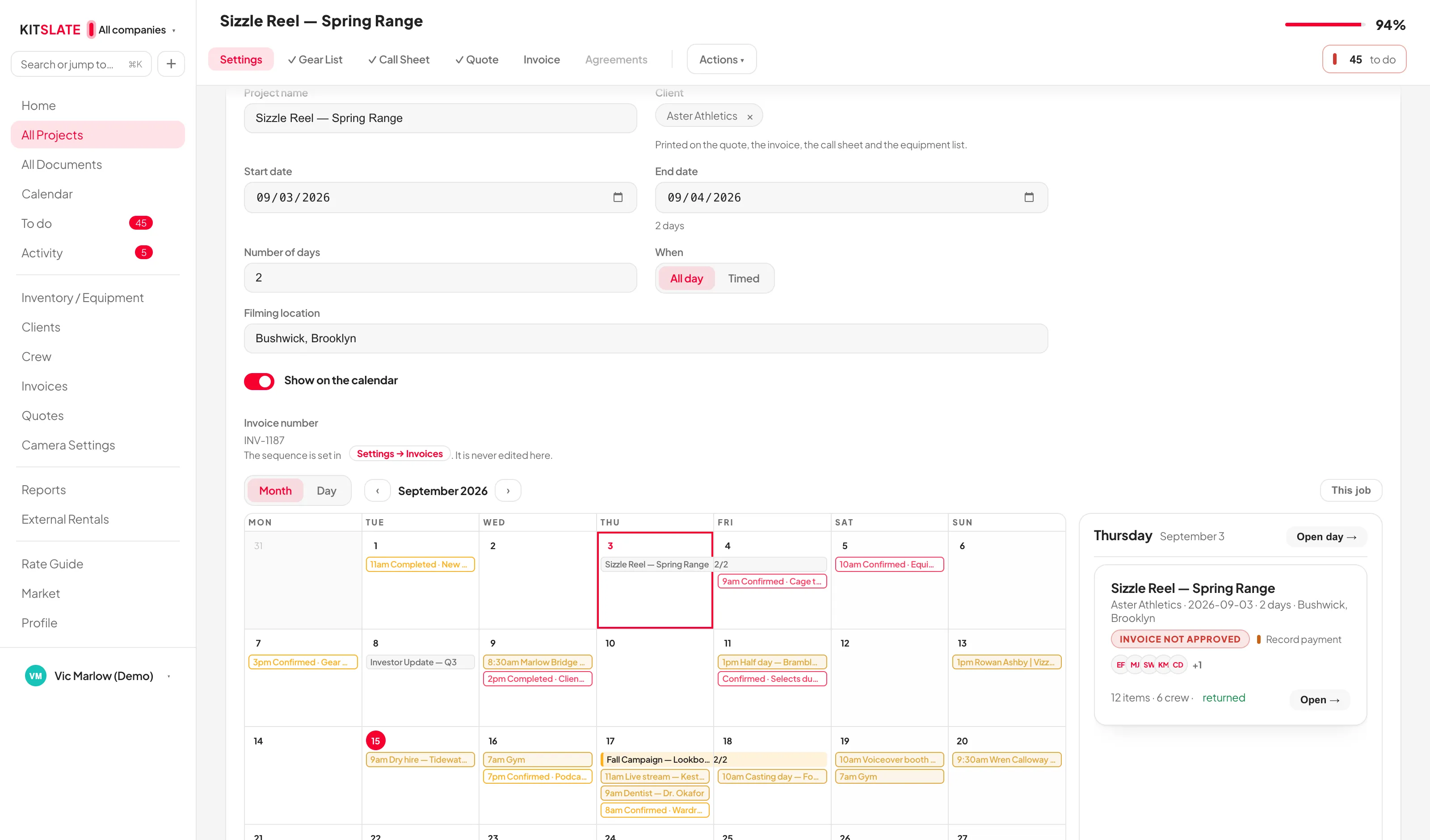
Zoom, paper theme, print and delete are not production context, so they are not in the header. They live in Actions ▾, grouped as Download (⤓ Download PDF), Print, Project, Sharing and Danger: ⧉ Duplicate project, Print — this document, Print all documents, Document theme — switch to dark/light, See it on the calendar, Expanded view, Archive this job… and Delete… — now reached through Actions ▾. Zoom is the small control that floats at the bottom of the window — screen only, printing is always 100%.
The per-document entries that used to sit under a job in the sidebar are gone — the workflow cell does that job now. Anything job-shaped in the sidebar lights All Projects instead.
Not every production needs every document
An equipment-only rental has no call sheet. A favour for a friend has no invoice. Every document row — in the header's workflow cell, on All Documents, and in the production checklist — has a ⋯ menu with Mark as not required.
- The document is not deleted. It stays visible, subdued and struck through, and Restore to workflow gives it back exactly as it was.
- It drops out of the warnings, out of the Attention panel, and out of the completion maths — so a gear-only rental with its call sheet and agreement switched off can genuinely reach 100%.
- Say nothing and nothing changes. A production you have never touched behaves exactly as it always did.
- The app will sometimes offer an opinion next to the menu — "Equipment only, nobody crewed — a call sheet may not be required" — but it never decides for you.
Approving, paying and archiving
- Quote approval — Mark approved asks "Has <client> approved this quote?" and moves the job on to invoicing. Mark declined is a separate action: the job stays put and the quote stays editable, so you can rework it and send again. Dismissing either dialog means "not yet", never "declined".
- Record payment — asks how much has been paid against the invoice and shows the total. Enter the full amount to settle it; enter less and the job reads Partly paid, with what is still outstanding.
- Archive this job… — the end of the lifecycle. It drops to the ARCHIVED section on All Projects, leaves the date buckets entirely and stops counting toward anything needing attention. Every document stays exactly as it is — nothing is deleted, and Unarchive this job puts it back.
Delete from the Gear List tab and you delete the whole production and all five documents. Delete from any other tab and you remove just that document. The tooltips spell it out — read them before clicking.
Deleting a quote also deletes its invoice. If you want a job off the board without losing anything, archive it instead.
⧉ Duplicate project copies every document and appends "copy" — and resets all packing statuses and clears call-sheet delivery tracking, so the new job starts clean.
↑ ContentsCalendar
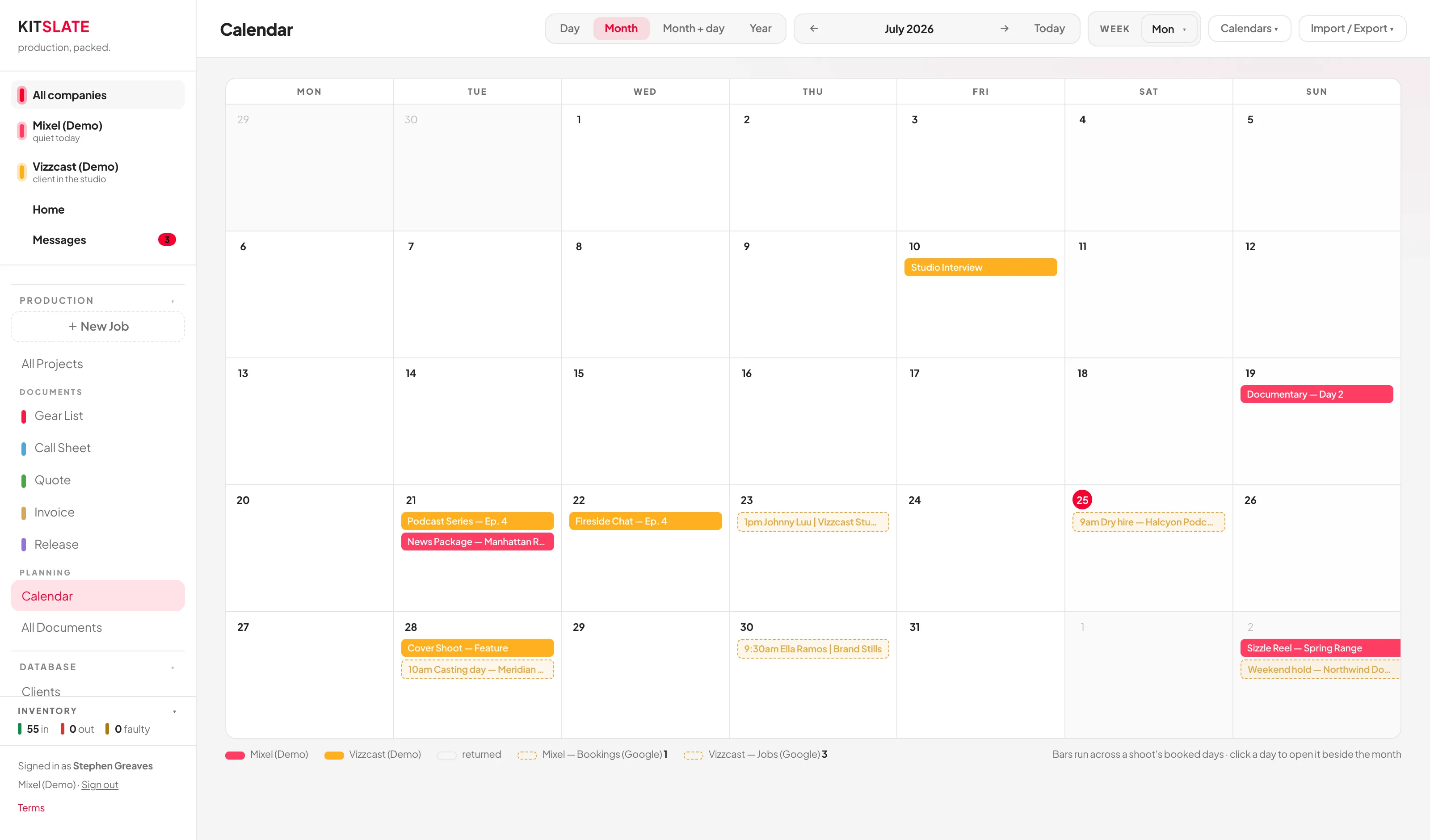
Four views — Day, Month, Month + day, Year — then ← → Today, + New (a planning event), Settings, a small clock, Calendars ▾ and Import / Export ▾. Which view it opens on, and whether the week starts Monday or Sunday, are set once under Calendar settings → Preferences.
The button carries the same name it does on Inventory, Clients and Crew, but on the Calendar it holds four routes rather than a file dialog. Under IN: Connect a calendar… and Calendar settings…. Under OUT: Publish KitSlate Calendar… and Export PDF — print this view. The first three all open the same settings workspace.
- Returned jobs render outlined instead of filled.
- Draft shoots are drawn as a dashed outline in the company colour with a DRAFT badge. They reserve planning space without blocking the date — set a job to Draft or Confirmed on the Status card on the job's Settings tab.
- Imported events are dashed, in their calendar's colour, with a start time.
- Call sheet dates — shoot day, travel day, scout, rehearsal, load in, strike — can be shown as their own entries. Off by default; switch them on in Calendars ▾ or Settings.
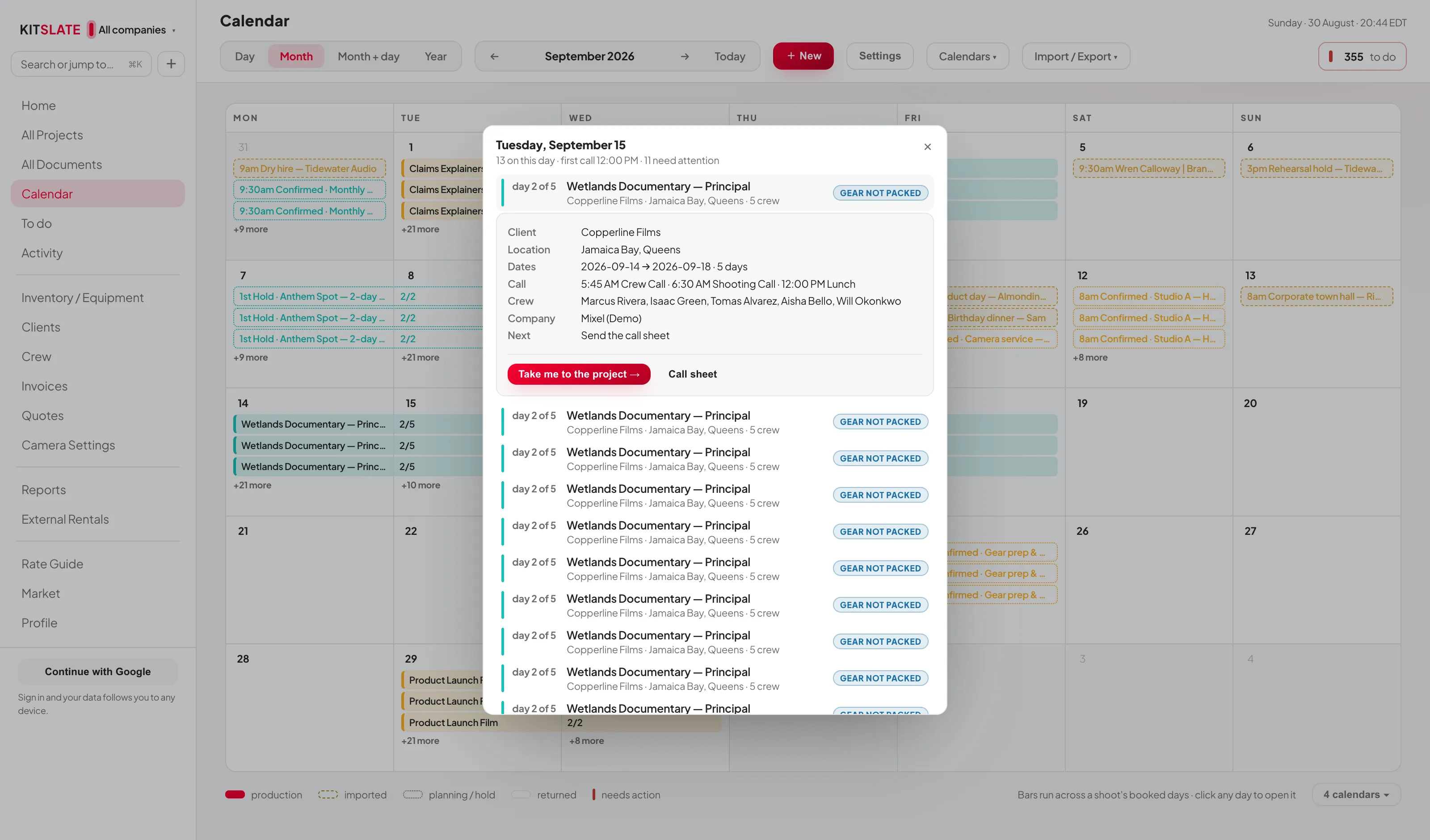
- A booking that spans more than one day says so on every day it occupies. The name sits on the day it starts, with the coloured spine; each following day reads 2/5, 3/5 and so on, so a Thursday in the middle of a booking tells you which booking it is and how far through.
- Days show as many bars as the cell can actually fit, then +N more. It is measured after the calendar is drawn rather than fixed at three, so a tall window shows more and a short one still never cuts a bar off at the bottom edge.
- Clicking a bar opens that job's Call Sheet — not the gear list. Worth remembering.
- Clicking a day opens a card over the month in Month and Year: every booking on that day with its client, location, crew and state, and a summary line giving the first call and how many need attention. Click a booking inside the card and it opens in place — call times, crew, company, quote and payment — with Take me to the project →. Click the day again, press Esc, or click away to close it.
- In Month + day there is no card: one click just moves the pane on the right, which is already showing the day you picked.
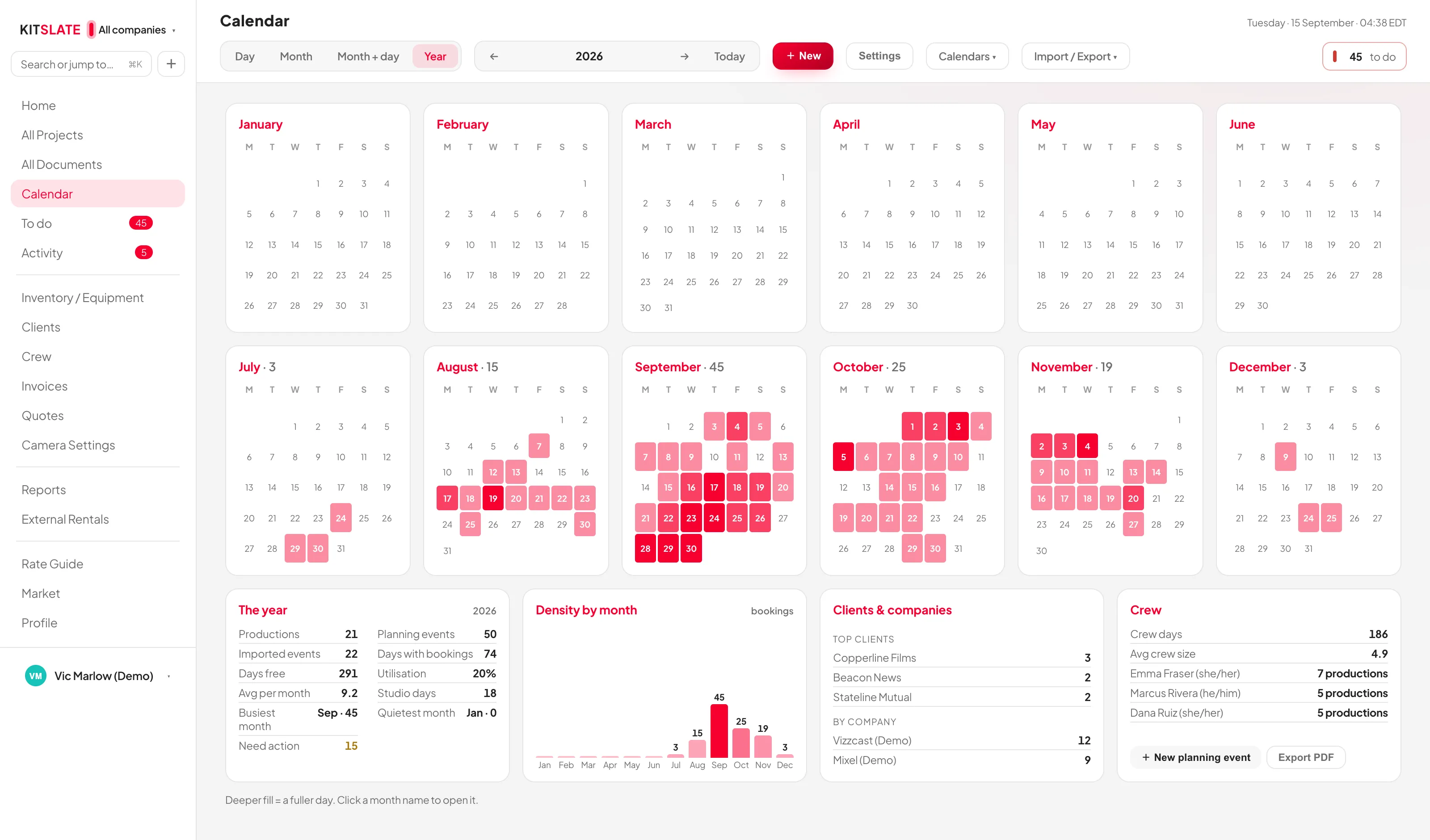
- Year fills the screen — six months to a row on a wide window, and beneath the grid four cards: The year, Density by month, Clients & companies and Crew. There is no side rail.
- Hovering a bar shows a KitSlate card with the client, location, crew and state — not the browser's own tooltip.
The calendar opens on the Day view — today, the timeline, and who is on set. The month grid is still there: its bars drop their text at phone width (they keep their colours and spans), and tapping a day opens that day rather than the split view. Your desktop default view is unchanged.
Calendars ▾ is the visibility panel: your companies, every connected calendar, and the overlays (draft shoots, call sheet dates, returned gear, crew and equipment counts, planning events) — each with its own switch, and a colour swatch where a colour applies. Those colours affect the calendar only; document brand colours live in Settings. Manage… at the foot of the menu jumps to the full page.
Click an imported event and the side panel names its Source, Calendar, Company, Status and when it was last updated — with a booking reference when the source calendar carries one — plus ↻ Refresh and Open in Google ↗.
Connecting an outside calendar
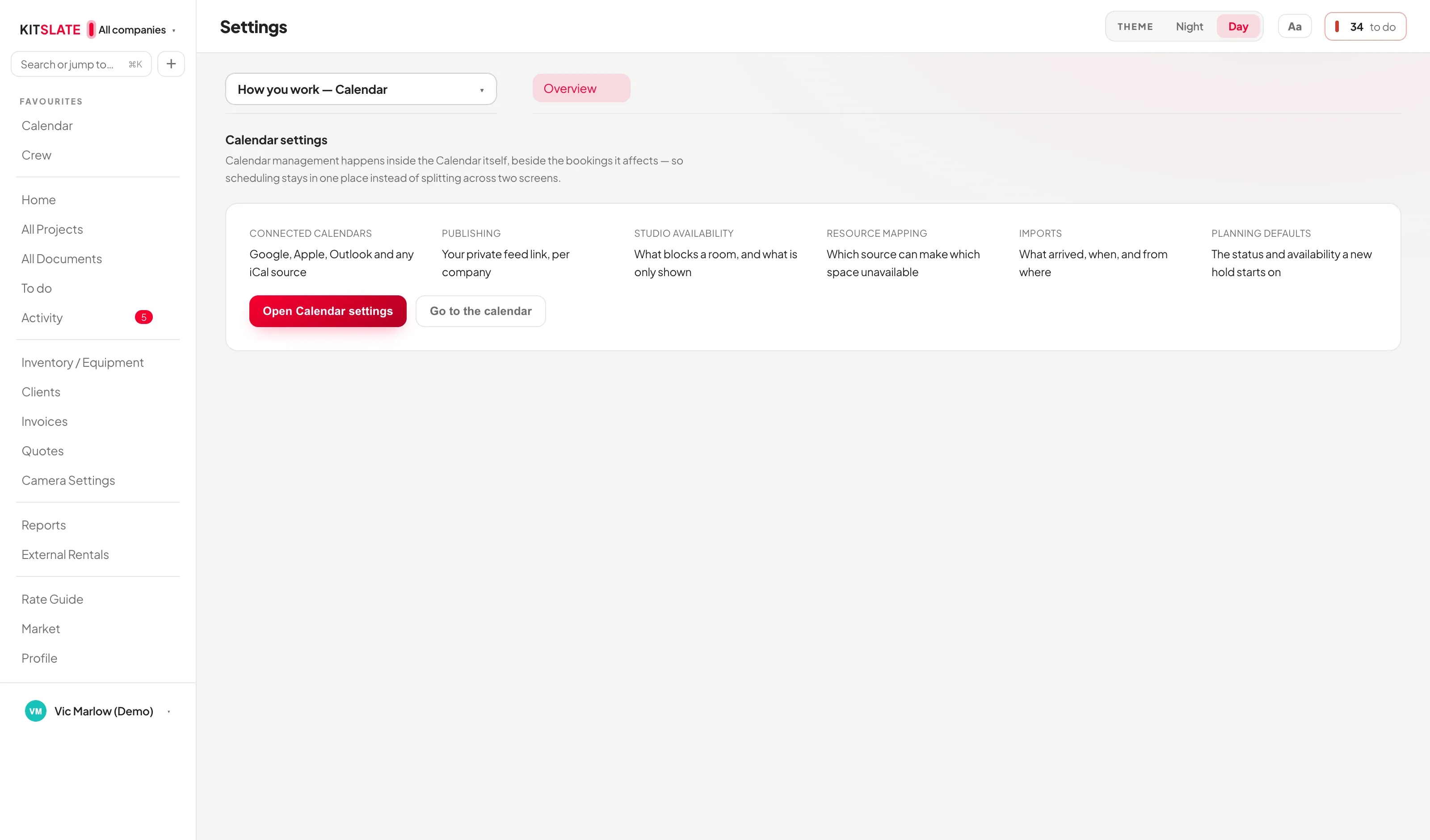
There is no longer a calendar-sync popup. Everything — connecting, editing, publishing, availability, visibility — lives in the Calendar settings workspace, and every entry point leads there: the Settings button on the Calendar toolbar, Manage… at the foot of Calendars ▾, both IN items on Import / Export ▾, and Settings → How you work → Calendar, which is a signpost that opens the same workspace rather than a settings page of its own.
+ New on the Calendar adds a planning event: a Hold, Pencil Booking, Client Meeting, Scout, Travel day, Equipment Service, Studio Maintenance, Block Time, Reminder, Deadline, Gear Reservation — or a Production you haven't built yet. Each carries its own status (Inquiry, Hold, 1st/2nd/3rd Hold, Quoted, Awaiting Approval, Confirmed, Cancelled, Released, Completed) and its own availability (Busy, Tentative, Available, Hold, Out of Office, Travel, or a Blocking state); the two are separate: a 2nd Hold can mark the day busy while an Inquiry doesn't.
A planning event links to a real production rather than copying it: Create production builds one prefilled from the event, Link existing… attaches one you already have, and when you create a production the normal way on matching dates, KitSlate asks whether it belongs to the plan. Once linked, the event's panel shows the production's quote, call sheet, gear and invoice state, a timeline of what has happened, and plain-fact prompts like No quote attached or Hold ageing. Planning events draw as dotted outlines in their company's colour, and can be hidden under Calendars ▾ → Planning events.
The workspace has a rail down the side with five sections at the top, under OVERVIEW, COMING IN and GOING OUT, then BEHAVIOUR, then HISTORY.
- Control tower — not a settings page. One measured verdict on the calendar itself: OPERATIONAL, ATTENTION REQUIRED or UNSAFE, with an overall score and, when it is not clean, the weakest link named. A connection that has never synced, or whose last sync is older than a day, reads STALE — and any room it maps to reads "availability uncertain" rather than free. It fails closed.
- Connected calendars — under COMING IN. One card per connected calendar showing its company, what it blocks, its time zone, what it is connected with, last sync, event count and read-only calendar ID, plus ↻ Refresh, Edit and Disconnect, and ↻ Refresh all below them. A calendar that blocks nothing says so in amber — Nothing — never blocks a date — rather than listing rooms it does not hold. + Add Calendar starts the two-screen wizard described below.
- Resource map — which sources can reach which of your rooms, and therefore who can make one unavailable. External calendars are adapters that report events in; rooms and bundles are the things that actually become unavailable. Nothing syncs provider to provider.
- Your Google calendar — under GOING OUT, and the page for your own accounts. One Google connection per company: a studio with two companies in two Gmail accounts keeps them apart, and the card is a list of companies rather than a single connection. Each row carries its own Connect Google Calendar, and once connected: the account it is connected as, when it last wrote, how many events it holds in Google, a chooser listing only that account’s calendars, and Disconnect company — which removes what KitSlate put in that company’s calendar and forgets only that account, leaving your other companies connected. Write everything now checks every company’s events against its own Google account and repairs anything missed. From then on every save writes to Google on its own, within seconds; a write that does not come back is retried within about a minute and a half, which is what retrying on the card means. The connection is one-way: nothing you do in Google can change a production. Only the workspace owner can connect these.
- Other people’s calendars — under GOING OUT, and the page for everybody who is not you: a producer on Apple Calendar, a client, a shared studio screen, your own second device. External Calendar Subscription is a private live feed per company: Create calendar link mints a secret URL that Google Calendar (Other calendars → From URL), Apple Calendar (File → New Calendar Subscription) or Outlook subscribes to. They need no KitSlate account and can change nothing. KitSlate updates the feed the moment something changes, but their calendar app decides how often it re-reads — usually hours, and nothing here can hurry it. Copy calendar link, Test feed, Regenerate link (kills the old address instantly) and Disable. Feed-content switches choose what subscribers see: key dates, gear due-back, drafts, invoice due dates (never amounts), locations, client names. Anyone with the link can read that company’s calendar, so treat it like a password. If a company is already connected under Your Google calendar, the page says so — do not also subscribe that same Google account to the link, or every shoot shows twice: once where KitSlate writes it, once in the read-only copy Google builds from the link. Calendar Snapshot is Download calendar snapshot (.ics), a one-time file of the moment you export it; for a calendar that stays current, subscribe or connect Google instead.
Under BEHAVIOUR:
- Studio availability — pick a day and see which spaces are free and exactly what is holding the rest, across productions, imported bookings and planning events at once. With no rooms configured it says so and points at Studio → Rooms & spaces rather than showing an empty grid.
- Planning defaults — per company. Switch off the planning templates this company never uses and + New stops offering them; below that, what a new planning event starts as.
- Preferences — week start, default view, your time zone, Treat drafts as busy and Show call sheets.
- Visibility — the same switches as Calendars ▾, in one place.
- Import history — every refresh that brought a change, newest first, with the time and the event count. The last 40 are kept.
Under HISTORY:
- Activity log — what has happened on the calendar, searchable. Click through to a single object and you get the forensic view: everything that ever happened to that one booking, oldest first, each entry written by the action that caused it.
Adding a calendar
+ Add Calendar opens Add a calendar — five rows, one per source: Google Calendar (its secret address in iCal format, so nothing has to be shared publicly), Apple Calendar (iCloud), Outlook / Microsoft 365, Any iCal address, and Upload a .ics file — a one-time snapshot, refreshed only when you upload again.
Picking one goes straight to the form, which is the second and last screen: name, description, company, time zone, what it blocks, the connection type and the address itself. How does this work? at the foot opens the notes for the source you chose — where to find its address, what Import and Export each mean, and what "blocks" does — and ‹ Back to setup returns you to the form rather than to the top.
They come through whatever calendar they go to. Connect that calendar and its bookings come in with the next refresh — KitSlate reads the calendar, and where a booking originated makes no difference. Imports are one way: KitSlate never writes back to the source calendar.
Blocks defaults to Nothing — display only: the events draw on your calendar and that is all. That is the right setting for a company that isn't a studio — a production company's schedule is worth seeing without any room being marked occupied. It is the wrong setting if you expect the calendar to protect you: on display only an outside booking cannot stop you taking the same date. KitSlate says so rather than leaving it to be discovered — the card reads Nothing — never blocks a date, the Resource map marks the source Reaches nothing and names it above the diagram, and the Control tower carries a warning with the event count.
Pick a space only when the calendar genuinely means somewhere is taken. Then, on the day, the company switch says "client in the studio" and the MY DAY card (under Business Health on Today) names that room as client only.
A single connection can block several companies and several spaces — tag it with all of them rather than connecting it again. Connect the same calendar twice and KitSlate recognises it (by its calendar ID, or the address itself) and says "This calendar is already connected" instead of importing every event a second time.
Imported events are matched on the calendar they came from plus the event's own ID, so a refresh updates what is already there and never creates a second copy. Point KitSlate's own published calendar back at itself and it recognises its own handwriting and refuses.
Every calendar carries its own time zone, and every imported event is pinned to a real instant. Times are drawn on your clock — set under Calendar Preferences — while the source zone is kept and named on the event when the two differ. A studio in Melbourne and one in New York can share the same screen.
Connected calendars are read-only: edit the event in Google (or wherever it came from) and the change flows back on refresh. They also re-pull quietly when you return to the window, at most once a minute.
The Google Calendar connection is the same in the other direction: KitSlate writes its bookings out and never reads yours back — edit a KitSlate-written event in Google and KitSlate will put it back the way it has it. To bring Google events in, connect that calendar under + Add Calendar as well.
The same calendar can be on both sides, and it will not double up. Writing a company’s shoots into a calendar you have also connected inbound is a normal setup — it is usually where the client’s bookings go too. Every event KitSlate writes carries its own stamp, and the importer skips that stamp on the way back in, so KitSlate never re-imports its own shoots. Another studio’s KitSlate events still come in, because those genuinely are outside bookings.
Download calendar snapshot (.ics) produces a one-time file, not a live subscription — download it again after changes. A live subscription link is served from your cloud workspace, so Other people’s calendars asks you to sign in before it will mint one, and the sandbox shows a simulated address rather than a real feed. Draft shoots stay out of the published file.
Connections drop history older than six months and cap at 800 events.
Switching a company off hides its calendar's events too, which looks identical to a dead connection. The app catches this and shows an amber banner — "N events from <calendar> are hidden because <company> is switched off" — with a Show them button.
All Documents
All Projects answers "what is live and what happens next". This page answers a different question: what documents exist, what state are they in, and what is waiting on someone else.
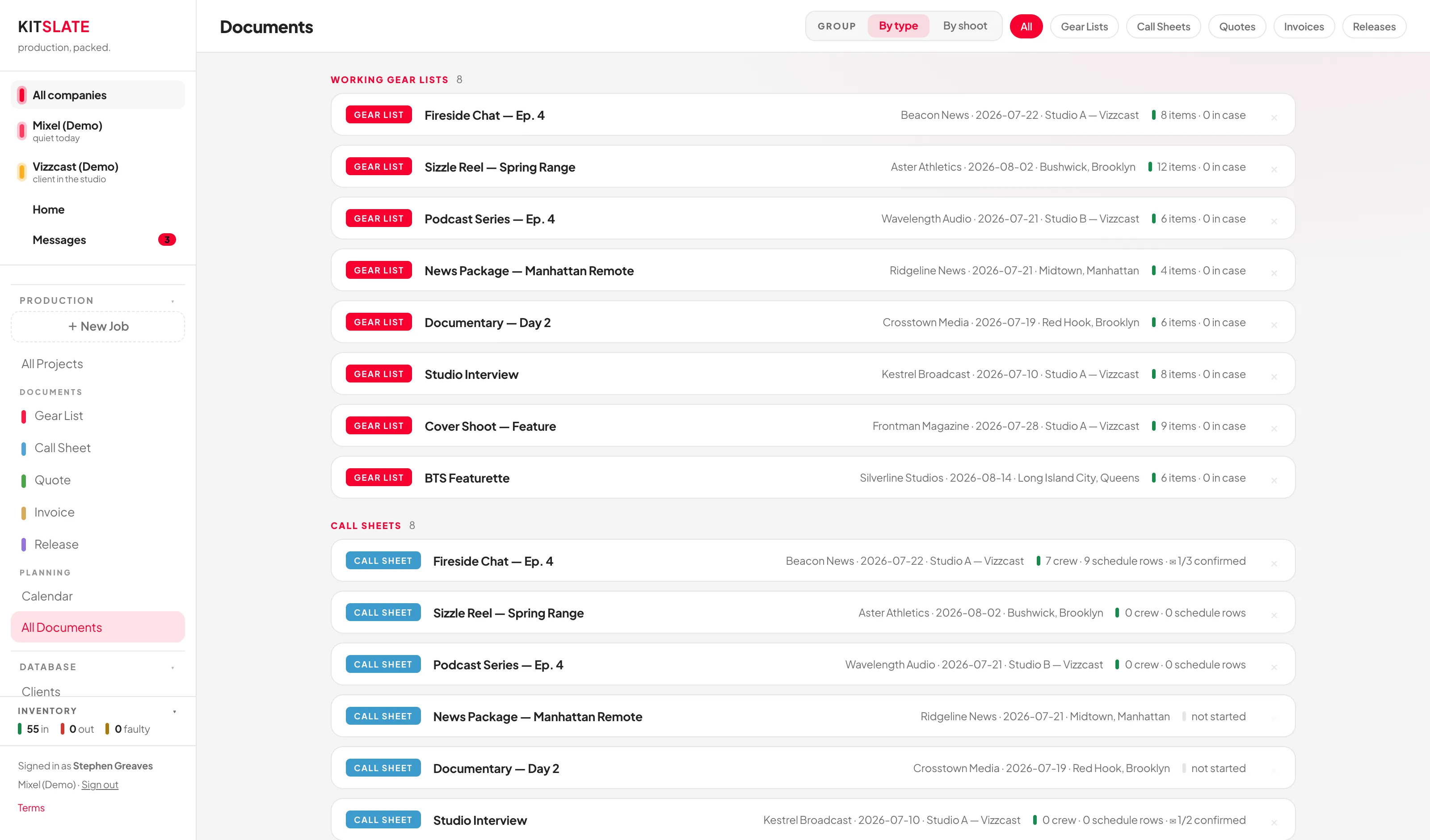
The sidebar calls it All Documents; the page itself is headed Documents. Across the top: a Search documents… box, + New Document, and the four view tabs.
Four views
| View | What it is for |
|---|---|
| By Production | The default. Every document stacked under the job it belongs to. |
| By Document | A table across all jobs — every quote together, every invoice together. |
| Needs Attention | Only what is unfinished or unstarted. Documents marked not required drop out entirely, because they need nothing. |
| Recently Updated | What actually moved, newest first. |
Reading a row
In By Production each job is a collapsed header first — name, client · when, then a one-line summary ("1 complete · 2 awaiting response", "5 to do", "nothing here yet"), Next: the most useful action, and a completion bar. Click it to expand the document rows underneath.
Every document row is the same shape: icon, document name, a status word in that status's colour, some meta, and a button that does the next thing — Send quote, Record payment, Chase confirmations, Add talent. On the right, the same ⋯ menu you get everywhere else.
The vocabulary is per document type, because "awaiting approval" means nothing on a gear list and "returned" means nothing on an invoice:
| Document | The words it uses |
|---|---|
| Gear List | Not started · In progress · Ready · Checked out · Returned |
| Call Sheet | Not started · Draft · Ready to send · Confirmations pending · Complete |
| Quote | Not started · Draft · Awaiting approval · Approved · Declined |
| Invoice | Blocked · Not started · Draft · Approved — ready to send · Sent · Partly paid · Paid in full · Overdue |
| Agreements | Not started · Not sent · Sent · Partially signed · Complete |
An invoice reads Blocked until its quote is approved. Nothing is wrong — it just isn't its turn. The row still offers you the way through: Open quote, or Mark the quote not required.
This page, the workflow cell in the production header, the job cards on All Projects and the production checklist all read the same underlying status. If a quote says "Awaiting approval" here it says it everywhere.
Filters
One chip row above the list: the five document types, then Needs attention / Waiting on others / Complete, then Next 30 days / Past shoots / Not required, and Clear × once anything is on. They apply to every view, not just one.
The Not required chip narrows to them; it does not reveal them. They are on the list already, subdued — the whole point is that they are still part of the production, just not wanted.
Recently Updated only lists real events — a send, an approval, a payment, a requirement change. There is no per-document "last edited" timestamp in KitSlate, so rather than invent one, a document nobody has done anything to carries no time. "Updated 1 minute ago" about an empty quote would be a lie.
How documents work
All five behave the same way, so learning one teaches you the rest.
Four ways to create one
- + Create Production — the launcher, described under Projects & jobs. Produces the gear list, call sheet and quote together. This is the usual route.
- The CREATE launcher on Today — Equipment list, Call sheet, Quote, Invoice and Agreement each open a blank draft with a strip at the top reading "Name this call sheet…". (The per-document buttons that used to sit in the sidebar are gone — with a production open, the workflow cell in its header switches tabs.)
- From the Inventory — tick items, then use the bottom bar: Create Gear List →.
- The quick gear list wizard — one form where the equipment can be your current selection, a saved kit, or a copy of a past gear list.
A document you decide you don't want isn't deleted — it is marked not required, which keeps it and drops it from the warnings.
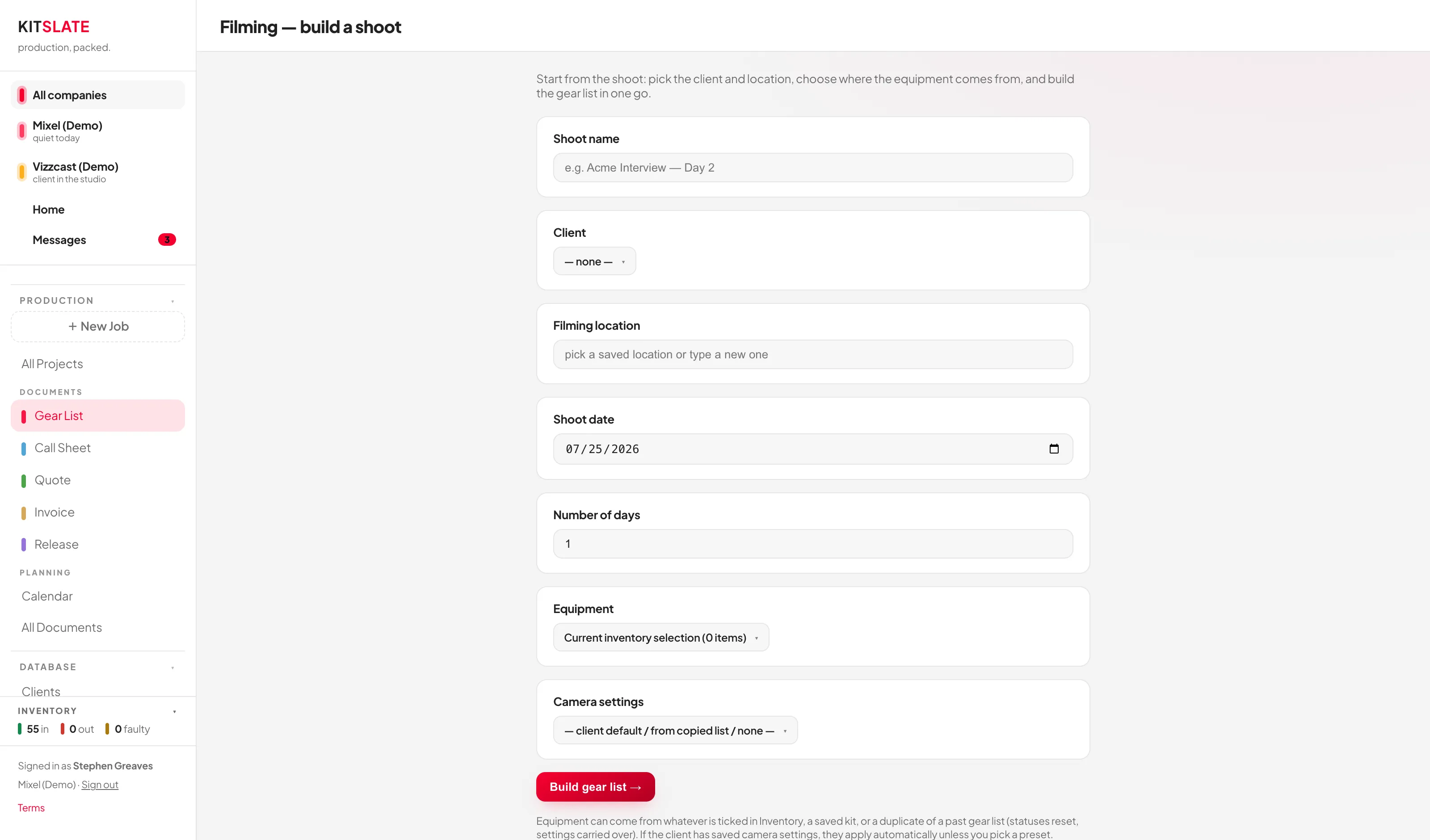
A draft you type nothing into is discarded when you navigate away. Give it a name in the top strip and it becomes a real job.
After you save any document, a prompt offers the missing siblings: "<Document> saved — what else does '<job>' need?", with No thanks — I'm done.
Printing, PDFs and sending
- ⤓ Download PDF saves the open document as a PDF, and Print — this document prints it. Print all documents prints every document in the job, each on its own page — don't navigate while it works.
- ✉ Send opens the send dialog — described below — and attaches a real generated PDF. For quotes and invoices the attachment mirrors the document: same sections, subtotals, totals and payment details as the page and the hosted copy. What was sent, and what happened to it, then shows on the document's STATUS card — see below.
- CSV is available for the gear list, the call sheet, and invoices in three flavours (QuickBooks, generic/Wave, and grouped by ledger account).
The Status card
Every document page opens with the same STATUS card, directly under the production header — GEAR LIST · STATUS, CALL SHEET · STATUS, QUOTE · STATUS, INVOICE · STATUS, AGREEMENT · STATUS. Learn it once and you have learned it on all five: the layout is the same, only the facts change.
- Collapsed (one row) — the document's state in words (Awaiting approval, Confirmations pending, Overdue, 2 of 3 signed…), the figures that must never hide (an invoice's outstanding balance and due date live here), the delivery tally (3 sent · 2 opened · 1 confirmed), the first few recipients, each marked sent once their email has gone, and the buttons: View status, ✉ Resend / add people (or a single ✉ Send before anything has gone out), and Details ▾.
- Expanded (Details ▾) — a RECIPIENTS grid, one row per person, with a stamped chip per step: Sent, then Opened / Confirmed / Viewed / Paid / Signed as applies to that document, each with its time. A ? on a chip means a soft signal (mail apps proxy images). Below the grid come the document's own extras — catering on the call sheet, the approval record on the quote, the payment line on the invoice, the signer pills on the agreement, and a HANDOFF row on any document you have assigned to someone. A closing line says plainly what is and isn't tracked for that document.
- Warnings never hide. Failed deliveries, a signed minor still missing a guardian signature, signers gone quiet past your reminder mark — these show on the card even when it is collapsed.
The card is a readout. Its buttons open the same screens they always did — View status opens the delivery window, Send opens the send dialog — and the counts on the card, in the delivery window and on the workflow rail are the same arithmetic, so they cannot disagree.
The sending box
All five documents share one sending box, and it is always the same size — as large as the screen allows, with the same border, whatever is being sent and whoever is picked. Only the title, subject, body, preview and attached PDF differ — the call sheet, gear list, quote, invoice and agreement are otherwise identical to send, so learning it once is enough. (An agreement has a second, different button — ✎ Send for signature — which mails a private signing link per person rather than a copy. See Agreements.)
Its header names the document, the production, the date, the company whose letterhead is on it, how many recipients are ticked, and the state of the send — Ready to send, No recipients yet, 4/6 confirmed or 3/6 opened. Then two panels:
- Left — To as recipient chips, each with the person's photo or initial and a dot for their status. Click a chip to leave someone off this send without removing them; the × removes them. + Add people opens a picker over your crew and clients, grouped, with search — or type a full email address to use one that isn't in either. Below that: subject, message, the attachment and who it comes from.
- Right — the email itself, exactly as it arrives: a white card on a grey ground, your note in a bubble at the top, the document beneath a labelled break. The left column shares its height between the people and the message — a long list gets more room, a short one gives it to the text.
The message can carry {name}, {company} and {project}, and a send to several people is one personal email each, never a list of addresses: "Hi Priya," to Priya, "Hi Marcus," to Marcus. A message that starts with a bare "Hi," is greeted by name too. View email, in the button row beside Send, opens the full email in its own tab — with a person picker at the top when it is going to more than one — and a Close bar to come back. Replies go to the company whose letterhead is on the document.
View email → opens the email full size, exactly as it arrives, and under the message lists Attached to this email — the document’s PDF and, on an invoice, every receipt going with it — each with Open, so you can see precisely what the client will get.
If people on the call sheet have no email address, the dialog names them: "2 people on the sheet have no email — Dana Reyes, Sam Okafor. Add one on their crew record and they'll appear here."
The Document theme — switch to dark/light item in Actions ▾ changes the paper only, across all five tabs. It used to live on the floating PROJECT rail, which no longer exists. Light is the client copy — that is what the printed examples below look like.
Gear List
What physically goes out, what it rents for, and whether it came back.
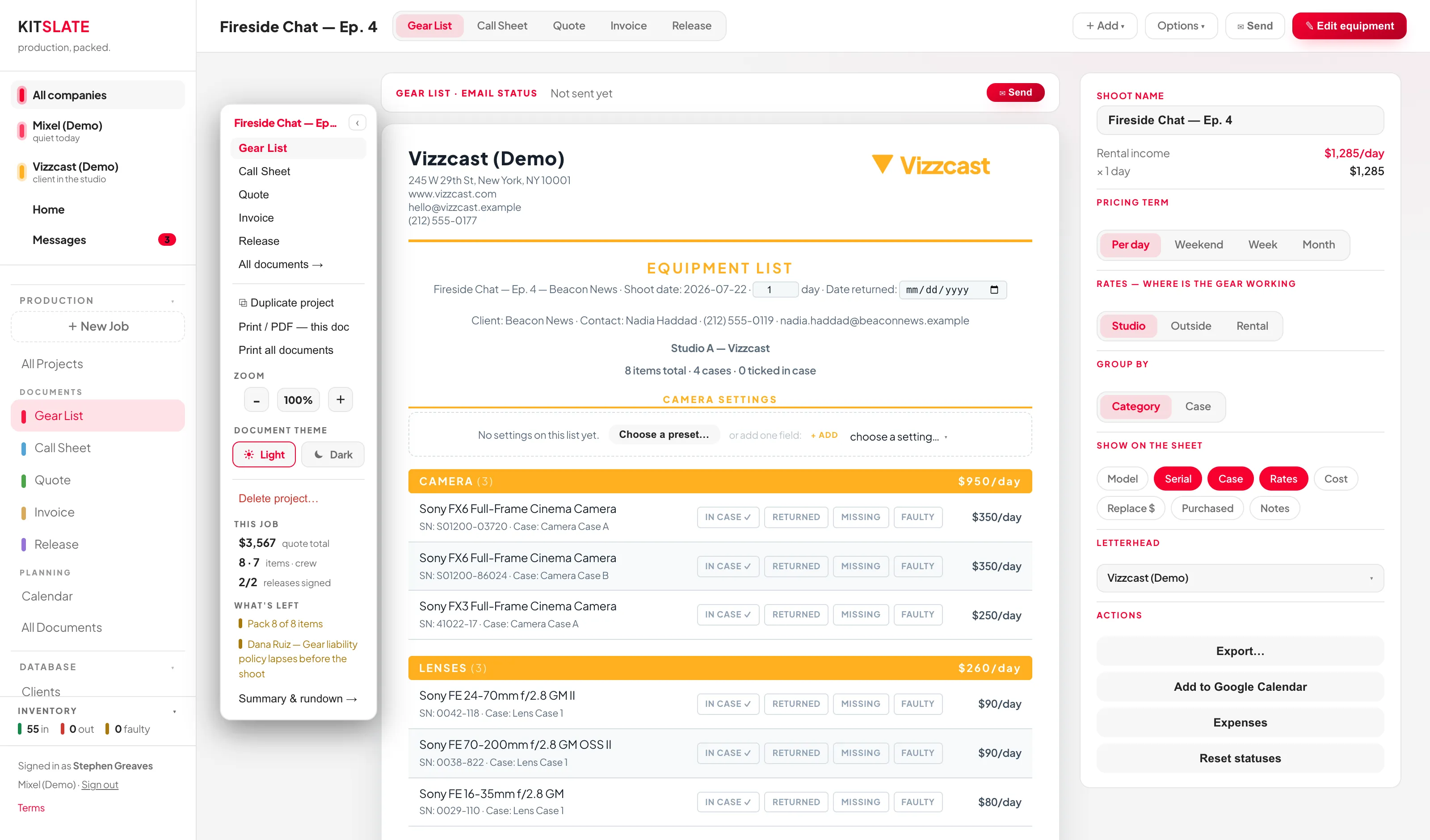
The packing and return workflow
Every row carries four toggles — IN CASE, RETURNED, MISSING, FAULTY. Click again to clear. These are not just marks on paper: they write straight back to your inventory availability.
| Mark it | Inventory becomes |
|---|---|
| IN CASE or MISSING | out |
| RETURNED | in storage |
| FAULTY | faulty |
Set GROUP THE LIST BY to Case (on the job’s Settings tab) and the group cards become case cards with a progress bar and all packed / all returned / "x / y packed" — which is how you pack a van without a clipboard.
Reset statuses under Actions ▾ on the job’s Settings tab wipes every packing mark on the sheet and puts all of it back "in" in your inventory. There is no undo.
The job’s Settings tab
The controls that re-price and re-group the list are project settings, so they live on the job’s Settings tab rather than beside the list. The Rental value card at the foot of the list shows what they add up to.
The first card under Still to do is Letterhead — the company this job belongs to — because it decides the letterhead, currency and defaults every card below it reads. The same rule holds on every form that carries a company: on the boxes that ask crew or a client for their details, or send a copy of an invoice, Send as is the first field.
The Dates card sets the order dates print in on this job’s quote, invoice, call sheet and equipment list, and every date the app shows about it — Activity, Today, the calendar, the crew member’s page — follows the same order, written out in words (Tuesday, 25 August 2026), with times in your 12- or 24-hour choice from Settings → Preferences. It follows the workspace default until you choose one here, and Default in Settings → in its corner opens that default.

- Project name, and on the Equipment rates card the rental income per day and for the job.
- PRICING TERM — Per day, Weekend, Week, Month. Standard rental maths: a weekend counts as 1 shoot day, a week as 3, a month as 10. Only the terms you enabled in Settings appear.
- WHERE IS THE GEAR WORKING — Studio / Outside / Rental. This re-prices every linked item from its three stored day rates.
- GROUP THE LIST BY — Category or Case.
- SHOW ON THE SHEET — chips for Model, Serial, Case, Rates, Cost, Replace $, Purchased and Notes. Dimmed when no item has that data. These control what prints; Document ▾ on the list itself has the one you reach for most, Hide day rates / Show day rates.
- STATUS — Confirmed or Draft. A draft shows on the calendar as a dashed outline with a DRAFT badge, stays out of the published .ics, and does not hold the date or the gear unless you switch on Treat drafts as busy under Calendar settings → Preferences.
- Actions ▾, in the toolbar — Export…, Add to Google Calendar, Expenses (opens the Expenses tab), Reset statuses.
Add ▾ offers equipment from your inventory, outsourced gear sub-rented from another house (tagged OUTSOURCED and pushed onto the quote), and ↗ Assign — hand the gear list to someone outside the workspace.
The Camera settings card is the job's shoot plan: Assign a preset picks one of your camera presets, and the preset editor's brand and camera pickers and setting tiles sit on the gear tab itself. The plan prints as tiles — a header band, a rule, the value — two columns on the PDF and a two-column list on a phone, with unset settings hidden. The sheet's header follows the call sheet's format, with Date returned following the end date.
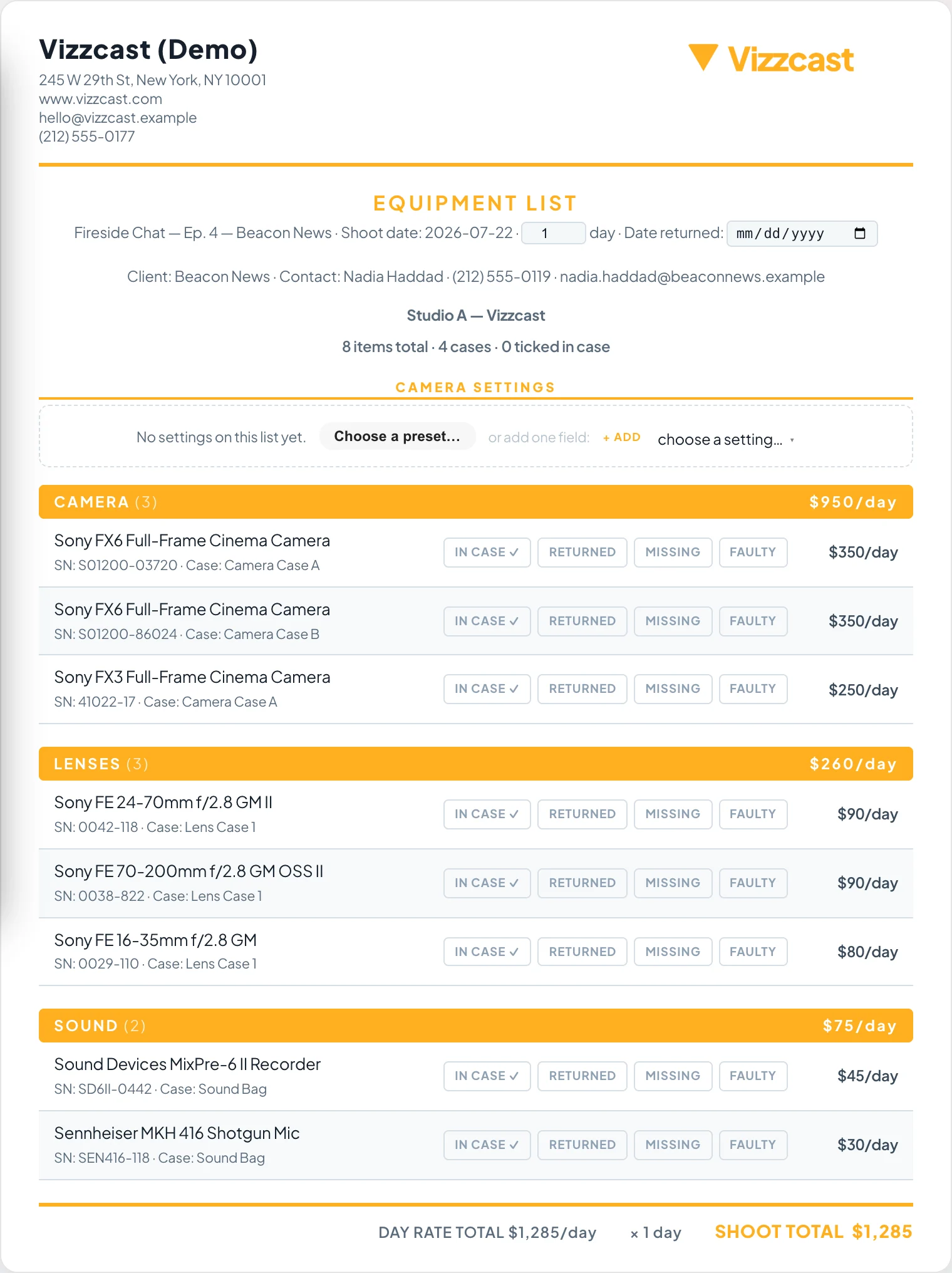
Download CSV always contains every column regardless of the SHOW chips. Apply & Print / PDF prints exactly what the chips reveal.
Call Sheet
Where everyone needs to be, when, and how to reach them if it goes wrong.
One sheet per day
A job of more than one day has a tab per day across the top of the sheet — Day 1, Day 2 and so on, each with its kind underneath (Shoot Day, Travel Day, Scout…). The printed title reads CALL SHEET — DAY n OF x. The tabs and KEY DATES are the same thing seen two ways: add a key date and a tab appears; add a day and a key date appears. Start date, End date and Number of days live on the creation form and on the job's Settings tab.
What goes on it
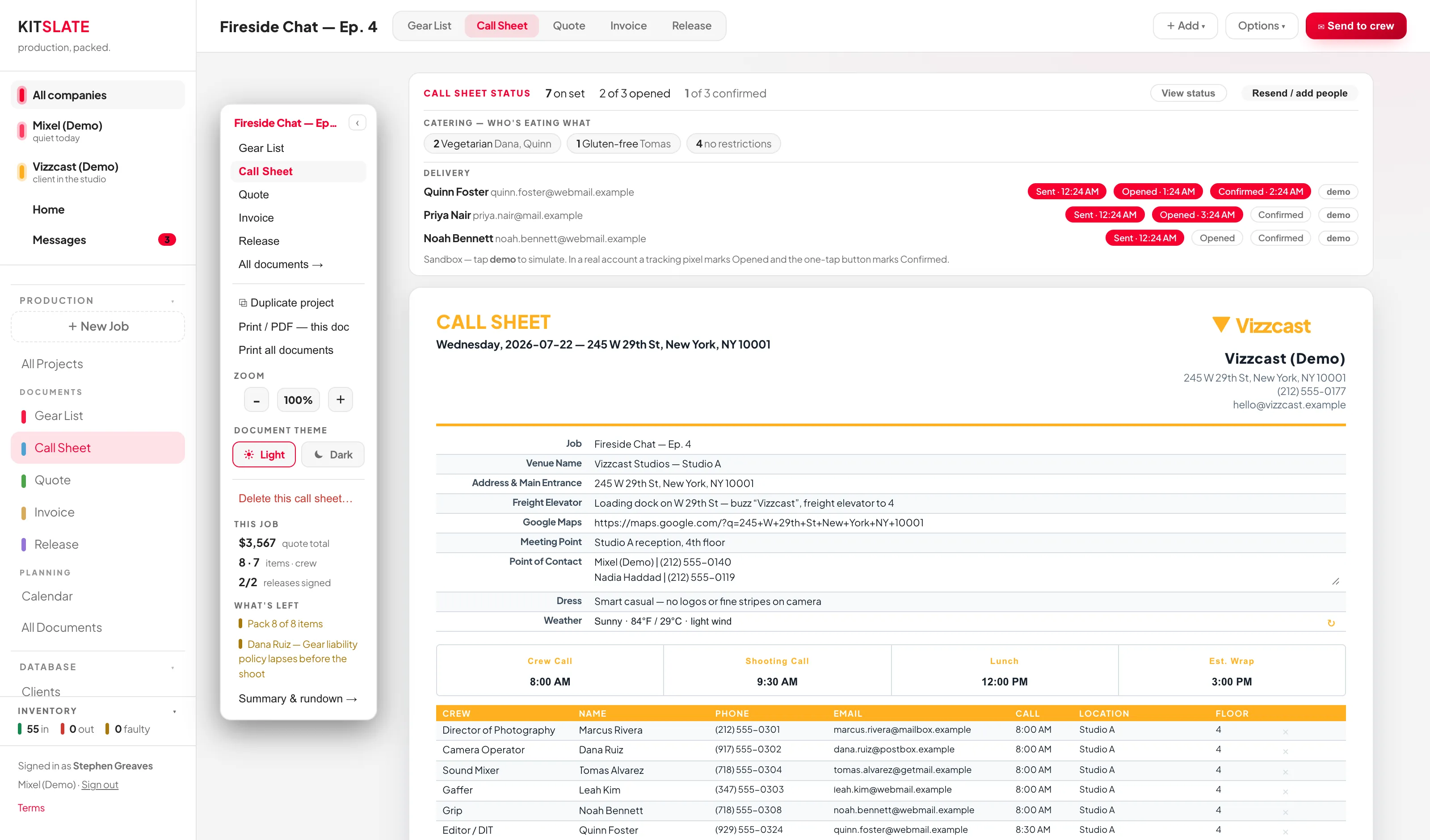
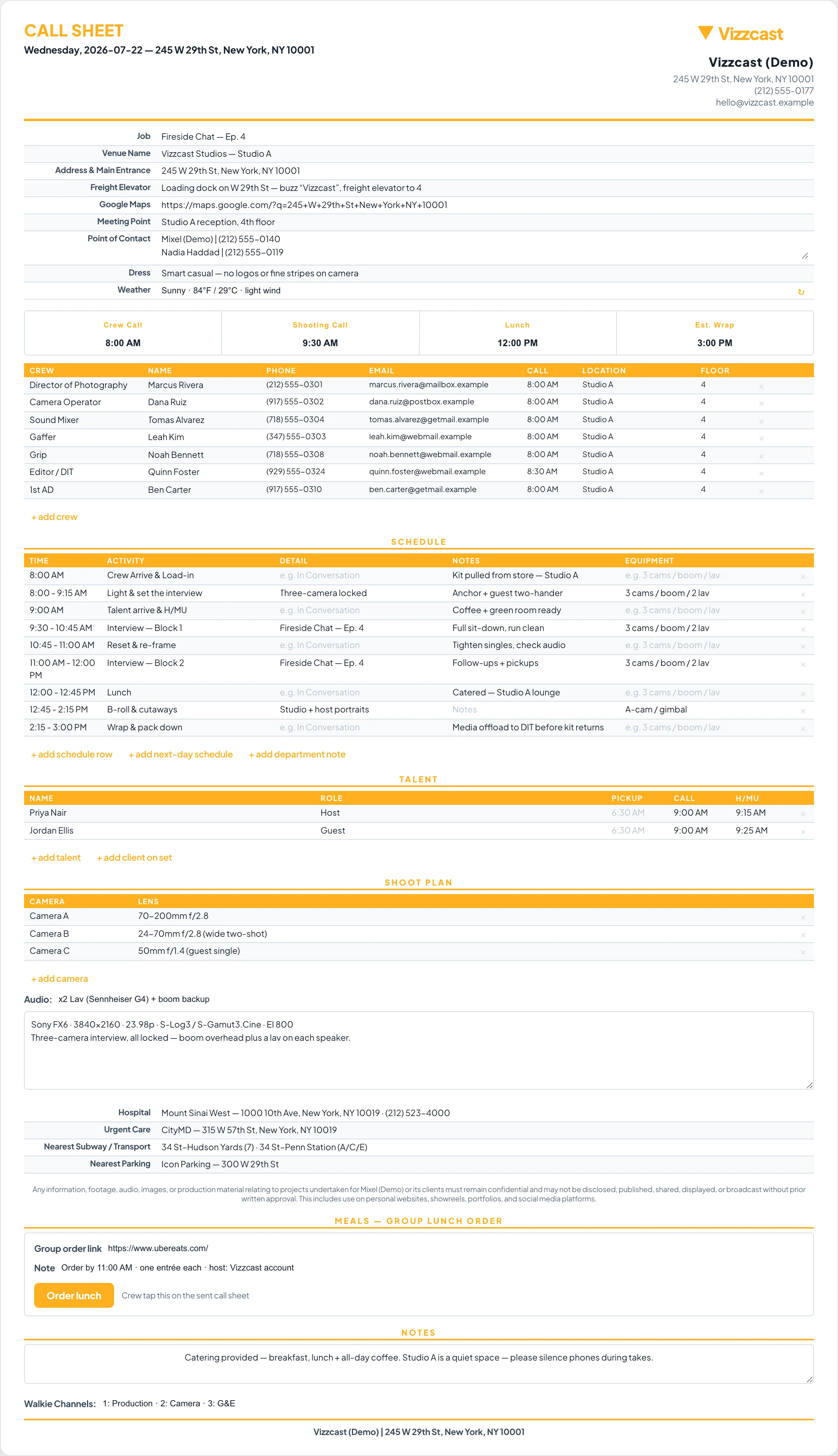
The Call sheet card holds the day: Job, the top Notes line, Venue name, Address & main entrance, Meeting point, Freight elevator, Dress, Weather and Point of contact. Address & main entrance is the same address control the crew and client forms use: type and pick, the parts fill in, the map draws underneath, and a Google Maps link is made from it (Open in Google Maps, Copy link); paste a Google Maps link into the box under the map and the address fills in the other way. It follows the job’s Filming location on the Settings tab until you type here, and Use the job’s filming location makes it follow again. There is no separate map-link field: the PDF, the crew’s page and the email all make their map link from this address. Long values wrap onto a second line rather than scrolling out of the box. Then the Key times card — Crew Call / Shooting Call / Lunch / Est. Wrap, whose labels you can rename — followed by:
- Crew — crew, name, phone, email, call time, location, notes. + Add crew, + Talent and + Client on set sit on the card itself.
- SCHEDULE — time, activity, detail, notes, equipment, and a WHO line under each item with Assign for the people it involves. There is no separate next-day block any more: the next day is the next tab.
- Talent, Clients on set and Department notes — each its own card, added from the card’s own button or from Add ▾: + Crew — from your crew database…, + Talent — from your crew database…, + Client on set — from your clients…, + Department note. The talent list is what feeds the Agreement; a client on set's last column is Notes.
- Shoot plan — cameras, audio and plan notes, with the camera settings shown from the Gear List.
- Nearby — Hospital, Urgent care, Nearest subway / transport, Nearest parking. The confidentiality line prints on the sheet; it is not edited here.
- Meals — group lunch order — paste a group-order link and an Order lunch button appears in the emailed sheet. A link pasted without https:// still works; something that is not a web address at all (“ask Steve, he’s ordering”) makes no button, and the field says so. A lunch note on its own, with no link, travels too.
- Notes — one big box for the closing notes (walkie channels go here too), and the Confidentiality line printed at the foot of the sheet. Its default wording for new sheets lives under Settings → How you work → Call sheets; {company} stands for the letterhead company.
- Preview — switch between Crew’s page, the page each person opens from their email with their call first and the map, and PDF, the sheet attached to it; Open full size and Download PDF beside it.
Type it, or press ↻ Fetch to fetch a real forecast from the address and date. It needs both, and only reaches about 16 days ahead.
Every person's call time and location on the CREW table is theirs if you typed it, otherwise the sheet's: a blank call means the Crew Call time, a blank location means the Address & Main Entrance. The editor greys the fallback in so you can see what a blank will read as, and the same rule prints, emails and shows on the crew's own page. A blank Crew Call with people on different times reads Varies — see crew.
Point of Contact works the same way: leave it blank and it follows the letterhead company and the client — change either and the sheet follows. Type your own and it stays yours; Use company & client hands it back.
An hour on its own is read against the day: with a 9 AM crew call, typing 5 in Est. Wrap gives 5:00 PM, not 5:00 AM. 17, 5pm and 5 all mean the same time. Fill from key dates beside the key-times strip seeds the schedule from the strip.
Set the address and, if you have shot there before, the freight, meeting point, maps link, hospital, urgent care, subway and parking fill in from the last sheet at that address — any spelling of it. Only blanks are filled; nothing you typed is overwritten.
Getting crew onto it
Add ▾ → + Crew — from your crew database… opens a searchable picker. Each person shows Add · <their role> and, if they have one, a second button for their secondary role — that choice decides which rate the row uses. Two shortcuts sit at the top: Everyone on the quote (N) and Blank row — type manually.
Type a name into a blank row and the app links it to your address book: if it matches someone you are asked "'X' looks like Y in your Crew address book. Link them?"; if it matches nobody, "Save 'X' to your Crew database?". Phone and email you type here flow back and fill blanks on their record.
Add ▾ also offers + Import call sheet CSV… and AI import — any production's call sheet…, which reads someone else's sheet and links the names to your crew automatically.
+ Import call sheet CSV… expects a file that came out of Export call sheet CSV. Anything else is refused and nothing changes. A real one asks you to confirm first, then replaces the crew, schedule, cameras and venue details on this call sheet — it does not merge them in.
Sending it — and tracking confirmations
✉ Send to crew opens the sending box described under How documents work: the recipient chips and the message on the left (a note names anyone on the sheet with no email), what arrives in their inbox on the right. Press Send to N.
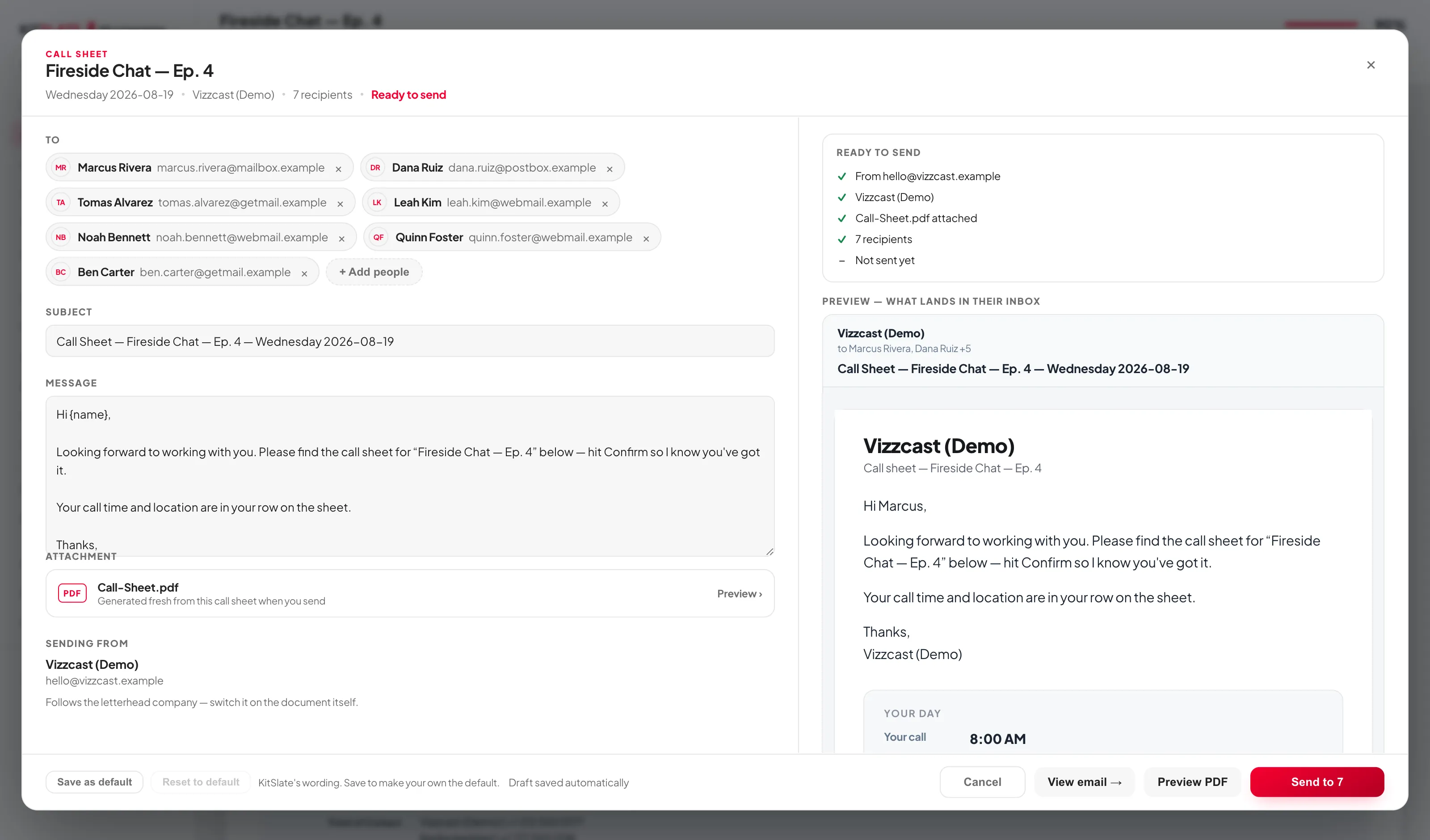
The email opens with the person's own day in a bubble — Your call, their start location (with the Main location alongside when the two differ), the shoot, the date, their role and the contact — then carries every section the sheet has, the same content as the attached PDF, so nobody has to open an attachment on a phone to find their own call time. That includes talent's pickup and HMU times, CLIENTS ON SET, DEPARTMENT NOTES, MEALS and the weather line. The PDF's header mirrors the same facts, and its crew table leads a row with Own start / Main location only when starts actually vary — when everyone starts in the same place it prints as it always did. A Google Maps or lunch link pasted without https:// still opens; if it is not a usable address at all, it is printed as text you can copy rather than a button that goes nowhere.
It sends one email per person so nobody is CC'd — each greets them by name, and crew and talent get their own one-tap Confirm — I'll be there link. The job’s client is never asked to confirm: they get the same full sheet and PDF with View the plan online instead, and opening it is their answer — so a client never holds a job at Crew unconfirmed, and a sheet sent only to the client still counts as sent (the crew are told they still need it). The preview’s Preview as includes the job’s client, so you can see exactly what they get. Confirming opens a page that thanks them and offers View your call sheet →: their own online copy, with their call first, every crew member under Production contacts (pronouns in grey beside the names, and only there), the location and their start, and the Meals section. Replies to the email go to the company on the letterhead, never to KitSlate. The CALL SHEET · STATUS card then tracks each person through Sent → Opened → Confirmed — the tally and how many are on set sit in the collapsed row; open Details ▾ for the per-person grid with times, and a CATERING — WHO'S EATING WHAT summary rolled up from your crew's dietary flags.
The job's Settings tab carries a Sent links card with a row per person the sheet went to: View opens the preview exactly as they see it, with a dropdown to switch person; then Copy link, Resend (they confirm again) and Reset, which takes them back to Sent and clears opened and confirmed. A cancelled or expired link shows the person a plain notice — who sent it, what it was, when, and how to ask for another — rather than a dead page.
Templates and sheet types
Document ▾ holds SHEET TYPE — Shoot Day / Travel Day / Scout / Rehearsal / Load In / Strike — the letterhead picker, and TEMPLATES, where Save this as a template… keeps a layout you can load onto future jobs.
The Key dates card is the other face of the day tabs: a scout the week before, load in the night before, strike the morning after. Each row is a type and a date, each is a tab on the sheet, each draws on the Calendar when Call sheet dates is on, and each clicks straight back to this sheet. Loading a template onto a sheet keeps the job's own crew, talent, clients on set, dates, sent links and address — a template brings its layout and its text, not somebody else's people. Leave it empty and the sheet sits on the shoot date. It is screen-only — the printed and emailed call sheet is unchanged.
↑ ContentsQuote
The price of the job, in five sections that each collapse to one client-friendly line.
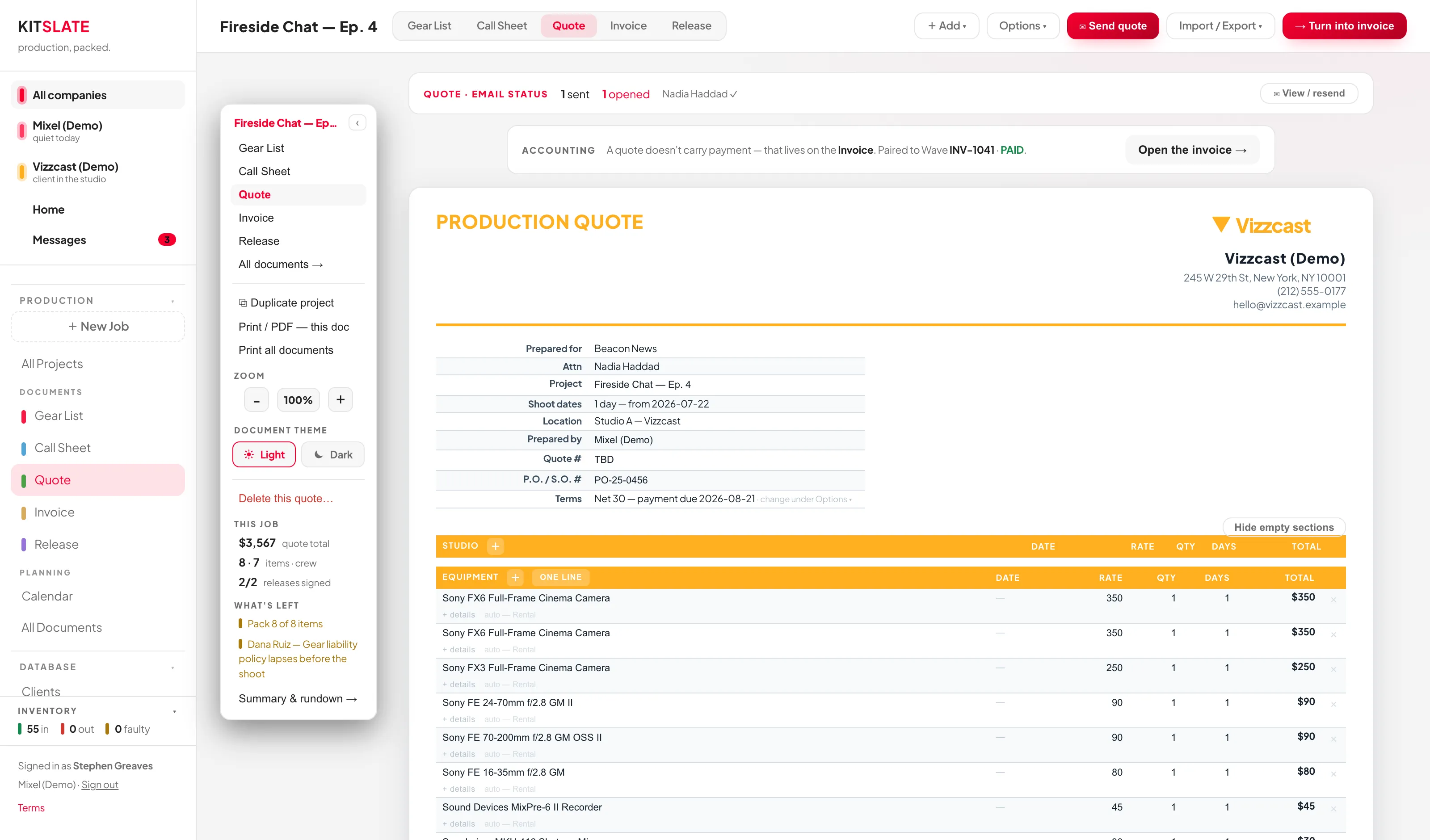
A quote has no number until it is first sent — the field reads Assigned when sent until then, and the number comes from the company's own sequence under Settings → Money → Quotes → Quote numbering (prefix, minimum digits, next number, the same controls invoices have). Its terms come from Settings → Money → Invoices → Terms & due dates. A new quote also starts with the client's regular crew as labour lines, priced from their records.
Sections: Studio, Equipment, Labour / crew, Misc and Banking / payment fees, each a card with + Add line beside its title — and, where it applies, Pick from rate card, Pull from Gear List or Pull crew from Call Sheet. Every line has DESCRIPTION, DATE, RATE, QTY, DAYS, TOTAL and a ×; + details adds a notes block and a ledger-account picker.
The + Add line on Banking / payment fees is the exception: it opens Payment methods and fees rather than a line picker, because a banking fee belongs to a way of paying. See Payment methods and fees.
Each section card carries a three-state control beside its title — Show all / One line / Hide — and all three stay visible (a hidden section keeps a slim card with Show again), so what the client will receive is never a guess about what an ambiguous chip meant. One line is what you want when a client should see "Equipment package — $1,285" rather than 30 rows; the detail stays saved either way. Hide leaves the section out of the document, the PDF and the email. The control is editor-only and never prints. Hide empty sections tidies the rest away.
Pulling from the other documents
Add ▾ → PULL FROM:
- ⇄ A gear list — priced items & kits
- ⇄ Call sheet crew — as labour lines
Equipment lines created from a gear list keep a hidden link, so adding or removing gear updates the quote. It works the other way too: deleting a linked equipment line on the quote also removes that item from the gear list. Hand-typed lines are never touched.
One side effect of pulling: pulls de-duplicate by description, so a renamed line can come through twice. An unpriced item comes through as a $0 line you can price in place — it is never dropped.
Crew lines, overtime and discounts
Crew lines show DAY RATE × DAYS plus an OVERTIME column (×1.5 = $/hr) and a + with gear / – person only switch for people who bring their own kit. Bill a line below its listed rate and you get a struck-through "listed" figure and an automatic DISCOUNT row. Percentage banking fees recalculate on the pre-fee total.
A rate cell takes money written the way it reads: 1,250, $1,250.00 and 1250 all enter the same rate, so a figure copied from a document does not need cleaning up first. Rates are committed to the cent — type 100.005 and the cell redraws as 100.01, which is what is stored and what is charged.
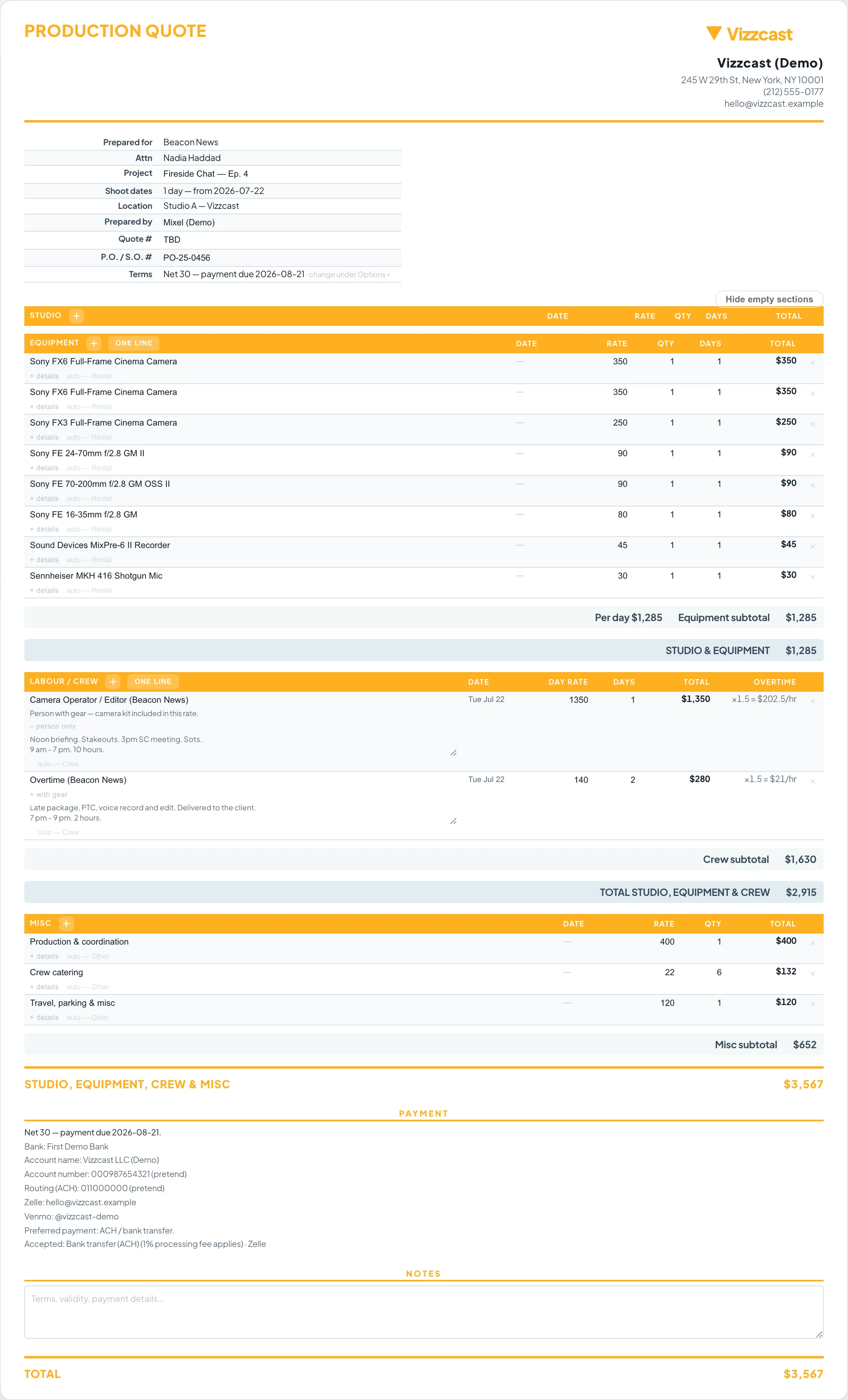
The Totals card carries Production fee…, Tax… and Hide empty sections; the Terms & payment card carries the terms (Due on receipt through Net 60), the valid-until date, Ways to pay… and the notes to the client. Document ▾ keeps the equipment pricing term and the page options — payment info, ledger summary, the DATE column, line details — and links to ⚙ Quote settings.
↑ ContentsInvoice
A frozen copy of the quote, with its own number and date.
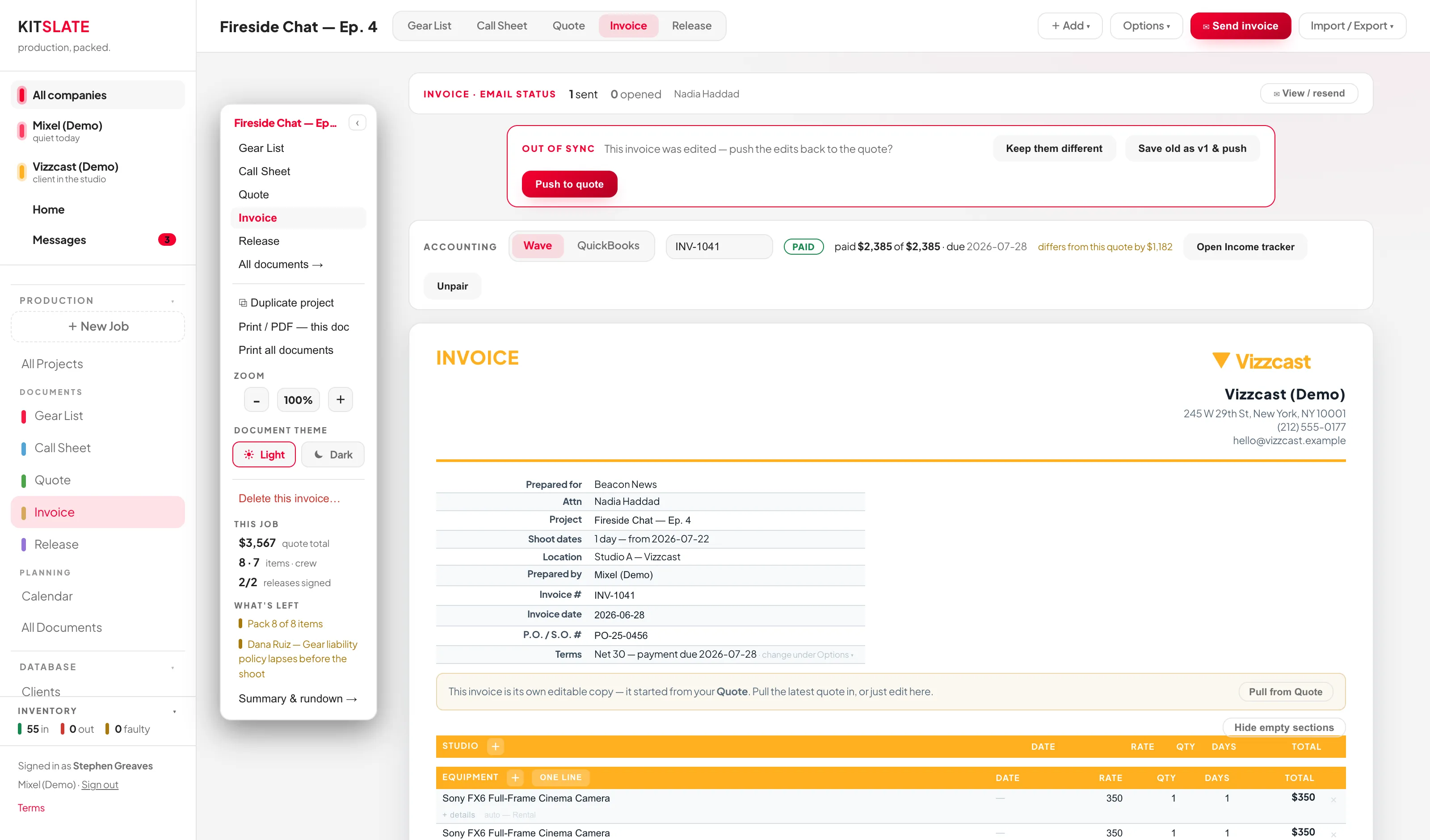
Use → Turn into invoice on the quote, or open the greyed-out Invoice tab: Create invoice from the quote copies its lines, and Start a blank invoice begins empty. With no quote yet, the tab offers a blank invoice.
It takes its own invoice date and terms, and its number the moment it is first published or sent — until then the field reads Assigned when sent, so a draft you abandon never spends a number. The job's Settings tab shows the number read-only, with the way to the sequence. The quote keeps living alongside it.
Numbers are sequential, per company, and set under Settings → Money → Invoices → Invoice numbering: a Prefix (blank is fine — you can number 1, 2, 3), Minimum digits (4 gives 0007, 0 gives 7) and the Next number. The page previews the next three and tells you the highest number issued so far.
Next number sets a floor and cannot be dropped below the highest number already issued — two invoices carrying one number is an accounting problem, not a preference. Changing any of this never renumbers an invoice that already exists, and imported invoices keep the numbers they came in with. The counter moves only when an invoice is actually raised, never on a preview.
When the two drift apart
Edit either side and a bar appears — OUT OF SYNC or BIG CHANGE — offering Keep them different, Save old as vN & push, or Push to invoice. Archived versions come back via Restore v1 · date.
Once you have imported your invoice list under Reports → Income tracker, the INVOICED SOMEWHERE ELSE strip also shows UNPAID / PARTIAL / PAID, the amount paid, the due date, and whether the figure still matches the quote.
The INVOICE · STATUS card above it keeps the money readable at a glance and never hides it: the outstanding balance and due date (turning red with — overdue when it passes) sit in the collapsed row, the tally adds viewed and paid from the invoice's own hosted page, and Details ▾ shows the per-recipient grid plus a PAYMENT row — paid so far against the total, with Record payment for money taken outside the app.
Payment methods and fees
One dialog decides how a client can pay this invoice and what that costs. Open it from Add ▾ → + Banking fee — wire, card fees, free routes…, or from the + on the BANKING / PAYMENT FEES header. Both go to the same place.
Every method your company accepts is listed, each with what it costs you and the details the client will be told to pay into — bank block, Zelle address, Venmo handle. A method with nothing filled in says which Settings field would fill it instead of looking configured.
- Add / Remove — whether the method prints on this invoice at all. Nothing is offered until you say so; a new invoice starts with none of them on.
- Quote fee — prints "1% processing fee" beside the method. Wording only; the total does not move.
- Charge it — adds the calculated amount as a real line in BANKING / PAYMENT FEES, so it is in the total. Press it again to take the line off.
Online card payment (Stripe) sits at the top of the same list. Adding it is what gives the client a Pay button on the invoice page. Its row reports what Stripe will actually allow — Enabled, On when approved, or blocked with the reason — so it never offers an action the server would refuse. You can switch it on at any stage; the server turns it on for the client the moment the invoice is approved.
Add a method that costs you something and you are asked once whether to pass it on, with the arithmetic done: "Taking this payment costs you 2.9% + $0.60 — $34.60 on this invoice's $1,000." Decline and the amount you have chosen to absorb is said out loud.
Answer it permanently in Settings → Money → Payments: each method has You absorb it / Add to the invoice. Until a method is set, it keeps asking on every document — an unanswered question is not permission to bill a client.
One-off fees
Below the methods sits ONE-OFF FEES — lines that belong to no payment route. A wire surcharge under $1,000, a correspondent bank's cut. Add blank row drops an empty line into BANKING / PAYMENT FEES for you to type yourself. A blank line is yours to edit but not yet the client's to see: the section joins the invoice, the PDF and the email the moment a fee has a name or an amount, and stays off all three until then.
These are not ways to pay: they never print in the payment block, and removing a payment method never removes them. The catalogue behind them is shared by every company, while payment methods belong to one company each — which is why the two are edited on separate tabs in Settings.
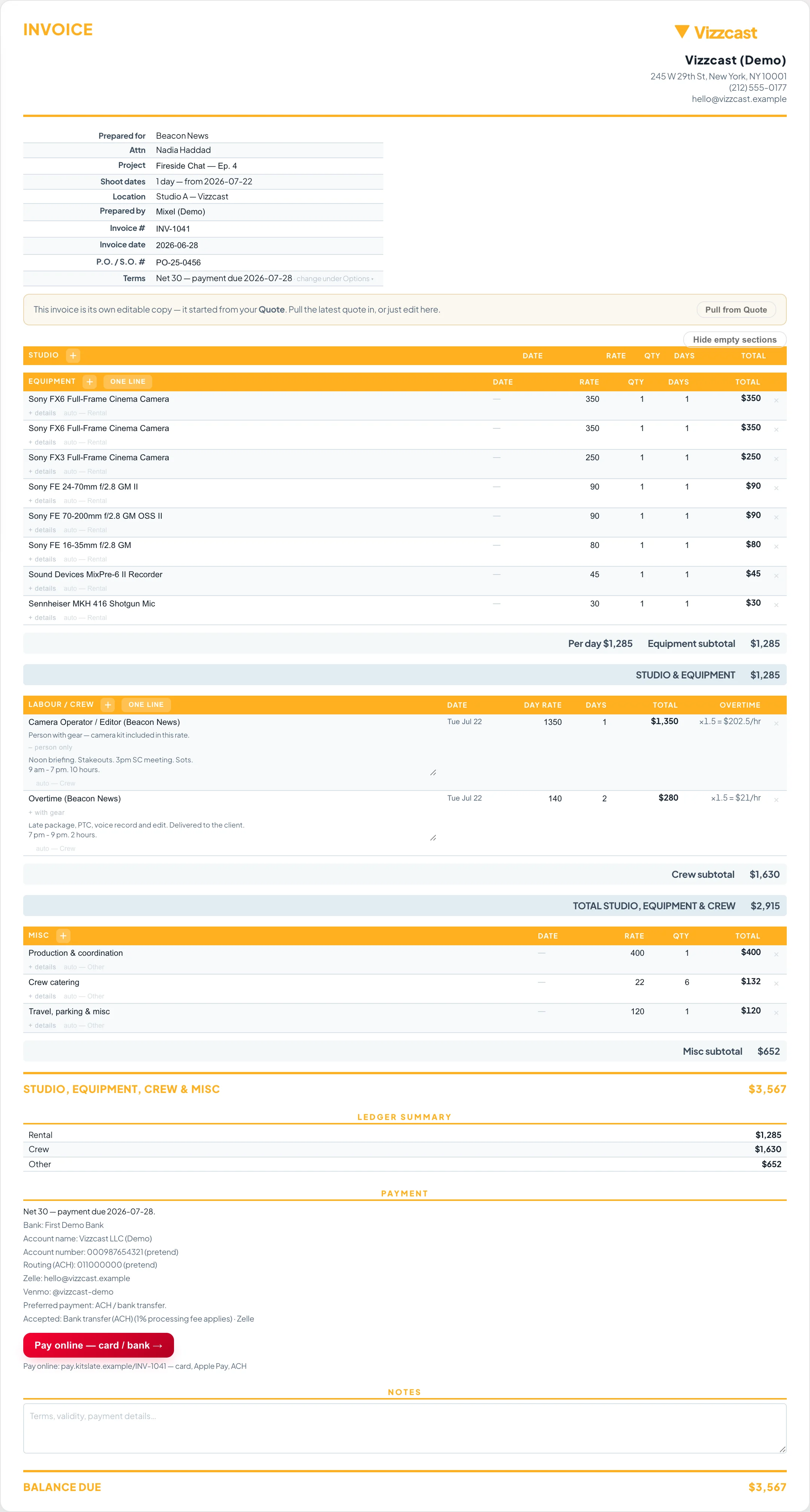
The PDF attached to invoice and quote emails follows the same structure as the page and the hosted copy: the same sections with their headings and subtotals, the same totals, the same payment details, and — on a published invoice — the same paid / partly paid / overdue status. Dates and amounts format identically everywhere.
One deliberate difference: the attachment never carries the payment link. A PDF gets forwarded and filed beyond the original email, so the private link stays in the email itself and on the hosted invoice — the attachment says exactly that in its payment section, and paying online happens from those two places only.
Invoices published from now on carry the same section grouping you built onto the hosted page the client opens: section headings, per-section subtotals, combined subtotals, and a section you collapsed to one line stays one line. Invoices published before this keep the simpler list they were published with — nothing already sent changes.
Totals, amount due and the paid / partly paid / overdue status always come from the authoritative invoice record, never from the page's presentation — the sections are how the document reads, not what it charges.
The hosted invoice's Pay <amount> button opens a real Stripe checkout. Your client is charged, and the money goes to your own Stripe balance — KitSlate takes no cut and never holds the funds. Treat it as live: do not press it on a real invoice to see what happens.
It appears only when the invoice is published, still has a balance outstanding, has online payment switched on, and the company behind it has connected a Stripe account with charges enabled. Where any of those is not true, the payment block says so and lists whatever other methods you have set up instead.
While it is on, you see the same PAYING THIS INVOICE box the client sees — the Pay <amount> button and the code to scan with a phone — on the invoice's own page and in the editor's preview, so you can check it is there before you send. In your own copies the button opens the client's page rather than a checkout.
What you see is what was published
Once an invoice is approved, every copy you can produce of it — Download PDF, Print, the emailed attachment, the hosted page, the document panel on its page — renders the approved record, not whatever the editor currently says. Edit after approval and the page tells you plainly: "Edited since Version 2 — the client still sees Version 2 ($3,760); this now says $4,720." Press Send with unsaved changes and KitSlate asks first, with both figures, whether to save and send — there is no way to email a mixture of old and new.
One line: Draft → Approved → Sent
An invoice is a Draft until you approve it. Approve invoice locks the document and total and creates the client's link; the invoice reads Approved everywhere — the Invoices list, its tab, its page and the job — until an email goes out, when it reads Sent — or until you Mark as sent because you sent it yourself (through Wave, QuickBooks or your own email), when it reads Marked sent, so you can always tell which ones KitSlate actually delivered. Nothing else ever calls it Sent. From there it moves to Viewed, Partial, Paid or Overdue on its own evidence — and Viewed only counts an opening of the client's link on or after the day it was sent, so you checking the page before sending it never reads as the client having seen it. Marked it sent by mistake? Actions ▾ → Undo mark as sent takes back exactly what the mark did, including the approval if marking it was what approved it. An invoice KitSlate emailed has no undo. The invoice's page shows the four stages under its number — Draft · Approved · Sent · Paid — with the current one lit and the ones behind it ticked.
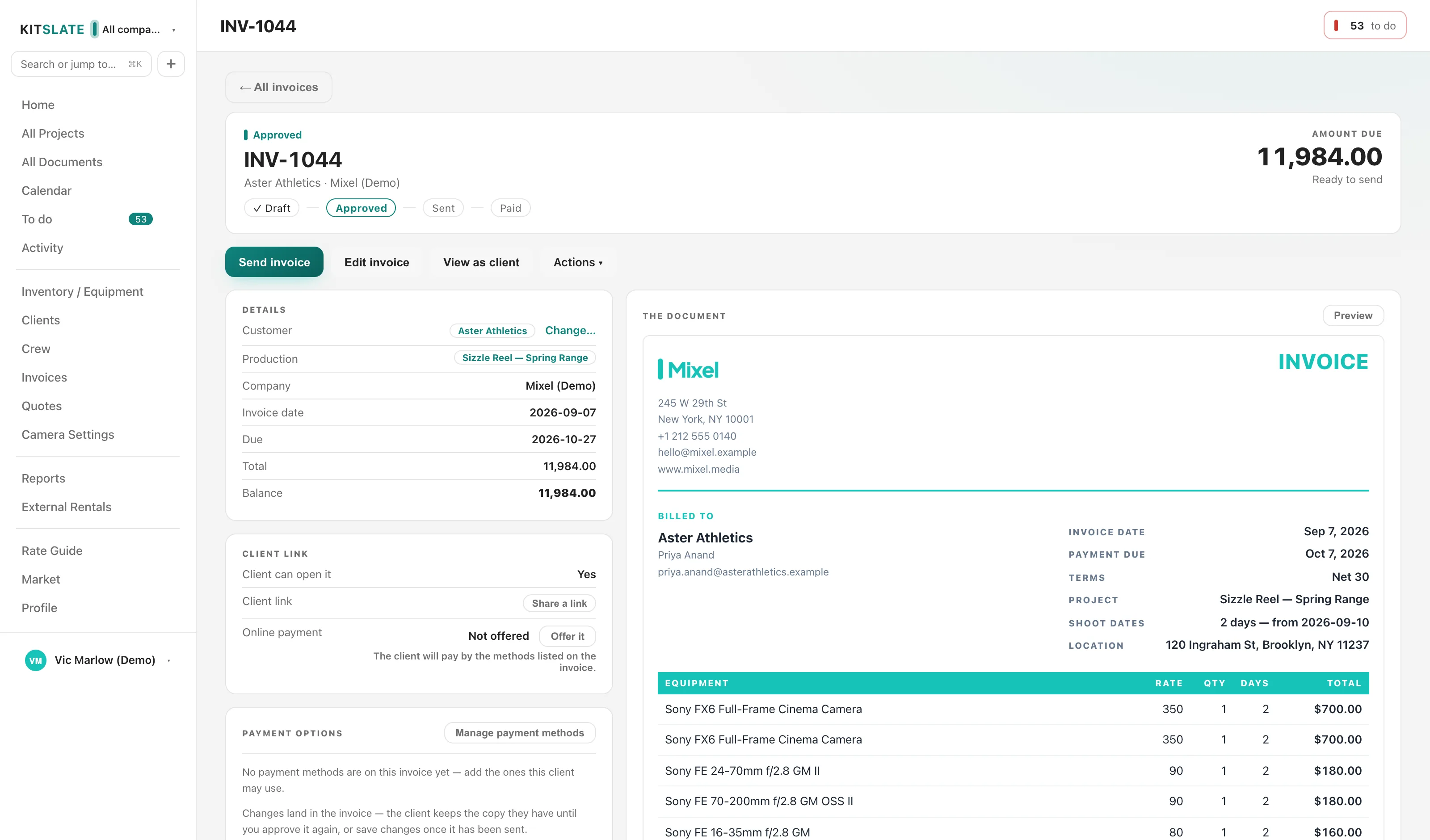
Editing an approved invoice
Edit an approved invoice before it is sent and it is a Draft again: it sits in the Draft tab, and its page shows the edited document with a note that the client still has the approved version. The button that takes it back is Save — on the editor, on the invoice's page and in its VERSIONS card — and it approves the invoice again with your edits, updating the copy at the client's link as a new version. Charging expenses onto it works the same way. Once an invoice has been sent, the client already has a copy, so an edit is saved as a new version instead — the page says "Edited since Version 2" and the next step is Save changes, with the option to email the client about the update.
The invoice's page and its editor carry the same bar, and its main button always names the next step:
- Save — a new invoice, which files it under Invoices as a draft.
- Approve invoice — the first time only.
- Send invoice — once it is approved.
- Email again — once it has been sent.
- Save — on an invoice you edited after approving it.
- Record payment — when it is out and waiting for the money.
Beside it: Edit invoice, and View as client, which opens the real hosted page once the invoice is approved. Everything else sits under Actions ▾.
On a wide screen — a large monitor or two — the Preview card on the quote, invoice, gear list and call sheet editors leaves the foot of the page and sits beside the document on the right, level with the top, and stays there while you scroll and edit. Make the window narrower and it goes back below. There is no in-between and the page never scrolls sideways.
Every published version is kept. The detail page's VERSIONS panel lists the current one and every superseded one — open any of them read-only, download its own PDF, or Compare it against the current version line by line. History cannot be edited or deleted, and a paid invoice cannot be revised at all: correcting a paid invoice is a credit note or a second invoice (Duplicate gives you the same document under a new number).
The Invoices page
RECORDS → Invoices in the sidebar is every invoice you have raised, in one place: what is owed, what is overdue, and what has been paid. An invoice does not have to be a production's document any more — one raised here stands on its own.
Across the top, five summary cells:
- Overdue — the money past its due date, in red, with how many invoices that is.
- Due within next 30 days.
- Paid this month — counted by the date the money actually arrived, not the invoice date. A paid invoice with no payment date cannot be placed in a month, so it is left out and the cell says how many are in that position rather than quietly assigning them to this one.
- Average time to get paid — from invoices that have both a send date and a payment date. With too few, it says Not enough data instead of a number.
- Upcoming payout — always Not available. KitSlate does not read Stripe's payouts API, and a figure worked out from what has been paid would be a guess dressed as a balance, so the cell points at your Stripe dashboard instead.
Rows can belong to companies billing in different currencies, and there is no exchange rate anywhere in KitSlate. A mixed cell prints each currency on its own line and says "2 currencies, never added together". And because the cells are company-scoped, a switched-off company would make every one of them read as an absence — so where something is scoped out, each empty cell says "Not counting N invoices hidden by the company filter" rather than asserting that nothing exists.
Below the cells: the company switch (only with more than one company), then Filters, which folds open and carries a count of how many are active. Inside it — customer, status, an Issued date range, a Due date range, invoice number, production, and Clear filters. That last button is always drawn, disabled when nothing is set, so the row is the same height in every state and the list beneath it never jumps as you filter.
Then the status tabs, always in lifecycle order and always all of them, each with its count: Draft, Approved, Unpaid, Paid, All invoices. The page opens on All invoices. A stage that vanished when empty could not be reasoned about, so none of them do. Void appears as a sixth tab only when something actually is void — that is an exception, not a stage every invoice passes through.
The table itself: status, due, invoice number with the issue date under it, customer, production, company, total, amount due with what has been paid under it, and payment method. A long customer, production or company name wraps onto a second line rather than being cut short, and the whole table fits a laptop screen without scrolling sideways. Due, invoice number, customer, total and amount due all sort. Clicking anywhere on a row opens the invoice.
The row menu
The ⋯ at the end of each row is the only action control, and it lists only what that invoice can really do in its current state — nothing renders that would do nothing when pressed. What you see depends on what kind of invoice it is.
- A production's invoice — open it, view the client's page, edit the document (or just view it once paid or void), duplicate, open the production, Approve invoice while it is a draft, Mark as sent for one that went out through your accounting package, send or email again, Record payment, payment history, open or copy the client link, download the PDF, print, and the timeline. Then, at the bottom, Void the invoice (cancels it without deleting the record) and Delete the invoice.
- A standalone invoice — the same shape without anything that needs a production. A draft's primary action is Approve invoice, not Send: approving and sending are two different decisions, and collapsing them made the amount a claim on somebody's money the instant it left the building. Once approved, ✉ Send invoice is the primary. Edit invoice on an already-sent invoice reopens it as a draft and says so — the client's link pauses until you resend. A paid invoice has no Edit at all: correcting what somebody has already paid is a credit note.
- An imported invoice — open it, open its production if it has one, and payment history. There is no KitSlate document behind it, so there is nothing to edit, send or print.
Copy client link copies a live link, and mints one first if none exists — the client's existing link is untouched either way and the new one is recorded. Duplicate invoice always produces a fresh unpaid standalone draft under its own number, from any state including paid and void.
The two doors at the top
- Import invoice… — an invoice raised somewhere else. It arrives here read-only with the original file attached. Same importer as everywhere else; see Importing an invoice you raised somewhere else.
- Create invoice — raises a blank standalone invoice straight away. The ▾ beside it offers the same thing spelled out (Blank invoice — a standalone invoice, not attached to a production) and From production…, which opens the Create Production launcher.
RECORDS → Quotes is the simpler cousin: one card per production showing its client, date, location and the quote total — or not started. Click one to open that production's quote. It is a way in, not a second editor.
Deleting several at once
The Invoices list has a checkbox on every row (and on each card on a phone). The header checkbox selects everything visible in the current tab and filters; the selection survives switching tabs and filters, and the bar above the table says so — "7 selected · 3 visible in this view" means four more are selected in other tabs, and they will be in the batch.
Delete selected lists exactly what will go — numbers, customers, combined value — and requires you to type DELETE before the button arms. Invoices with a payment recorded against them are never deleted: they are named in the same dialog as protected, and they stay selected afterwards so you can decide to void them instead. Deletion is permanent, same as the single delete — client links stop working and there is no undo.
↑ ContentsAgreements
Anything that needs a signature — a talent release, a location release, or wording of your own — written once, sent, signed on a phone, chased and filed.
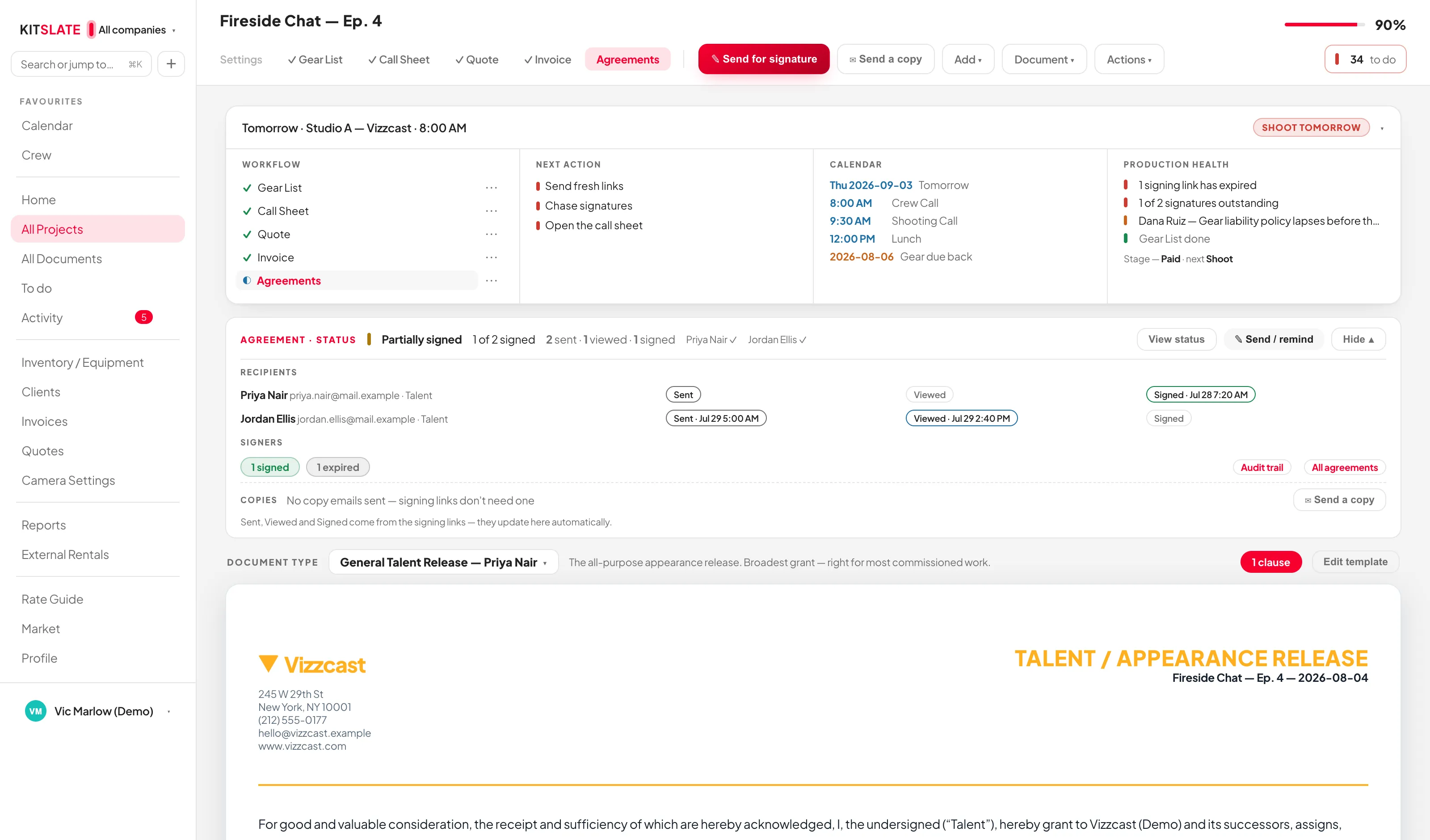
It is the same feature, the same signing engine and the same audit trail — it covers more than talent now, so the tab, the status card and the settings all read Agreements. Nothing you already had changed: existing releases open where they always did, old signing links still work, and every signature already collected is untouched.
Choosing what kind of document it is
The DOCUMENT TYPE bar above the page picks what this production needs signed. Five types ship:
- General Talent Release — someone appearing on camera consents to being recorded and to the material being used. Eight wordings ship under this type: General Talent, Appearance, Documentary, Commercial, Interview, Podcast, Reality TV and Social Media.
- Location Release — whoever controls a property gives permission to film there, to bring people and equipment onto it, and to use the resulting material. Signed by an Authorized Property Representative rather than talent.
- Studio Hire — a client hires your studio or space, signed by the hirer.
- Production Services — you produce content for a client: services, deliverables, rights and payment, signed by the client.
- Other / Custom Agreement — write your own. A crew NDA, a contractor letter, anything that needs signing and is not one of the built-in types.
Switching type regenerates the document instantly. If people have already been sent the old one, KitSlate asks first — because they would otherwise be signing something they were never shown. Anyone who has already signed is never affected.
The Location Release
A location release is about a property, so the page carries a THE PROPERTY block the other types do not: Property / location name, Property address and Description of the premises. These are the only place those values are edited, and they feed the wording directly — type an address and the paragraph that quotes it resolves as you type, so you can see the real document rather than a placeholder.
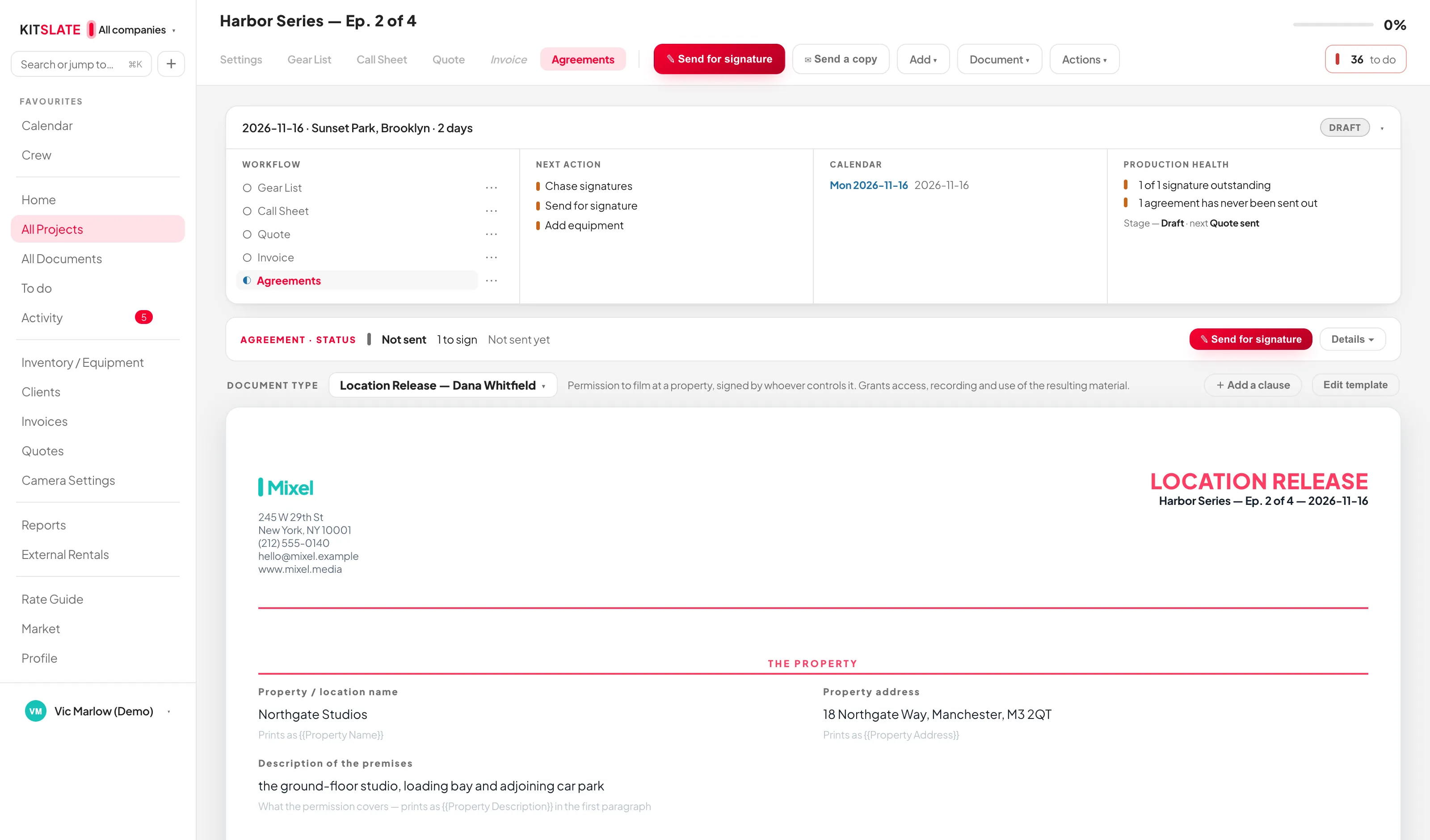
They print as {{Property Name}}, {{Property Address}} and {{Property Description}}. Everything else — the production name, your company, your address — comes from what KitSlate already knows, so nothing is typed twice.
Other / Custom Agreement
Pick this type and you write the document itself on the production: an Agreement title that prints as the heading, and as many paragraphs as you need, each with move and delete controls. Merge fields work in them exactly as they do in a template, and clauses can be added on top.
A custom agreement is a one-off — its wording lives on that production, so writing one here cannot change any other job, and editing a built-in template cannot change this one. It saves to your account like everything else: reload the page, or open the production on another machine, and it is there.
What every type shares
Whichever type you pick, it is one signing system. There is no second workflow to learn:
- AGREEMENT · STATUS — the same status card every document has, here tracking the signing ceremony: 2 of 3 signed in the headline, each signer’s Sent → Viewed → Signed with times under Details ▾. A signed minor still missing a guardian signature, or signers gone quiet past your reminder mark, are flagged on the card even collapsed.
- SIGNERS (inside Details ▾) — a filter pill per state (not sent, awaiting, viewed, reminder sent, signed, declined, expired). Audit trail and All agreements sit beside them, and a COPIES row covers the send-a-copy emails every other document has.
- The document type bar — which wording this production is using, how many optional clauses are on it, and Edit template.
Templates, clauses and profiles
The wording lives in Settings → Agreements, not on the job, so you write it once and every production picks it up. Templates are grouped by the type they belong to. Change a template and every agreement still in draft regenerates instantly — but anyone who has already signed keeps the exact wording they agreed to. Their signed copy, and every copy regenerated afterwards, reproduces the text they actually saw, not the edited template. That holds for every type.
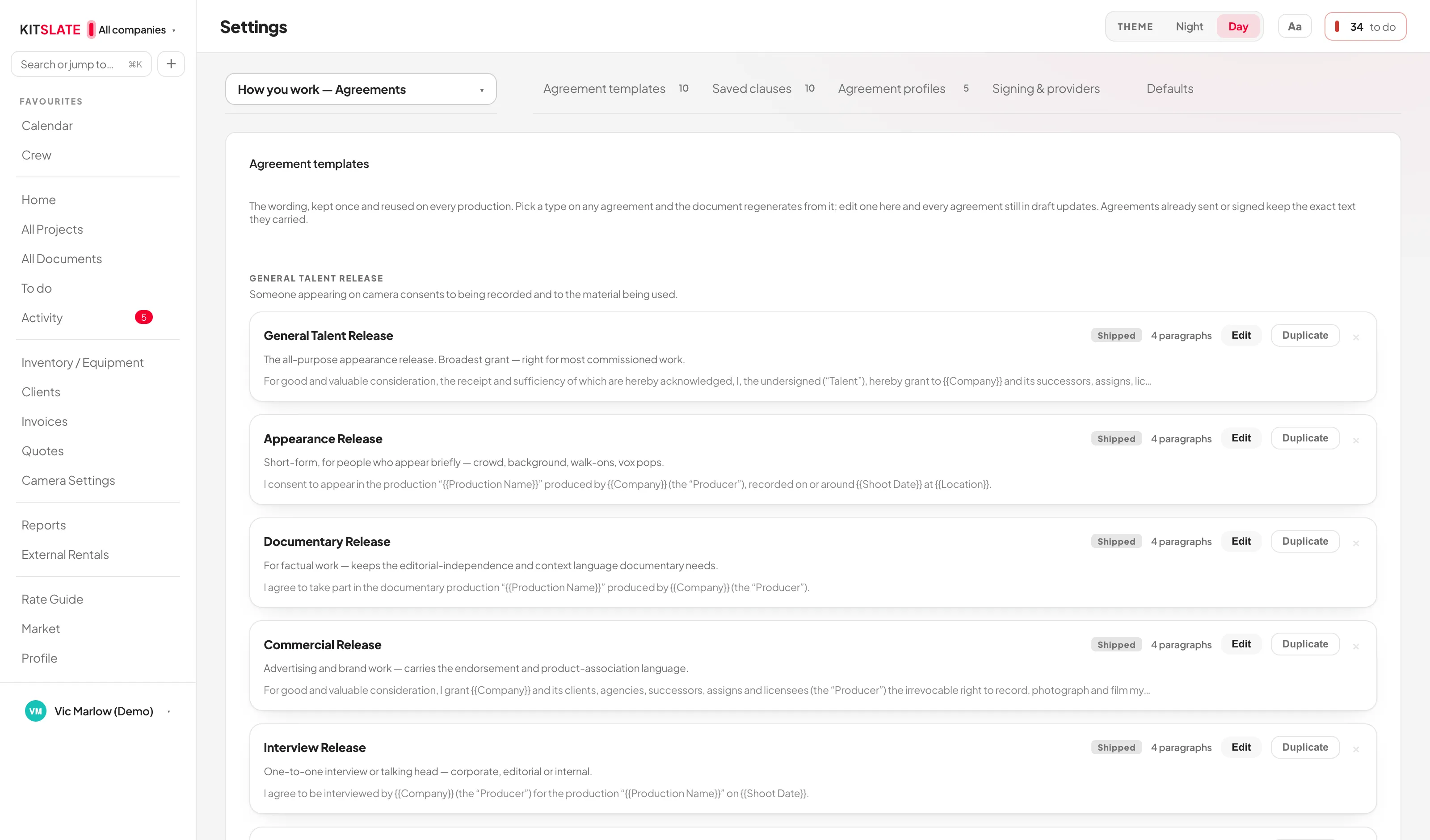
- Agreement templates — name, description, title, header, body paragraphs, footer, signature wording, colour and logo. Duplicate any of them; a shipped one you edit stays edited, and Reset to KitSlate wording puts it back. Templates you build or bring in are listed first, under YOURS; KitSlate's own sit below by type.
- Optional clauses — reusable paragraphs: AI Usage, Social Media, Exclusivity, Territory, Time Limited Licence, Credit Requirement, Music Rights, NDA, Usage Restrictions, No Further Payment. Build them into a template so they always print, or add one to a single agreement from Document ▾ → Optional clauses on this agreement…. Write your own too.
- Presets (under Templates & presets) — one choice instead of four. Picking Podcast or Commercial on a production sets the template, the clauses and the reminder schedule together.
- Signing — KitSlate’s own signing engine is built in and needs nothing connected. There is no other signing provider; the agreement, the templates and the audit trail don’t change when a provider is switched.
- Defaults — Starting template (the one a new agreement opens on — or Choose from the list each time, so every new agreement begins at the chooser), whether KitSlate's templates are shown or hidden in the lists to begin with, whether reminders are armed, and how long signing links live.
Templates and presets are wording, not letterhead. The preview in Settings leaves Company unfilled: the company, its address and the producer come from the production the agreement is created on, so one template serves every company you invoice as.
Starting a new agreement
+ New agreement on the Agreements tab opens the chooser. YOURS — the templates and presets you built or brought in — sits at the top; KitSlate's own templates are grouped by type underneath, and Start blank is last. Hide KitSlate's templates / Show KitSlate's templates folds the built-in groups away to a single line each; that switch is remembered on this device only, and the workspace-wide starting position lives in Defaults. Pick one and the agreement opens on the production, ready to fill in and send.
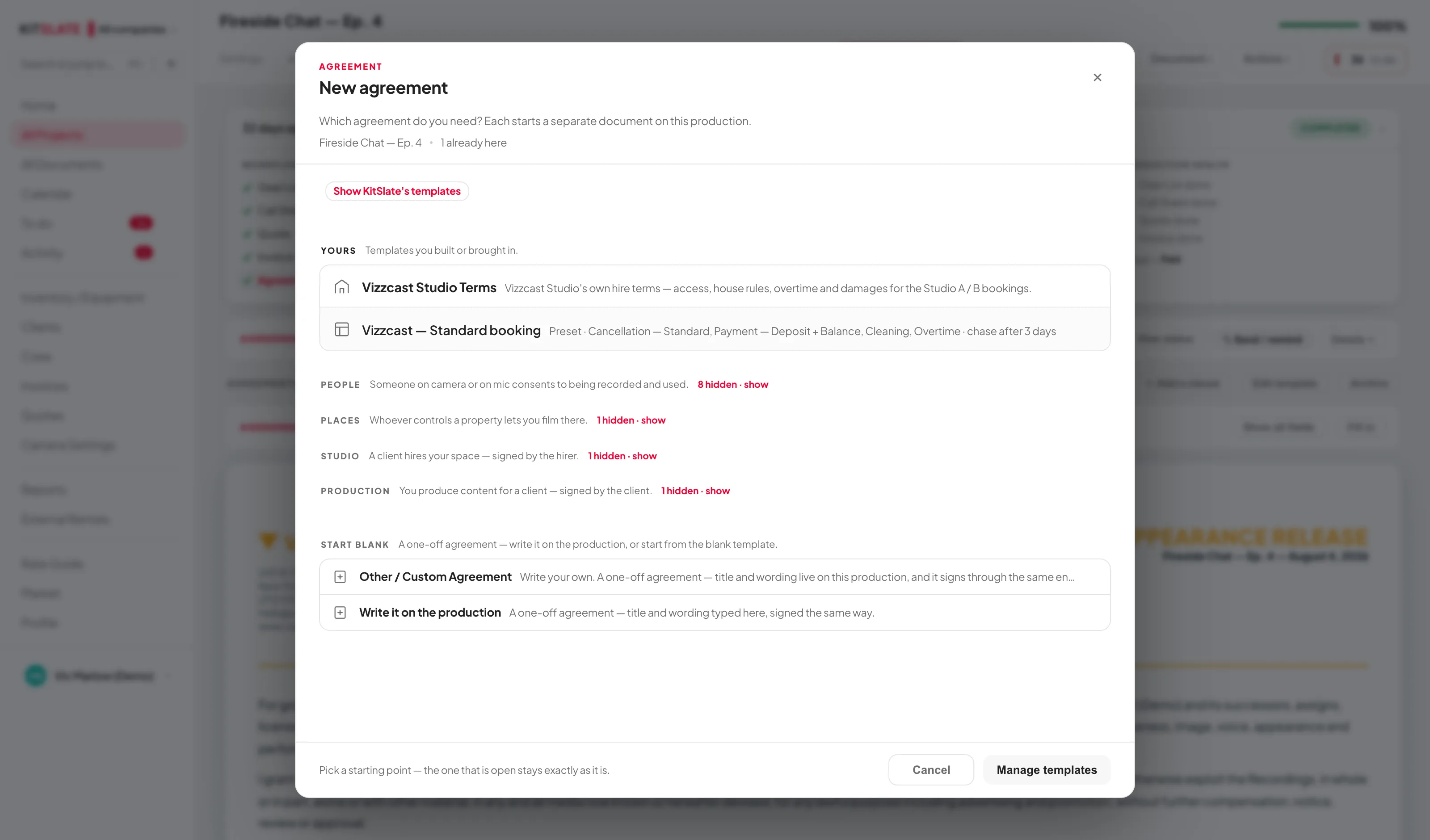
The visual editor
Edit template opens a block editor with the real document rendering live beside it. Each body paragraph is its own block with move and delete controls. Typing / or {{ anywhere in a paragraph opens the merge-field and clause menu inline.
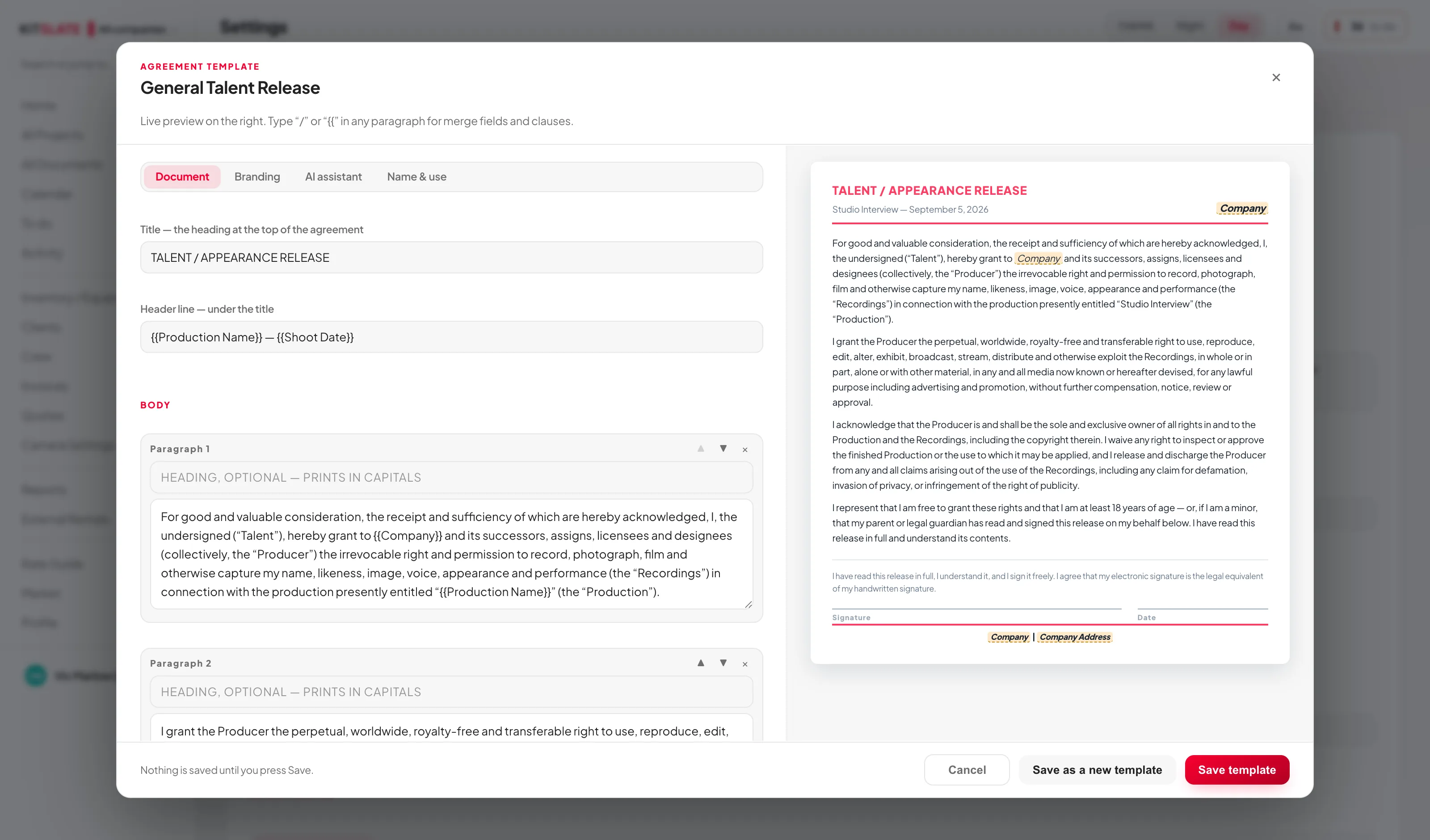
The amber highlights are the fields that fill themselves. In the template preview, a merge field with nothing behind it yet — Company, Company Address, Production Name, Shoot Date — is marked in amber so you can see at a glance what the production will supply. On the agreement itself those same fields print with the real values, and anything still empty prints as its field name in square brackets rather than as a raw {{token}}.
Merge fields resolve per signer, which is what lets one template serve a whole cast: {{Production Name}}, {{Shoot Date}}, {{Location}}, {{Project Number}}, {{Company}}, {{Company Address}}, {{Producer}}, {{Producer Email}}, {{Talent Name}}, {{Talent Email}}, {{Talent Role}}, {{Guardian Name}}, {{Property Name}}, {{Property Address}}, {{Property Description}}, {{Today’s Date}}, plus any custom field you add per production under Document ▾ → Custom merge fields…. A field with nothing behind it shows highlighted on screen and prints as [Field Name] — never as raw {{ }} placeholder text.
The editor’s AI assistant tab rewrites the body only: improve wording, shorten, simplify, more formal, more friendly, US English, UK English, or generate a fresh documentary / commercial / podcast / interview wording. Title, clauses, signature wording and the disclaimer are left alone, and one click undoes it. It writes clearer English — read every word before you send it.
Deal terms fill themselves
A studio-hire or production-services agreement asks for money and dates the production already knows. Under AGREEMENT DETAILS → Show all fields, the Deal terms group arrives pre-filled: Hire Fee is the approved quote's payable total and Deposit half of it; Balance Due is two days before the booking; Booking Dates come from the shoot date; Access Times are the call sheet's first and last call; Overtime Rate is your studio's hourly rate. Each filled value says where it came from — "Filled from the call sheet's first and last call — type over it if the deal differs." — and typing over it wins. Deal terms are typed once for the production; every agreement on it reads the same ones.
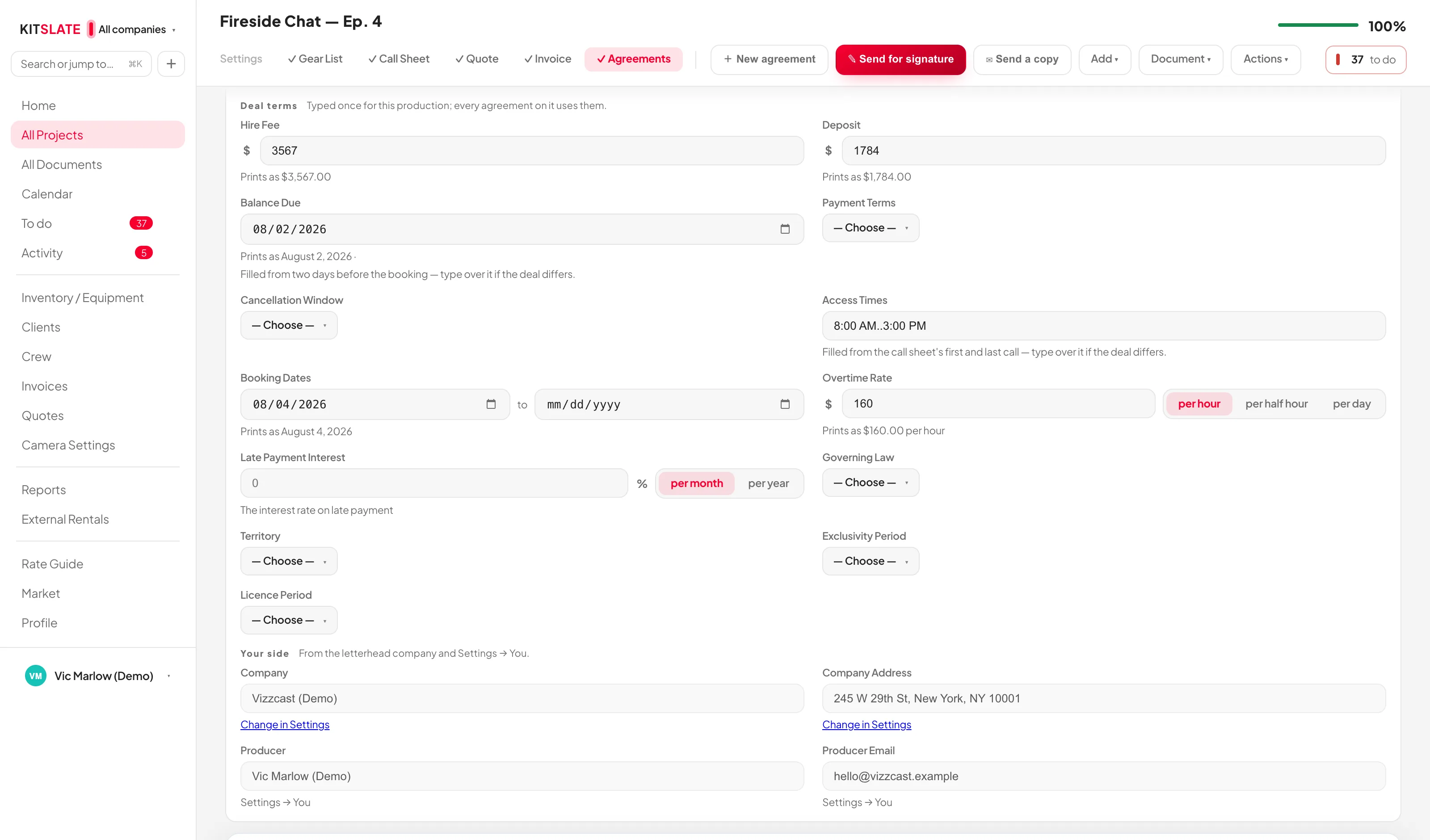
Who signs
⇄ Pull talent from call sheet reconciles rather than duplicating: it matches on name, fills blank roles and emails from the call sheet and your crew database, and tells you what it did. + Add also picks from cast, crew and clients directly.
Each row has a SIGNS AS menu — Talent, Authorized Property Representative, Signer, Guardian, Witness, Producer or Client. A new signer starts as whatever the document type expects, and you can change any row. Each signer carries their own status and their own link.
The Talent is a minor toggle reveals guardian name, email and relationship, and a signed minor with no guardian signature does not count as complete — in the agreement, in Production Health, or in the job’s progress. On the signing link the talent and the guardian each sign on their own pad, with their own name and date. It appears on talent agreements only: a building manager does not need a parent to co-sign. An ADDITIONAL TERMS box prints into the body of this production’s agreement only, and merge fields work in it.
Getting it signed
✎ Send for signature is the main event, in the same sending box every document uses — the signers on the left, the email as it arrives on the right, View email in the button row. A signer added from your crew brings their email and phone with them. The recipient list is the signatures table — you cannot send to someone who is not on the document, and anyone you add in the send dialog is added to the table. Set the message, tick any other document to attach, choose how long the links live (7 / 14 / 30 / 90 days) and arm reminders.
Everyone gets their own private link. They open it on a phone, read the document in the page, sign with a finger, and it comes back onto the table with their signature, the time, their IP address, device and browser. The signing page names what they are signing and who they are signing as — a location release says location release, and the signer is asked for a title or position rather than a role. The signed PDF is emailed to them the moment they sign, and the exact text they signed is preserved with their signature, whether they signed on their phone or on your device. A minor’s copy goes to their guardian as well. There is no countersignature step: their signature completes their copy. When someone signs on your device instead, Email them their signed copy in their row's menu sends it. Nobody downloads anything to sign, and nobody needs an account.
- Sign here on any row signs on this device instead — draw it or type it — for someone standing next to you.
- Reminders fire after 3, 5, 7 or a custom number of days, and stop the moment somebody signs.
- A signer can decline, with a reason, and that comes back too.
- The row’s ⋯ menu covers resend, remind, copy link, void link, download their signed copy, email their copy again, their history, and clearing a signature.
- Send with… (under Actions ▾) puts the agreement in one email with the other things you need from that person — their details, the quote, the invoice — see sending several things in one email.
What the signer sees when they finish. The page turns into their receipt: a SENT card saying their signature is with you and that their copy follows by email, the same offer to print or save a PDF that every KitSlate form makes once it is submitted, and beneath it the complete agreement as signed. If it came as part of a bundle, See what is left → takes them back to the rest. A copy is emailed to them at the same time.
Every event is recorded on the production and exports as CSV: created, edited, document type changed, sent, viewed, reminder sent, signed, declined, downloaded, delivered, completed, text snapshot recovered — each with a timestamp, and each signature with the IP address, device and browser that produced it. Talent releases, location releases and custom agreements all use the same record.
The moment a signer signs, their name, role, email and signature date become read-only on that row — they render as plain text instead of editable boxes, and the workspace refuses to change them even if something tries. The same applies to a parent or guardian's details once the guardian has signed. Everything else about the agreement stays editable.
An attempt to change one is recorded: the audit trail gets a refused entry naming the field, what the record says, and what the change would have made it. If a signed row is genuinely wrong, remove that signer and add them again — which is itself recorded — rather than editing the executed record.
Signatures collected before signed-text preservation existed may have no stored record of the exact wording that was signed. Where the original text can still be recovered from the signing record, KitSlate restores it automatically and the audit trail shows Text snapshot recovered. Where it cannot, the row is marked legacy — text not snapshotted, and any regenerated PDF says so on the document: “Reconstructed from the current template — original signed text snapshot unavailable.” The signature, date, device and IP records are unaffected either way.
A production carries as many agreements as the job needs — a talent release for the cast and a location release for the venue on the same job, each its own document with its own signers, status and audit trail. The AGREEMENTS strip under the status card lists them; click one to work on it, + New agreement adds another, and archiving one keeps its signatures.
Every agreement, everywhere
All agreements opens a dashboard across every production: total signed, a filter pill per state, and one searchable table of every signer — by signer, email, role, production, company, status or date. Click any row to open the agreement it belongs to. On a phone the table becomes cards, so the signature status is always on screen.
Agreements also feed Production Health: unsigned agreements, a minor missing a guardian signature, a declined agreement, an expired signing link, a bounced email, an overdue reminder, an agreement never sent, and people on the call sheet with no agreement naming them at all.
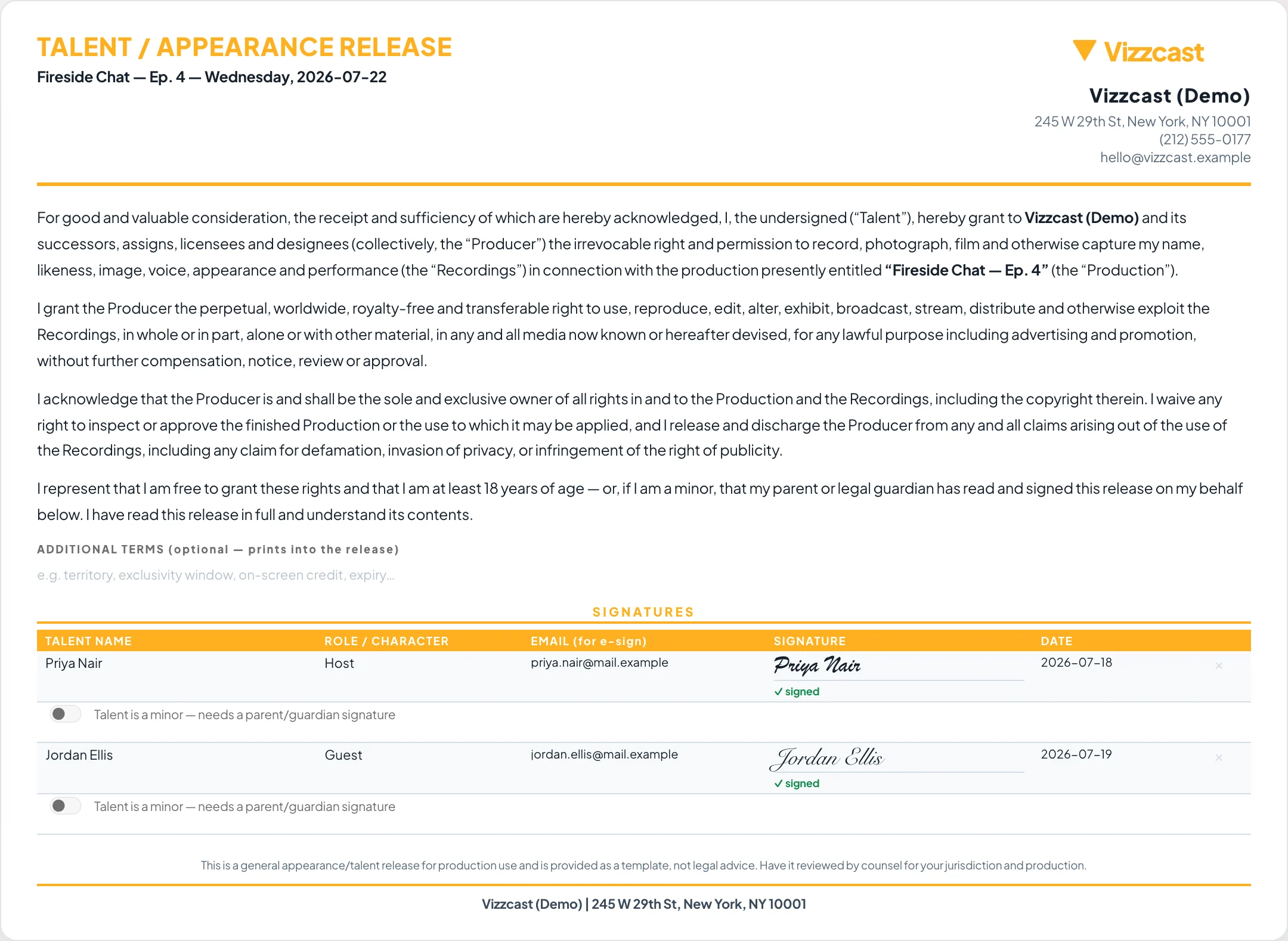
Assigning a document
Give someone outside the workspace a scoped fill-in form. No account, no app, no seat.
On the Gear List, Quote, Invoice or Call Sheet, Add ▾ → ↗ Assign (under Actions ▾ on a narrow screen). The dialog asks who first; beside the email preview it lists what the person actually gets — a private link with no login, work they can do on any device, results that go straight onto this document, and progress tracked back here. Search your crew and clients, or type an email address for someone in neither. Nothing is sent until you press Assign the <document>.
They get an email with Open the <document> → pointing at a one-off web form.
| Document | What the guest sees |
|---|---|
| Gear List | Your categories and items with tick boxes — "Tick everything this job needs, then submit." |
| Quote / Invoice | An editable line table (description, qty, days, day rate) with + Add a line. |
| Call Sheet | Key times, a crew table, a schedule table, shoot-plan cameras and notes. |
The same machinery is used away from documents, to ask a person to fill in their own crew record or client record — see Requests & approvals.
Back in the production, a HANDOFF row inside that document's STATUS card tracks it: "Handed off to <email> — waiting for them to fill it", then "Filled by <email> — their picks are on the list below", with Reassign / Assign again.
A returned form replaces what is on that document. Don't assign something you have already built by hand.
Other limits: you must be signed in (the person you assign it to does not — the dialog says so if you try), there can be only one live assignment per document type per production, and the app only checks for returns while that production is open — so open it to pull a submission in.
What the person sees when they finish
Every form KitSlate sends out — gear list, quote, invoice, call sheet, agreement, a client's or crew member's own details — ends the same way. While the form is open there is no print button: the banner at the top names the form, who it is for, and what happens when they submit. Once they submit, the page becomes their receipt, stacked full width:
- A SENT card first — what went to you, with two short columns: What happens now and Your copy.
- If it came in a bundle, a Your other items panel with See what is left →, so they can get back to the rest without hunting for the email.
- Then the complete form as they sent it, every row, under a banner that now offers Print / Save PDF. Printing prints the receipt, not the page around it.
- A copy is emailed to them at the same moment, so the link can expire without them losing their record.
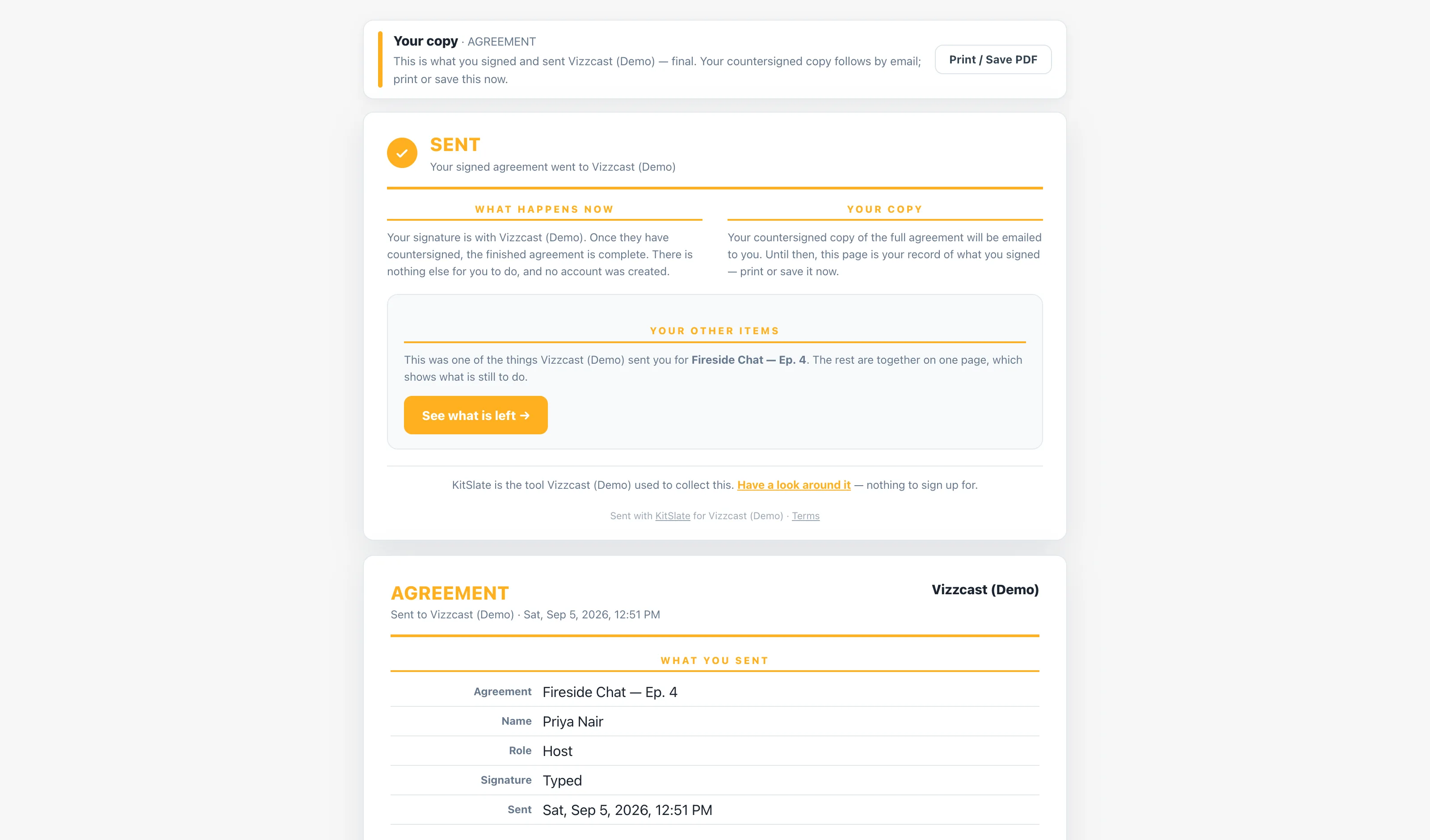
A link that has been cancelled, has expired, or was already used shows the same notice every dead KitSlate link shows: the sender's band, what the link was, when, and how to ask for another — and nothing to fill in. Nothing sent before that moment is lost.
Sending several things in one email
A production often needs more than one thing from the same person — their details, a quote to approve, an agreement to sign, an invoice to pay. Actions ▾ → + Send with… on a quote, invoice or agreement opens one dialog for all of them. Pick the person; each item you could include is a switch, and a greyed one says why it cannot go — already approved, not a signer on this production, already paid. Quick presets tick the usual combinations. One send is one person: someone else gets their own email and never sees anybody else's items.
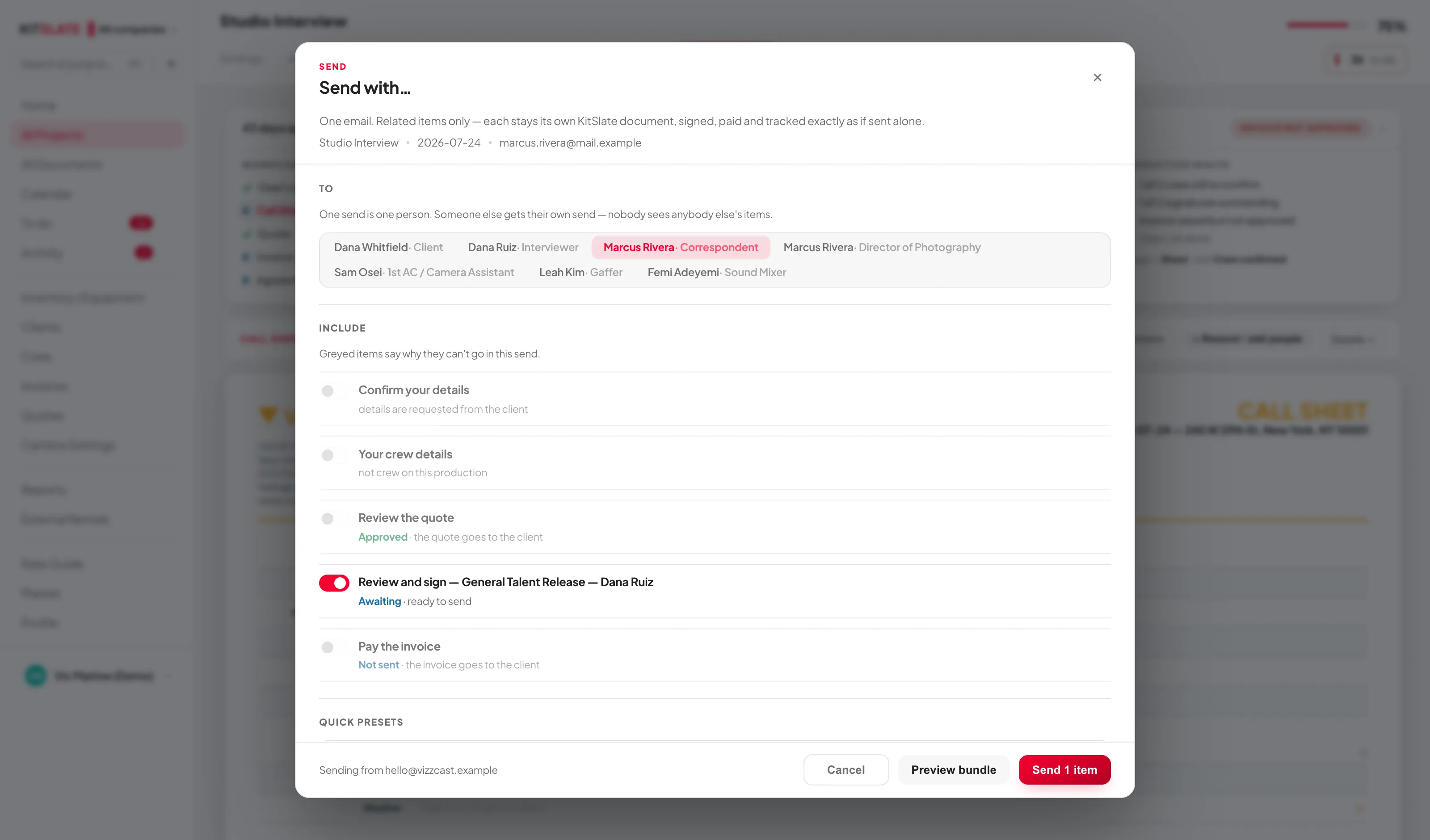
The email carries one link per item and one link to their page: everything they were sent, with what is done and what is still to do, and an Open → on each. Every receipt they open offers the way back to it.
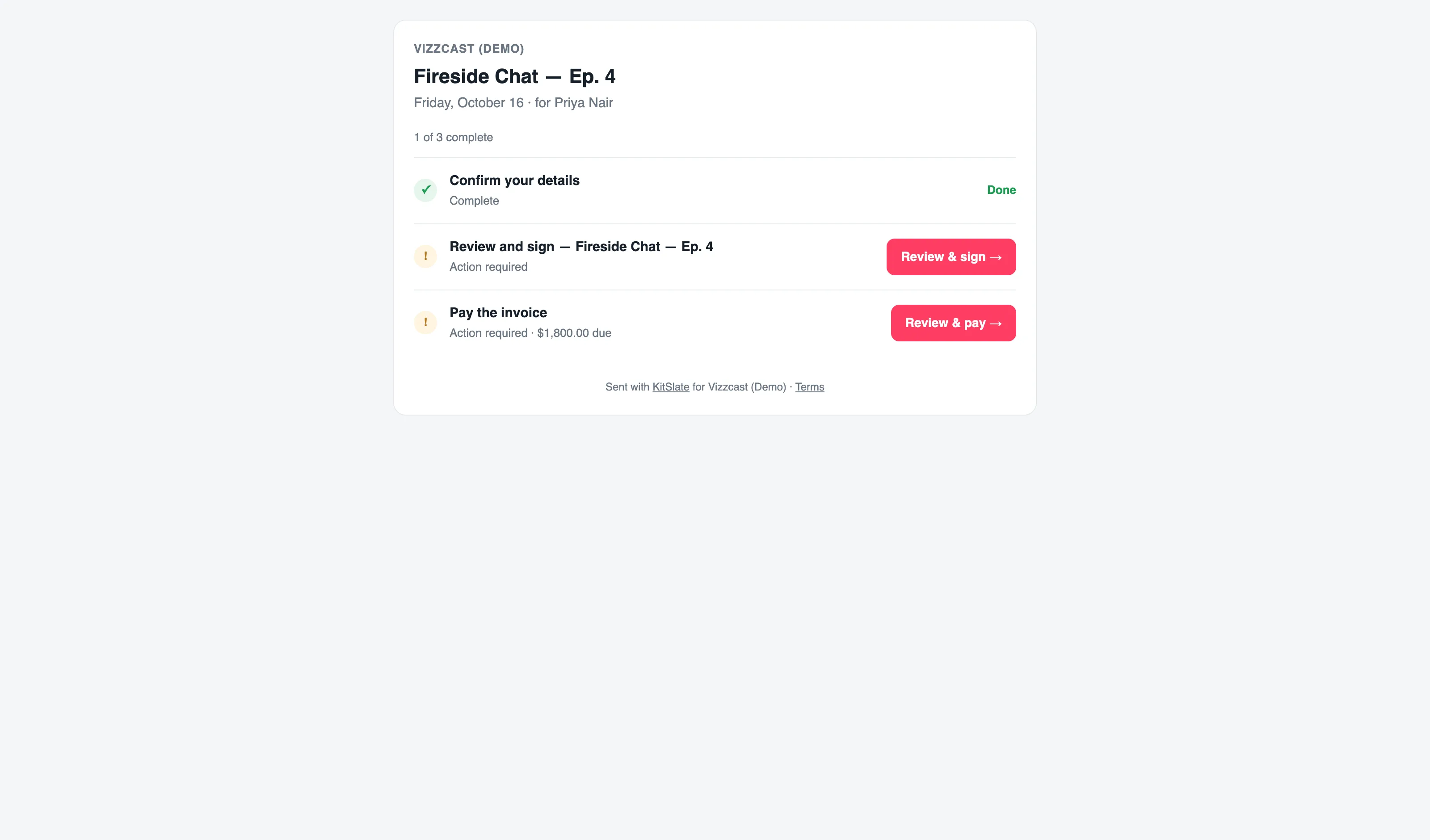
Requests & approvals — asking people for their own details
On Clients and Crew, ✉ Ask client to fill in / ✉ Ask crew to fill in in the top bar, or ✉ Ask them on a selected person, sends a private link to a one-off form holding their own record. What comes back fills blanks only. If an answer disagrees with what you already hold, your version stays and theirs is parked for you to review.
The requests live where they are acted on, in one vocabulary: To do for what needs you (waiting, expired, an answer to review), the person's own record for the link itself (a small flag on their tile, and a Details request section on the record with Resend, Copy link and Cancel), and Activity for what happened. Cancelling revokes the link on the server — it stops working for the person it went to. A fresh request to the same address replaces the one still out.
Settings → How you work → Requests & approvals holds the three decisions: Approval — hold every answer for your approval before it touches a record (off by default: blanks fill straight in, disagreements park for review either way); Links expire after 7, 14, 30 or 90 days, applied to links sent from then on; and Offer a reminder after 3, 5, 7 or 14 days, which is when To do starts offering Resend instead of Copy link. Nothing is ever sent without you pressing Send.
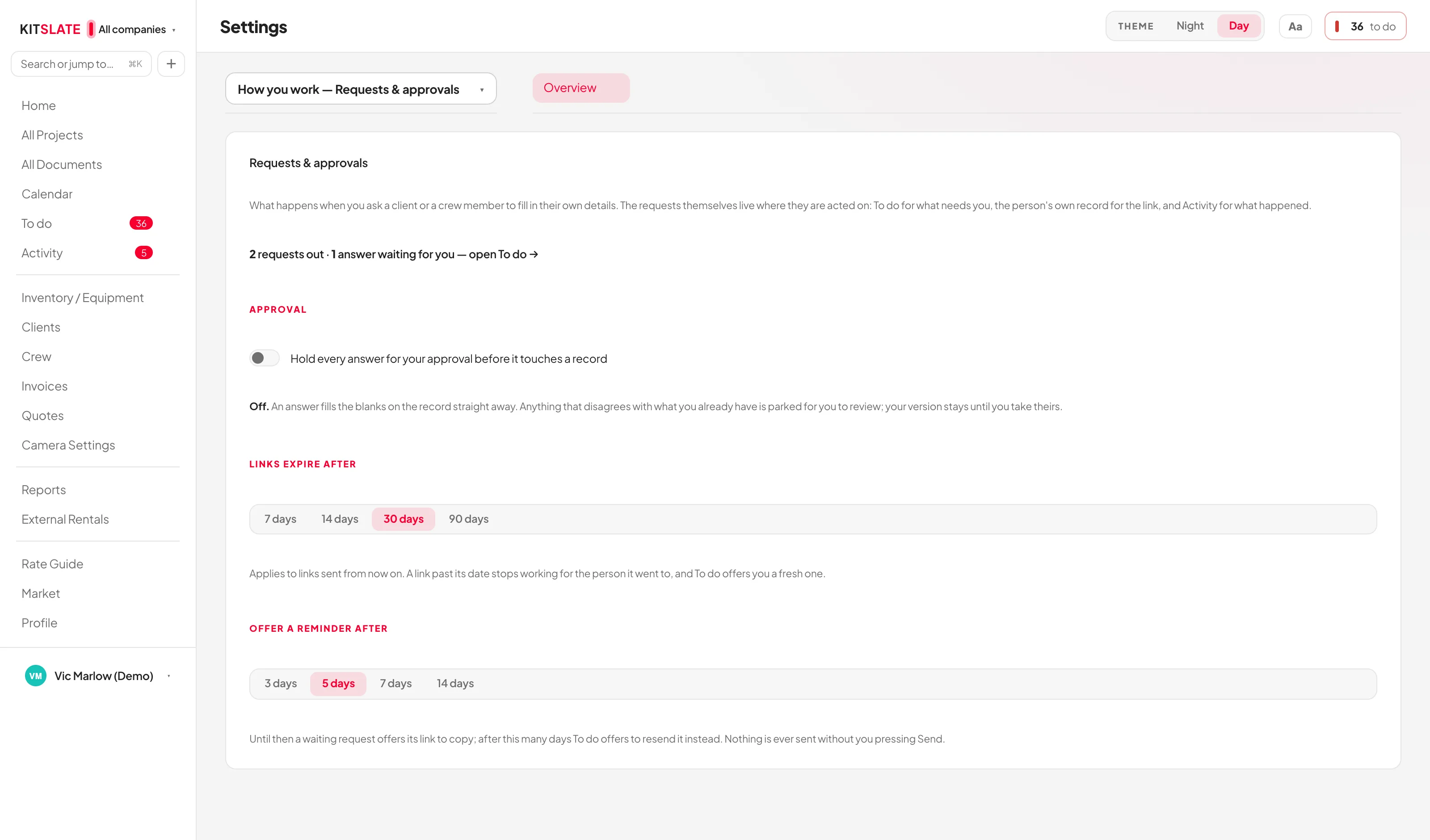
Sending files
More than a transfer: send rushes, grades and deliverables up to the size your plan allows, by email or link, and your client gets a page that plays camera files, plays every audio track, shows the camera’s specs and takes notes at the exact frame. You see everything they see.
Open it with Media Center in the sidebar. It is on every plan, the free profile included. The page has three tabs: Send, Sent and Settings. Recipients never need an account. It was called File transfer until October 2026; the plan tables still head their size column that way, because the size is what that column is about.
Sending
Drop files, a folder or a whole camera card on the left. The allowance under the drop zone is your plan’s, per transfer and in storage across your live links — the figures are in the table under Plans, billing & team. KitSlate reads each clip’s codec, frame size, frame rate, source timecode and length from the file and shows them as chips, and a camera card’s clips group into one row each (master, proxy, thumbnail, metadata). A proxy kept in another folder — a Proxy, Proxies or Sub folder, or named like A001C014_Proxy.mov — is linked to its clip by name when its length (and its timecode, when both have one) agrees, and their page plays it labelled Linked proxy; the camera’s own proxy says Camera proxy, and a clip with neither gets a KitSlate proxy. A linked proxy means no preview needs making. BRAW, R3D and ARRIRAW lengths aren’t read yet, so their proxies stay separate files. On the right: Email it (each person gets their own link), Get a link (one link you share) or Save (upload it now and send it when you’re ready — nothing is shared, and the link’s days start when you send it), who it goes to, Sending as (the company on the email and the page), Your contact, a name and a note. Link lasts 7 days by default, 1 to 30 on a paid plan. On the free profile a link lasts up to 3 days and can’t be kept longer, it holds 25 GB of live links at once, and it sends up to 50 GB a day — the longer choices and Keep it 7 more days stay on screen, greyed and marked Solo.
Before you send, Test my speed measures your internet and your connection to KitSlate storage, then sets the part size and the number of parallel connections for this transfer (up to 32); the box says how many it is using. If clips arrived without a camera proxy, the Send page offers to make previews of them on paid plans, and says how many preview minutes are left this month; Settings holds the default. Every video format KitSlate reads is treated as video — MXF, MOV, MP4, M4V, WebM, MKV, AVI, MTS, M2TS, MPG, MPEG, TS, WMV and 3GP. MOV, MP4, M4V and WebM play as sent; the rest get a preview, because a browser can’t play them. Camera RAW (BRAW, R3D, ARRIRAW, Canon RAW) can’t be previewed or cut here: download it, or send a proxy beside it to play it on the page. One more choice appears under the files when it applies, a Pro review tool: Transcripts — Make automatically or Only when asked. It starts from its default in Settings, and the choice on the Send page wins for that transfer. Make automatically makes one transcript for each piece of sound, not one per file: a camera clip in a take with a sound recorder takes its lines from the recorder’s WAV or MP3, and a camera master sent with its proxy takes them from the proxy (the same sound, read straight from storage) — so only the recorder, the proxy, and files with sound of their own are transcribed. Under the files the Send page also says how many camera clips came with a proxy: those play the moment they arrive; the others wait for a preview KitSlate makes on its servers, a few minutes a clip.
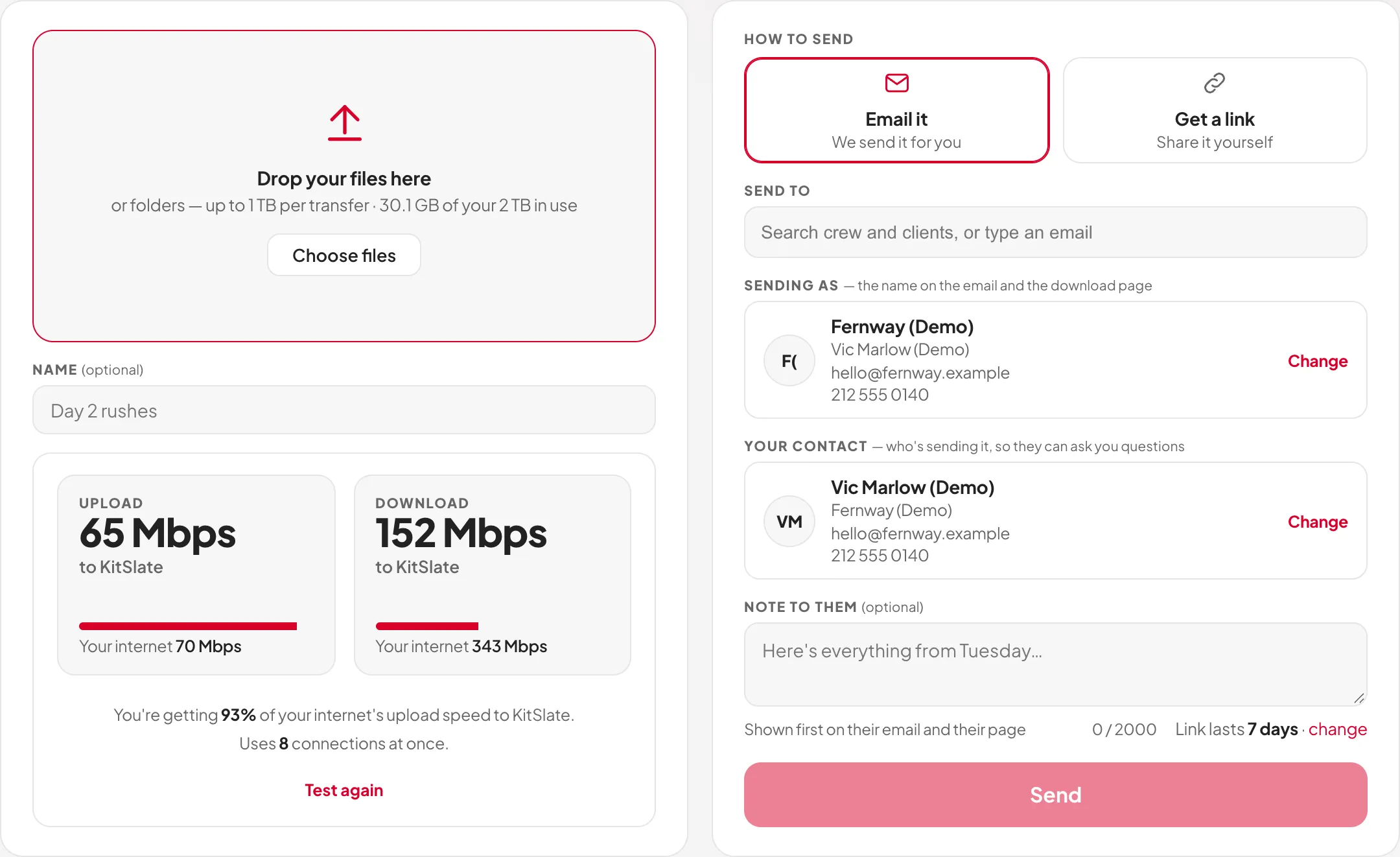
Three ways, the same rows. Email it, Get a link and Save show the same rows in the same places; a row that does not apply to that way stays where it is, greyed, with the reason. Save (send it later) is a parked send, not storage: the box says how many days you have — the plan’s, Free 3 · Solo 7 · Studio and up 14, or what you set in Media Center → Settings → Saved transfers wait — the Sent card counts them down, the day before they are up you get an email with Keep it 7 more days, and the link’s own days start when you send it. A saved transfer nobody sends is deleted when the days lapse, like an ended link.
Sending as. On a paid plan you send as your company — its name, email and phone — with you as the person to contact (Media Center → Settings → Sending as). On the free plan you send as yourself: your name and your email. The company, its phone and the choice of who people ask stay on screen, greyed and marked Solo; press one to see what Solo adds.
Tidying the Sent list. A transfer that has ended, was stopped or was cancelled has a ⋯ menu beside its status. Archive moves it to Show archived at the foot of the list — nothing is deleted, and Unarchive puts it back. Delete the files appears while a stopped transfer is still holding its files (the restore window): it deletes them now and keeps the record of who opened and downloaded it. Remove forever deletes the record, its activity, its conversation and any files that are left; it asks first and can’t be undone. A live link has no menu — stop sharing it first. A paused upload keeps its Delete, and its menu offers Remove forever.
What they get. Under How to send, choose the Media page — the player, comments, transcripts and everything below — or Download only: one plain page with your note, Download everything and the list of files, each with its size and its own Download. Download only has no player and no conversation, and no previews or transcripts are made for it. Both are on every plan. To change it later, use Their page on the transfer’s Sent card, or the switch in the bar on your own view of the page.
When the link opens. Below it, Their link opens matters when you copy the link while the files are still uploading. Right away: their page shows each file as it arrives, and Download everything keeps going — each file that arrives while the page is open joins the same download. When it’s all here: until the last file is up, their page shows how many files and how much has arrived, about how long is left, and opens by itself — nothing plays or downloads before then. An emailed send waits anyway: the email goes when the last file is up. Set the default in Settings → New transfers start with. Your own view of the page (Open) always shows it filling.
The link, from the first second
The link exists the moment the upload starts. The uploading screen shows it with Copy link, so you can paste it while the files are still on their way; anyone who opens it sees Files still arriving, can use every file that has finished, and the page fills in the rest as it comes. With Email it, the email goes out when the last file is up. Keep the tab open while it sends; if the connection drops, the upload picks up from the last part that was saved. If the tab is reloaded or the browser closed, the paused upload’s Resume carries on with the same files: Chrome and Edge remember them, so it asks for one Allow and you never pick them again (other browsers ask you to pick them, and keep every part already up). Signing in again never interrupts an upload, and nothing reloads the app while one is running: if the app needs to refresh — a change made on another computer, say — it waits, and says This tab reloads when your upload finishes — the upload keeps going. When it finishes, the same screen becomes the summary: the link, the time it took, and the files as your client sees them.
Watch as it arrives. Under the upload’s own lines, the uploading screen has a player for the clips already up — a camera clip plays from the proxy the camera recorded, a video file as itself — and a strip of the clips, each Ready, Uploading 40% or Waiting; press one to watch it. It is the full player — play, time, timecode, scrubber and volume — and it never restarts while the upload carries on. Your page in another tab fills in as files arrive, checking every few seconds near the end, so it shows the finished transfer within moments of the last file. Open your page ↗ opens the whole page in a new tab, as you, with every finished file playable and downloadable — in every mode, Save included, where the transfer is still shared with nobody. With Get a link or Email it, Open also sits beside Copy link.
Uploading from another computer. Signed in on two computers, an upload running on one shows on the other’s Sent list as Uploading · other computer, with its percentage, the gigabytes and files up, and a bar. Show more adds the file being sent now, the speed, the time left and when data last arrived. If nothing new arrives for a minute and a half the card reads Waiting on the other computer — it may be asleep or offline — and offers Finish it here — pick the files; after ten minutes it is an ordinary paused upload. Client view ↗ opens the page exactly as your client sees it, and Your view ↗ with your sender bar; neither counts as an open.
Only here to send files? The production suite can stay off
KitSlate is a production tool as well as a sender, and somebody who only sends files does not need quotes, call sheets and invoices in their sidebar. If you created your account from kitslate.app/transfers, your sidebar starts with just Media Center, Activity and Profile.
- Turning it on. On a paid plan a card under those rows reads Run the whole job here too. Turn on the production suite → asks once, and Turn it on brings back the whole sidebar: projects, quotes, call sheets, crew, gear lists and invoices, with your transfers attached to each job. Your transfers, settings and plan stay exactly as they were, and you stay on the page you were on. Opening a production screen from a link does the same: it asks rather than opening behind a sidebar that does not list it.
- Asked once, on every account. An account on the free plan that hasn’t answered is asked once on its welcome page (or in a short dialog, if it never reaches that page), whichever page it came from and whichever computer it signs in on: What will you use KitSlate for? — Sending files (the Media Center, free) or Running productions (everything, with a paid plan), neither chosen for you. While paid plans are by invitation, Running productions puts you on the list (You’re on the list) and you start in the Media Center; when your invitation comes and you choose a plan, the production suite turns on by itself and the welcome does not ask again. Once paid plans are open to everyone, it goes straight to choosing a plan.
- Asked when you upgrade. When a paid plan starts, the welcome (or a short dialog, if you never reach it) asks the same question — Sending files or Running productions, neither chosen for you. Your plan is the same either way; the answer only sets what your sidebar holds. If you already answered Running productions on the free plan, you aren’t asked again: the production suite turns on by itself. Change it whenever you like in Settings → Profile & account.
- Where to see it. The Media Center’s own Settings tab ends with Your sidebar, saying which it is, with a link to the switch.
- Turning it off. Settings → Profile & account → Production suite: On or Off — Media Center only. Turning it off deletes nothing; whatever you made is there again the moment you turn it back on.
- It is not a plan. The switch only decides what your sidebar shows. Paying for bigger transfers does not turn the suite on, and turning it on unlocks nothing your plan does not already include. On the free profile the suite's tools start with Solo, so the card under the rows is the Solo card instead, and the switch shows or hides Market.
- No monthly cap. On every plan you send as often as you like. A plan sets how big one transfer can be and how much you keep live at once.
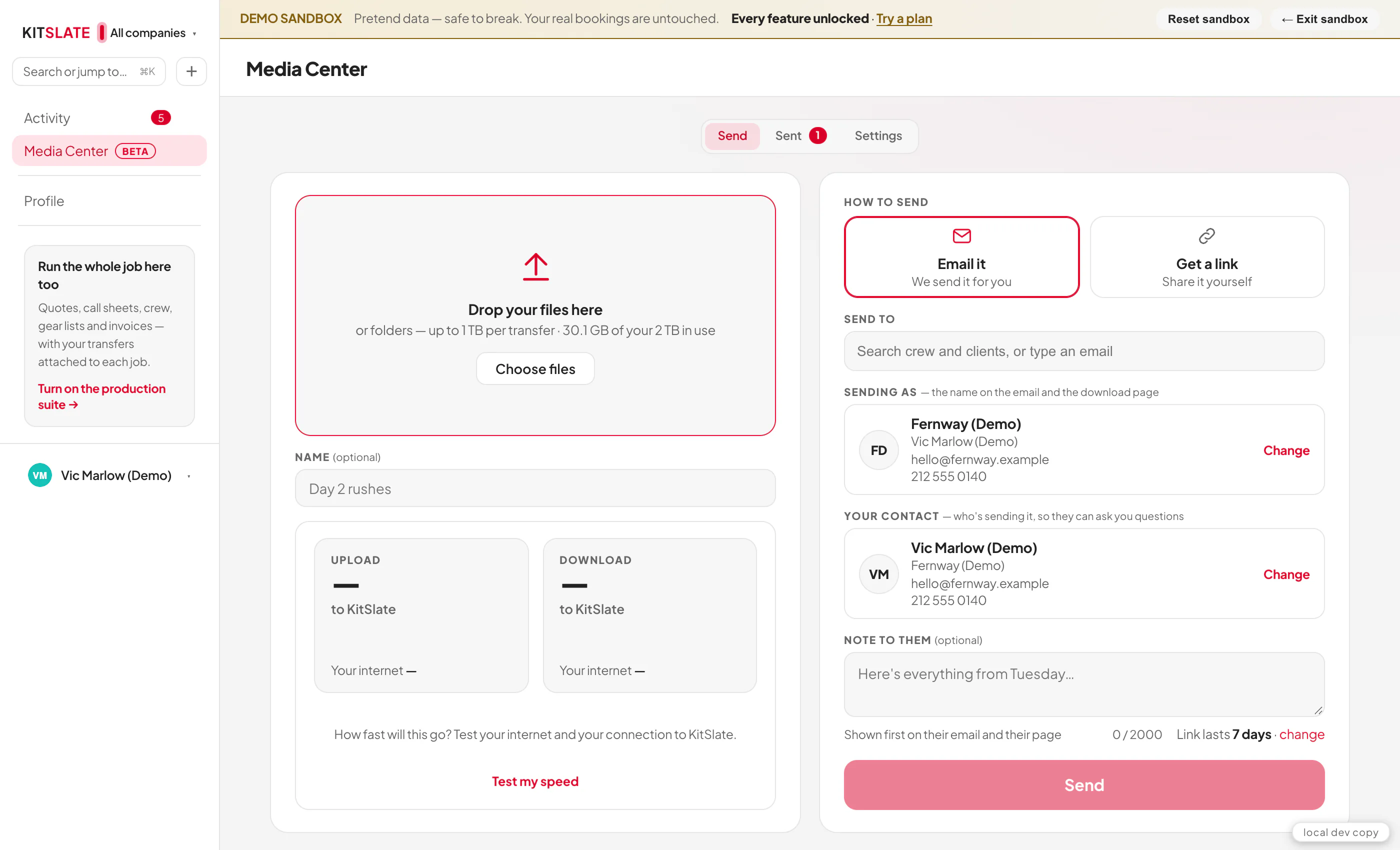
Tell us how it’s going
The Media Center is new, and what you tell us shapes it. Three ways in, all opening the contact page with Media Center & transfers already picked: the Media Center feedback card at the top of that page, the Feedback block at the end of the Media Center’s Settings tab, and the How did it go? line at the foot of your own Sent: email. The last two open it in a new window. Signed in, Settings → Feedback has the same topic and threads our reply into your Messages.
↑ ContentsSent, and Send it on
Every transfer you have sent, who has opened it, Send it on for someone new, and the card a shared link opens into.
Sent, and what you see
Opened from an email or a bookmark, your own transfer page starts its row of buttons with ← Back to Sent. The Sent tab reads in sentences — Downloaded everything · yesterday 7:34 am. Each card shows a picture of its first clip — for video, the clip’s frame at 16:9 with KS ▶ PLAY, the same picture as at the top of the email: drawn by your browser from a playable file when you send (a proxy, never an MXF a browser can’t draw), or, when none could be drawn, made from KitSlate’s own preview of the clip as soon as that preview is ready — and its buttons: Sender view first, filled in, which opens your own view of the transfer page with your controls, and Client view ↗, which opens exactly what your client sees in a new tab (nothing you do there is counted); then Copy link, Send email, Ask for selects, Keep it 7 more days and Stop sharing. A saved transfer — uploaded and shared with nobody yet — leads with Sender view too, then Email it, Get a link, Ask for selects and Delete. A card’s conversation folds: Show less folds it to one line, Conversation · 3 messages, and Show more opens it again; your browser remembers which, and the transfer’s own page always shows it. Send email sends a transfer on to more people after the fact. It opens Send it on in the same pop-up as every other send: on the left To (search your crew and clients, or type an email), Sending as, Your contact on their page and the Message; on the right, taking most of the box, Their inbox — the email they will get, whole and at its real width, redrawn as you type, with what is ready to send as a line of small labels above it; Cancel and Send to at the foot. The Sent list stays where it was underneath. Each person gets their own link to the same files, and their opens and downloads show under their name; the same address again resends. Whatever you were writing on the Send page is still there when you come back. Press Sender view (or the transfer’s name) and it opens in the Media Center as their page with your buttons on top: the title and where it stands, then Client view ↗, Open in its own tab ↗, Copy link, Send email, Ask for selects, Remind them, Keep it 7 more days and Stop sharing; under them the very page your client sees — every view and every detail they get: the player, tracks, Single view and Multi-camera view, the takes, trim, the transcript, the spec sheets and the conversation. However a page is reached — your sender view, the emailed link, a plain or forwarded link, a saved transfer — it has the same features: what works depends only on the paid plan, and a feature the plan doesn’t include stays in place, greyed, and says what it comes with when pressed. Under it all sits Activity · only you see this — every open, play and download, their speed and tries, your own upload speed. Anything you write in their page’s conversation posts as you and is emailed to them. Send email and Ask for selects open their sending box over the page you are on, and closing it leaves you exactly where you were. Open in its own tab ↗ opens the same page in a new tab, with a Sender view bar carrying the same buttons. A transfer that is still uploading, has ended or was stopped opens as a plain record instead, with any previews that couldn’t be made and, once KitSlate’s own tries are spent, Try again. Replies also arrive in Activity and, if you choose in Settings, in your email.
Under every transfer email sits one card, chosen for the person it goes to: someone with no KitSlate account is shown the Media Center and Try it free; someone who already has an account is asked whether they need more room, with the plans. The wording of both, and whether each goes at all, is yours to set in HQ → Media; the email itself never says which card went to whom, and you are never told whether a client has an account.
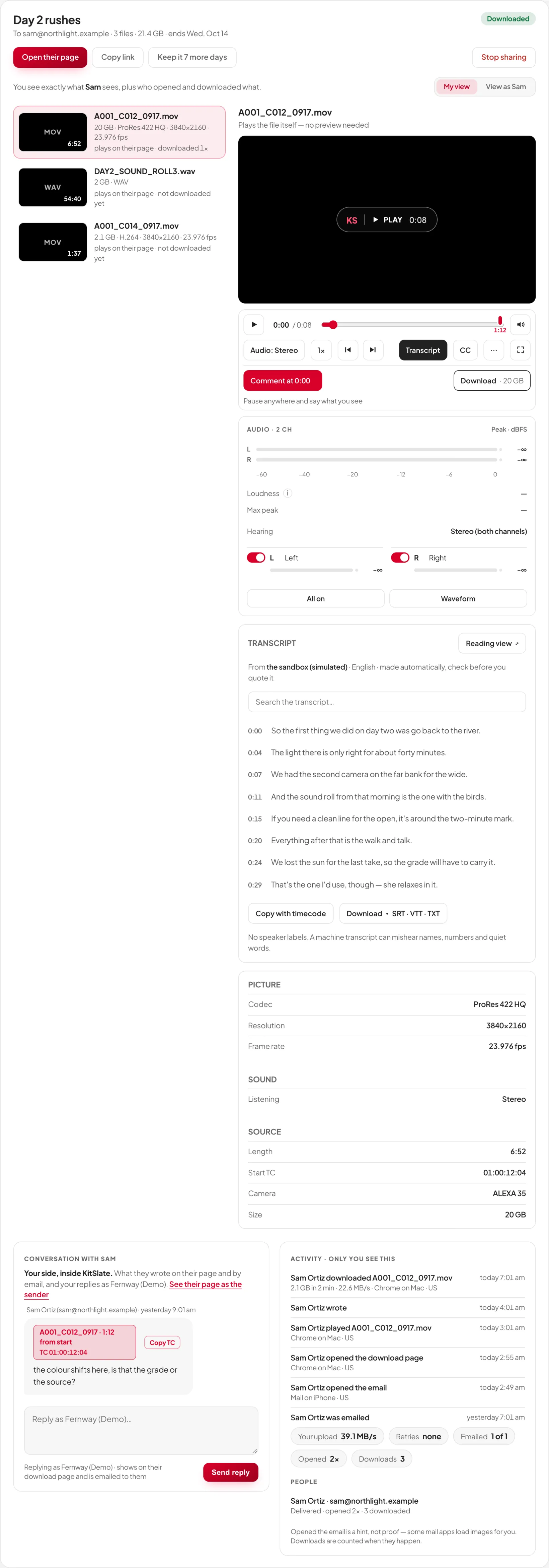
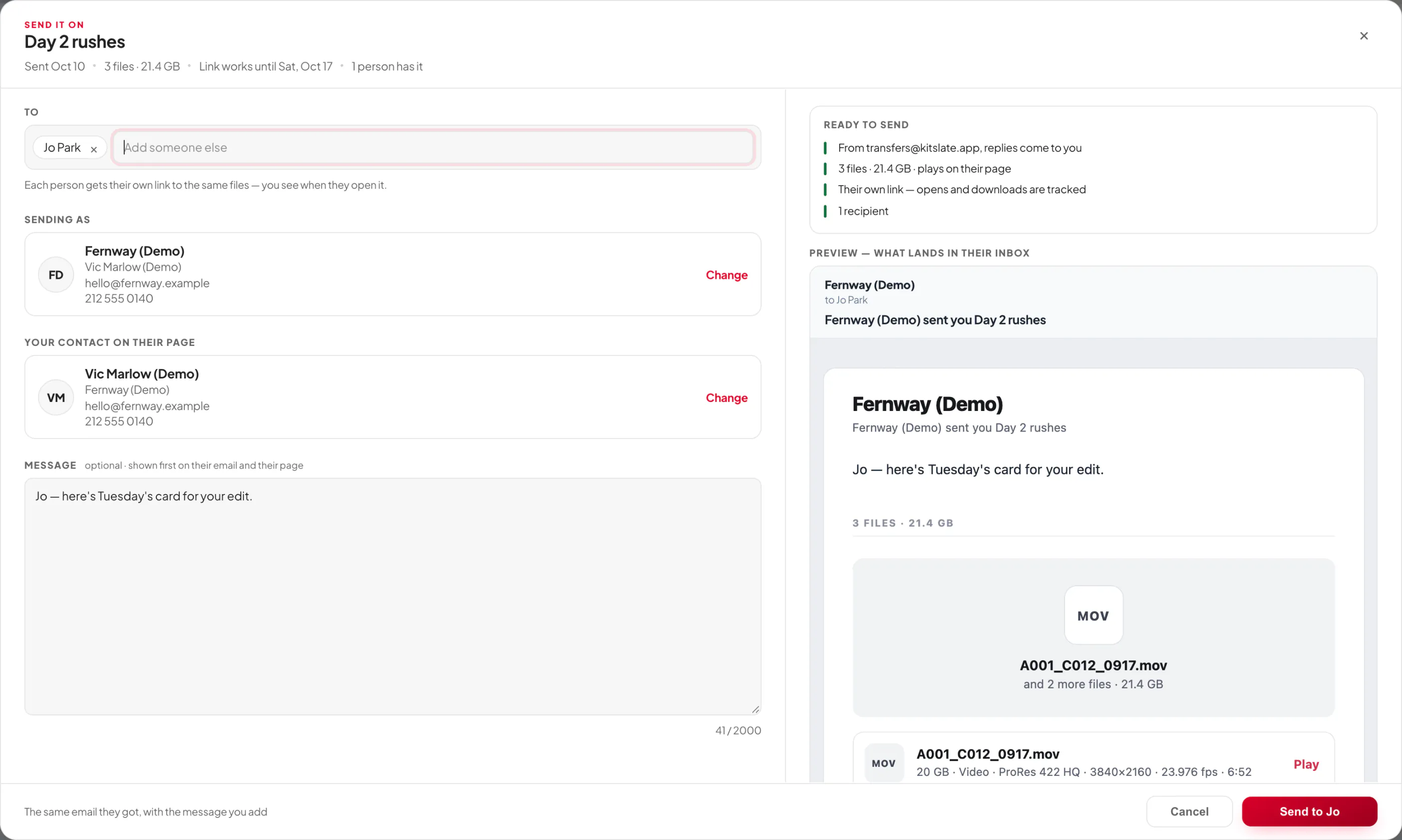
When a link ends, the files are deleted within fifteen minutes. Stop sharing turns the link off for everyone at once; the files then wait as When you stop sharing in Settings says — 3 days unless you change it, 30 days on a paid plan, or Delete them at once — and never past the link’s own end. They are not in your backups. Keep your own copy.
Stopped, and restorable. A stopped transfer whose files are waiting reads Stopped · restorable for 3 days on the Sent tab, with the date they will be deleted. While they wait they don’t count toward your storage. Restore the link brings back the same link, ending when it always would have; it counts toward your storage again (and is refused, saying so, if it no longer fits), and its previews are made again. Delete now deletes them for good.
Before a link ends. Anyone you emailed who hasn’t downloaded gets You haven’t downloaded … yet 1, 2 or 3 days before the link ends (you choose), with the files by name, and again six hours before — that one counts in hours. You get one email at the same point listing each person as Downloaded, Opened, not downloaded or Not opened, with Keep it 7 more days, which opens the Sent tab and asks. A link that never expires sends neither. Each is a switch in Settings: Tell the people I sent to and Tell me who hasn’t downloaded.
A link that never expires. On Studio and above, Expires in on the Send page (Link lasts in Settings) has a sixth choice, Never: the files stay on their page until you stop sharing them, the page says the link doesn’t expire, and there is nothing to extend. On other plans it shows greyed with Studio beside it, and a press says what it comes with.
Settings holds the defaults: how to send, how long links last (Never included, on Studio and above), Sending as, whether to make previews for clips with no camera proxy, Make transcripts automatically when a clip finishes uploading (off until you switch it on), the trim handles (When you trim: None, 1 s, 2 s or 5 s), whether the uploading screen opens with its details shown, and which emails you want — the first time each person downloads, every download, or never; a note when someone writes back; Before a link ends (tell the people you sent to, tell you who hasn’t downloaded, and how many days before); and When you stop sharing (delete the files at once, keep 3 days, or keep 30 days). The Pro ones are marked · Pro and greyed on the free plan.
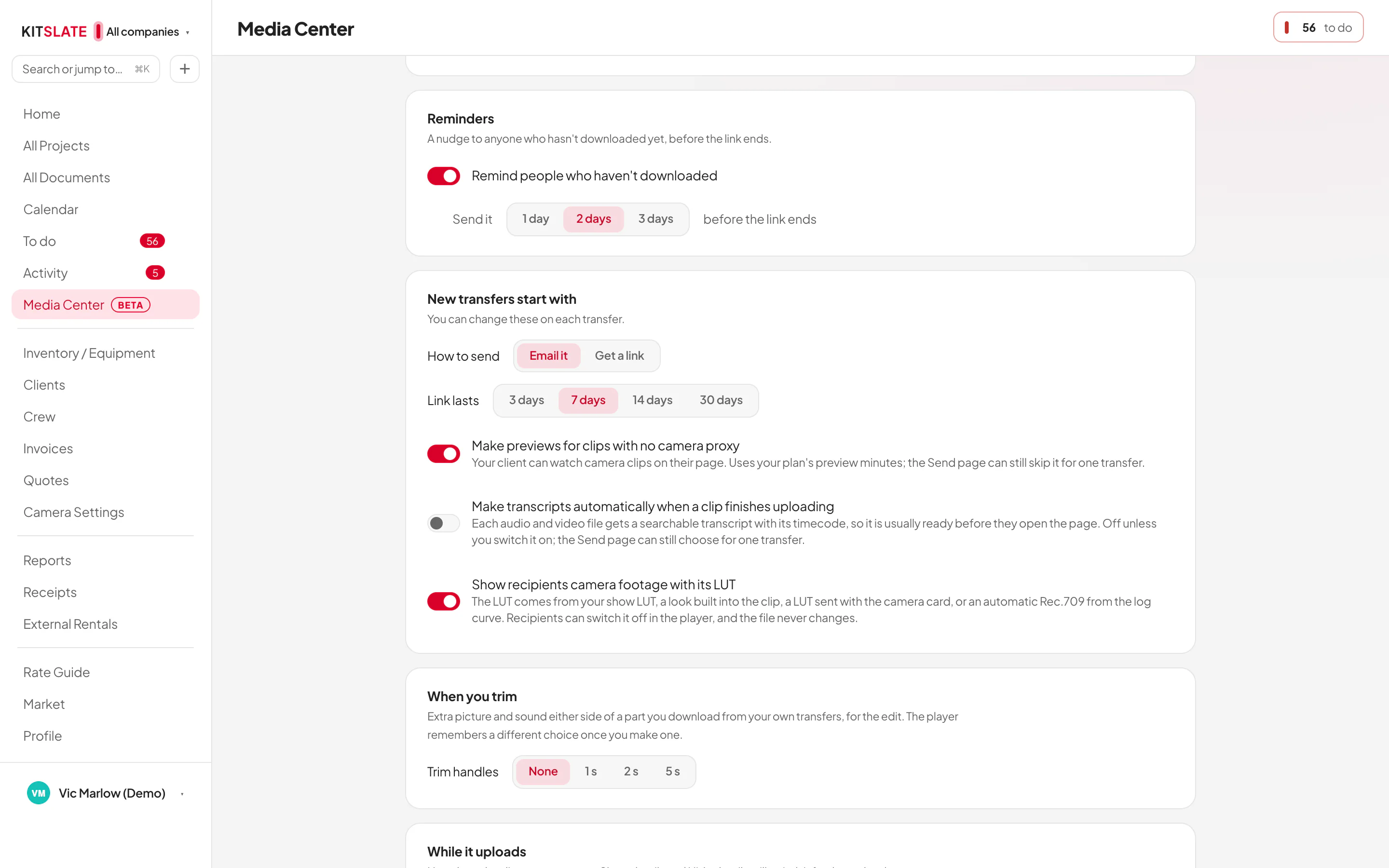
What a shared link looks like
Paste a transfer’s link into iMessage, WhatsApp, Slack, LinkedIn, Facebook or X and it opens out into a card, not a bare address. The card shows the first frame of the first clip with the KS ▶ PLAY mark, the transfer’s title, what is in it (clips and files, the size of the originals, the camera’s format, frame rate and audio tracks) and a strip along the foot: Send your own rushes — up to the free size · kitslate.app/transfers. Under the card the app prints one line: From you, and the first line of the note you wrote, so nothing on the card is said twice.
- Made for you. Your browser draws the card when the link goes live, from the same frame the email uses, and keeps it beside the files. It is deleted with them.
- Older links. Links sent before cards existed get theirs the next time you open Sent, a few at a time.
- Never a broken picture. Until a link’s own card is there, and after a link has ended, the address shows a general KitSlate card instead. It never says whether a link existed.
What your client gets: the page and the player
The page your client opens — the player, every audio track, the camera’s look and notes at the exact frame.
What they get: the player
A page with your note, the files, Download everything (on Chrome and Edge it saves straight into a folder they pick and resumes if the connection drops; a bar under Download shows the file, how much of it has come, the speed and what’s left, wherever the download was started from — part of the page, never over it), and your contact card with Call, Text and Email. Video and sound play on the page: a press on a file’s Play opens it on its first still and plays it. A camera clip plays from the proxy the camera recorded beside it; a clip with no proxy — an MXF, typically — plays from a preview KitSlate makes from the file, ready a few minutes after upload. A MOV or MP4 in a codec no browser plays — ProRes, DNxHD/DNxHR, XDCAM, MPEG-2 — is treated exactly as an MXF: its row says so in the camera format’s words (Browsers can’t play ProRes), it gets the same preview, made the same way, and its transcript opens without waiting for the picture. ProRes RAW is camera RAW: send a proxy to play it here. A camera file of 2 GB or more gets a low-resolution preview (960 wide, for the player, full screen and the multi-camera grid): it is made in two-minute pieces, many at once, and plays as one clip — one timeline, every comment, timecode and trim where it belongs — a few minutes after the upload finishes, even for a 50 GB take. The page says Making a preview from the camera file, with how far it has got. Its sound is the odd tracks on the left and the even on the right, so two lavs on channels 1 and 2 play as recorded. Such a clip has no waveform and no Compressed MP4 part (Original · MXF parts work as for any clip). Over 1 TB a clip shows Too large for a preview with its specs and Download. Camera proxies, when the camera records them, still play at once. While it is made the player keeps the clip’s own shape and shows a progress bar, the stage it is at — copy to the encoder, queue, encode, ready — and, once it is encoding, the time left. The bar moves from the moment the preview is asked for, at the pace that clip should take, and jumps ahead whenever the encoder reports its own figure. A preview that fails is tried again automatically — twice by KitSlate’s servers, and again by your Sent tab while it is open — and until those tries are spent the clip reads as being made (the Sent card says trying again), never as an error. Only then does it say Preview couldn’t be made (the clip still downloads), with Try again in your sender view. There, each camera clip with no preview also has its own Make preview on its row, beside Download (Try again once a preview has failed); your client never sees it, because it spends your preview minutes. A camera file sent on its own, with no camera proxy, says KitSlate proxy on its row once its preview is ready, with Proxy MP4 beside it to download. Over the player the status says what is playing, in blue: KitSlate proxy (the preview KitSlate made from the camera file), Camera proxy (the one the camera recorded beside the clip) or, in grey, Original — and a proxy says so on the picture too. The downloads sit in a box of their own under the controls: Original always saves the untouched camera file — and for a camera file with more than one sound track its menu also offers Sound · one WAV per track (a Pro review tool, cut from the master by the media server where it is on): each track as its own mono WAV, the whole clip; Proxy MP4 saves the lightweight copy for watching and Sound M4A a listening copy of the sound, each with its size. They need no account. By downloading they accept the terms.
Under the picture, the controls: play, the time display (T switches it between clip time and the source timecode), the scrubber with a marker for every comment, and the volume. Under those, one row of tools that stays on one line at every width — when the row runs out of room the least-used tools fold into ⋯ rather than wrap, and Full screen is always the last button on the right. Left to right: the speed, a frame back and a frame forward, A-B, loop, snapshot, Picture… (adjust, turn, zoom and guides), LUT and Trim; then the keyboard shortcuts (?), Expand, ⋯ and Full screen. In Expanded and full screen, Rail, Clips, Info and Transcript join the right-hand group to show and hide each panel. Under the tools, Comment at; under the controls, the Download box. While the audio panel is beside or under the picture, its Audio button is at the panel’s foot, beside Tracks…; when the panel is hidden it is back in the row. Under the player, the spec sheet (folded behind Show specs under the player, and under a clip that has no preview yet — your browser remembers if you open it, on every page; always open in the side panel’s Info tab) in three groups — Picture (codec, bit depth, resolution, scan, frame rate, bit rate), Sound (channels, tracks and their names, sample rate, bit depth, what you are listening to) and Source (length, start timecode, camera or recorder, scene and take, the master’s size and the preview’s) — read from the file itself: the MXF header, the camera’s XML, a WAV’s bext and iXML. Rows the file does not carry are left out. When the spec card is wide — 1,100 px or more — each value sits right beside its label, and a group much longer than the others — a Sony camera’s Camera rows — runs in two columns of its own, read down then across, so it is no taller than the rest.
The tags down the side. Each clip in the list says what it plays from — Camera proxy, Linked proxy or KitSlate proxy — and the player’s title says the same. With the Pro review tools each clip with sound also wears its transcript’s tag: Transcribed, Transcribing… while it is made, or Transcribe, a button that makes it there and then (on the free plan it stays in place, greyed; a press says what the Pro review tools add). Only one transcript is made per piece of sound, and it serves every clip it covers: the file it was made from — the recorder’s WAV, say — wears the blue Transcribed, and each file that borrows it wears a grey Transcript · from and the file’s name (Transcript · from DRAWINGS.WAV). Press either tag and that row’s file plays with its transcript open. The scrubber is blue while a proxy plays — a camera proxy or a KitSlate proxy, the blue of their tag — and red, the accent, for the original file and everything else, so you always know which you are judging.
Three ways to watch
Page keeps the files, the player and the conversation side by side (stacked on a phone), with the audio panel and the spec sheet under the picture. Expand fills the window on one screen, at the clip’s own aspect: the picture takes the space, and beside it a side panel with three tabs — Audio (the lanes and meters), Info (the spec sheet and the sender’s note) and Transcript — and the clips with their comments. A, Shift+I and C show and hide the panel, Info and the clips; hide them all for a cinema layout, and the picture widens to use the room. Full screen (F) is the picture on black — the surround is black in Day and Night alike, as every video box is — with the same side panel and clips a key away; the controls hide while you watch and come back when you move. Every tool works in all three, and the control bar is exactly the picture’s width in each.
The spec sheet lists Picture, Camera, Sound and Source. For a Sony camera file (FX6, FX9, FS7, VENICE, PXW and PMW cameras), Camera shows what the camera wrote into the file: the lens, iris, focal length, focus distance, ISO (or gain), shutter speed and angle, white balance, ND and the look it was shot in (S-Cinetone, S-Log3 and so on). These are read at the first frame — iris, focus, zoom, shutter and white balance can change during a take. The camera’s model and serial number are under Source. Nothing is shown that the file doesn’t say.
The bar. The bar is one line at every width. When the window is narrow, buttons fold into … in a fixed order — Expand first, then the clip tools (the keys, snapshot, Picture, loop, LUT, A-B, frame step, Trim), then CC, Transcript, Quality and Info, and Clips last — and the … menu lists everything folded with its shortcut. Meters, … and Full screen stay on the bar whatever the width. Under the bar, Comment at and the downloads — Original, Proxy MP4, Sound M4A — share one line in the same card; narrower, the downloads take the next line, and on a phone each is a full-width button. Meters is one button in two halves: the left half puts the meters in the panel at the right, the right half puts the big meters under the bar’s buttons, in three columns; the lit half is the one showing, and pressed again it puts them away. Info opens the panel on Info, Clips the clips and comments. After any press with the mouse, Space plays or pauses — a button never keeps the keyboard. A clip whose stream stalls says Buffering… on the picture and starts itself again.
The keys: Space play or pause; J K L backwards, pause, faster (again for 1.5× and 2×); ↑ one frame forward and ↓ one frame back (or . and ,); [ ] slower and faster (0.25× to 2×), = normal speed; ← → five seconds, with Shift one second; I and O set an A-B loop, U clears it; Shift+S saves the frame as a picture; Z zooms (fit, 100 %, 200 %); Shift+L is the LUT; T changes the time display; M mutes, Shift+M is mono. ? opens the sheet with them all, in full screen too; Esc closes it or any menu. They work while the player has focus or the pointer is over it, never while you type.
Every audio track
As recorded, for everyone. Every clip opens the way it was recorded: channel 1 in the left speaker and channel 2 in the right, nothing mixed together — camera audio often has the lav on one and the boom on the other, and this is how you hear which is which. The audio button switches to Mono (both in both ears) when you want them together, and Shift+M does it from the keyboard. The next clip opens as recorded again.
Every track, with the Pro review tools. Mono, stereo or an eight-track MXF, each track gets a lane with a switch, a solo button and a slim horizontal meter with peak hold, dBFS and loudness — in the audio panel beside the picture in the page view (as tall as the picture and its controls; under the picture on a phone), in the side panel’s Audio tab when expanded or full screen. The Audio menu — its button at the foot of the panel, beside Tracks… — laid out like VLC’s, ticks the tracks you want to hear and sets how they reach your ears: Stereo, Mono, Left, Right or Reverse. Show waveforms, under them, shows a slim waveform of what you hear to scrub by (Hide waveforms puts it away). The waveform is read as soon as the clip opens, whether it is showing or not, so it is there when you show it.
Tracks and speakers. On a video’s page the side panel lists each channel it plays with its level and a small L and R dot — the same routing, right there — and, when there are two or more channels, an Output switch under Hearing: Stereo, Mono (everything in both speakers) or Swap L/R. Tracks… under them opens Tracks and speakers: a Left and a Right dot for every channel — tap a dot to send that channel to a speaker, tap both to put it in the middle, clear both to switch it off — and As recorded puts everything back. Under them, In the camera file lists the master’s own tracks with their measured levels, the silent ones folded into one line; those are in the download, each separately.
A sound recorder’s poly WAV shows the track names its iXML carries (Boom, Lav 1…), with scene, take and start timecode, and downloads whole, as one track, or split into a mono WAV per track — the original samples. A camera file with more than two tracks — an eight-track MXF — plays each track on its own, in step with the picture: switch one off or solo it as you would a WAV’s. Its KitSlate preview keeps the sound: a camera file’s tracks are mixed for the preview — a MOV or MP4 with several sound tracks the same way as an MXF — and the mix is made again whenever the preview is asked for again. Where the media server is on, Trim’s Download this part also offers Audio · one WAV per track for the part.
Boost. Under the Output switch, Boost off · +6 dB · +12 dB lifts a quiet take through a limiter, so nothing clips; the meters still read the sound as recorded. Mono to both ears sums at equal power, so two channels together are as loud as one.
Clean speech. With the Pro review tools, Clean speech… beside Tracks… opens a window: pick Light, Medium or Strong — or set the Strength slider to any figure from 3 to 40 dB and switch the Post filter off if it thins a voice — then press Hear this part: the window on the file’s own timeline — 10 s, 30 s or a minute, dragged or pressed into place — comes back cleaned — room tone, hiss and hum out, the voice in — so you can hear the setting before anything else is made. Each track has a switch that says what it applies to: on, that track is cleaned here and in the download; off, it stays as recorded in both. Reach sets how far the model goes (subtle, normal, aggressive), Post filter strength how hard the post filter works, and Compare flips between Recorded and Cleaned without making anything again. Clean the whole clip plays the clip that way for you; As recorded puts the file’s own sound back; Download with cleaned sound saves the picture as it is with every track cleaned beside it, one MOV for the edit. A sound file has the same button in its Channels box, and its download is one cleaned 48 kHz WAV per track. The transcript is never made from the cleaned copy. Cleaning happens on KitSlate’s own servers; on the free plan the button is there, greyed, with the reason. The line under the controls says what the next press will do (Nothing applied yet. Hear this part plays 12 dB on tracks 1 and 2, from 0:02 for a minute.) and the button fills with the percent while it cleans; Play this part in the window plays the chosen part as it is heard now. Opening any pop-up pauses the clip.
Quality, for a slow connection
A KitSlate proxy — the preview KitSlate makes from a camera file — has Quality in the player (the button reads Quality · Auto, or the size chosen): Auto, 1080p, 720p, 480p or 360p. It is there on every KitSlate proxy, including a big camera file whose preview is played in parts. Auto plays the full size and steps down a size whenever the picture keeps stopping to load while it plays (a pause just after you scrub or jump doesn’t count), and starts smaller on a browser in data-saver mode or a 3G connection; a size you choose stays chosen in that browser. Changing it keeps your place, play and speed. In multi-camera the cameras you aren’t hearing play at 480p (360p if you chose 360p), and only the live one at your chosen size; when the take’s cameras play KitSlate proxies or light previews, the player’s Quality sets every camera of the take at once. A camera proxy — the small file the camera recorded itself — is one file at one size, so on its own it has no Quality. On Studio and up, when it is offered, Make light previews for camera proxies in Media Center → Settings has KitSlate make a copy of each camera proxy that can step down, and the player then has Quality for those clips too — multi-camera included. Each copy uses preview minutes and storage, like any preview, and it applies to transfers sent after you switch it on. Downloads are always the original.
The LUT switch on a clip
Every clip opens as shot. The LUT switch in the player puts a look on the clip you are watching — a LUT embedded in the clip, one included with the card, or automatic Rec.709 worked out from the log curve in the camera’s metadata — and the menu beside it names where the look came from. When the metadata doesn’t name a log curve, the menu asks which one (S-Log3 in S-Gamut3.Cine or S-Gamut3, LogC3, V-Log). A camera proxy that already has the look recorded onto it (true blacks, full contrast) is not graded twice, and the menu says why. The switch starts off again on the next clip and the next visit; there is no LUT setting, nothing to choose on the Send page, and the clip you watch beside the upload list plays as shot. Downloads are the untouched files either way.
Comments at the frame
Pause anywhere and press Comment at. The note carries the clip’s source timecode (drop-frame stays drop-frame) and sits as a marker on the scrubber; for you it arrives as a chip that opens the clip at that frame, and Copy TC puts the timecode on the clipboard. Messages read like a phone’s: yours on the right, theirs on the left, on every surface. You reply under the transfer or on the page; they see it on their page and by email. Every email in a transfer’s conversation — your reply, theirs, and a reply they send by email that is forwarded to you — is the same narrow card as the transfer email, from [email protected], with the message in a box of its own. A comment can also carry a range: Attach range to a comment from the trim strip, or Attach to a comment from a run of selected transcript text, puts the in and out points (and the words) on the note.
↑ ContentsTrim and take originals
Take only the part you need, cut from the camera original and never re-encoded.
With the Pro review tools, Trim opens a filmstrip under the controls. Drag the yellow handles to an in and an out, or press Set in (I) and Set out (O) where the clip is paused (they are the A-B loop, so I and O set them too); Play selection plays just that part, and the in, out and duration read in the clip’s own timecode. Handles add extra picture and sound either side for the edit: None · 1 s · 2 s · 5 s · Custom… (seconds, or frames as 12f), shown in lighter yellow, clamped to the clip and snapped to frames. The download takes the handles; a comment keeps the selection and notes the choice. The player remembers your last choice; Settings → When you trim holds the default. Download this part opens the export window: the player expands with its controls under the picture, and the side panel walks only the steps with a choice — What to make (what this file can give, each labelled Original or Compressed, with the picture and sound it will have), Crop (a clip for social only), Sound (where the format can carry a choice: As heard, As recorded, Mix to mono or None, with a dot per channel for each ear; the compressed MP4 takes it too — left As recorded it is cut in the browser, any other choice is made on KitSlate’s own servers), Export (the button fills as it is made, with the same small graph the speed test draws) and Save (you pick where; Make another starts again). On a plain format Next goes straight to Export; the button is always named for the step it goes to. Esc or Close leaves it. The formats:
Clip for social. On a camera file, Download this part also offers Clip for social (with the Pro review tools, where the media server is on). It turns the part you trimmed — up to 3 minutes — into an HD MP4 for phones in one of four shapes: 9:16 (1080×1920), 1:1, 4:5 or 16:9. A frame appears on the picture: drag it to what you want in the shot, or click it and move it with the arrow keys (hold Shift for bigger steps). When the transfer has a show LUT, Include the show LUT burns it into the clip. Export sends it to the media server, which makes it from the original camera file — usually a minute or two, the button filling as it goes — and Save saves it when it’s ready. The original is never changed.
- Original · WAV — the samples between in and out, exactly as recorded.
- Original · MP4 / MOV — the frames untouched. A long-GOP clip starts on the keyframe at or before your in point, and the menu says where.
- Compressed MP4 — any file with a preview, MXF included: a small MP4 of the part, made from the preview. Good for a message, not an original.
Trim is a Pro review tool: it comes with every paid plan, for you and for everyone you send to, and either side paying unlocks it (see Free and Pro). On the free plan the button is greyed, never padlocked; pressing it says what Trim does and how to get it.
↑ ContentsTakes and multi-camera
Clips grouped into takes by timecode, and every camera of a take playing together with the sound under them.
Takes by timecode
A multi-camera shoot arrives as one folder per camera and one for the sound recorder. When those files share timecode — every camera and the recorder jammed to one clock — KitSlate finds the takes: the clips from different sources whose timecode ranges overlap. It reads the start timecode and length out of each file’s header on the Send page — across every folder you send, so the camera cards and the recorder inside one folder you picked still make the takes — before anything goes up, and works the takes out once when the transfer is made; the download page only draws them. A recorder’s WAV is placed by the time reference in its header, and its MP3 by the timecode in the tag at the end of the file (TC=14:14:20:00), so sound recorded as MP3 joins the take too; transfers already sent read those headers again when they are opened. Three MXF clips and a WAV that all run 10:14:02 to 10:21:40 are one take with four sources, labelled from their folders: A-cam, B-cam, C-cam, Sound.
Over their file list, View offers Single view (the files as uploaded) and Multi-camera — how the files are shown, never a change to them. In multi-camera view each take is a header — its number, its timecode range, its length, how many sources — with its sources on one rail under it, and Download everything saves each take in its own folder: Take 01 / A-cam, B-cam, C-cam, Sound, every file keeping its own path inside. Files that overlap nothing sit under Not in a take and save as uploaded.
Takes by sound — when the cameras weren’t on one clock
Cameras that were never jammed share no timecode, so nothing groups. The sync tools are on the page however it was reached — your sender view, the emailed link, a plain link — and work when the plan behind the transfer pays; otherwise they stay in place, greyed, and a press says what they come with. Choose Multi-camera — with no take by timecode the list says No takes found by timecode and offers the clips with a box each — and line them up by Sound (in a multi-camera take, Synced by → Sound does the same). KitSlate listens to the first 30 seconds of every camera file, all at once, and the whole of the recorder — the line under the bar says Listening to the first 30 seconds of each clip… with how many are done and about how long is left — then Matching the dialogue…. Cameras that rolled together are found in those 30 seconds; when one isn’t, it listens to the first 3 minutes, and only then to the whole clip, saying so on the line. It listens to the original files, so it doesn’t wait for the previews, and a reload or a visit away doesn’t lose it — come back to the page and it carries on. Then it places each clip on the recorder’s clock (or, with no recorder, the longest camera’s): the slate clap pins it to the millisecond when the dialogue agrees, and the dialogue carries it when there was no clap. Clips that overlap become takes, the recorder under every take it covers, and multi-camera view shows them synced by sound.
- What it tells you. When it finishes, the line says how many takes it made, how many clips sit on the slate clap, how many to check (placed by the dialogue alone, through a lot of noise) and how many didn’t match (left out, never guessed). In the takes, a clip on the clap says on the clap, one to check says check.
- Choose what gets synced. Syncing first puts a box on every camera and sound clip — ticked to start: every clip not already in a take by timecode — with All, None and shift-click for a run. Only the ticked clips are listened to when you press Sync these, so a big upload never makes the server listen to clips that don’t belong. Sync the interview’s cameras now and the B-roll later: each becomes its own take, and the first is kept. It listens to every audio track of a clip — lavs on channels 1 and 2, nat sound on 3, a camera with only channel 4 all count.
- Cancel. While it listens, the box under the take’s bar has Cancel: the sync stops at once and nothing is changed — the take stays synced as it was.
- Ask for selects. Instead of sending a transcript and waiting for timecodes by email, a saved or sent transfer’s card has Ask for selects (a Pro review tool, like transcripts). It opens the usual send box with its own message; their email’s button reads Pick your sound bites. Sending it starts the transcripts at once, in the background — one for each piece of sound — so they are ready when your client opens the page. Their page opens on the first clip with words, in Paper edit: the transcript on the left and Your selects beside it, with the picture in its corner. They drag across the words they want — yellow while they choose — and press Add the highlighted words: each becomes a select with its clip, timecode in and out and the words, and its words stay blue in the transcript with the select’s number after its last word. They put them in order (Play this select plays exactly its part, in Paper edit’s picture), add a note and press Send. A transfer with nothing to transcribe keeps the selects card at the foot of the page instead. A clip with no transcript can be picked by time — press I and O in the player, then Add the player’s in and out. You get one message, in the conversation on Sent and by email, listing every select (the email’s Open them in your Media Center opens Sent at that transfer’s card, its conversation open); in the conversation each select plays its part, with Download for Premiere and EDL beside the message. On your own transfer the card is Your selects, and Send in chat posts them to your client the same way. Download for Premiere saves a sequence of the selects in their order, each cut from your original camera file — in Premiere, File → Import, then point it at your media; EDL is the same for Avid and Resolve, and Copy as text gives you the list.
- Your own selects. On a transfer you sent, the player’s transcript card has two tabs, Transcript and Selects. Highlight words in Transcript and press Add to selects: each becomes a select with its clip, timecode in and out and the words, and the tab counts them (Selects · 3). The Selects tab lists them in order — put them in order with the arrows — and Play this select plays that part in the player right beside it. Under the list, Download for Premiere, EDL, Copy as text and Send in chat. Nothing sits in a separate card at the foot of the page. A kept select stays marked in the transcript: its words in blue, a colour of their own (yellow is the selection you are making), the colour on the words only, never to the end of the line, and the select’s number right after its last word, in the same line. Add to selects is there however the page was reached, and works when the plan pays; otherwise it stays in place, greyed. Paper edit, beside Reading view at the top of the card, is the view for building them: the transcript on the left and your selects on the right at the same height, the picture in a small card of its own (its × hides it) and a small control bar along the foot. Highlight, add, reorder and play in one place: Play this select plays it in that picture, from its in point, and a select from another file opens that file in Paper edit and plays it there, without leaving. A clip without timecode reads its part in clip time (0:20 → 0:31 · 10.5 s); Space plays and pauses, and Esc (Esc · Back to player) goes back.
- Mark the clap by hand. When sound can’t place a clip — no clap heard, a loud room, a camera with no microphone — choose Mark the clap (in the chooser, or in a multi-camera take’s Synced by). A window opens with only the clips you ticked, one row each, down the line: every row has its own sound strip, ±15 seconds around that clip’s playhead (scroll on a strip to zoom all of them, out to a minute either side), so the claps’ spikes sit side by side to compare. Each row starts at the clap it found and says At the clap it found — check it: in the first four minutes KitSlate looks for spikes shaped like a slate clap — near silence, suddenly loud, gone again in a tenth of a second — rather than speech or a laugh, and timecode comes first: where the clips have timecode, it picks the clap they share at one timecode, and a clip with no clear spike there opens at that timecode. A recorder or camera with no timecode opens on its own clearest clap. The row you are marking is outlined and taller; the picture beside the rows is small, only to see the clapper close, with the clip’s timecode in a bubble under it. Put the playhead on the spike — press the strip, step a frame (↑ ↓, Shift for ten) or play (Space) — and press Mark the clap · M (or M / I); the row turns blue and reads Marked at with its timecode. Next clip ↓ (N) goes down to the next row not yet marked, and Mark this one on any row (or a press on its strip) makes it the one you are marking. Each strip first shows the first three minutes of that clip’s sound, read quickly by the media server; the rest of the file comes when you go past them. Two helpers sit above the rows: Mark each at the clap it found marks every clip in one press — check each by eye and ear, and mark again on any row to move it — and Line them up by sound closes the window and lets KitSlate match the clips by their sound instead. With two or more marked, Sync these clips lines the claps up and keeps the take like any other. Marks wait in this browser until you sync. When the cameras share timecode, Timecode is a choice there too, and shows the takes the clocks already made. For a clip whose preview was made in parts, the sound under the picture is the camera file’s own loudness, read by the media server (Reading the sound… while it comes); the picture shrinks so the sound and the buttons always fit on the screen.
- Either side. Someone you sent the link to can sync by sound too, from their own link, and the takes they make show for you as well — one set of takes per transfer, the last kept is what both of you see. A plain copied link without a name can watch the takes but not change them.
- The same takes as timecode’s. Multi-camera view, Download Take and the sync sheets work the same: each source sits where sound sync found it, and starts at its own first frame — a camera whose clock was wrong still opens on the right frame. Synced by → Sound redoes it after you add files.
Saving: by take, or as uploaded
The files are never moved or changed on KitSlate — the takes are a way of showing and saving them, and every master stays byte-for-byte what was uploaded. What differs is the folder layout on the recipient’s disk, and which suits depends on what happens next:
- Editing straight from the camera files — save by take. Each take arrives in its own folder, Take 01 / A-cam, B-cam, C-cam, Sound, with every clip still beside its own XML, proxy and thumbnail. Premiere, DaVinci Resolve and Final Cut read the MXF directly, timecode and metadata included, so the take is ready to sync — or already synced, with the take’s sync sheet on a Pro plan.
- Archiving, or ingesting whole cards — choose Single view. Each card arrives exactly as the camera wrote it, its index files included (on a Sony card, MEDIAPRO.XML, DISCMETA.XML and CUEUP.XML at the top of XDROOT). Card tools need that: Sony Catalyst Browse, Avid’s card linking, a DIT’s offload checks, and clips the camera split across several files. A take folder holds only that take’s clips and not the card’s index, so it is not a complete card.
Both layouts are always there: the switch on the page changes how Download everything saves, and each file’s own Download is the same file either way. Cameras that were never jammed overlap nothing, so there are no takes by timecode and nothing is guessed: the page opens as it always was, and on a paid plan Multi-camera offers to line the clips up by sound or by the clap.
A take opens synced by timecode whenever its files have it — even after a sync by sound, the next visit starts on timecode, and Synced by → Sound is one press away.
Timecode, checked by sound. The first time a take by timecode opens in multi-camera on a paid plan, KitSlate listens to it once. When every camera agrees with its sound, the box under the bar says Timecode checked against the sound — every camera agrees. When a camera’s clock is off and the sound match is sure, the take is lined up by sound and the box names the camera and by how much (A001C014’s timecode is 1.2 s off its sound — lined up by sound); Synced by → Timecode puts it back. When the match isn’t certain, the take stays on timecode and the box reads Check this take, with Line up by sound one press away. Timecode on an audio track — LTC from a sync box, recorded on one of a camera’s or recorder’s tracks — is read by the media server; where it differs from the file’s own timecode by more than a frame, the box says both (carries timecode on its audio … (its file says …)) and offers Line up by it. A timecode track is never mixed into a preview’s sound.
Who decides the view. Settings → How files are shown owns the default: whether their page opens in Single view or Multi-camera view, and whether recipients may switch (off, and they see only your choice). The Send page shows what it found — 2 takes found by timecode, each with its timecode and sources — and can choose otherwise for that one transfer. Camera files that share no clock say No takes found by timecode there, with what can still be done on the page.
Multi-camera view
A take knows where each of its sources starts, so it can play them together. Press Multi-camera on a take and it gets the page’s full width, the files and the conversation moving under it in two half-width columns. The live camera is the ordinary player — its own controls, trim, comments, transcript and spec sheet — and the other cameras sit beside it, each its own picture with its label, running timecode and number. It opens at the top of the take, and opening it downloads nothing: a camera whose preview isn’t ready yet keeps its place as an outlined box reading Proxy processing — it plays here as soon as it’s ready, with Download master in it. A file only downloads from a Download button.
The bar over the take
- One row. Over the take, its name, the live camera, how it was synced and its timecode; under them one row: the Single view / Multi-camera switch and Layout on the left, Synced by at the right end. Single view is the way back to the files as uploaded — there is no separate Back button. Quality and Full screen are not repeated here: they are the player bar’s (below).
- Synced by — a menu, its button naming how the take is lined up now (Synced by Timecode): Timecode, Sound or Mark the clap, the one in use ticked, and Re-sync now under them. The dot on the button is green, and amber when a camera’s timecode disagrees with the sound. Choose another and every camera and the recorder are lined up on it at the same moment, then re-synced as soon as they have loaded; a box under the bar says what changed — each source’s new start and how far it moved, which joined the take and which fell out. Sound on a take not yet synced by sound listens to that take’s own sources there and then, and the box says how far it has got; whatever it finds, it offers Try by sound again and Mark the clap by hand. What happened is one line under the bar, closed by its × a timecode that disagrees with the sound becomes that line, in amber, with Sync by sound beside it.
- Re-sync now (or choosing the one already in use again) pauses every camera and the recorder, puts each exactly back on the take’s clock and carries on.
- Layout — One big (the live camera large, the others down the left), Two across, Three across or Quad (four, two by two; with three cameras the fourth place is an outlined box). Every take opens on the layout for its number of cameras — two across, three across, four in quad, five or more in one big — whatever was chosen in the take before.
- Full screen and Quality are the player bar’s. The player’s Full screen (or F) shows the whole take, in its layout, without the browser around it; the player’s Quality sets every camera of the take at once, the tiles beside the live one included.
Playing the take
- One transport. The player’s play, pause, scrub and speed drive every camera and the recorder together; there is no play badge on any one camera. Press a camera, or its number key (1 to 9), and it becomes the live one, outlined in yellow.
- Not recording yet. A camera that started late reads Not recording yet · starts in 0:04 across its picture until it rolls, and Stopped recording after it stops, so it never looks frozen.
- Kept in step. While playing, a camera or the recorder that drifts more than about a frame is gently sped up or slowed until it is back, rather than jumped — a jump makes it stop to load. Only one half a second out is jumped.
- Lighter on a slow connection. The cameras you aren’t hearing play a smaller copy (480p, or 360p when you chose 360p in Quality); the live one plays at your chosen size.
Hearing it: the camera or the recorder
When the take holds a recorder file, its tracks are lanes under the cameras — each with its name from the recorder, its own waveform and level, a switch and Solo; All on brings every track back. Hear chooses The camera (the live picture’s own sound) or the Sound recorder, and the player’s Audio menu has the same two tabs: The camera (its channels and stereo mode) and Sound recorder (each track on or off, All and Only 1…). Switching a track or pressing Solo moves Hear to the recorder. What you choose to hear stays as it is when you change the live camera, the layout, or go to Single view and back. Each track’s meter reads in decibels, as a recorder’s does; Hide waveforms folds the lanes.
The timeline
Under the player, a timeline shows when each camera and the recorder were recording, on one ruler, with the playhead: a camera that started late or stopped early is plain to see. Drag the handle in the ruler, or press and drag anywhere across the bars and the lanes, to scrub the whole take. Press a camera’s name there to make it the live one.
Timecode, exactly
By timecode, every camera and the recorder are placed by their own start timecode, read from the files. A sound recorder’s WAV stores its start as a count of audio samples since midnight; at 23.976 or 29.97 (non-drop) its clock runs a thousandth slower than real time, so KitSlate reads that count at the recorder’s own speed (from its iXML or Sound Devices’ speed line) and the recorder lines up with its cameras to the frame — it is never half a minute out. Transfers sent before this was read get it from the file’s header when the page opens.
With the transcript, and on a phone
Press Transcript and, on a wide screen, the transcript takes the left — the same side as beside a single clip, so it is always in one place — and the take sits on the right; the transcript’s card runs down to the foot of the take’s panel, so the two columns end level. On a phone a take is always one big picture the width of the screen, the other cameras under it two to a row (Layout is for bigger screens), the bar’s choices wrap rather than run off the side, and each timeline row puts its name above its bar.
More than four cameras. Up to four run down the left in one column; five or more play two across. With nine or more, eight play and the rest wait under them as stills — N more angles — and a press on one swaps it in. If the computer or the connection can’t keep every tile smooth, a tile that is neither heard nor the big picture pauses on its picture with Paused to keep the others smooth; press it to play it again.
Download Take. Download the originals saves the take as a folder: Take 01 / A-cam, B-cam, C-cam, Sound, every original with what the camera wrote beside it (the clip’s XML, proxy and thumbnail stay with it), and take.json listing every source, its start timecode and offset. Sync sheet for the edit adds Take 01.fcpxml, which Final Cut Pro and DaVinci Resolve import as an already-synced multicam, and Take 01.xml, the Final Cut Pro 7 form Premiere Pro reads with one track per source at its offset. The masters keep their original timecode, so all three can also sync by timecode on their own.
In Premiere Pro. File → Import the take’s .xml: a sequence opens with each camera on its own video track and every source’s sound on its own audio track, already in sync. Premiere shows the media as offline the first time — a browser is never told where on your disk you saved the take — so choose Link Media, point at the first file once, and it finds the rest in the same folders. Then select the clips, Nest, and Multi-Camera → Enable on the nested clip: each track becomes an angle you cut between, with the recorder underneath.
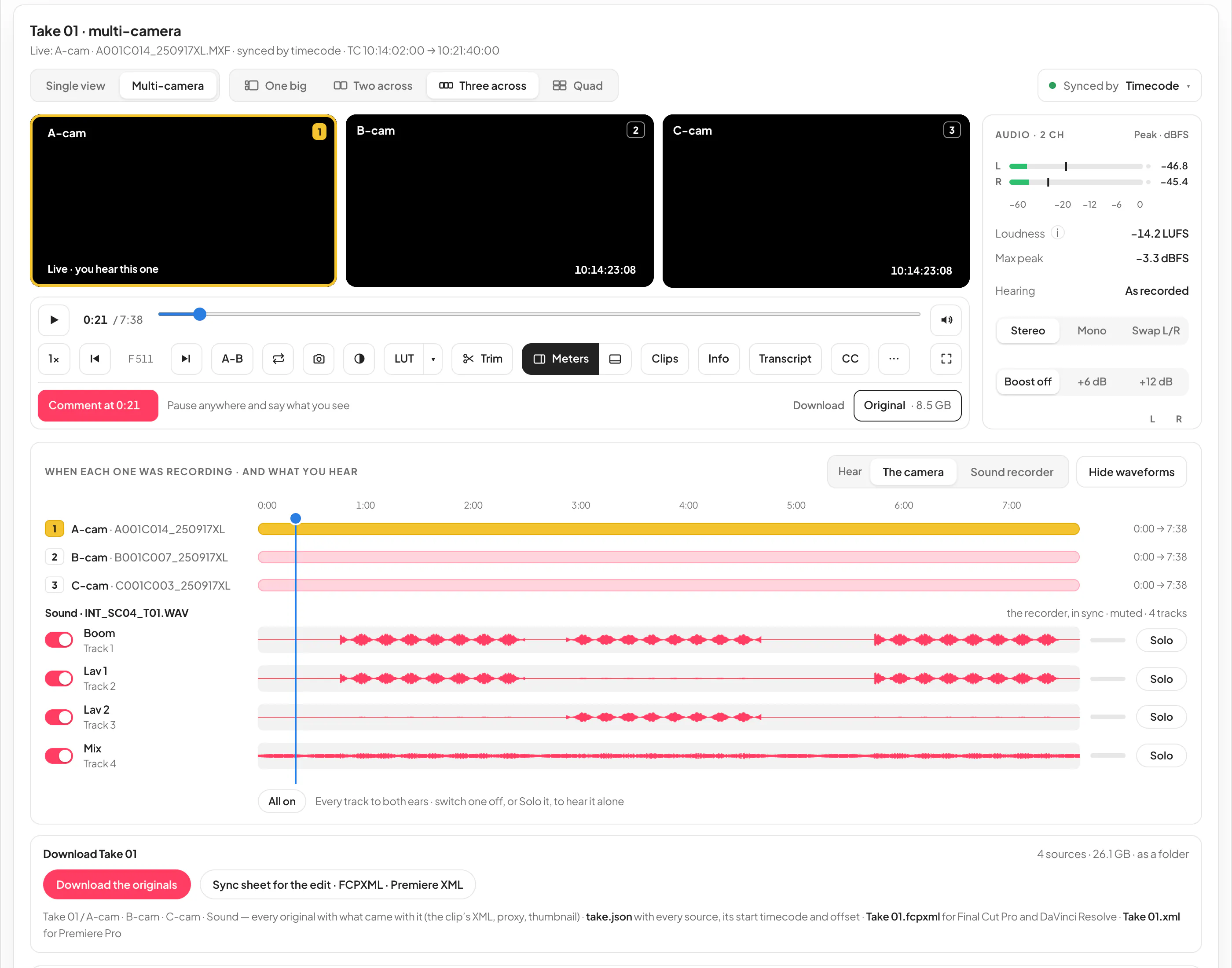
Multi-camera view and the two edit sheets are Pro review tools on the sender’s plan, like trim and transcripts; the takes themselves, the take folders and take.json are on every plan. A free sender’s page shows the button and says what it needs.
↑ ContentsTranscripts
A searchable transcript with timecode for every clip, made as it arrives or when you ask.
With the Pro review tools, every audio and video file KitSlate can read the sound of — WAV, MP3, M4A and video files (MXF, MOV, MP4, MKV, AVI, MTS and more) — can have a transcript: what is said, one line at a time, each line with the clip’s own timecode. On the page it is a card beside the player, over the file list, so the picture stays in view: press Transcript in the control bar and the card takes the file list’s place. It ends level with the player’s controls, so reading more words never moves the picture: the lines scroll inside the card, and the conversation sits underneath it. Its lines scroll to keep the line being heard in view (it waits while you scroll and carries on when you stop); Hide on the card, or Transcript again, brings the files back, and the page remembers your choice. In Expand and full screen it is the Transcript tab of the side panel, which widens to make room for it. It is on the download page and on your own copy of it under Sent. Nothing is made until someone asks: press Make transcript (the tab says how many minutes of sound it is), and the tab shows Making the transcript with its progress — a 25-minute recording took 48 seconds, and its lines start to appear while the rest is still being heard. To have it ready before anyone opens the page, switch on Make transcripts automatically when a clip finishes uploading in Settings → New transfers start with — it is off until you do — or choose Make automatically on the Send page for one transfer.
When it is ready, every line is a button that jumps the clip to that moment, and as it plays the line being heard sits in a grey bubble with the word being said in red. It looks the same in every view — beside the player, Expanded, full screen, Reading view and Paper edit: yellow while you choose words, blue for a kept select, each colour on the words only, rounded, and joined across the spaces of a run of words. Beside the player the card ends level with the player’s controls and the lines scroll inside it, keeping the line being heard in view — pressing play brings it back into view at once; Beside a sound file, whose player is short, the card still keeps at least 300 px of lines to read. Expand down runs the card to the foot of the player’s card (Fit to player brings it back), and your browser remembers which. While it is still being made, the lines heard so far fill the same box and follow the sound the same way. Search the transcript narrows the lines to a word as you type, and counts them; press / anywhere on the page to jump straight into it (in Reading view it opens the search first), and Esc clears it. Select a few words or lines and a bar appears at the top of the transcript card, laid over its title and search so nothing below it moves: Download this part trims to exactly that stretch (the same menu as Trim), with the handles the part will get shown in the bar — None, 1 s, 2 s or 5 s, the sender’s default until you change it there, and your choice stays in your browser — Attach to a comment puts the range and the words on a note, Copy text. Under the list, Copy with timecode, and Download as SRT or VTT subtitles, TXT with timecode (one line each, led by the source timecode) or TXT without timecodes (the words as paragraphs). Reading view makes the transcript the main view for a paper edit — large type, the picture a small card in the top-left corner, the line being heard held at the centre with the lines moving under it, Esc back to the player at the same moment; CC shows the current line under the picture. On a phone the Media Center is deliberately basic: the transcript is the same card under the player, the reading view the same card made the main view with the picture small at the top, and the side panel does not widen.
Where a clip’s transcript comes from. A camera clip in a take with a sound recorder shows the recorder’s transcript, moved to the clip’s own time by the take’s timecode or sound sync — one transcript serves every camera of the take, and each line’s timecode is the shared clock’s. Otherwise a camera master with its own proxy (an MP4 or MOV) shows the proxy’s; otherwise the clip’s own. The card says which: From the sound recorder’s DRAWINGS.WAV, in sync. Asking for a transcript on any of those clips makes that one.
The transcript names the track it was heard from (a lav or boom by name where the recorder labelled it, otherwise the loudest track with sound) and the language. It is made automatically, so check it before you quote it: there are no speaker labels, and a machine can mishear names, numbers and quiet words. Each paying account has a monthly allowance of transcript minutes — 600 on Solo, 3,000 on Studio, 10,000 on Production House and 20,000 on Enterprise, reset on the 1st — and the tab shows how many are left (· 420 of 600 minutes left this month). When they are used it says This account’s 600 transcript minutes for the month are used — they start again on the 1st; an automatic transcript isn’t made, and Make transcript works again on the 1st. A transcript starts the moment it is asked for, and several pieces of a long clip are heard at once. A busy hour waits its turn and carries on by itself.
Selects: send the words, or cut them for the edit. Highlight words in a transcript and they become selects — each with its clip, timecode in and out and the words. On your own transfer, Add to selects puts them on the card’s Selects tab, beside Transcript: put them in order, play each one, then Send in chat to send them to your client in a message, or Download for Premiere / EDL to get them as one sequence, cut from your original camera files, for Premiere, Avid or Resolve. To have your client pick them, Ask for selects on the transfer emails them a page where they highlight the words they want and send them back to you. The details are under Ask for selects and Your own selects.
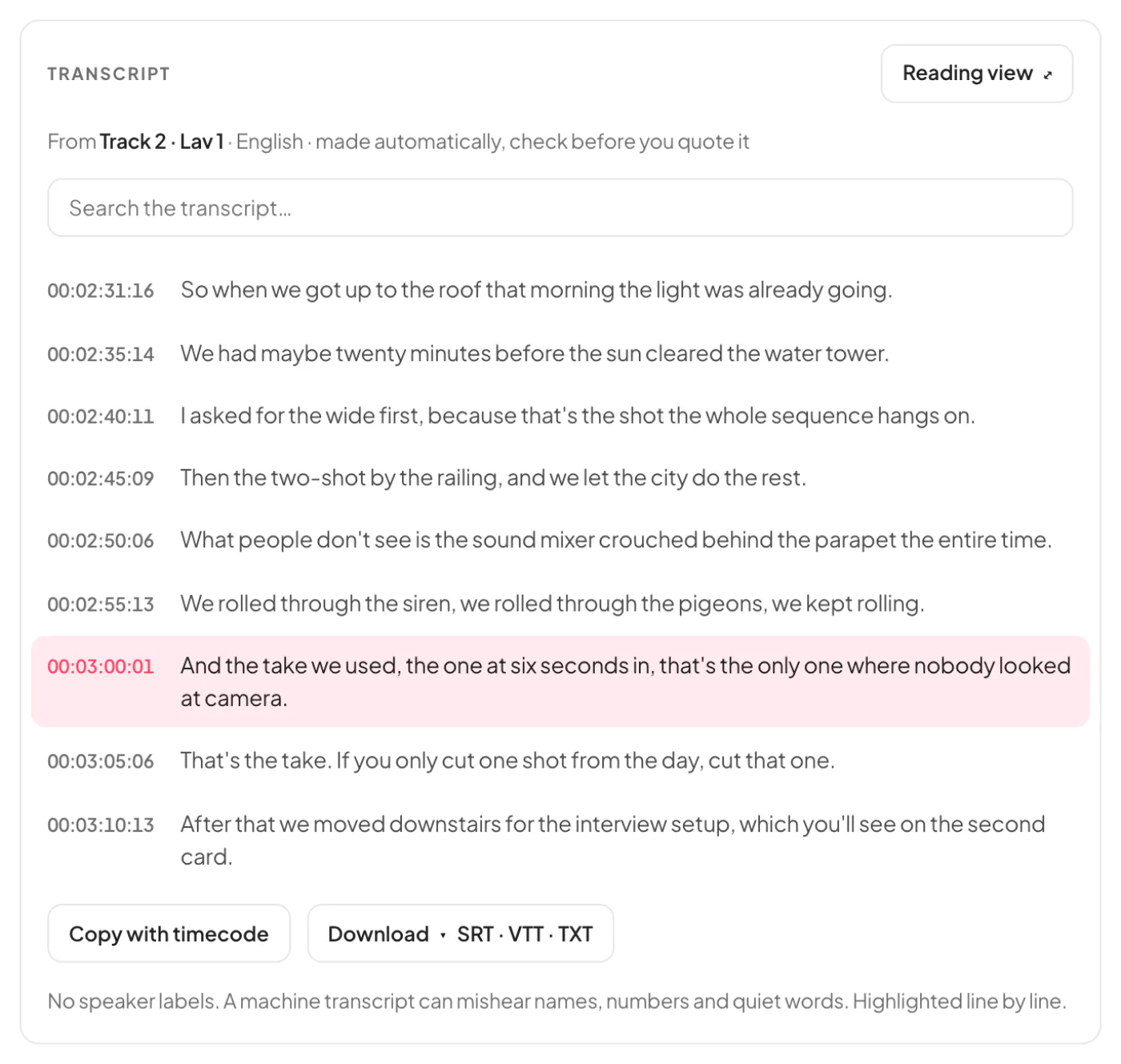
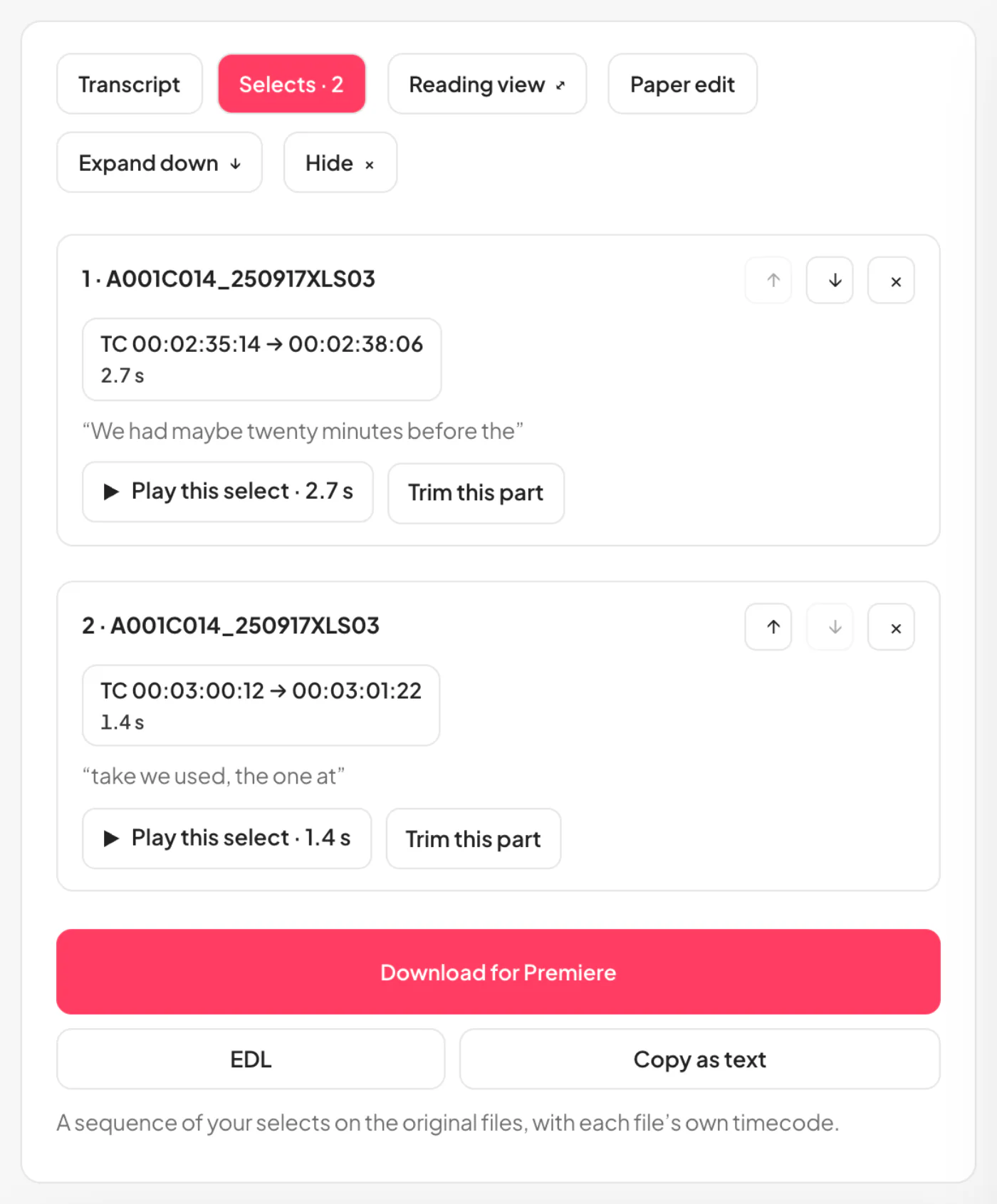
Free, Pro and how it compares
What every plan gets, what Pro adds for you and the people you send to, and how the Media Center sits beside the others.
Everyone you send to can play, scrub, change speed, use full screen and the expanded view, comment at a timecode, read the spec sheet, listen in stereo or mono and download the whole file — on any plan. The Pro review tools — trim and original parts, every audio track, frame-accurate review (frame step, A-B loop, snapshots, the timecode display, picture tools, zoom and guides) and transcripts — come with every paid plan, for you and for everyone you send to. Either side paying unlocks them: when you send from the free plan, a recipient with a paid plan of their own signs in on the page and gets them there (the page says Have a paid KitSlate account? Log in to enable). On the free plan the Pro controls are shown greyed out, never padlocked; pressing one, or its shortcut, opens the Pro review tools card that says what each tool does, with See paid plans, Compare plans and Not now. The same two lists — what every page gives, and what Pro adds — sit at the foot of the Send page (on a paid plan it folds to one line, Included in your plan, with What’s included, Manual, Help and Feedback beside it), on the download page for recipients of a free sender, and on kitslate.app/transfers.
If your plan ends. The links you have already sent are not ended with it: each keeps working until the expiry you set, and your recipients can still download the files. The Pro review tools follow your plan at the moment a page is opened, so they switch off when the plan does — unless the viewer’s own plan includes them. On the free profile, a new transfer that would pass the live storage allowance ends your oldest live transfers first, and the Send page tells you so at the time. The terms say the same (sections 16 and 32).
Compared with the others. kitslate.app/transfers/compare sets the Media Center beside Signiant Media Shuttle, MASV, WeTransfer, Dropbox Transfer and Replay, FileZilla, Hightail and Filemail, row by row — preview, notes at a timecode, replies, tracking, file ownership, retention, what happens when a plan lapses, price — each cell from that company’s own pages and terms, with the source and the date it was read. Where a company does not say, the cell says Not stated, not No.
↑ ContentsInventory / Equipment
Your fleet. This is the screen the rest of the app leans on hardest — day rates here become quote totals, and packing marks here become availability.
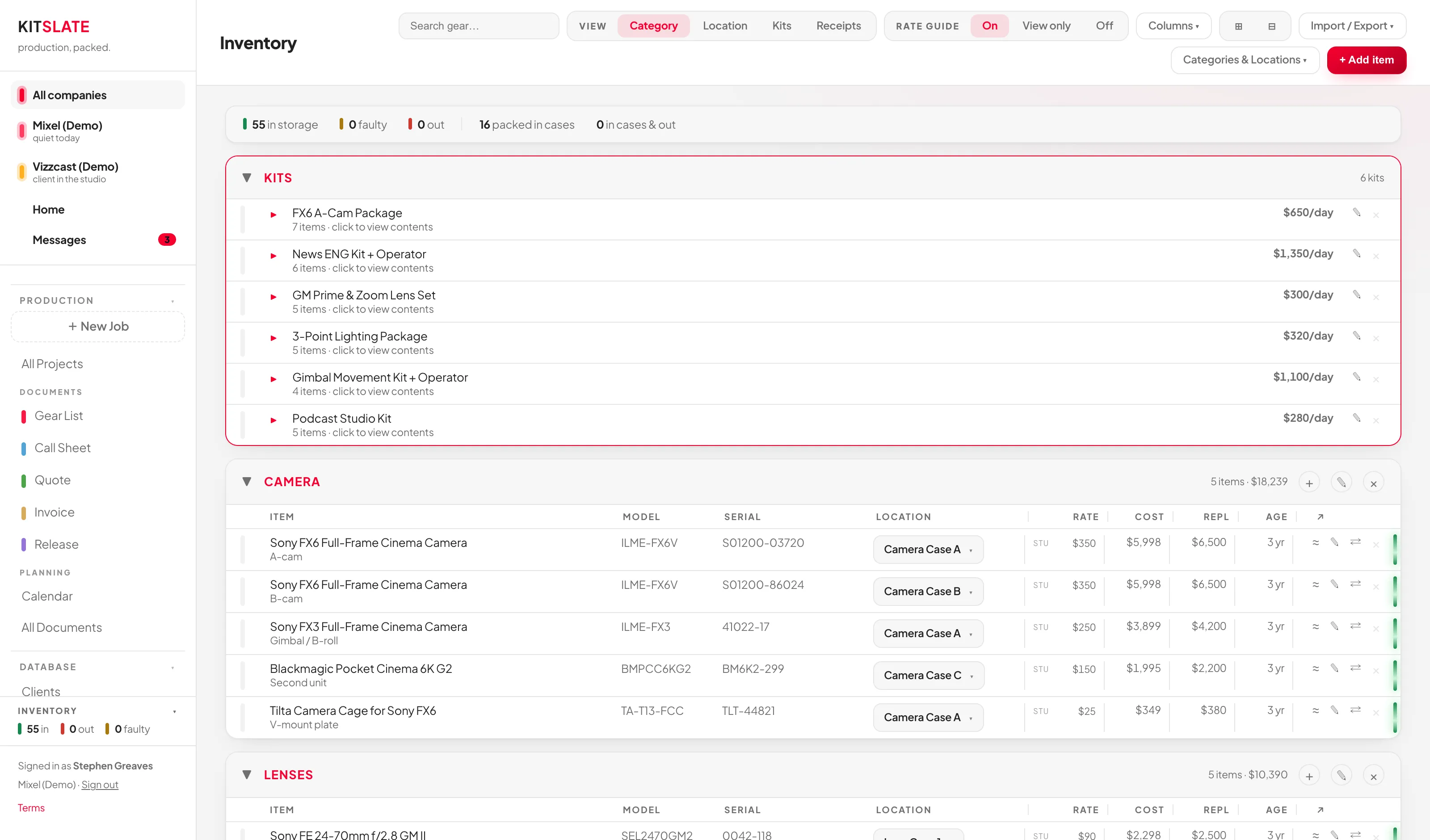
Three ways your gear is organised
| Structure | How it works |
|---|---|
| Categories | The top-level grouping (CAMERA, LENSES, GRIP…). Every item is in exactly one. Names are forced to uppercase. Deleting a category deletes its items. |
| Locations | Where a thing physically sits. Either manual ("Shelf B", "Van"), or created automatically when you tick Is this a case? on an item — that item then appears in every location list with a CASE tag. |
| Kits | Named bundles with one blended day rate. A kit remembers which items it was built from, so the Kits view always shows each item as it is now. |
Adding and editing an item
+ Add item, or the + on any category header to pre-select that category.
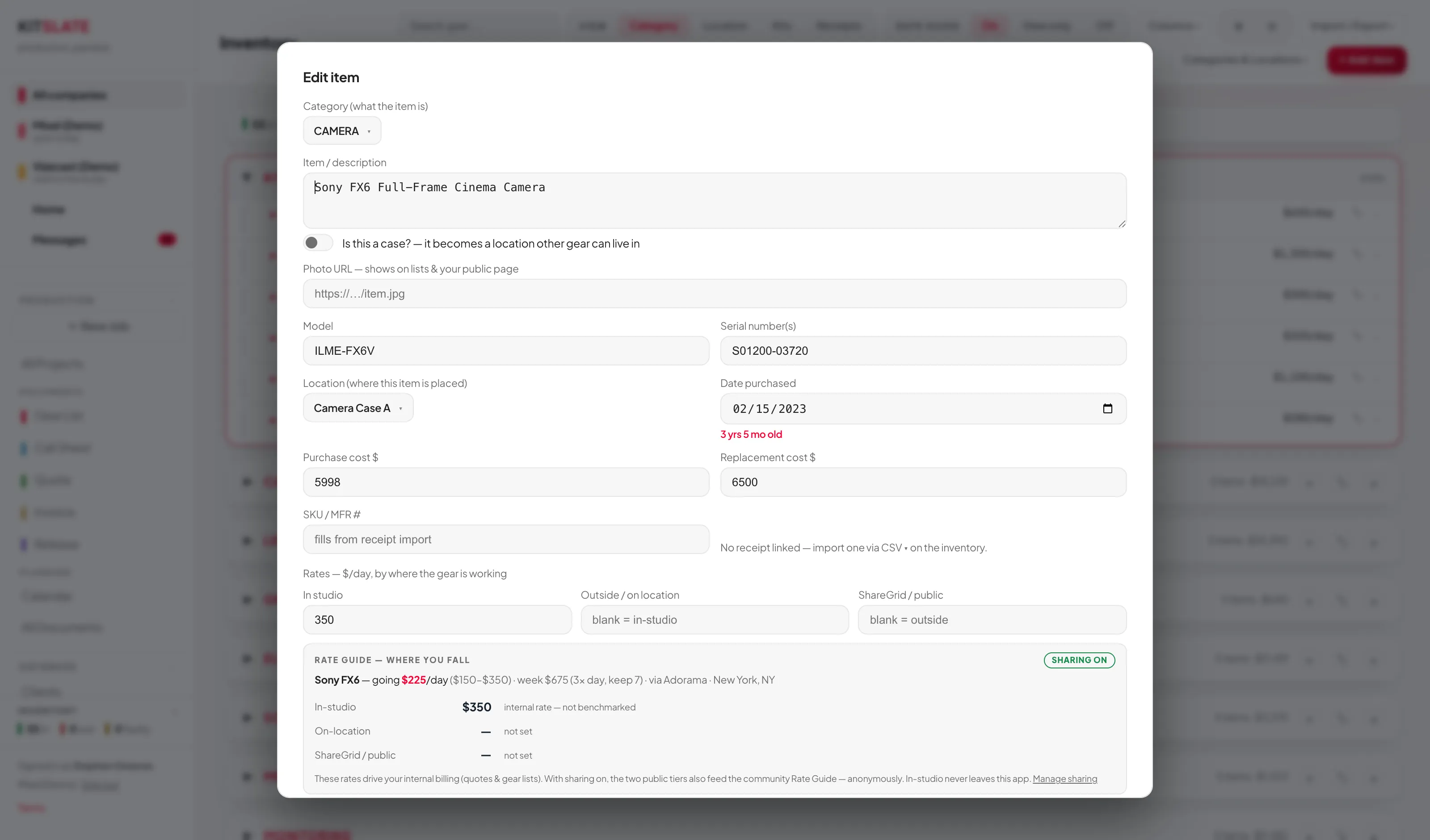
Beyond the obvious fields (model, serial numbers, location, date purchased, purchase cost, replacement cost, SKU, photo URL, notes), two things deserve attention:
The three day rates cascade
Rates — $/day, by where the gear is working has three boxes: In studio, Outside / on location and ShareGrid / public. Leaving one blank is deliberate — it falls back down the chain:
- A gear list at outside rates uses Outside, or falls back to In studio.
- A rental uses ShareGrid / public, then Outside, then In studio.
So you only need to fill in the ones that actually differ.
Links auto-fill
Paste a B&H or Amazon product URL into Links and the app tries to fetch the name, model and price. Paste a URL into ShareGrid listing and that alone is what publishes the item on your public page as kit for hire.
Multiples are separate rows. The CSV and receipt importers expand "qty: 3" into three rows for you.
The × on an item row asks once, then removes the item and takes it out of any kit that holds it.
The row controls
| Control | What it does |
|---|---|
| Selection bar (left) | A thin bar, not a checkbox. Click to pick the item for a gear list. |
| ≈ | Market rate — opens an inline panel with the going day rate near you, the weekly price, and how your three tiers compare. Only when Rate Guide sharing is on. |
| ✎ | Edit. |
| ⇄ | Merge into another item — moves the receipt, SKU and price paid across, then deletes this one. It suggests likely duplicates ranked by serial, then SKU, then shared words. |
| × | Delete. |
| Status bar (right) | Click to cycle: in → out → faulty. |
Views, columns and search
- VIEW — Category / Location / Kits / Receipts. In Location and Kits views the location column becomes a read-only category label, so you cannot re-file gear from there.
- View ▾ → COLUMNS — Model, Age and Links switch on and off; Serial, Rate, Cost and Replace $ each have three states, cycled by clicking: shown (a short line in front of the name) → ••• masked (values become dots — for screen-sharing) → – hidden.
- View ▾ → Expand every section / Collapse every section.
- Search gear… matches name, serial, model, location and category, and auto-expands everything while you type.
- Categories & Locations ▾ jumps to a category or location, and holds ⚙ Manage — rename, remove….
Selecting gear and bundling kits
Clicking selection bars raises a bottom bar — "N items selected", Clear, Bundle into Kit, Create Gear List → — with the total so far per day beside the count, and a Picked tray (▸) listing what you have chosen.
Bundle into Kit (needs two or more) shows what is going in, then lets you tick crew and set their day rate to build an all-in package. The kit rate pre-fills with gear plus crew, and typing your own figure stops it auto-updating. Crew included in a kit go on the call sheet automatically, and the quote shows one all-in line with them marked "included".
× on a kit unbundles it: "The kit is deleted; your inventory items are not affected."
Getting your gear in — imports
Import / Export ▾ has one way in: Import…. So does Import receipts… on the Receipts view — it opens the same window. Drop the file you have, or paste a list as text, and KitSlate works out what it is:
- A B&H invoice reads itself, with no AI: order number, date, buyer, every line with its SKU and serial, the tax, the Payboo saving from its own line, and the instant savings printed under a discounted line — the price on each line is what you actually paid.
- Any other receipt — a PDF, or a photo or screenshot of one — goes to the receipt review, where Read it with AI → reads any vendor in a few seconds.
- A list of gear — a CSV, an old spreadsheet, an insurance schedule, a rental-house list PDF, or a screenshot of a list — becomes items. Files the standard reader can shape are read directly; anything it can’t shape gets an explicit Read it with AI → offer rather than a dead end.
- A photo, a screenshot, or a scan with no text in it has no standard reader, so the AI reader is offered up front, and it answers whether it saw a receipt or a list — the answer decides which review you get.
Either way you see everything before anything is added. A receipt is logged with its file, and each of its lines can update an item you already own or become a new one. A list becomes items, each ticked and untickable. Nothing is ever sent to the AI reader without you pressing Read it with AI →.
Every line comes with a category already chosen: the item’s own if it matched something you own, otherwise the reader’s suggestion, placed in the category you already have — a lens goes to your LENSES, a tripod to your CAMERA SUPPORT, never a new CAMERAS beside your CAMERA. Only a kind of thing none of your categories covers is offered as New: …, which the import creates. You can change any of them in the dropdown.
If a PDF was taken for a receipt but is really a list — a rental order with a subtotal and tax, say — It’s a list, not a receipt → on the receipt review sends the same file to the list reader, and no receipt is logged. Drop several kinds at once and KitSlate reads the PDFs first, then the CSVs, then one picture, and tells you which files to drop again.
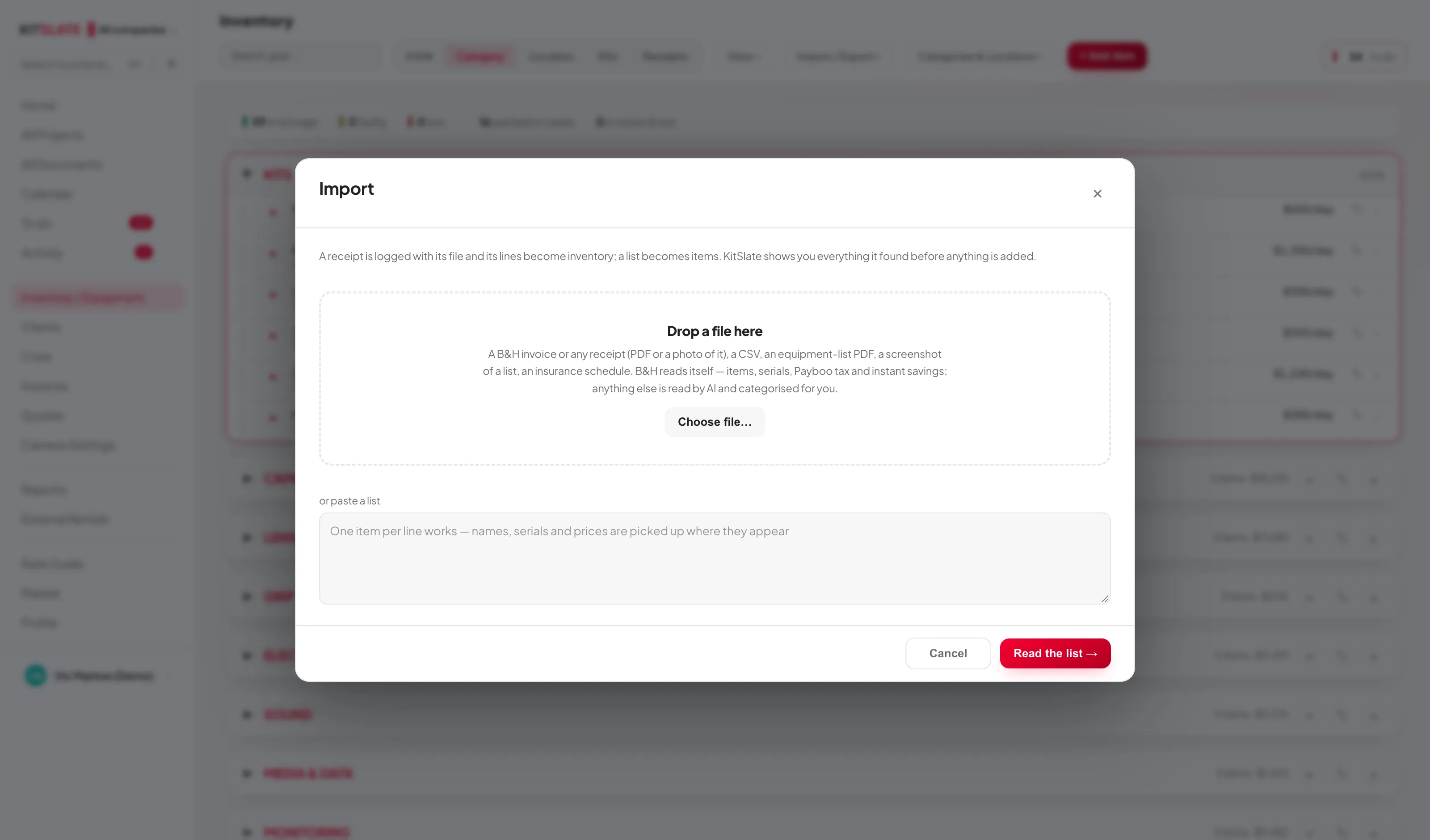
Inventory CSV import skips duplicates outright (matched on name + serial) — an existing item is never updated. Clients and Crew do the opposite: they fill in blanks on existing records. Don't assume one behaves like the other.
Importing data from the Mixel spreadsheet
If you came from Gear List for Video Professionals — the Google Sheet sold on Gumroad — your kit moves across as it is. In the sheet, open the Inventory tab, press UPDATE THIS LIST so every equipment tab has been pulled in, then File → Download → Comma-separated values (.csv). Import that one file here and every category comes with it — the importer recognises the sheet by its Serial Numbers: header and reads your category bands, names, serials, notes and prices without you mapping a single column.
The full walkthrough, with screenshots of both the sheet and the app, is at kitslate.app/mixel-spreadsheet-import.
Importing your equipment list — a CSV, a list PDF, a pasted list or a picture of one — is on Studio and up. Below Studio the Import… window offers receipts only and says so. Receipt import is on every paid plan. The full backup download — one readable JSON file — is on every plan, free included.
Tidying names afterwards
If imported names nearly match the shared catalogue, you get "Tidy up N names for consistency" with tickboxes, Keep mine and Rename ticked →. It changes only the name — but it is what makes your gear line up with Rate Guide benchmarks.
Receipts
VIEW → Receipts lists imported receipts with a storage meter, each with what you paid, the Payboo saving and any instant savings. Several receipts dropped together are reviewed one at a time: editable order number, date, buyer, the subtotal, tax, shipping when printed and the total as printed, the instant savings, and a Payboo saved −$ field (B&H’s card refunds the sales tax, so it counts as saved, not spent).
Each line offers ⚠ Update: <existing item>, Add as new item, or Skip this line, and a category dropdown. The promise is explicit: "Update fills price paid, date, SKU and links the receipt — it won't rename or move your item."
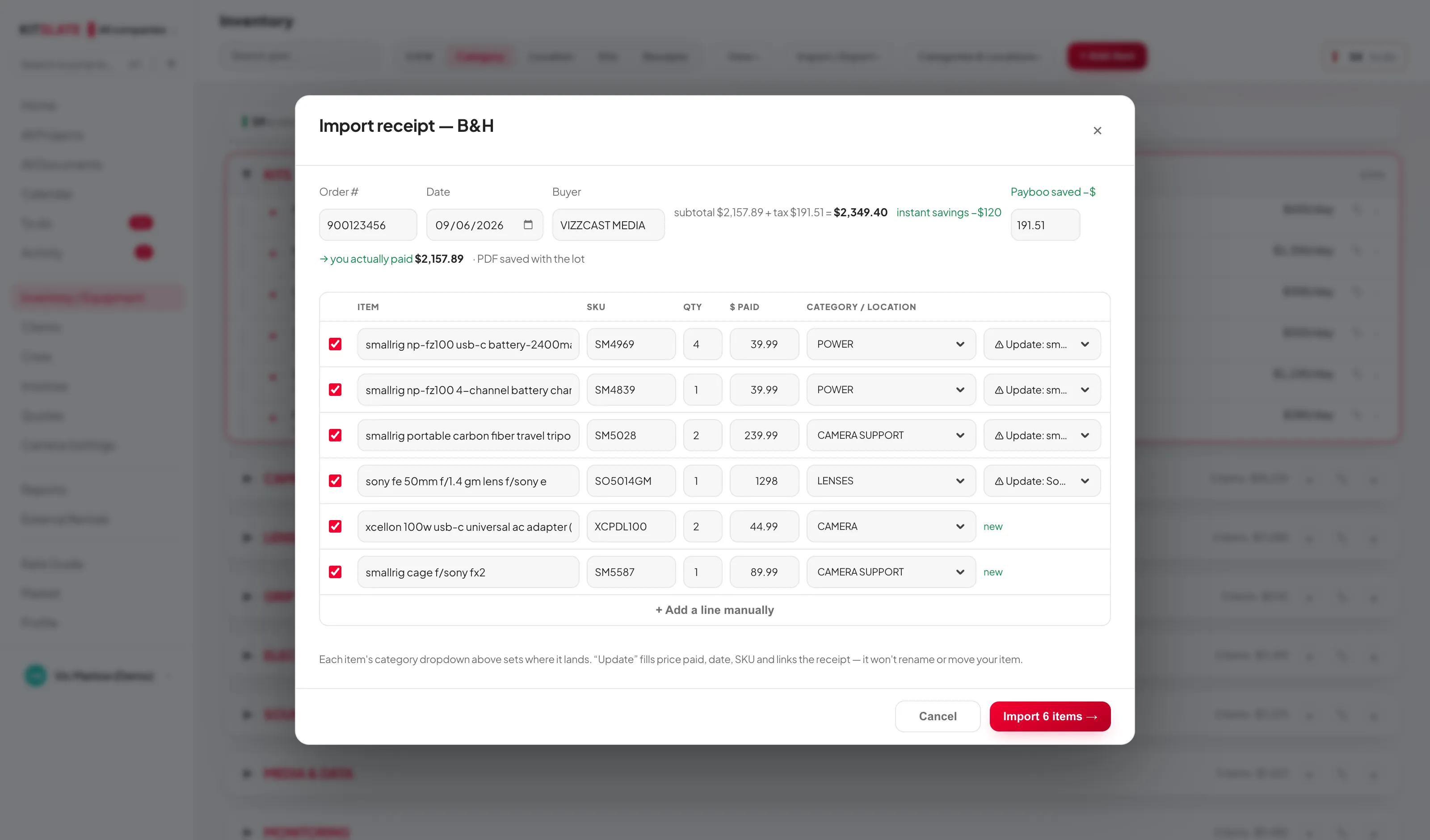
When a vendor's layout isn't recognised the receipt is still logged, and a banner offers Read it with AI → — any vendor, a few seconds, check the lines before importing.
The original file itself: signed in to your own workspace, the PDF or photo is stored privately in your cloud workspace — the receipt row keeps only a small reference, so originals never eat your browser's storage budget. View original on the receipt row fetches it back on demand; the same button appears on imported invoices. In the sandbox, small originals are kept in the browser. If a file can't reach cloud storage, KitSlate tells you at import.
Receipts name things the way the till prints them — "SONY FX6 FULL FRAME CINEMA CAMERA BODY". Every item name on the review screen is a type-ahead: start typing and the shared catalogue offers its own spelling, so picking "Sony FX6" lines your gear up with everyone else's benchmarks. You do not have to — anything left as printed is still offered for tidying at the end of the import.
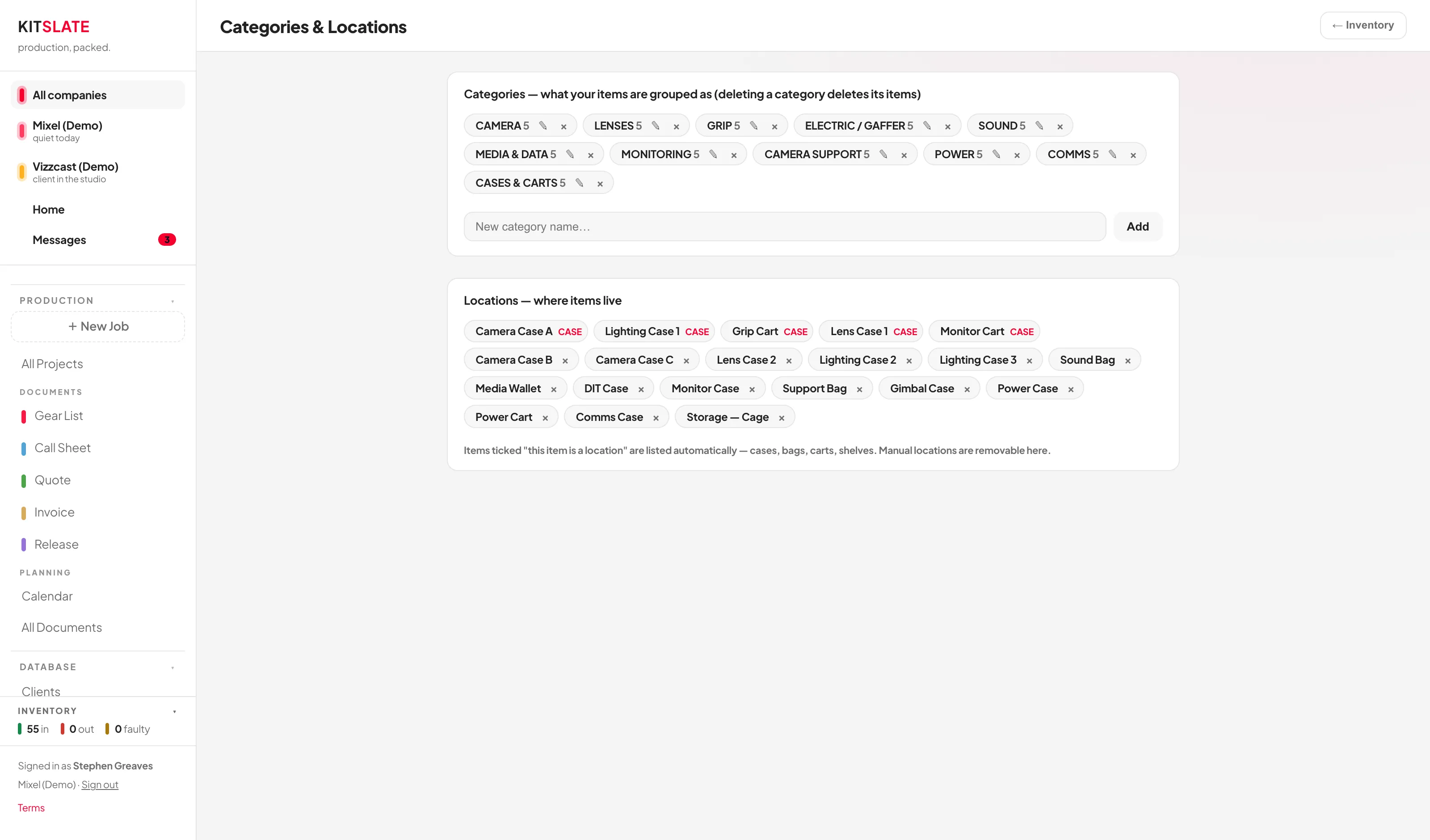
Clients
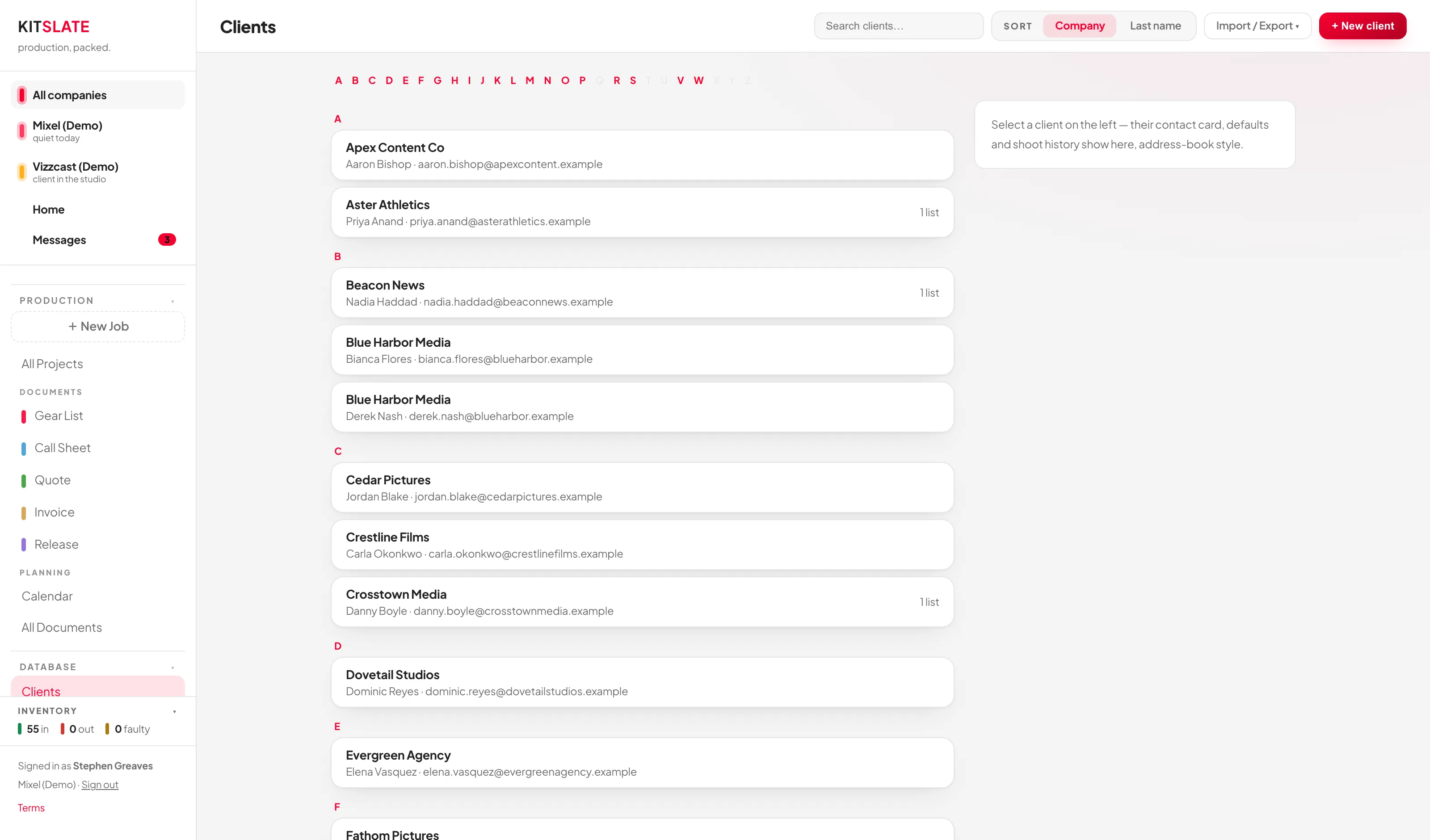
The page is a two-pane layout: the list takes about a third of the width, the selected client the other two thirds. Each list tile carries the company name, the primary contact, their email and phone, how many documents that client has and when you last shot for them.
The record itself opens under a header that stays put while you scroll it — company name, main contact, city, currency, and its actions: Create production → (opens Create Production with this client chosen), ✎ Edit client, ✉ Ask them, ⤢ Expand, and a quiet Delete off to the right. Below that the record is grouped into cards: Overview, Contact, Address (with a map), Production defaults — camera settings, preferred kits and regular crew in one place — Activity, Past shooting information and Notes. Empty sections say "none set" rather than leaving a hole.
✉ Ask client to fill in in the top bar, or ✉ Ask them on the open record, emails the client a private link to their own record — address, contacts, billing details, the camera they shoot on — and what comes back fills the blanks. A small flag on the tile and a Details request section on the record show a request that is out; To do shows anything that needs you. See Requests & approvals.
On desktop the page itself does not scroll. The list and the open record each get their own scrollbar and fill the height under the toolbar, so you can reach the bottom of a record — Past shooting information, Notes — without first scrolling the whole page to its end.
Under about 1100px the list goes full width and the selected client opens over it as a drawer with a ← Clients button. On a phone it fills the screen. There is never a pair of squeezed columns.
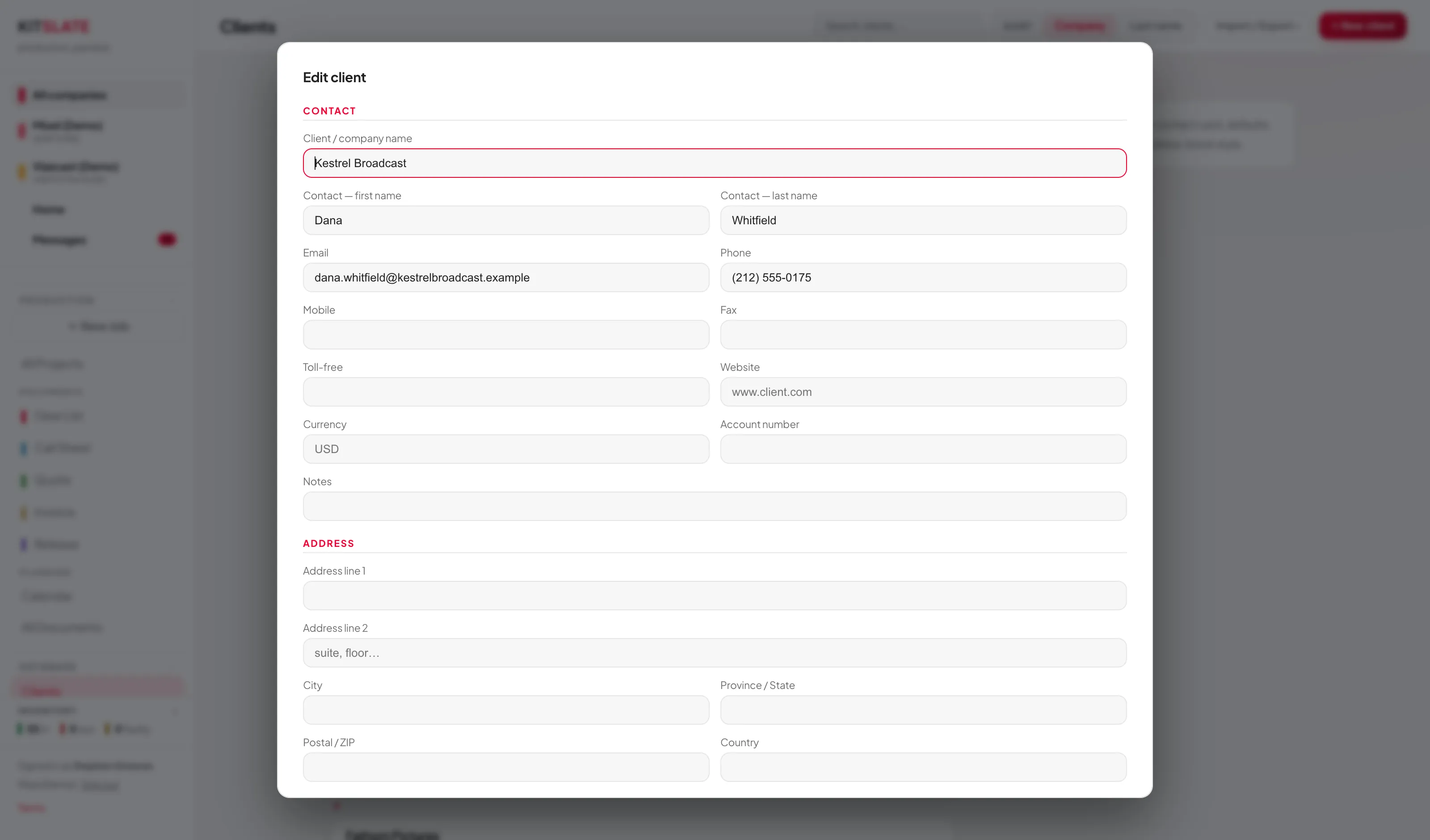
✎ Edit client opens as a large drawer rather than a tall thin modal. Fields sit in the same groups as the read-only record — Overview, Contact, Address, then camera settings, equipment and regular crew — and the footer with Cancel and Save stays visible however far you scroll.
What a client record does for you
- FILMING LOCATIONS is derived from past shoots — you don't type it. Those addresses are offered back next time you book them.
- REGULAR CREW are auto-added to this client's call sheets.
- CAMERA SETTINGS presets load automatically on their shoots. The first one added is the default.
- Quotes and invoices pull their name, address and contact from here.
In order: the preset you pick in the booking wizard, then the client's settings saved from their last job, then the client's default preset. A client's saved-from-last-shoot values beat their attached preset — there's a Clear button if that's not what you want.
Deleting a client can blank the contact details on an already-issued Quote or Invoice, even though the confirmation says "Existing gear lists keep their info". Print or export anything you need before deleting a client.
Importing clients
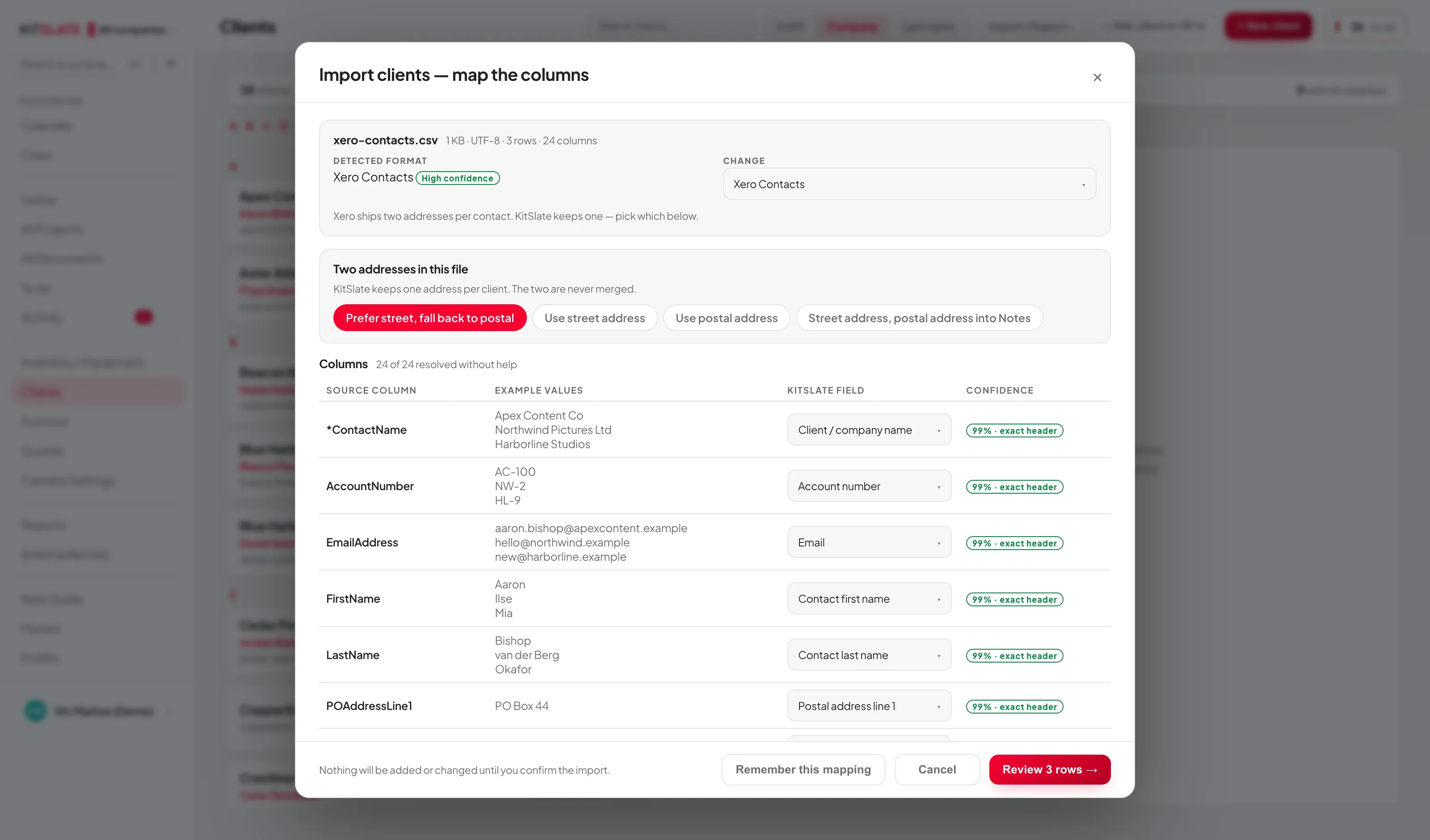
Import contacts — Xero / QuickBooks / Wave / any CSV… opens a staged assistant. Drop a file in and it works through four screens; nothing is written until the last one.
- Upload — drag and drop or browse. It reports the filename, size, detected encoding (including UTF-8 BOM and UTF-16), row and column counts, and copes with comma, semicolon and tab separators. Up to 8 MB and 20,000 rows.
- Detect — shown at the top of the mapping screen, the format is worked out from the column headers, never the filename: Xero Contacts, QuickBooks customers, Wave customers, a KitSlate export, or Generic CSV. You get a confidence badge — High confidence, Likely or Needs review — and a Change picker to override it.
- Map — a table of every source column with two or three real example values, the KitSlate field it will go into, and where that mapping came from ("exact header", "known alias", "from values", "your saved mapping"). Change any of them, or send a column to Ignore this column, Add to Notes or Keep as source data. If two columns point at the same field you get told.
- Review — every row, with counts of new, existing matches, possible duplicates, rows needing review and invalid rows, each filterable. Correct the name, contact, email or phone inline. Then Import.
Header matching is tolerant: spacing, capitalisation, underscores, hyphens, a UTF-8 byte order mark, missing optional columns, extra columns KitSlate doesn't use and a different column order all pass. An absent optional column never fails the import.
Xero contact files
Xero contact exports and the Xero contact import template both work. ContactName becomes the client name, AccountNumber, FirstName, LastName, EmailAddress, PhoneNumber, MobileNumber, FaxNumber, Website and DefaultCurrency map straight across.
When a file carries both a street and a postal address you are asked which is the real one, before the preview: Prefer street, fall back to postal (the default), Use street address, Use postal address, or Street address, postal address into Notes. The two are never mashed together into one malformed field, and a second address that was left behind is flagged on the row.
Xero fields KitSlate has no home for — tax number, contact status, sales and purchases accounts, tracking categories, extra contact people — are listed under Additional source data on the mapping screen and kept on the client record as source data. You can send any of them to Notes, to a real field, or to Ignore instead.
When KitSlate can't work a column out
Known headers never need help. For a generic spreadsheet or an oddly-labelled column, Ask AI to map unclear columns appears. It sends only the unresolved column names and up to three sample values each — one request for the whole file, never one per contact — and every suggestion comes back for you to review before anything is imported. The AI can only ever choose from KitSlate's own field list; it never writes data and never fills in a missing name, email or address.
Once you have corrected a mapping by hand, Remember this mapping saves it against that exact set of headers, so the next file of the same shape arrives already mapped.
Duplicates
Before anything is written, each row is compared against your existing clients — on email, then account number, then company name plus phone, then contact name plus email or phone. A close-but-not-exact company name is only ever raised as a possible duplicate. Possible duplicates are never merged automatically. Per row you choose Skip, Create, Update empty fields only, Update mapped fields or Replace record — an existing match starts on Update empty fields only, which fills blanks and overwrites nothing you have typed, and a possible duplicate starts on Skip.
Afterwards
The final screen reports created, updated, merged, skipped and failed. Anything that failed can be downloaded as an error CSV with the original row, the reason and a suggested fix. Import history… in the same menu keeps the result of each job — date, who imported it, company, format, filename, row counts and the mapping used — plus your remembered mappings, each of which can be forgotten. The uploaded file itself is not kept.
Exporting to your accounting package
The OUT half of the menu has Export full KitSlate CSV plus presets for Xero, QuickBooks and Wave. Each one previews the first rows with the destination's own column headings and tells you plainly which KitSlate fields that package has no home for — Xero has no toll-free or notes field on a contact, for instance — before you download.
↑ ContentsCrew
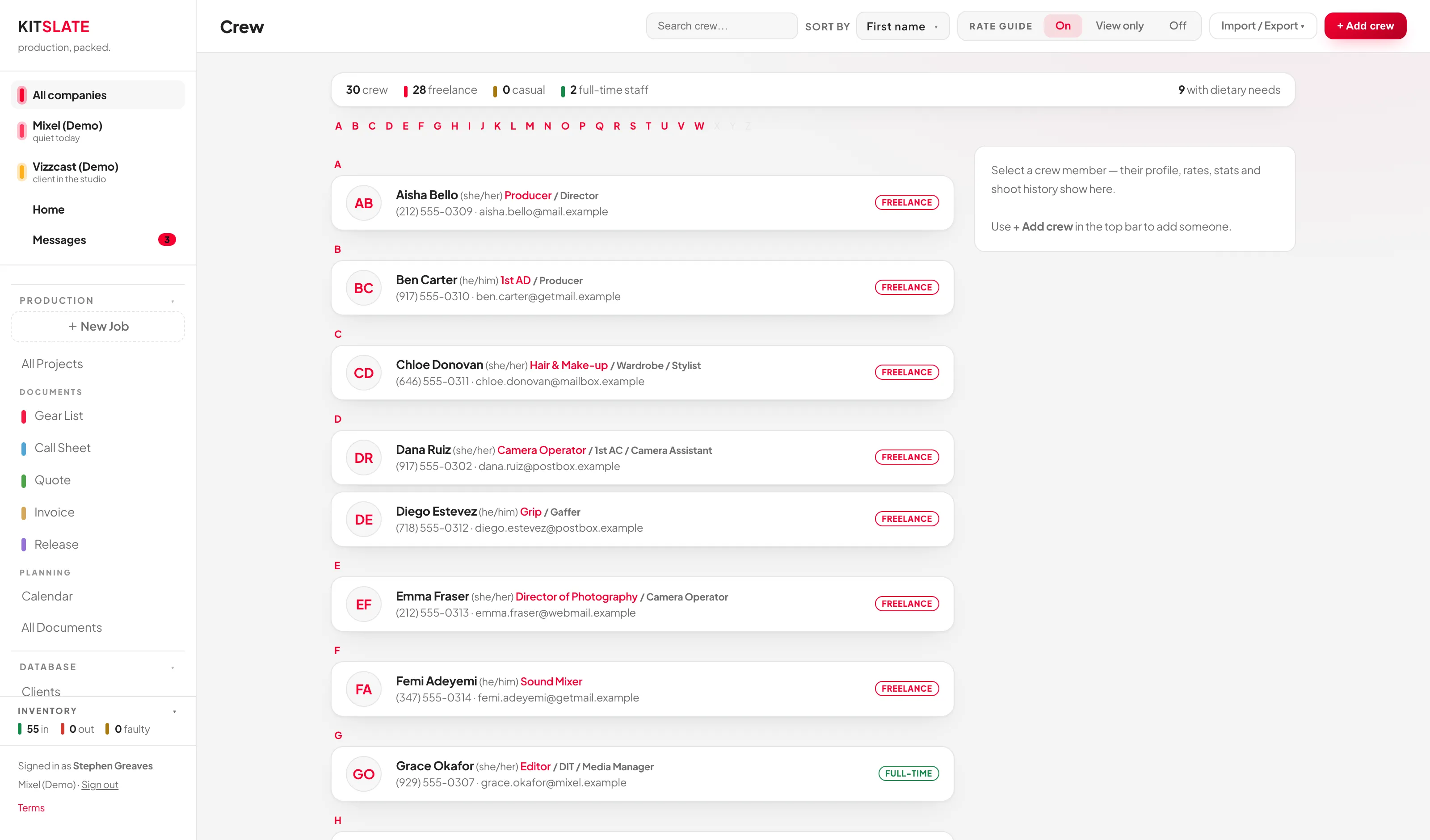
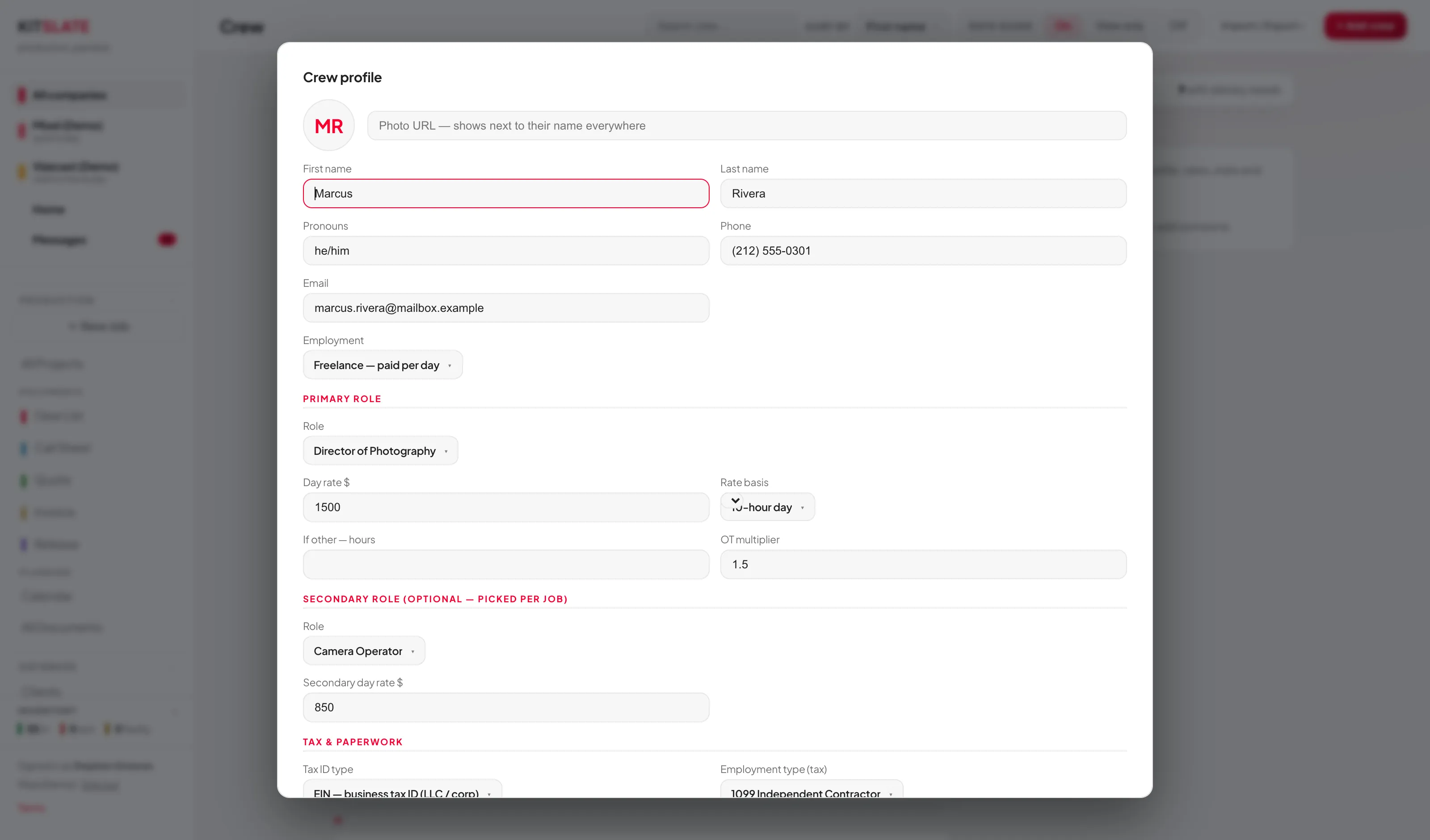
Crew uses the same two-pane layout as Clients, and the same sizes: list on the left at about a third of the width, the selected person on the right. A list tile shows their avatar, name, pronouns, primary and secondary role, phone and email, their employment badge, and compact markers for W-9, DIET, CERT EXPIRED or NO CONTACT so you can see at a glance who is missing something.
The profile opens under a header that stays put — avatar, name, pronouns, roles, employment badge and those same markers, with ✎ Edit profile, ✉ Ask them and a quieter Delete set apart. Below it: Overview, Contact, Address (with a map), Rates (with the going-rate comparison where the Rate Guide has one), How they'd like to be paid, Tax and paperwork, Licenses and certifications, Dietary requirements, Work history and Notes. Work history is a row per job: what they earned on it, their expenses and receipts, and whether their invoice has come in and been paid (a future job reads Upcoming), with Open job (straight to its Crew pay tab), View invoice or Check it, Copy upload link, or Ask for it. Earned is what the job holds for them; where the quote never priced them, it is the labour on their own invoice, marked as invoiced. Totals sit across the top — jobs, days, earned, still to pay, expenses owed. In ⤢ Expand it takes the full width of the window. A section with nothing in it says so in one line.
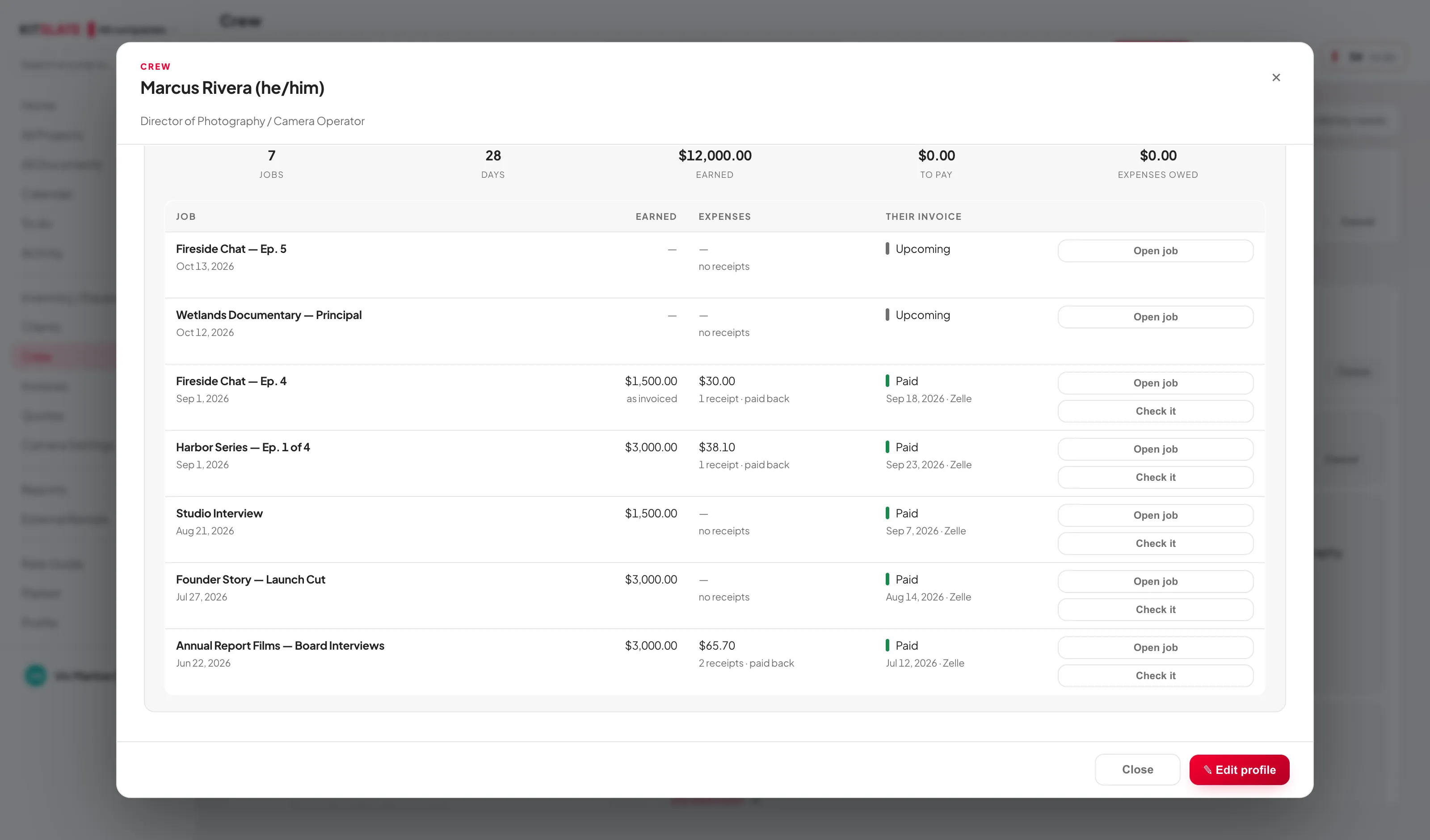
Editing works exactly as it does for clients: the same window, the same sections as the read-only profile, and Cancel / Save profile pinned to the bottom.
To bring a crew list in, Import / Export ▾ → Import crew CSV… — on every paid plan. Upload PDF — crew list… beside it is Production House and up.
The fields that matter most
- Employment — Freelance / Casual / Full-time. Choosing full-time greys out every rate field, their profile reads "Full-time staff — no day rate on quotes", and they go onto a quote marked "— staff" at no charge.
- RATES — PRIMARY ROLE — from a list of 21, or + Custom role… — plus day rate, rate basis (10-hour day / 12-hour day / other) and OT multiplier, defaulting to 1.5.
- RATES — SECONDARY ROLE with its own day rate. This is how one person can be booked as DP on one job and Operator on another, at different money — you pick which when you add them to a call sheet.
- TAX AND PAPERWORK — tax ID type, employment type for tax, a Received W-9 toggle, and a drag-and-drop zone for W-9s, contracts and NDAs. Uploading a file with "W-9" in the name ticks the box for you.
- LICENSES & CERTIFICATIONS — type, name and expiry. Anything lapsing within 60 days shows amber; anything expired shows red.
- DIETARY REQUIREMENTS — tap-to-toggle pills from a 17-item list. It asks how someone eats as well as what they can't: vegetarian, vegan, halal, kosher and keto sit alongside the allergies, so a vegetarian no longer reads the heading and leaves it blank. These roll up onto every call sheet's catering summary.
Every phone field — crew, clients, companies, the call sheet's crew cell, the forms you send out — has a country picker. A number is kept once, with its country, and shown the way people read it: 347 922 3836 inside the app, +1 347 922 3836 on every document that leaves. An address prints as a block, one line per part, on the sheet, the PDF, the crew's page and the editor.
If someone's ticket lapses before a shoot they are booked on, it appears under PRODUCTION HEALTH in that job's header. This is the closest thing KitSlate has to a crew-readiness check.
A brand-new profile shows "Save the profile first, then reopen it to attach documents". Files cap at 25 MB each.
A booking that takes someone already on another job's call sheet for those dates is flagged before it saves, and on the Calendar they read Also booked in a job's crew list. Home's "You're in N places today" line covers you.
Let them fill in their own details
Rather than typing everyone's details yourself, you can email your crew a link and let them do it. It rides the same rails as handing off a document — a one-off web form, no account, no app, no seat.
✉ Ask crew to fill in in the top bar takes an email address (paste several, separated by commas, to ask a group) and sends each person their own private link. On a selected person, ✉ Ask them does the same for just them, pre-filled with the address you already hold.
What they see is their own address-book entry: who you are (name, pronouns, main and second role, both type-ahead against your 21 roles), how to reach you, where you are, your rate, how you work, how you'd like to be paid, documents (W-9, licence, certifications, insurance), how you eat as tap-to-toggle pills, and anything else. If you already have a record for them it comes pre-filled so they only correct what's wrong — except the rate, which is always asked fresh. They can leave anything blank, and the submit button stays locked until there is at least a name or an email.
Back on the Crew page an ADDRESS BOOK bar tracks it: a WAITING ON column while links are out, then an ANSWERED column reading "<name> filled it in — N fields filled" as each one comes in. Someone who wasn't in your database yet is added as a new freelance crew member. Open jumps to their profile, Clear puts the bar away, and their profile gains a CONFIRMED BY THEM line with the date.
Unlike a document handoff, what comes back fills blanks only. If someone answers something differently to what you already hold — a new phone number, a higher day rate, a changed dietary need — your record is left alone and their answer is parked behind Review N. That shows yours against theirs per field, with Use theirs, Use all of theirs and Keep mine. Nothing changes until you pick.
Clear asks before throwing away answers you haven't reviewed yet.
You must be signed in (they don't need to be), and there is one live request per email address — a new one replaces it. Returns are pulled in every minute wherever you are in the app, and each request shows on To do, on the person's record and on Activity — see Requests & approvals. A W-9 they upload ticks Received W-9; a licence, certification or insurance they upload goes under Licenses and certifications with its expiry.
Camera Settings
Reusable camera-menu snapshots that ride onto gear lists and call sheets, so the crew shoots the right thing.
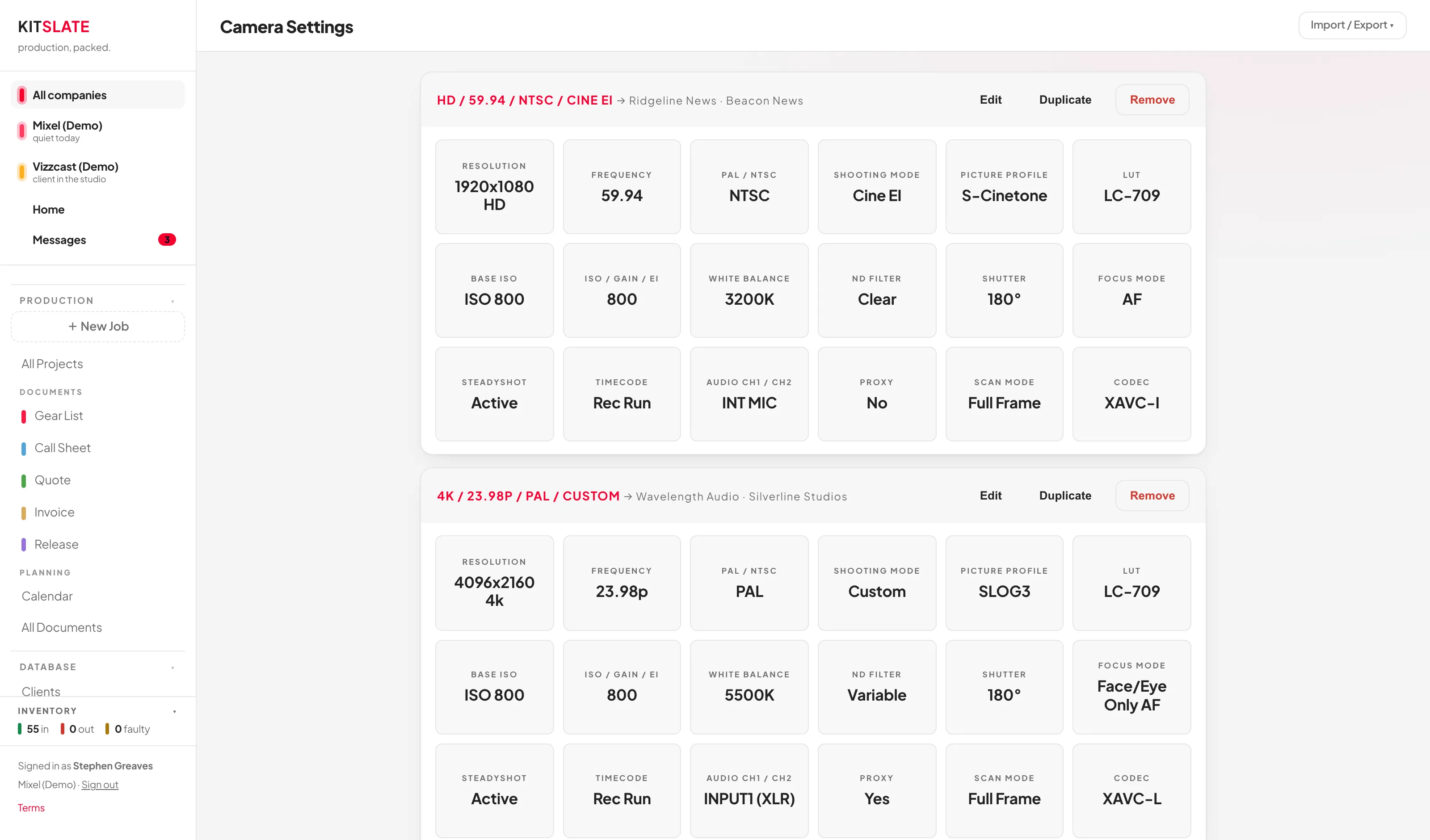
Every ask for camera settings starts with the camera. A preset, a production's camera block, step 2 of Create Production and the guest form a client fills in all open the same picker: Brand first, then the Camera body, and the setting tiles narrow to the values that camera actually offers, from its published specifications. Custom — fill your own keeps every setting KitSlate knows for a body it does not, and Request a camera… asks for one to be added. Every tile still takes + Custom… for a value that is not listed.
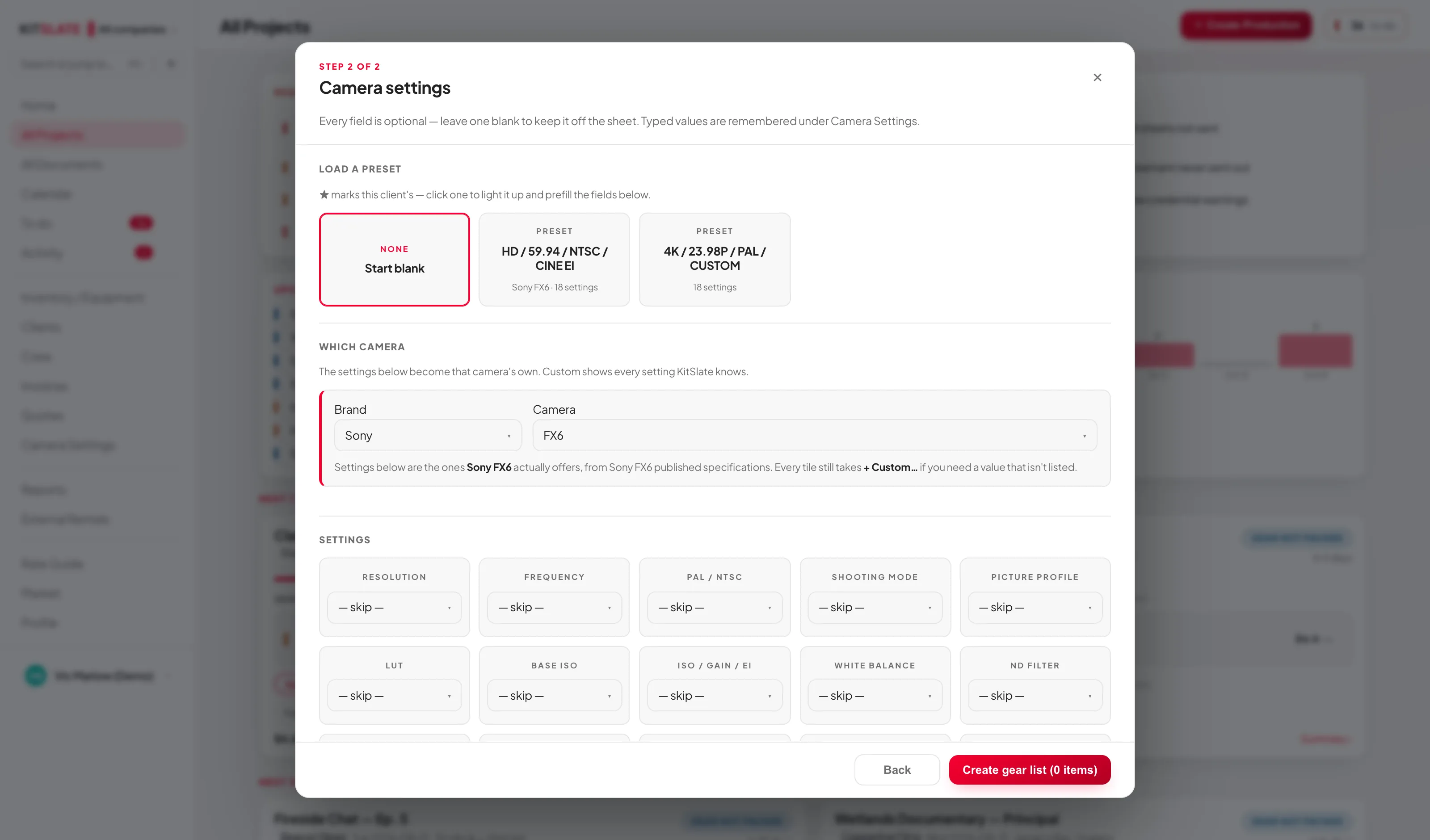
+ New preset opens the editor inline. There are tiles for 19 standard settings — resolution, frequency, PAL/NTSC, shooting mode, picture profile, LUT, base ISO, gain/EI, white balance, ND, shutter, focus mode, SteadyShot, timecode, audio channels, proxy, scan mode and codec — each a picker with a + Custom… option. + Add setting covers anything not listed.
Auto-name builds a name from the main values, giving you something like HD / 29.97P / NTSC / CINE EI. Leave the name blank and it applies that automatically on save.
Attach to clients makes a preset load automatically on that client's shoots. A preset can belong to any number of clients, and detaching here also removes it from that client.
Settings are snapshotted when the job is created. Editing the preset afterwards does not change jobs already built from it — and hand-editing a field on a sheet detaches it from its preset.
Remove on a preset card deletes it immediately. Duplicate first if you're experimenting.
At the foot of the page, Custom values keeps every value you have ever typed into a settings field, as removable chips, so it reappears in the picker next time.
↑ ContentsExternal Rentals
A ledger of your own gear going out to someone else — no job, no gear list, no call sheet attached.
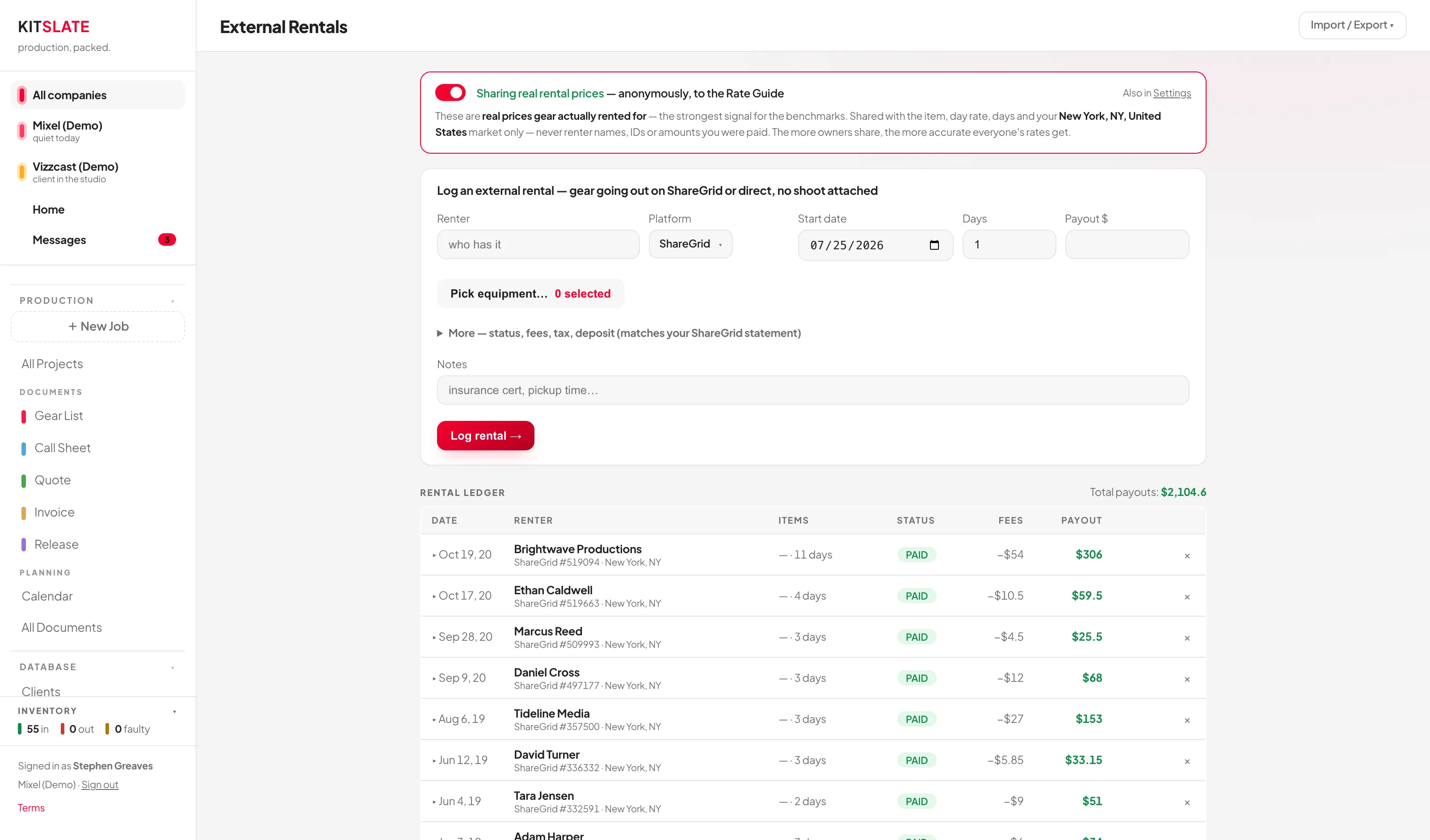
- Renter — who has it. Required.
- Platform — ShareGrid, KitSplit, Direct or Other.
- Start date, Days (in half-day steps) and Payout $.
- Pick equipment… — each row shows the serial, whether it's already out, whether it's listed externally, and its external day rate. Close with Done — N items →.
- A hint appears — "suggested payout $X", being each item's public rate × days. Optionally open More — status, fees, tax, deposit to match your ShareGrid statement line for line.
- Log rental →.
Logging flips every picked item to out. Return on the ledger row puts them back in storage. Blank fields are filled in for you on save: end date from start + days, subtotal from daily × days, payout from subtotal − service fee.
Rentals do not create date conflicts. The double-booking warnings in + Create Production read other shoots only. The same item can be logged out to two renters with no warning at all. Your only signals are the red "out" status, the equipment counts in the status panel, and "already out" in the picker.
Delete the row before returning and the gear stays marked out forever. Hit Return first — the confirmation says "It doesn't change the item's status."
Rentals carry no company, so the company filter in Reports never touches rental income.
Import rentals CSV… auto-detects a ShareGrid rental-history export, de-duplicates on rental ID, files rows as already returned, and matches items to your inventory by name.
↑ ContentsExpenses
The rightmost tab on a job. The quote prices what you expect the expenses to come to; this tab records what they actually came to, and shows the two against each other.
Estimated against actual
An expense estimate is an ordinary line on the Quote tab, so the client reads the figure before the job and agrees to it along with everything else. Where the job has no estimate yet, the first card has an empty Estimated expenses box: type a figure and it goes on the quote as a line, without leaving the tab. The figure stays editable here; Open the quote takes you to it and Remove the estimate takes it off.
The estimate reaches the invoice the same way every other quote line does: inside the copy the invoice is made from. If you change the estimate after the invoice exists, the quote’s own bar offers to push the change across.
The top of the tab then reads Estimated on the quote, Actually spent and the difference — over the estimate or under the estimate — with the estimate’s own lines listed underneath, and the actuals itemised in the card below.
A quote is the record of what was agreed. Receipts arrive after the agreement was made, so putting them onto it would rewrite the agreement after the fact — and then ask you to push that rewrite forward onto the invoice. An expense you bill to the client therefore goes to the invoice, which is the document still being settled. Before there is an invoice, it goes to the quote, because that is the only document there is.
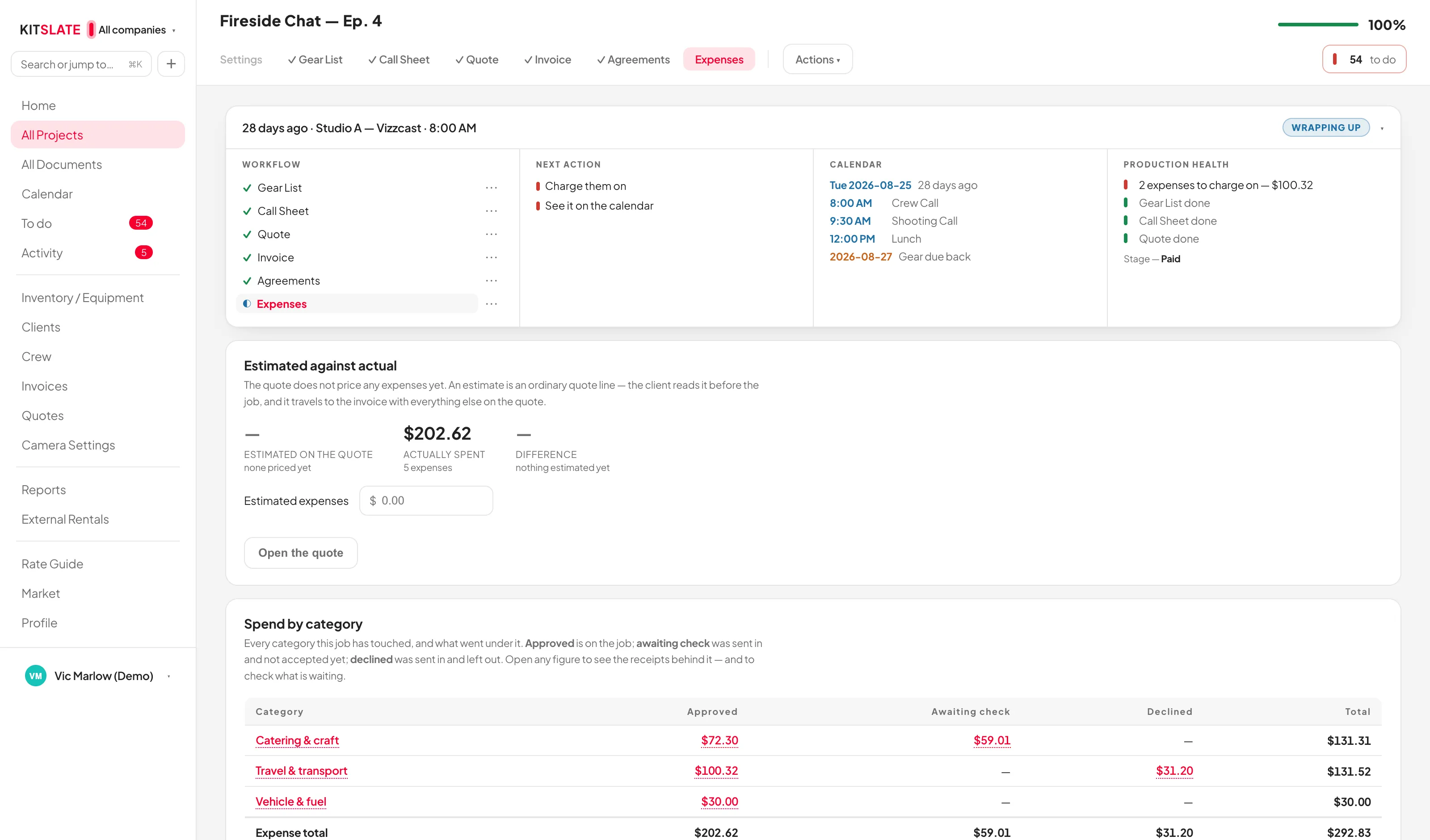
Recording what was spent
Each expense is one row in What was actually spent. The date and the category sit on one line, with what it was underneath; beside them are the amount, Whose money and The client. On a narrow laptop the category drops under the date rather than being cut short, and on a phone each row becomes a card with the amount in full.
+ Add expense adds a row to type in. Import receipts… takes PDFs and photographs together — a scanner app’s eleven-page PDF, a screenshot of a ride receipt, a photo of thermal paper, up to 24 at a time — and reads each one for its date, supplier, amount and category.
The category field is a type-ahead over KitSlate’s nineteen production categories — Camera & gear rental, Crew & labour, Travel & transport, Catering & craft, Art & props, Accommodation, Expendables and the rest — plus any of your own. Each shows the line of description you gave it beside the name, so the next receipt goes in the right place. It is the same list the expense importer snaps Wave and QuickBooks rows onto, so a typed expense and an imported one add up together. Typing a name that is not on the list offers Add a category, which asks for the name and what goes under it.
Whose money is one of three: Company — your card or your account; A crew member — they paid it themselves, and a second picker says who, because you now owe them; or Client paid direct — they paid that supplier themselves, so it never touched your money.
The client is the Add to invoice switch. Turning it on puts the expense on the invoice as a line of its own, straight away — on the quote if the job has no invoice yet — and the line under the switch says On the invoice. Turning it off takes the line off again. On the invoice, billed expenses sit under their own EXPENSES heading, with a subtotal, and like any other section can show Show all lines or One line for the lot. Misc stays a separate section of its own, off until it has a line, so hiding Misc never hides an expense. A billed expense counts on both sides of the job: it is a real cost, and once charged it is real income, so the pair leaves the job’s profit where it was.
Spend by category
A ledger of every category the job has touched, in four columns: Approved is on the job; Awaiting check was sent in and not accepted yet; Declined was sent in and left out; and the Total, with an Expense total row underneath.
Every category name and every figure is a way in. Approved opens that category’s expenses with each receipt beside its row — check the amount against the picture, and a change there saves exactly as it does on the tab. Awaiting check opens the check itself for that category, where you accept or leave out what was sent. Declined lists what was sent in and left out, with who sent it and when.
Receipts from the crew
Receipt upload gives anyone on the job their own link with + Give someone access — the same sending box every KitSlate hand-off uses. The link opens a page built for a phone: Take a photo, Choose a file, check what was read, say whether it was the company card or their own money, and send. No sign-in and no app. Each send stays listed on their page with its total, and a receipt they tap opens full size, fitted to the screen, with click to zoom.
The email. Pick someone and the right half of the sending box shows the email exactly as they will get it. It goes out under your company’s name and colour, a reply comes back to you, and it has two buttons the same size: Send a receipt opens their page and Copy email address puts the job’s receipts address on their clipboard, with the address printed under both. The message is yours to change: {name} becomes their first name and {company} the company sending it; Save as default keeps your wording for every job, and View email → opens it full size. Nothing goes until you press Send them the link.
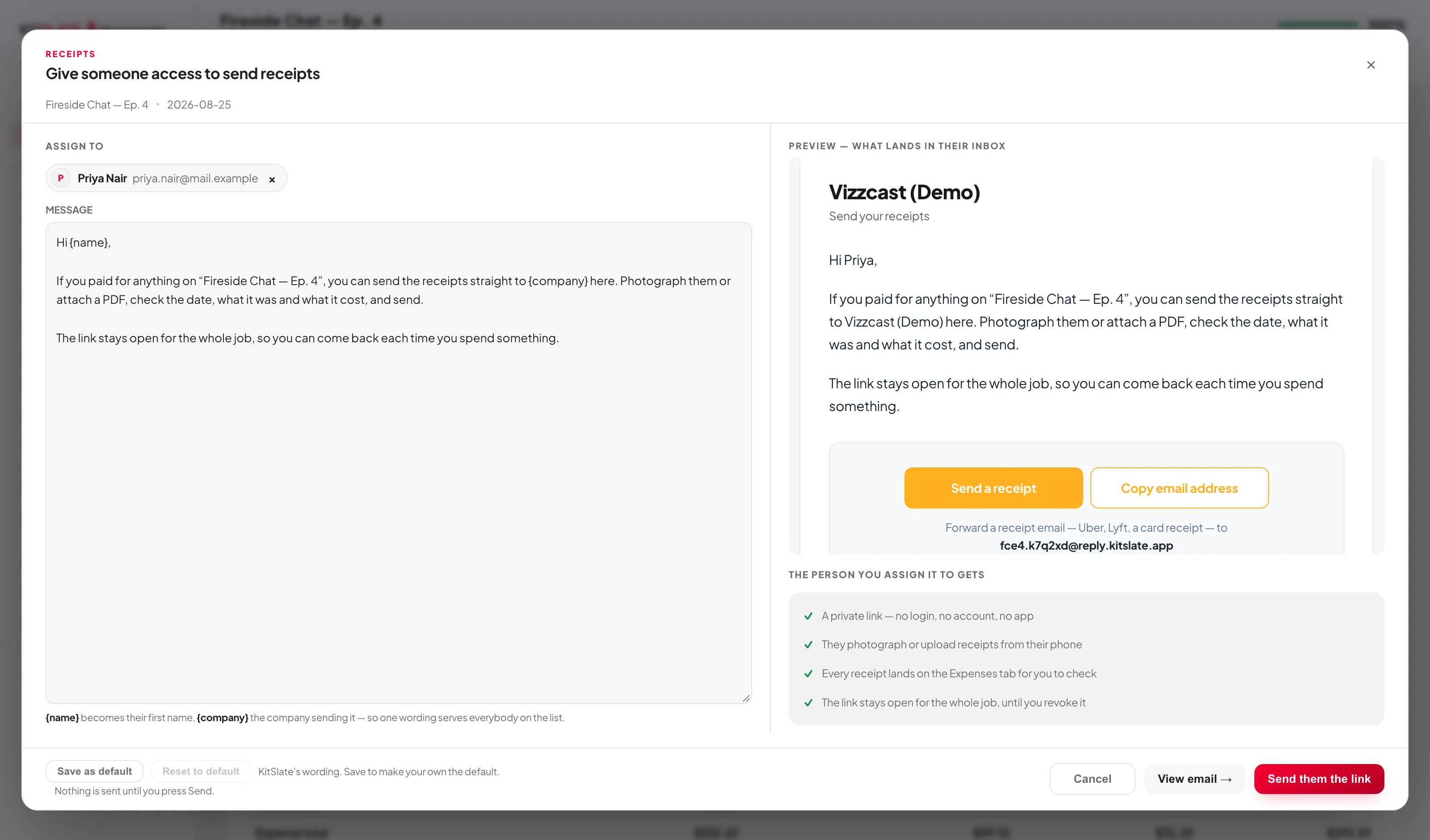
Or forward the email. Every link comes with its own email address for the job — [email protected]. Forward a receipt email to it — Uber, Lyft, Square, a card receipt — and it arrives under Receipts sent in for you to check like anything sent from the page. An attached PDF or photo is the receipt. An email with the receipt in its body is kept as that email, shown exactly as it came. A ride report that covers a month arrives as one receipt per ride, with the report kept as each one’s evidence, and the check offers Combine the checked into one expense when you would rather book them as one. The address sits beside each person on the Receipt upload card and on the job’s Settings tab with Copy email.
The company’s own address. Each company also has a receipts address that is not tied to a job — [email protected] — and a page to match, kitslate.app/receipts/fernway. Both come from the company’s handle, set once in Settings → Companies & branding under Receipts address: KitSlate proposes one from the company name, Confirm fixes it, and Copy address / Copy link sit beside it. Forward any receipt to the address, or give the link to anyone who buys for you — it opens the same send-a-receipt page a job link does, under the company’s name. What arrives waits on the Receipts page in the sidebar until you put it on a job or keep it as a business expense.

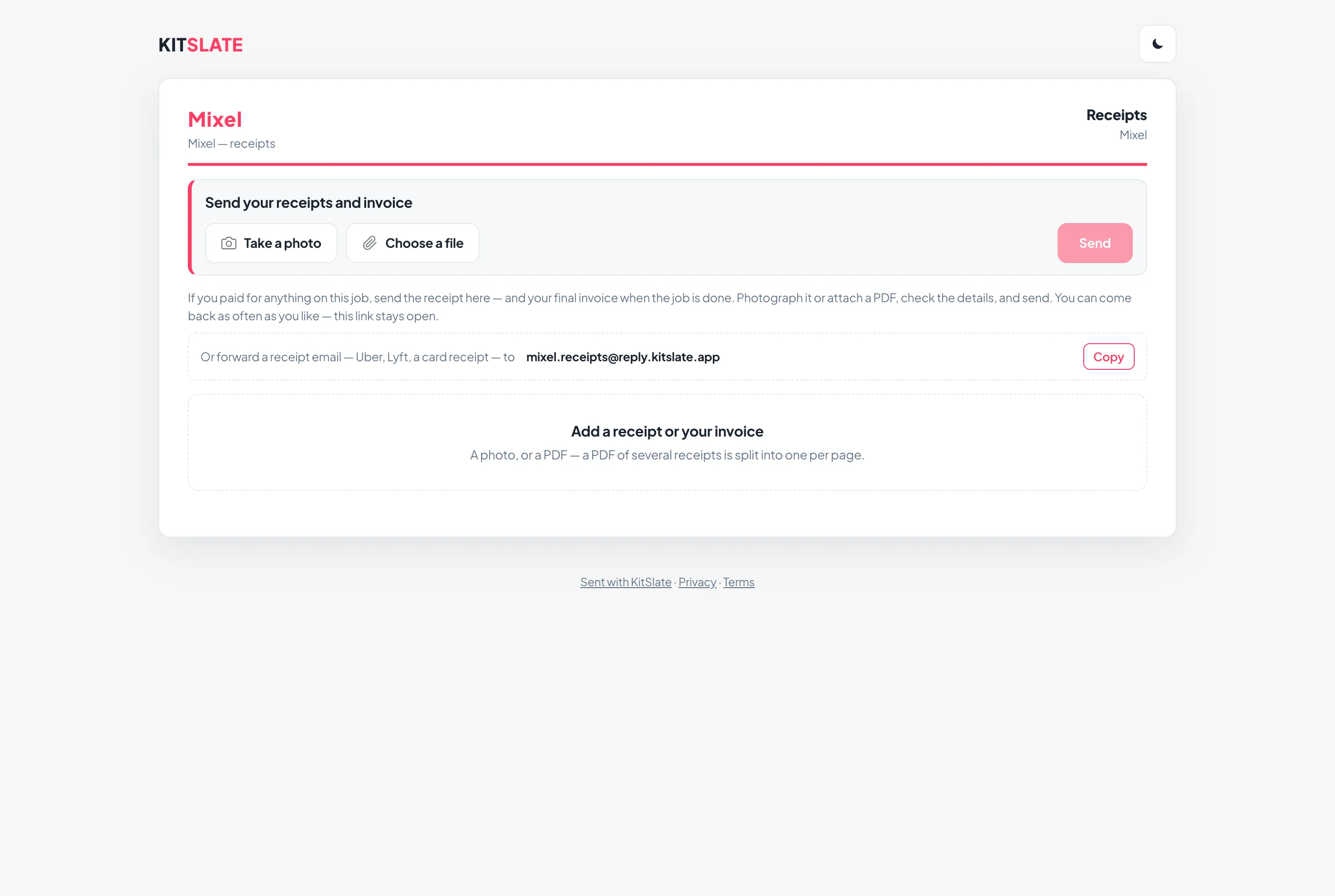
With the call sheet instead. On the call sheet’s sending box, Also let them send receipts puts each person’s own upload link in their call sheet email. Someone who already holds a link gets the same one, never a second. The first time, the link also arrives in its own email — Receipts and invoice — <job> — so it is not lost at the foot of a long call sheet; it goes only beside a call sheet that was delivered, and never to a client. Its wording is under Settings → How you work → Messages & wording.
Nothing they send counts until you look. It arrives under Receipts sent in with their name and a Check button, and in the ledger under Awaiting check.
A mistake fixed, not sent twice. On their page, every receipt still waiting for your check has Edit and Remove. Edit opens the receipt in place — what it was, the category, the date, the amount and whose money — and Save changes it where it waits; Remove asks first, then takes it off before you see it. An invoice they sent can be removed (to send the right file) but not edited. The moment you approve a receipt it reads Approved — can’t be changed on their page, and a declined one says Declined; from then on, if something is wrong they tell you. On a phone each receipt takes three lines — what it was, its category and amount, then Edit and Remove side by side — and the day headings read as days.
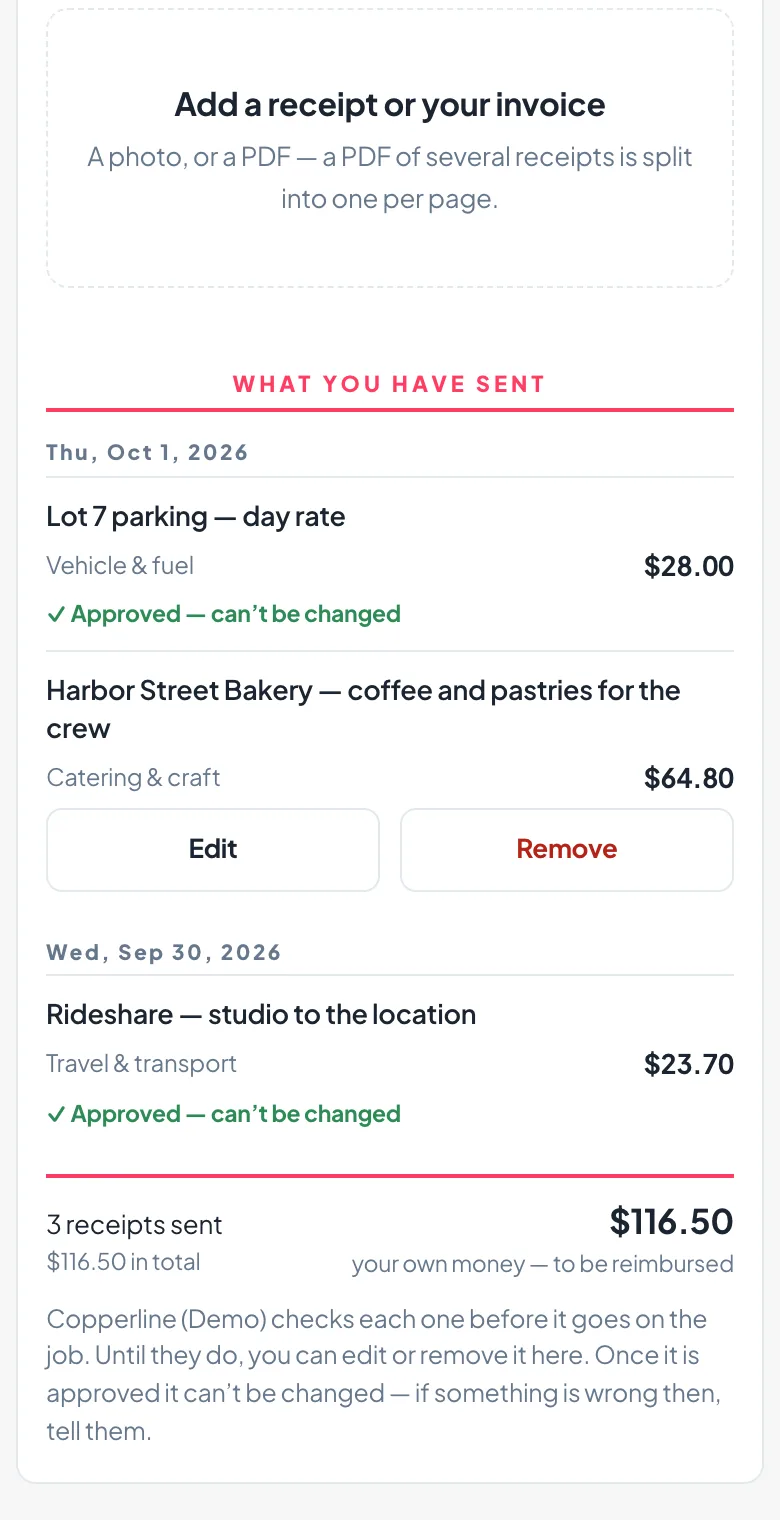
Where each person stands. The Receipt upload card lists everyone holding a link, each with a coloured line and a word: Sent, not opened, Opened, nothing sent, Check 2 of 2 in red while receipts wait for you, 2 of 2 accepted in green once they are done. What they sent is listed under their name, and each row has Copy link, Copy email, Resend and Revoke — revoking stops the link and the address together and keeps everything already sent.
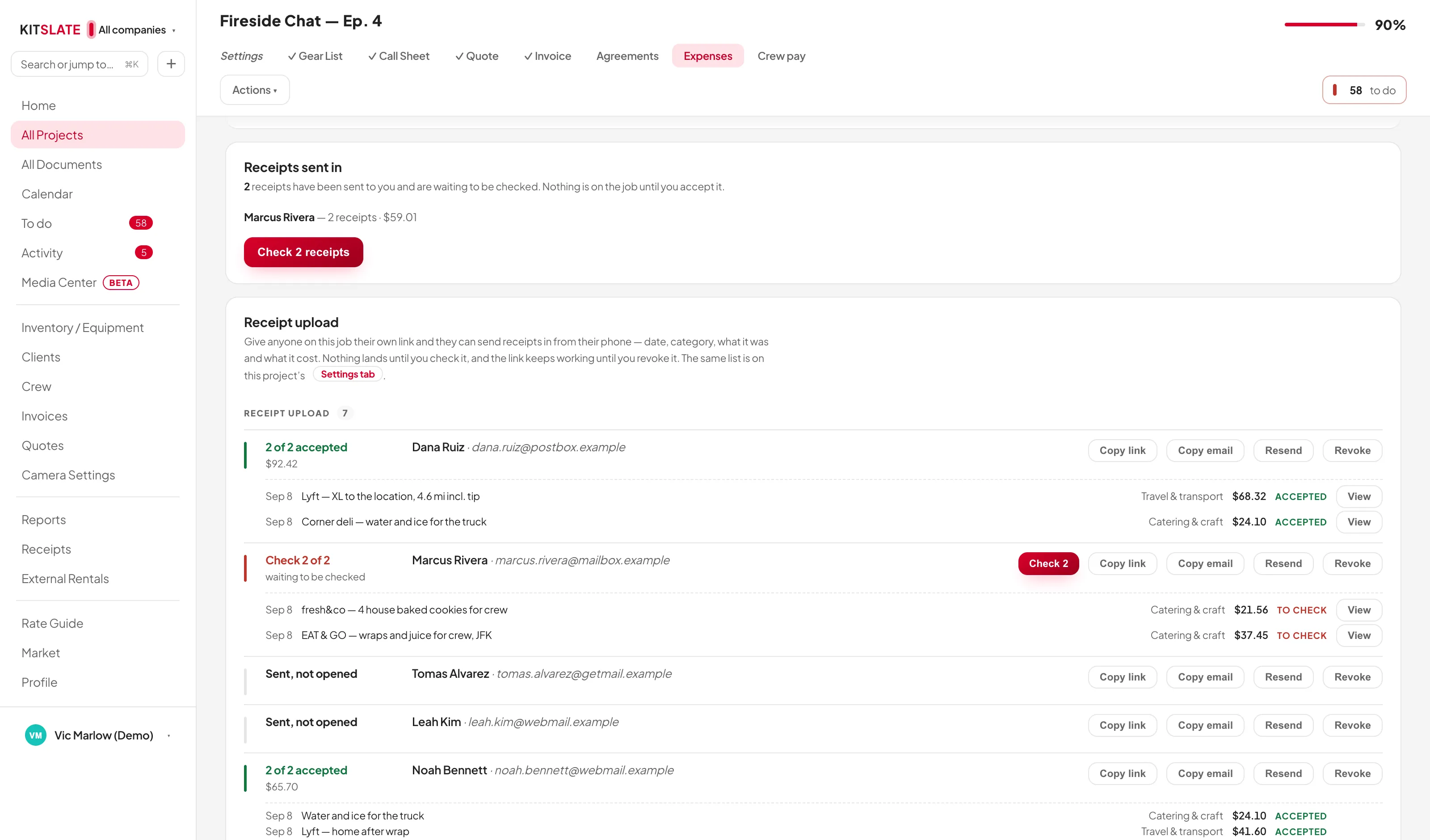
Checking receipts
Checking — whether the receipts came from the crew or from your own Import receipts… — opens one window the size of the sending screen. The title names whose receipts they are (2 receipts from Marcus Rivera). The rows are on the left, in the same layout as the tab; the receipt for the row you are on is on the right, fitted whole. Click the picture to zoom in on the point you clicked, and click again to zoom out; View larger opens it inside the window, and Back to the list returns you to the rows exactly as you left them.
A receipt the sender changed before you got to it carries Edited by them — was $46.44 under its amount, so a changed figure is never approved unseen; the first figure they sent is kept.
Every row has its own Approve and Decline, and both act at once: Approve adds that receipt to the job and leaves the rest waiting; Decline keeps it as Declined, so you can always answer “what happened to the receipt I sent”. To take several together, tick them — rows start unticked, and one Check all / Uncheck all button does the lot — then Add N expenses. A ticked row is lit; the others are never dimmed. View on the Receipt upload list opens each receipt a person sent, not just the first. A category you add from inside the check brings you back to the check.
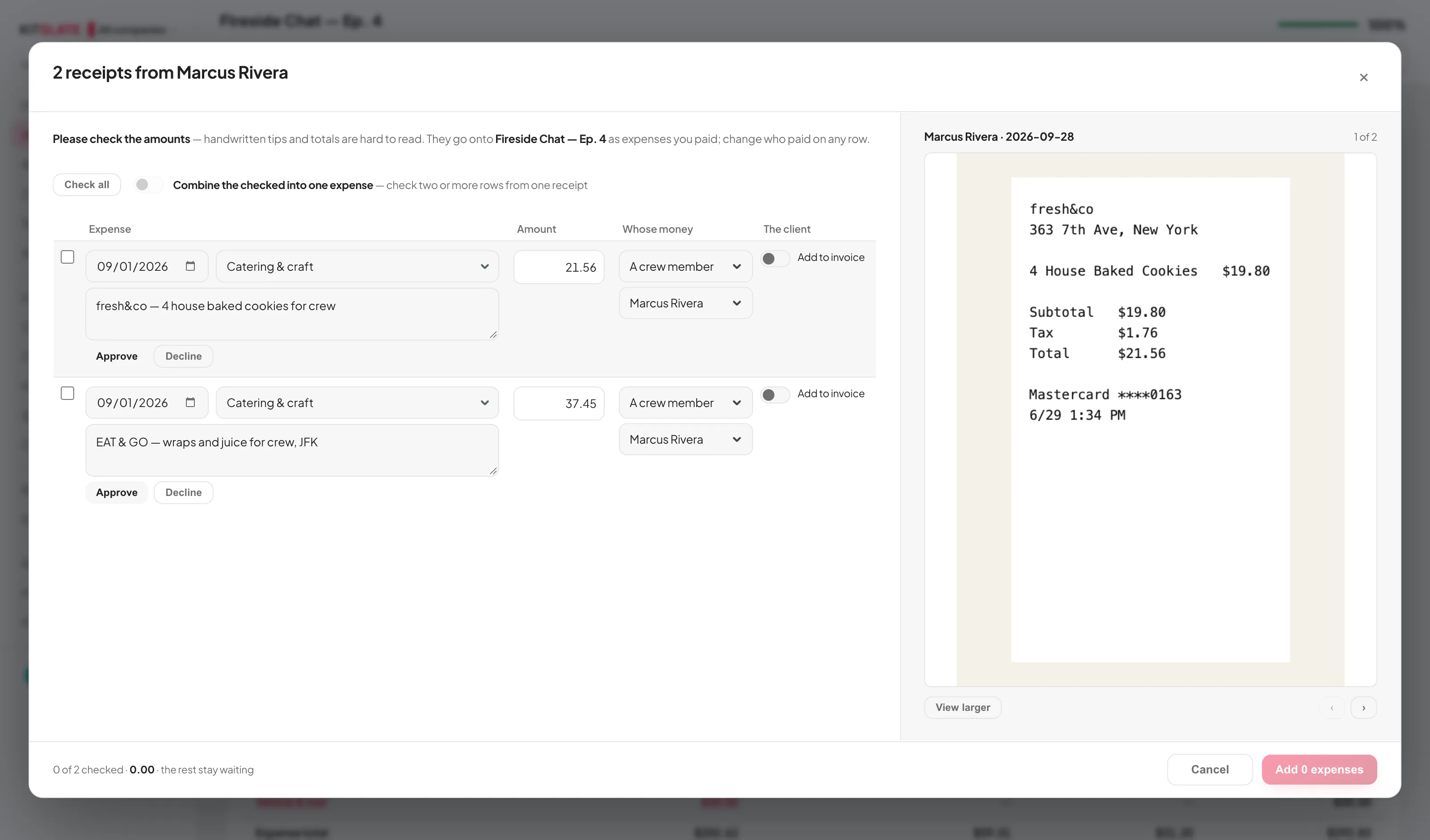
Who owes who, and the receipts kept
Who owes who totals what each crew member paid out of their own pocket and what has already been reimbursed. Receipts kept lists every stored receipt on the job: View receipt on any row opens it, Download all gives you every receipt as separate files in one zip, and Merge and download puts them together, in order, as one PDF.
Bill the client appears only when something is switched on to bill but is not on a document yet — for example, switched on before the job had a quote or invoice. Put them on the invoice adds them in one go.
The words read off a receipt are kept with its expense. Search or jump to… at the top of the sidebar finds an expense by an amount or a word that was only on the receipt — “68.32” finds the ride.
Crew pay — their invoices, checked and paid
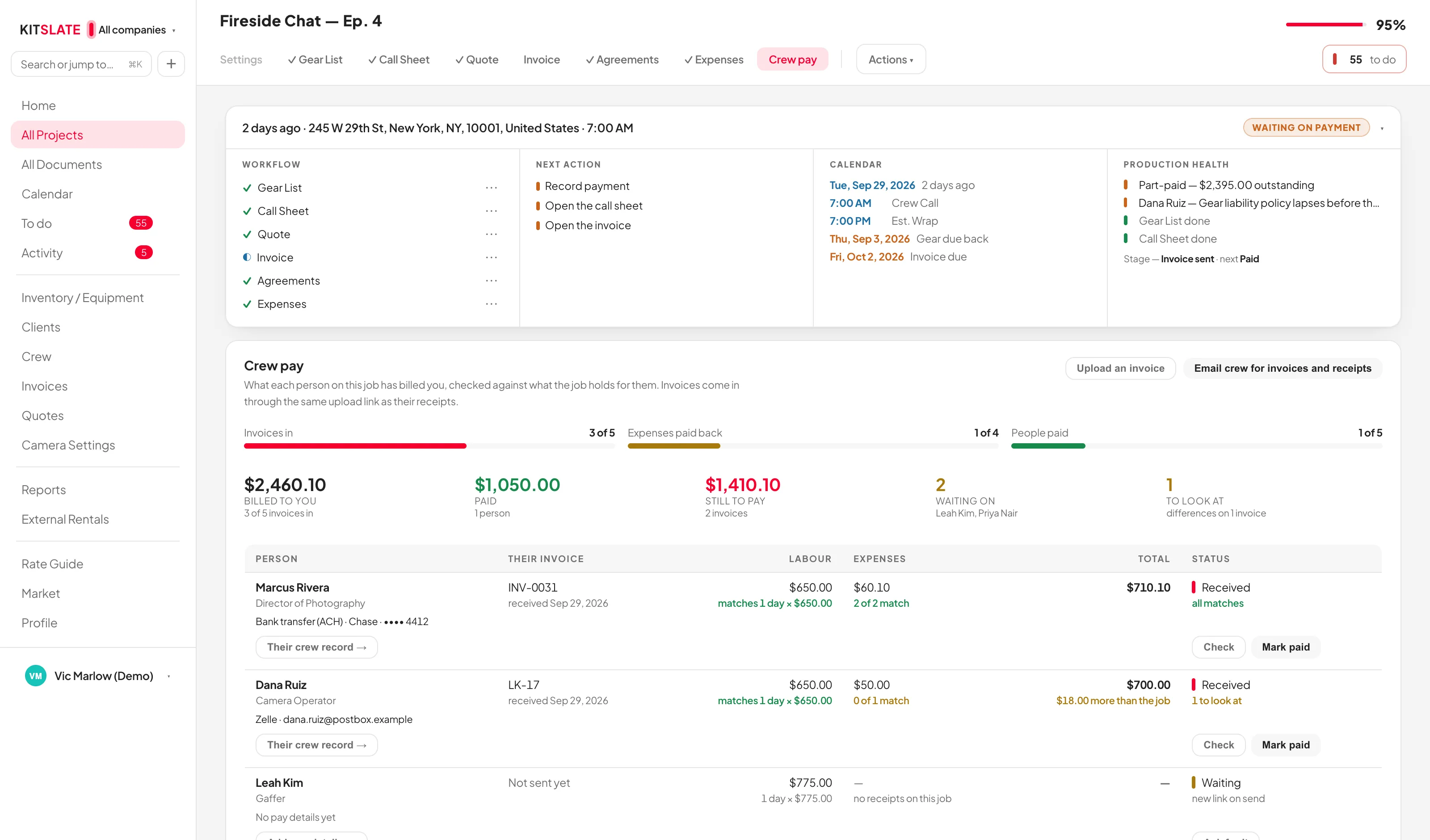
Every job with people on it has a Crew pay tab, beside Expenses. It lists everyone from the call sheets and the quote's crew lines, one row each, with its own progress bar: invoices in, expenses paid back, people paid.
- Their invoice comes in through the same upload link as their receipts. KitSlate reads it as an invoice rather than a receipt and puts it on their row; anything it is unsure of waits at the top of the tab with Check it, It's a receipt and Decline. Upload an invoice adds one by hand.
- Every line is checked against the job. Labour against the day rate × days the job holds for them; each expense line against their receipts — matches, $X more or less than the receipt, on the invoice with no receipt, paid back ahead of time — correctly left off, or not on the invoice — still owed. Check opens the line-by-line comparison.
- Mark paid records the payment the way an invoice payment is recorded — amount, date, and the method chosen from the list, starting at how they asked to be paid on their crew record — and pays back the receipts it covered. Undo paid takes back exactly that.
- How to pay them is read from their crew record, never edited here: Their crew record → (or Add pay details →) sits on each person's action line, level with Ask for it and Check.
Asking for invoices. Email crew for invoices and receipts writes to everyone on the call sheet, each with their own upload link — the one they already have, shown under their name with Copy, or a new one made the way the Expenses tab makes them. Anyone who has already sent receipts is told how many and their total, and asked to list them on the invoice rather than upload them again. Preview beside each person shows their email; View all shows every one. Once it has gone, each person reads emailed and the date, there and on the tab.
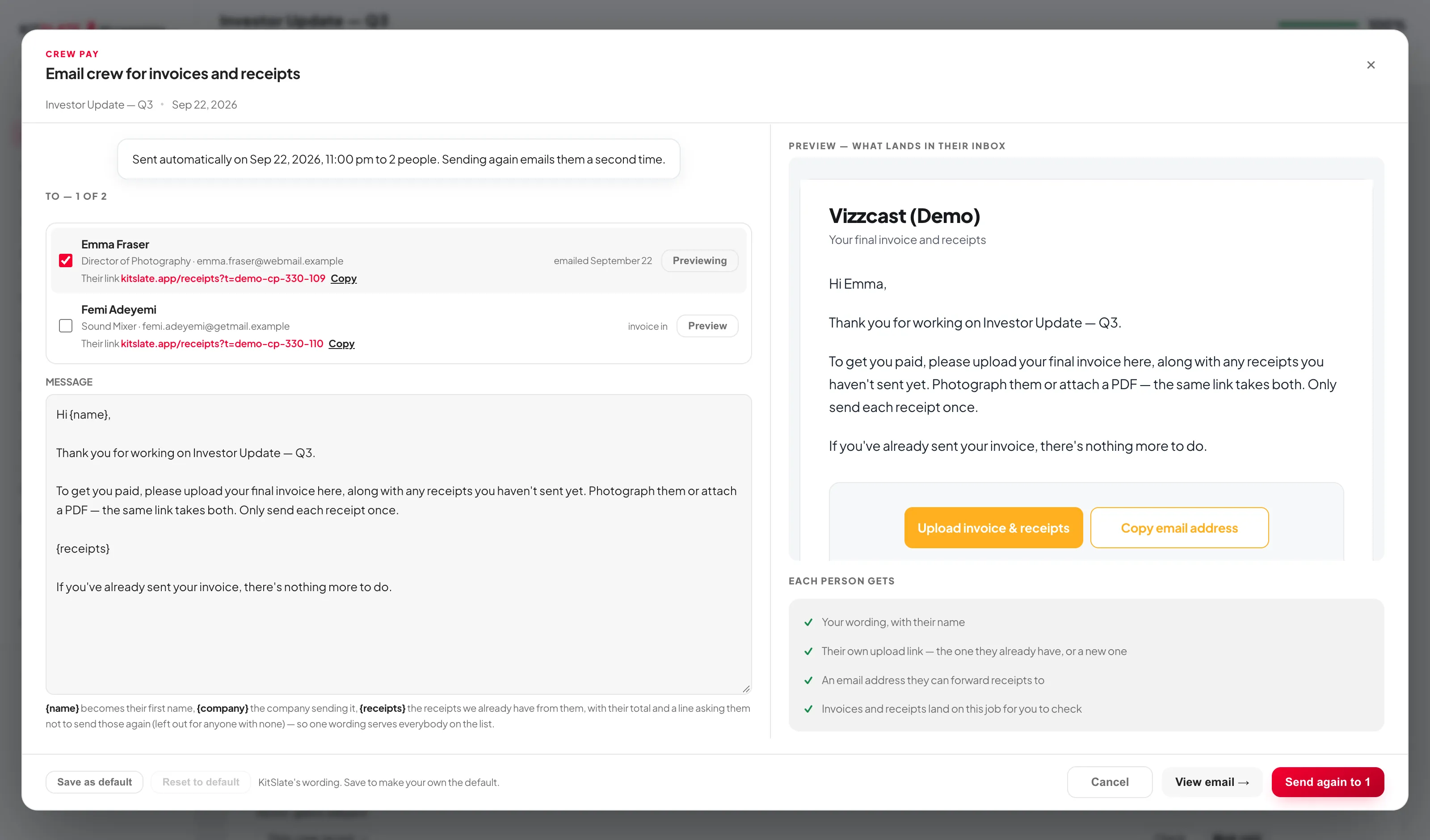
Or let it go by itself. Settings → Money → Expenses → Crew wrap-up email sends it automatically a set time after the last shoot day's wrap — 1, 2, 3 or 6 hours after, the next morning at 9:00, or a custom number of hours. Each job can follow that or choose its own on its Settings tab. Sending it by hand cancels the automatic one, so nobody gets it twice. Its wording lives in Settings → How you work → Messages & wording for every job, and a job can have its own on its Settings tab; saving new wording re-times any email already scheduled, so what goes out is what you last saved.
Your own categories
Settings → Money → Expenses is its own tab, under Invoices. It sets the default production fee for new quotes and holds the category list as a two-column table — Name and What goes under it — in three groups: Yours, KitSlate’s, and Archived. Every name and every description is editable in place. Add your own with the fields at the bottom; it is yours, in this workspace, and needs no review. The descriptions travel: a crew member’s receipt link shows the same categories with the same descriptions, and a category you add reaches links already sent.
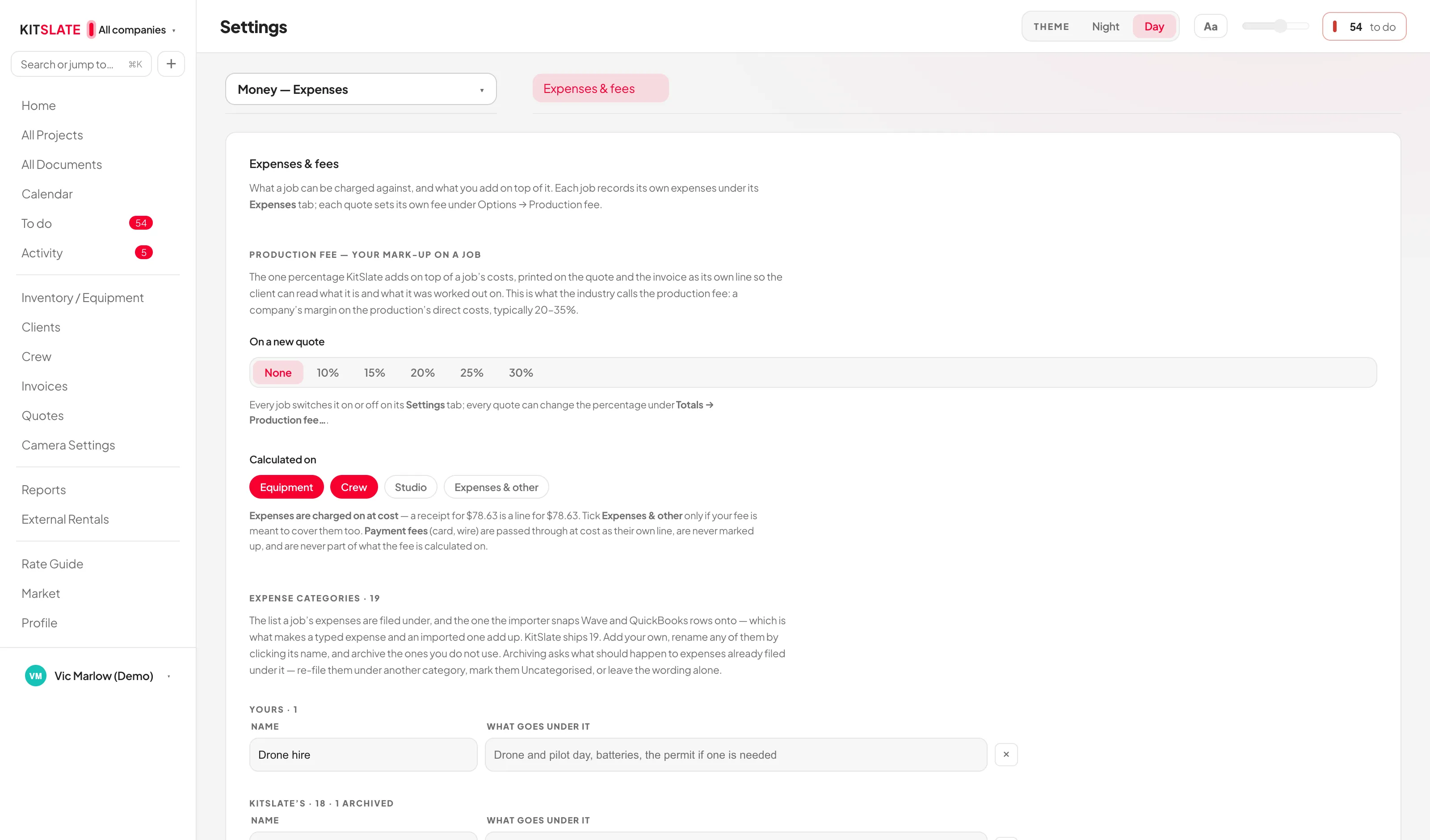
Archiving, renaming and deleting
Nothing is deleted by the ×. Archiving takes a category off the list you are offered and puts it under Archived, dashed, with a + to bring it back. That is true of your own and of KitSlate’s alike. Only once one of yours is archived does a second × appear on it, to delete it for good; KitSlate’s stays available to restore, and Put all N of KitSlate’s back restores theirs together without touching yours.
Archiving asks about the expenses first. If anything is filed under the category, KitSlate says how many and offers three answers: move them to another category — then pick which, which is how you merge two categories into one — move them to Uncategorised, or leave the wording as it is. Backing out keeps the category. Nothing is ever deleted: an expense only ever changes what it is filed under.
Rename does the whole job in one step. Calling Marketing “Promotion” renames the category and re-files every expense under the new name. Renaming one of KitSlate’s archives theirs and adds yours under the new name, so theirs can still be put back. Renaming to a name already on the list is refused — to merge two, archive one and move its expenses to the other.
Expenses moved to Uncategorised keep every other detail. The Settings section says how many there are and links straight to them, and they appear in Reports → Expense tracker under both By category and By job, picked out in amber.
Production fee
Your mark-up on a job — what the industry calls the production fee: one percentage on top of the production’s direct costs, typically 20–35%. It is set on the Quote tab under Totals → Production fee…. Choose None, 10%, 20%, 30% or Other, and tick what it is calculated on — Equipment, Crew, Studio, Expenses & other — in any combination.
It is added as its own line rather than folded into the rates, and that is deliberate: a markup buried in equipment rates would count as equipment revenue in your reports, inflating equipment payback and the income mix in the flattering direction. As a line, equipment keeps earning what equipment earned. The fee never includes its own line in its own base, so it never charges a fee on itself.
What the client sees has three choices, and your own copy keeps the fee as its own line under every one of them:
- Every line — the client sees the fee as its own row and what it was worked out on.
- One line — the section prints as a single row with the fee inside it.
- Apply and hide — the fee is folded into the prices, line by line: every line on the ticked sections is marked up by the percentage and there is no fee row. The editor’s preview and its PDF show the client’s marked-up lines; the cards above them keep the prices you typed. The client’s total is the same figure to the cent either way.
The figure the fee was worked out on is stored with it. When the sections move, the quote says so — worked out on $2,915, the sections now come to $3,415 — and offers Recalculate. Nothing changes a total you have already quoted without being asked.
The default for new quotes — the percentage and what it is calculated on — lives in Settings → Money → Expenses & fees, above the category list. Each job switches its fee on or off on its own Settings tab, where the card reads the percentage, the bases and the amount on the quote; each quote still sets its own.
There is one percentage. Expenses are billed at cost — a receipt for $78.63 becomes a line for $78.63 — and the fee is taken on them only when Expenses & other is ticked. Payment fees (card, wire) are passed through at cost as their own line under Banking / payment fees; they are never marked up and are never part of what the fee is calculated on. The Totals card on the quote and the invoice says where the fee sits and what it was worked out on.
Reports
Twelve reports in three groups. Every number is clickable and drills into whatever produced it.
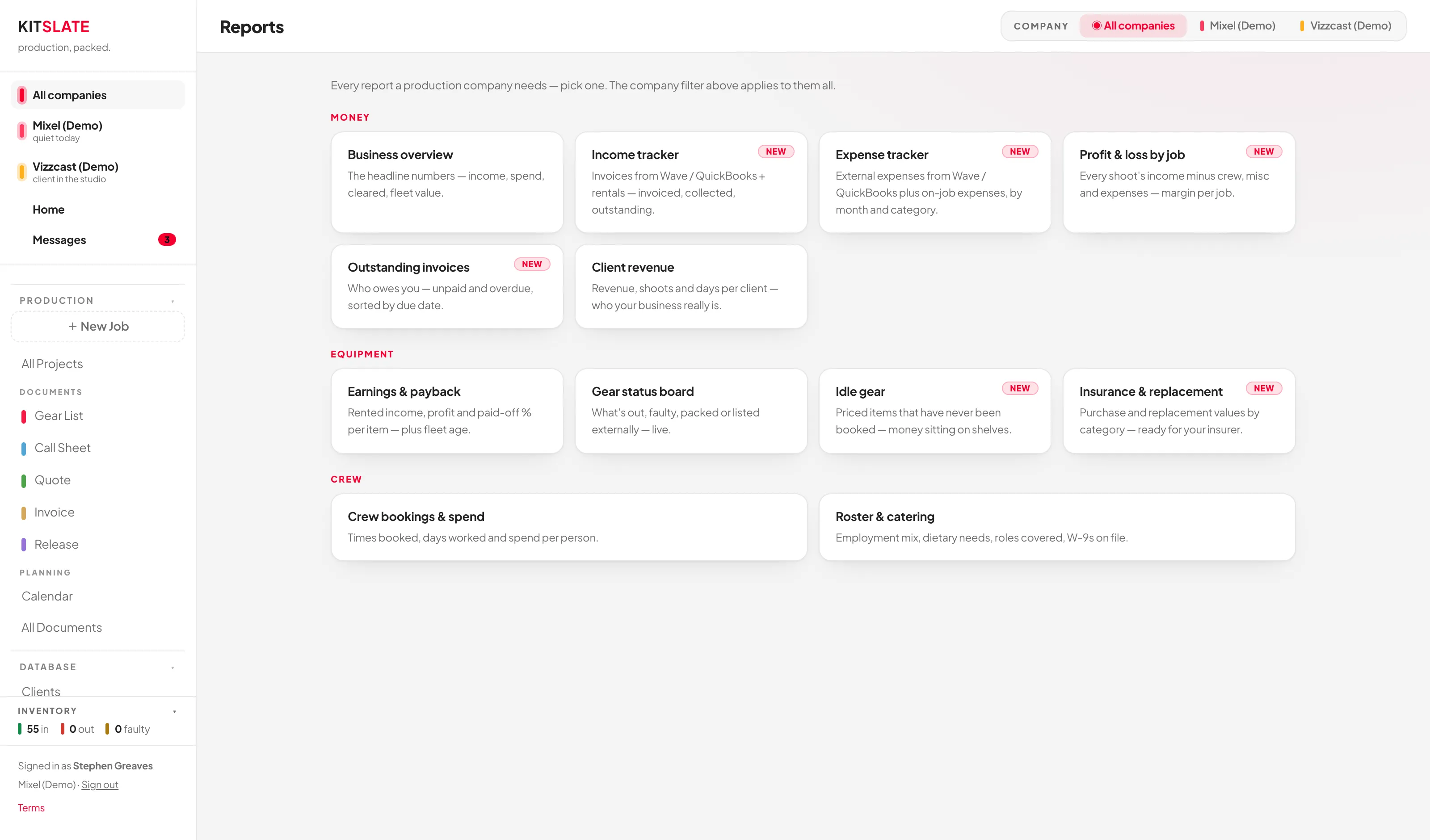
| Group | Reports |
|---|---|
| Money | Business overview · Income tracker · Expense tracker · Profit & loss by job · Outstanding invoices · Client revenue |
| Expense tracker counts both sources: expenses typed on a job and expenses imported from Wave or QuickBooks. By category ranks every category across the business, showing the on-job and imported halves of each as two bands in one bar. By job ranks the jobs, with each job’s own categories listed beneath it. Anything Uncategorised is picked out in amber in both. | |
| Equipment | Earnings & payback · Gear status board · Idle gear · Insurance & replacement |
| Crew | Crew bookings & spend · Roster & catering |
Business overview
Shoots booked, days booked, then Quoted (a projection), Invoiced, Received and Outstanding; equipment revenue, external rental income, crew spend, misc spend, expenses (everything spent, what you carried, what was rebilled, what the client paid direct), and Projected margin (quoted − crew − misc − expenses). Then the fleet row: items, fleet cost at RRP, fleet day-rate capacity (the sum of every in-studio day rate), in storage, out, faulty, external rentals listed, and fleet paid off as revenue ÷ cost.
INCOME MIX — ON THREE BASES shows quoted, invoiced and received side by side, By section, By client, By job or By month; by section, quoted crew opens out per role.
Job money — income, equipment revenue, crew and misc spend, expenses, rental income — is reported in the billing currency of the company that earned it. Pick a single company in the filter and every figure reads in that company's currency.
If your companies bill in different currencies, KitSlate will not add them together. All companies shows one band per currency, each summing only its own, and says so — there is no exchange rate anywhere in KitSlate and a combined total would be a number that means nothing.
Equipment figures are different: fleet cost, replacement value and used-gear sales belong to your inventory, not to any one company, and nothing ever recorded what currency you bought in. Those stay in the symbol from Settings → Accounting → Country & market. When that differs from the company's billing currency the page says which is which.
Quoted uses each shoot's quote where one exists, and day rates × days where it doesn't. Invoiced and Received come from your published invoices.
Income tracker
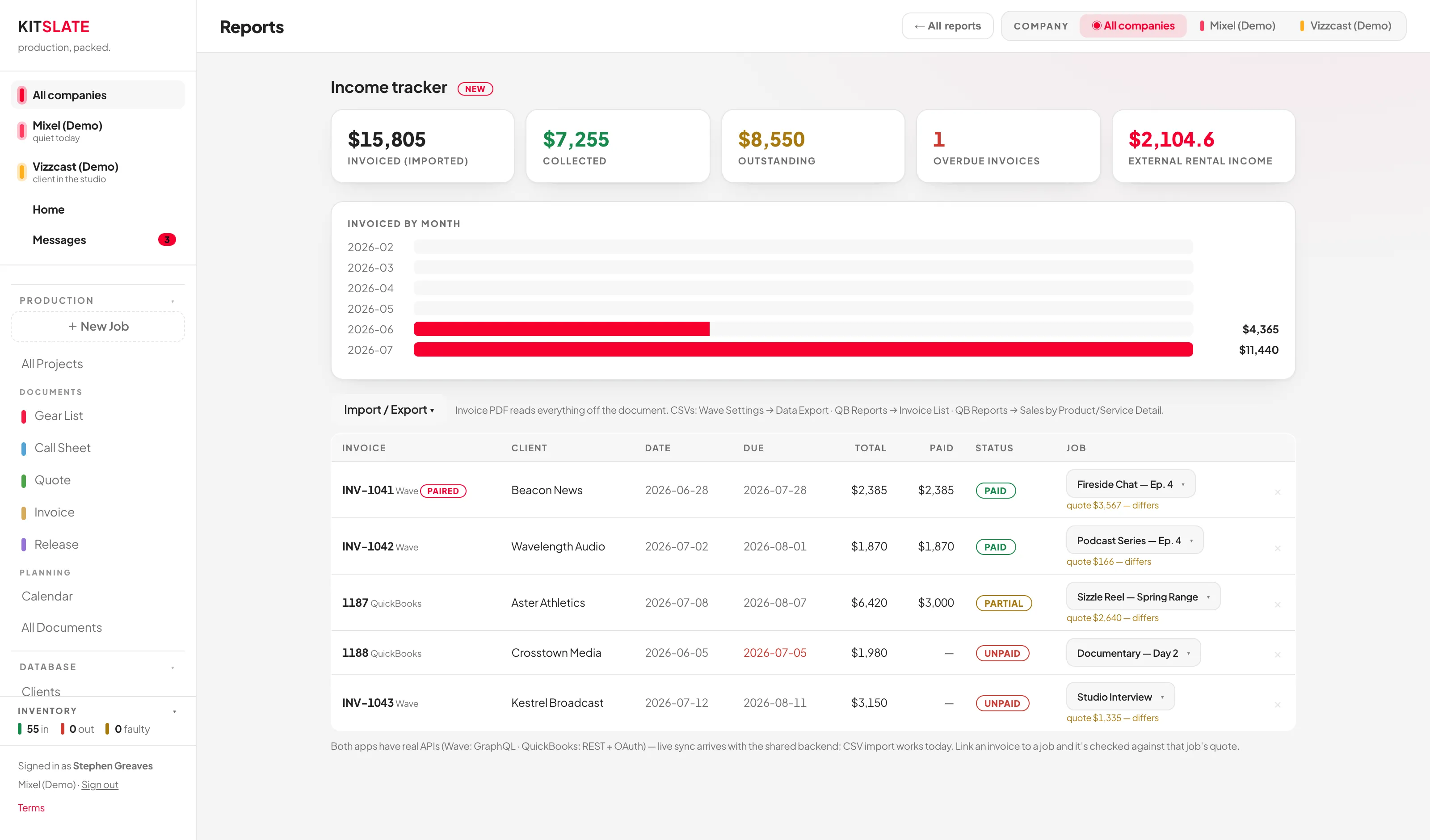
The page's Import / Export ▾ menu carries one way in — Import invoices — PDF or accounting CSV… — and two ways out, Export income CSV and Export PDF — print this report. There is no separate Wave button and no separate QuickBooks button: the importer looks at what you dropped and routes it to the reader that understands that shape. You say what you have; KitSlate works out how to read it. The exports it knows: Wave Settings → Data Export, QuickBooks Reports → Invoice List, and QuickBooks Reports → Sales by Product/Service Detail — plus an invoice PDF, which it reads straight off the document. KitSlate has no connection to Wave, QuickBooks or Xero — nothing is fetched from them and nothing is sent to them; you move the file. Every import shows a review screen first, and nothing is written to your workspace until you press Import on it — cancel and nothing comes in.
Which review you get depends on what the file holds, because the two shapes need different decisions from you. An invoice list (Wave's export, QuickBooks' Invoice List) gets a per-invoice review that names, for each row, its status and due date, whether it is new or an update to something you imported before, and which production it will attach to and why — "attaches to ‘Studio Interview’ — matched by client name", or "no production matched — arrives unlinked". A line-item export or an invoice PDF gets the line-by-line review instead, where you tick the individual equipment lines and set what kind of income each one is. Both end the same way: Cancel — bring nothing in or Import selected →.
Imported invoices go to the Invoices page tagged IMPORTED and read-only — KitSlate did not issue them, so it cannot edit or send them. On this page each row gets a — link to job — picker, and once linked the app compares it to that job's quote: "quote $X · matches" or "— differs". A row whose number equals the accounting reference written on a job shows a MATCHED badge. This page is the one place that picker lives, which is why an unlinked imported invoice points you here from its own detail page.
Importing an invoice you raised somewhere else
An invoice raised in another system can be brought in as a PDF or a CSV, and you never have to say which system printed it. The same importer opens from six places and behaves identically in all of them:
- The Invoices page → Import invoice…, beside Create invoice.
- Create Production → IMPORTS & INTEGRATIONS → Import Invoice — start a job from an invoice you already have.
- New document → Import Invoice.
- A job's Invoice tab → INVOICED SOMEWHERE ELSE → Import invoice….
- The invoice Actions menu.
- Settings → Integrations → Data in & out.
Opened from a job, it knows which job — it checks whether the file is the same invoice and asks before linking them. Opened from anywhere else it inherits nothing, asks when the work actually happened, and only then finds or creates the production. Importing the same document twice updates the record that is already there; it never makes a second one.
What it keeps is what the document says: invoice number, customer, invoice date, payment due, currency, subtotal, discounts and credits, total, amount due, every line's description, quantity, rate and amount, a PO or reference where the invoice carries one, and the original PDF itself — held on the record, viewable and downloadable. The total is the total printed on the invoice, not the lines added up: an invoice with a $4,232 subtotal and a $1,000 discount imports as $3,232, and the discount is listed in the review beside the lines so you can see it going in.
If the document names its own maker — most do, in the footer — the record says so. If it does not, it says an imported document and means it. A layout that resembles a product is not evidence of that product, and the import works exactly the same either way.
Every line is tagged EQUIPMENT, STUDIO, CREW or OTHER, and you can click any tag to change it — it is remembered for next time. Transport, wire and card fees, discounts, rounding and labour are never offered as equipment, and nothing reaches your inventory unless you tick it.
Three different answers, because they are three different problems. "There is no text in that PDF" means the page is a picture — a scan or a photo — and there are no words in it to read. "That PDF read, but not as an invoice" means the words came off the page fine but no invoice number, total or priced line could be found among them, and KitSlate will not guess at figures; exporting the same invoice as a CSV imports cleanly. Anything that is neither a PDF nor a CSV is refused before it is opened. In the first two cases, a small file also gets an explicit Read it with AI → offer — AI is never used without you asking, and its reading goes into the same review as everything else.
The equipment reports
- Earnings & payback — per item: times out, days out, cost, rented income, profit, paid off. Only items that have actually been on a booking appear.
- Gear status board — chips for Out, Faulty, Packed in cases, In cases & out, In storage and External rentals, plus "External capacity: $X/day if it all rents". The equipment rows in the status panel jump straight here with the filter pre-set.
- Idle gear — priced but never booked. Capacity sitting still.
- Insurance & replacement — per category, with replacement value falling back to purchase cost. Print this one for your insurer.
"RENTED INCOME" on Earnings & payback is internal booking revenue — day rate × shoot days on your own jobs. It is not the External Rentals ledger, which appears only as its own KPI tile. They measure different things.
Roster & catering is not company-filtered — it reads your whole crew database for employment mix, dietary needs, roles covered and W-9 status.
Only Income and Expenses have their own Export PDF. Everywhere else, use ⌘P — the tables are print-styled and the action columns hide themselves.
↑ ContentsProfile & enquiries
Your "hire me / rent my gear" page, at kitslate.app/profile/<your handle>.
Plenty of people use KitSlate purely as internal software — jobs, gear, call sheets, quotes, invoices — and never publish a thing. The switch at the top of the tab is off until you turn it on, and with it off nothing about you is public. Nothing else in the app depends on it.
The switch works in both directions, and it hides rather than unpublishes. Turn it off on a page that is already up and the page stops being reachable straight away — no need to publish again — but your handle stays reserved, and the bio, kit and pictures all stay exactly where they were. Turn it back on and the same page returns. It is a curtain, not a delete.
A personal page is free, on every plan including the free one. Leading with a company instead — your studio taking the headline, its own address at /company/<handle>, and being described to search engines as a local business rather than as a person — is part of Studio and up. The picker shows which is which, and your personal page keeps working either way.
You get two names. Your handle is your own page, at kitslate.app/profile/<handle>. Company handle is the studio's, at kitslate.app/company/<handle>. They are separate namespaces, so the two cannot collide. Leave the company one blank and the company page borrows your personal handle — which names the wrong thing, and the tab says so.
The tab lists both addresses at once. The one that is actually published carries a LIVE badge; one that would change the next time you publish is marked ON PUBLISH. Neither badge is guesswork — LIVE is read from the page that genuinely went up, not from what you have currently selected.
Share either address — both always work. Whichever one somebody has, it leads to your page: the one that is not current redirects to the one that is. That holds for every address the page has ever had, so a handle you have since moved away from still resolves rather than 404ing.
The very top level — kitslate.app/market, /crew, /pricing — is KitSlate's own, and member pages never sit there. Handles are lower case: /profile/Stephen sends you to /profile/stephen.
Changing the lead changes only what the page looks like. A published page stays at the address it went up on.
To actually move it, use the button under the two addresses — Move it to kitslate.app/… — which asks first, tells you the old address keeps working, and makes the move when you next hit Publish page. A page that has never been published has no address to protect, so it follows whatever leads.
Before you publish, both handle fields are editable — pick carefully, because publishing fixes them. There is no link in the world to break beforehand, which is why the lock waits until then rather than snapping shut on your first keystroke.
After that they are read-only, on every machine you sign in from. If you published a typo, the locked field carries the way out: Ask us to change it opens the report form with the request and your current handle already written in, and it goes to the same place a bug report does. When it is changed, the old handle is retired rather than deleted — it keeps resolving for good, so anything already shared still arrives.
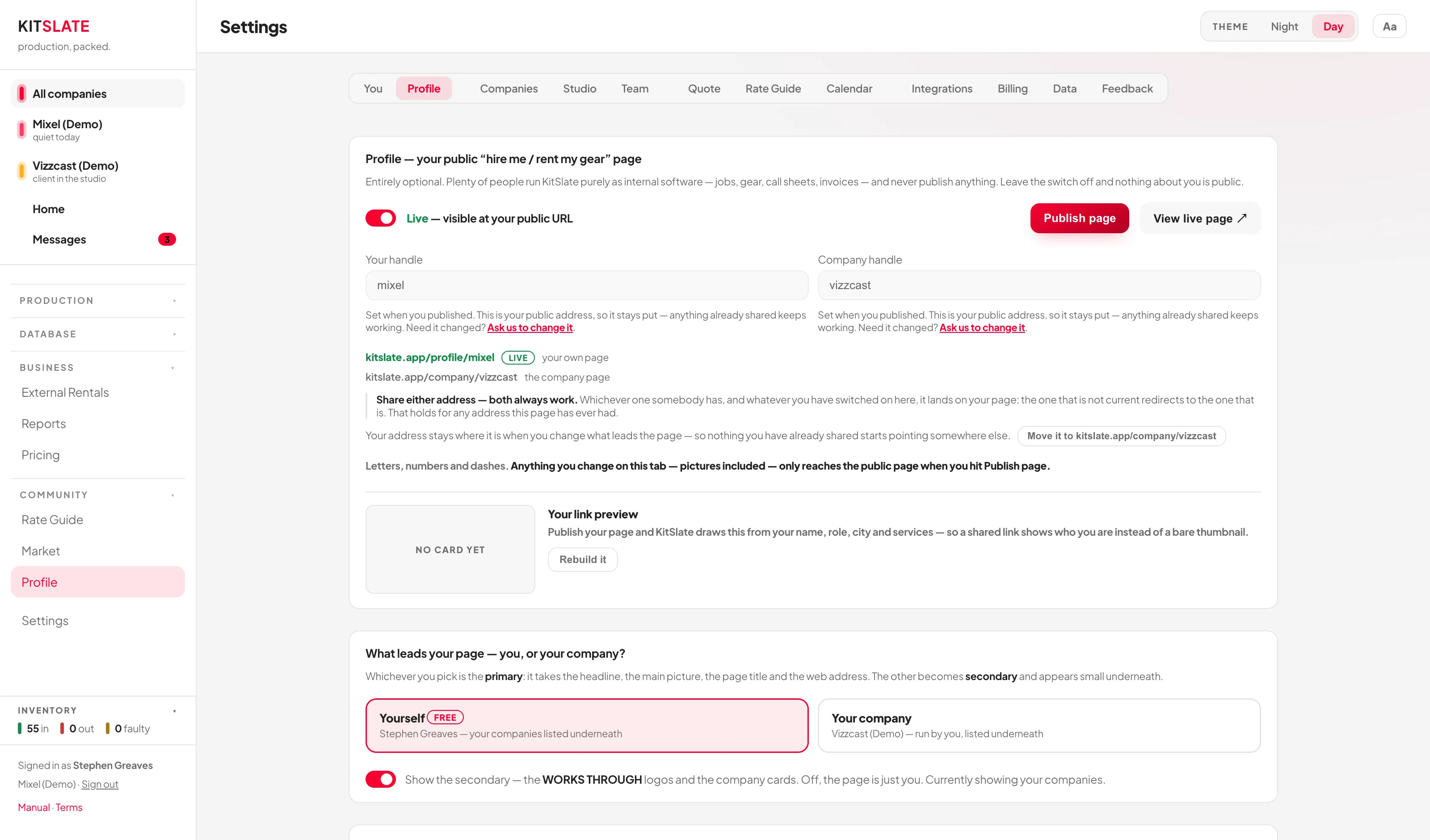
Find it as Profile in the sidebar, beside the Market — it's the face buyers, clients and crew see. (It's the same screen as Settings → You → Your public page; the sidebar entry is just a shortcut.) Edit what you want, then press Publish page — nothing reaches the public page until you do. The one exception is the Live/Off switch at the top, which acts immediately.
In order, the tab holds: Overview, Publishing & address (the live switch, both handles, both addresses), Hero banner, What leads the page, Visibility, Link preview & SEO, The person, What I do, Contact card, Pictures, Showreel, Marketplace, Your links & companies, then A second person. What you control:
- What leads your page — you, or your company? Whichever you pick is the primary: it takes the headline, the main picture and the page title Google shows. It no longer decides the web address — see above; on a page you have already published, the address stays where it is until you move it. The other becomes secondary and appears small underneath — your companies as a WORKS THROUGH row on a personal page, or a RUN BY line with your name and face on a company one. A switch beneath hides the secondary entirely, so you can have a page that is only you, or only the company. Your company stays greyed out until you tick is a studio on one of your companies.
- What you are — the three chips on your card. STUDIO (somewhere people can book), PRODUCTION COMPANY (an outfit people can commission) and FREELANCE (somebody people can hire). They sit on your card in Find crew, where people filter by them, and at the top of your public page. Any mix is right — a studio that also takes production work and puts its owner up for hire is all three and should say so; they are three switches, not a choice of one.
They are worked out for you: a company ticked is a studio lights STUDIO, any other company lights PRODUCTION COMPANY, and FREELANCE depends on whether a person actually appears on the page — so a company-led page with the RUN BY line switched off doesn't claim to be a freelancer, because there is nobody on it to hire. Disagree with any of it and flip the switch; your answer sticks from then on. Pages published before the switches keep exactly the labels they went up with until you publish again.
- A second person — for a couple or a partnership. Add their name and the page carries both portraits, both names and both sets of pronouns, with your roles and theirs shown together and no repeats. Leave it empty and nothing about the page changes.
- The person — name, pronouns, photo, personal bio, Vimeo, LinkedIn, Instagram. Your roles sit in What you offer, with your services; the two together are what the WHAT I DO strip is built from.
- What you offer — your roles, your services and how long you have been going. Roles and services together are the WHAT I DO chips, so emptying this block empties that strip. On a company-led page the chips are the services alone and your roles move to the RUN BY line. Services are also the words Find crew matches on, so pick from the list wherever one fits.
- The contact card — location (the caption under the map), contact email, the booking or contact link, what its button says, and the map.
- Town or city — separate from Location. Location is the address printed on your contact card and searched by the map; Town or city is the one Google and a pasted link use, so your page reads "Founder in New York, NY" rather than reciting a street number. Leave it blank and your studio address supplies it.
- Your links & companies — the logo and the picture for each company, together in one place. Note what is not here: a company's name, its website and its one-line blurb — the things that actually fill its card on your page — live on the Companies tab, and that is also where you add, rename and delete one. The two link fields in this block are your own, not a company's: Your website is the Web link beside your name, and A second link feeds the badges under it (and, if it matches none of your companies, gets a card of its own). One wide photo per company: drop a JPEG straight on the tile and it is downscaled and compressed on the way in so it fits the published page. On a company-led page that photo is the big picture at the top; with no photo it falls back to the logo, and with neither, to initials.
- Showreel — up to six Vimeo or YouTube links, mixed freely. Unlisted Vimeo links work — paste the whole thing including the private hash. Each field confirms what it recognised.
- Your link preview — the card someone sees when your page is pasted into Messages, Slack or LinkedIn. KitSlate draws it for you on every publish, from your name, role, city, first three services and your tagline, with your photo if you have one and a text-only version if you don't. The thumbnail on this tab is the real thing; Rebuild it redraws it without touching anything else. Messages and Slack cache previews per link, so add ?v=2 when testing or you will keep seeing the old one.
An item appears as available to hire when — and only when — you paste a URL into its ShareGrid listing field. It shows at the item's public rate, or "Rate on request" if you haven't set one. (Some in-app copy mentions ticking "Rent this out"; there is no such tick.)
Leading with the studio changes what the page claims to be, not only how it looks. It is described to search engines as a local business rather than a person — which is the description that can win a map or "near me" result, and carries your address and the services you offer. Leading with yourself describes a person, with your job titles and the companies you work through. Neither is better; they just answer different searches.
One knock-on worth knowing: the switch that hides the secondary reads Show the secondary, and on a company-led page the secondary is the RUN BY line with your name and photo. Switch it off and the studio page drops your personal Vimeo, LinkedIn and Instagram links too. The page is saying it is the outfit, so linking your personal accounts from it would put back exactly what the switch removed.
What a visitor sees
Hero and avatar, name and pronouns, location and member-since, whichever of the STUDIO, PRODUCTION COMPANY and FREELANCE badges you have switched on, your links, bio, a WHAT I DO chip list, a contact card with a map, the showreel grid, FOR SALE — N ITEMS (live listings, updating themselves, headed with a count of what is currently active), KIT FOR HIRE with a Request → per row, THE COMPANIES, then the GET IN TOUCH form.
An enquiry arrives on Activity as an ENQUIRY card with their name, email and message — the one thing on that page you can act on, which is why it renders as a full card rather than a one-line record. Reply from there and it sends through KitSlate with your company footer.
Bio, roles and kit-for-hire are a snapshot — re-publish after you edit them. For-sale listings are the exception and update themselves.
The Live/Off switch is the exception in the other direction: it acts the moment you click it, without publishing, and it works both ways. Off takes the page out of view straight away and keeps your handle, your text and your pictures exactly as they were; on puts the same page back at the same address.
If you fill in Contact email, it prints on the public page. The "email is never shown" promise applies to the enquiry form, not to that field.
The whole published page has to fit one database record, and pictures are the bulk of it. If it doesn't fit, KitSlate publishes everything else and leaves the largest picture out rather than failing — it tells you which one went. Re-upload a smaller shot to get it back on.
There is no client self-booking
Worth being clear about: a client on your page either taps the button at the top of your contact card — a link to whatever external booking site you configured — or sends the enquiry form. You reply, then raise the job yourself with + Create Production. That button reads Book the studio → on a company-led page and Get in touch → on a personal one, because a studio gets booked and a freelancer gets contacted; That button says on the contact card overrides both with your own wording, and an empty Booking or contact link hides the button entirely.
The confirmation page some people mistake for client booking is the call sheet confirmation link that crew receive by email: "See you on set?" → Confirm — I'll be there. Opening the link only reads status, so a link scanner can't confirm anyone by accident.
Two other public pages exist that you appear on automatically: the crew directory (every published profile, searchable by role, kit and city, and filtered by Studios / Production companies / Freelancers) and the used-gear market.
↑ ContentsRate Guide
What the industry actually charges — crew day rates, equipment rentals, all-in operator rates, studio rates, and what equipment is worth to buy and sell.
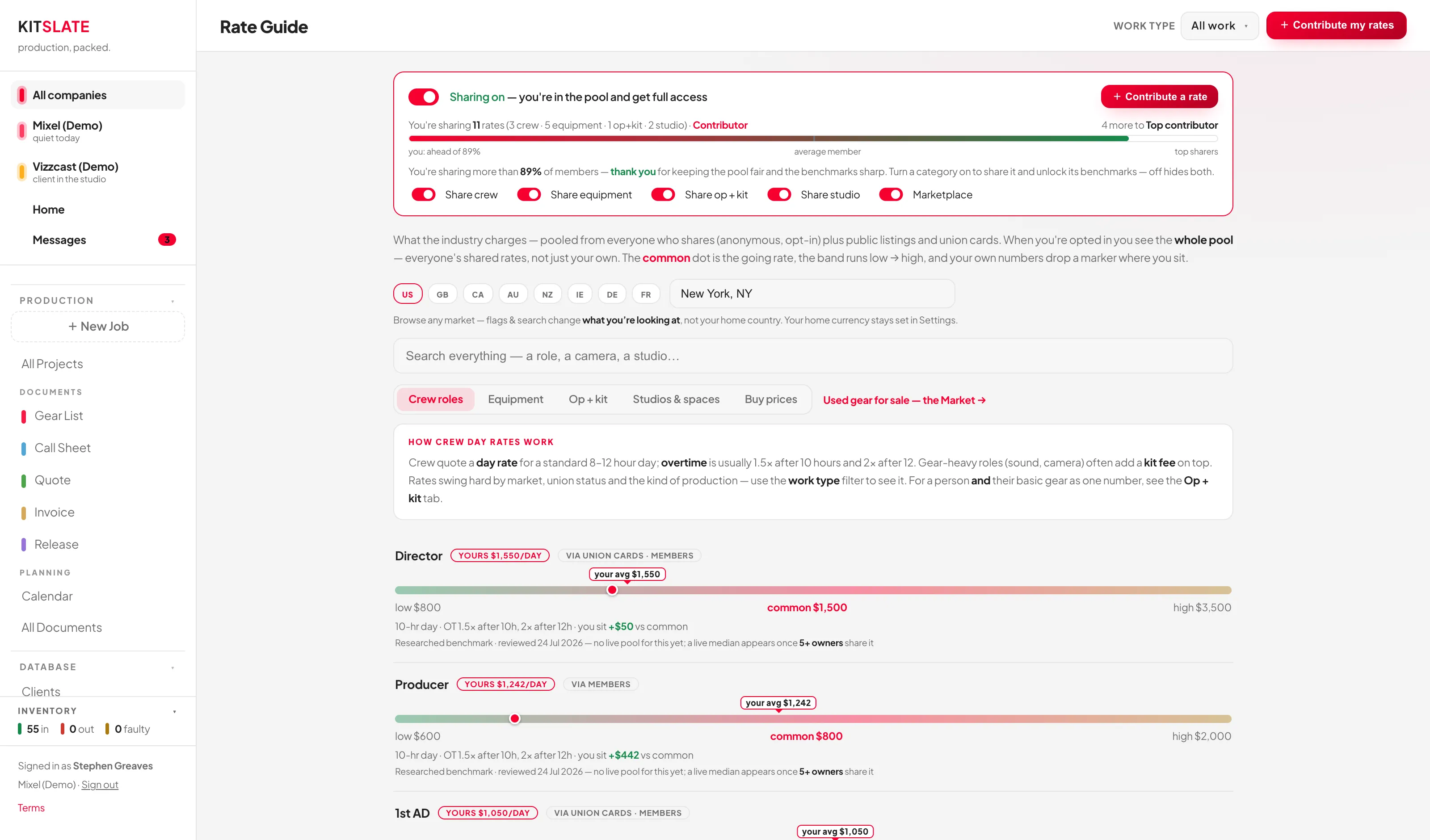
Give to get — the opt-in
The whole guide is gated behind sharing. Opted out, you see a LOCKED badge and two buttons: Turn sharing on and What gets shared?
Opted in, the page carries a short status card — shared rates, your community access level, and how many of the five categories you share. The individual category switches are not on the page; they live behind Manage sharing, which spells out exactly what each one sends. Turn a category off and that tab shows SHARE TO SEE.
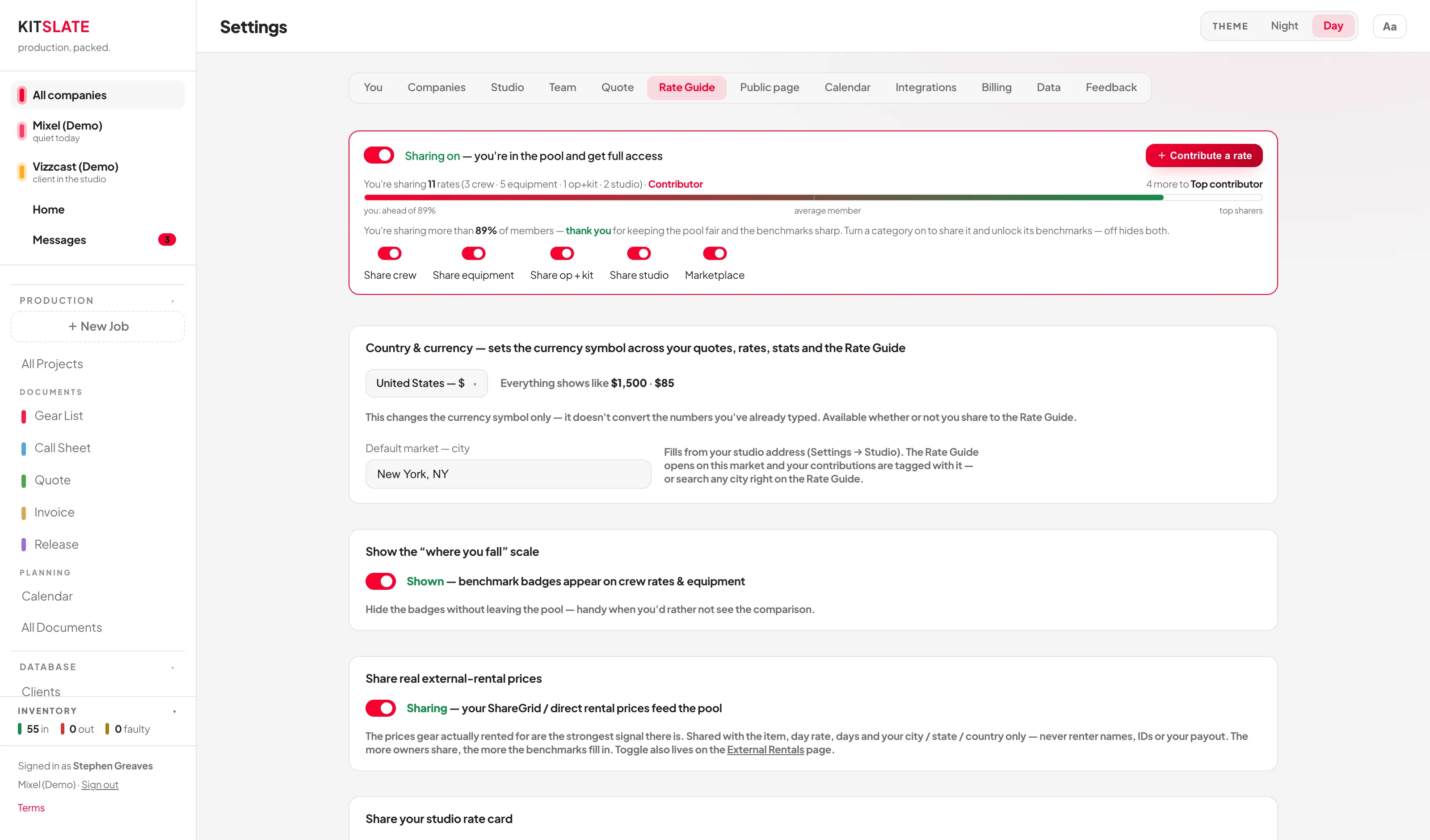
Only the guided contribution flow uploads anything. Nothing about your inventory, crew or rate cards is uploaded. The one upload path is Contribute rates → Share N rates →, and the step before that shows you the finished row in plain words before it sends.
A shared row contains: the kind of rate, the item or role name, the rate, the unit, the work type, and your city and country. It carries no submitter identity — never your name, company, clients or studio name. The pool table has no column that could hold one.
In-studio rates are not benchmarked. They are labelled “internal rate — not benchmarked” and are not included in the shared pool. Only your on-location and public/ShareGrid tiers are ever compared.
Equipment purchase and sale prices you add post as soon as you save them, and are shown only as an anonymous median.
Reading a row
Every row leads with a source badge saying what kind of figure it is, then the number. The badge vocabulary is fixed and used everywhere in the guide:
| Badge | What it means |
|---|---|
| Community median | Real pool data. Only appears once five or more members have shared that exact item in that market. |
| Researched benchmark | A hand-checked range with citations. Not a member submission. |
| Union reference | Anchored on a published union or guild rate card. |
| Public rental listing | Anchored on public listings — ShareGrid, Adorama, Peerspace and similar. |
| Retail reference | A researched list price for buying new. |
| Current asking price | What used units are listed at right now. Not what they sold for. |
| Verified sold price | A completed sale from a data provider. No provider is connected yet, so this never appears. |
| Community purchase / sale price | What members report paying, or what they report selling for — kept apart. |
| Insufficient data | Not enough observations to say anything. KitSlate leaves it blank rather than guessing. |
Under the badge sits the headline number, and it is named for what it is — Community median when the pool cleared five contributors, Benchmark midpoint when it did not. The two are never both called "common". Below that: the low-to-high band with a typical marker, the day length and overtime assumptions, how many contributors are behind it, and a Sources: line naming the real rate cards and listings it was checked against. Details and sources → opens the full breakdown, every citation with its URL, the methodology, and a Report a problem button.
If you have your own comparable figure, it appears as a marker on the band plus a percentage against the typical rate. It is only shown when you actually have one — there is no "yours — none yet" noise on every row.
There is no made-up sample size anywhere.
Finding things
Search the Rate Guide at the top searches everything at once — roles, rental gear, operator packages, studios and the equipment catalogue — and groups the results by category. It understands the way people actually type: dp finds Director of Photography, 1st ac finds the camera assistant, fx6 and 600d find their gear, plurals work, and a typo like gaffar still finds Gaffer. Clicking a result opens the right tab and highlights the row, keeping your market and work-type filters. The equipment catalogue has its own separate search inside Equipment Value, clearly labelled so you know which one you are using.
Everything you are browsing is set in one filter bar: Market (country plus an optional city), Work type, and Currency, with Reset filters when you have wandered. The flag shortcuts are still there as a quick way to change country.
The five tabs
| Tab | What's in it |
|---|---|
| Crew Rates | 20 roles, Director down to PA, with day lengths, overtime notes (1.5× after 10h, 2× after 12h) and kit-fee flags. |
| Equipment Rental | Rental rates with Rental period (per day / per week / weekend) and Rental context (studio rental / location rental / public marketplace). |
| Operator + Kit | Six all-in "person plus their gear" rates — ENG shooter, corporate one-man-band, doc DP, live op, photographer, drone op. |
| Studios | Hourly and daily rates with minimum-booking notes and a derived per-1,000-sq-ft figure. |
| Equipment Value | What gear costs to buy and what it is worth to sell — see below. |
Members only ever contribute day rates. Switch Rental period to per week or weekend and the row picks up an Estimated from daily rate badge — a week is 3× the day (keep 7 days), a weekend bills as one shoot day. Public ShareGrid and Adorama listings carry their own weekly terms.
Equipment Value
Each item is split into slots that are never allowed to borrow from one another:
- New retail — a researched list price. Never counted as community data.
- Used asking — what used units are currently listed at on the Market, with how many are for sale.
- Verified sold — reads Unavailable. There is no completed-sale provider connected, and asking prices are never substituted for sold ones.
- Community purchases and Community sales — what members paid, and what they got, kept as two separate figures.
- Estimated resale — only where there is real second-hand evidence. If there isn't, it says Not enough data to estimate rather than inventing a depreciation curve.
The tab opens on items that actually have pricing data. Items with none are hidden behind Show items without pricing data, or appear if you search for them directly, own one, or someone has an open price request against them. Filter chips across the top narrow it to New retail, Used asking, Community purchases, Community sales or My gear value.
Add a price asks whether you bought or sold it and what condition it was in — that is what keeps the two community figures apart. If you are still selling something, that is a listing rather than a price: put it on the Market and it shows up as an asking price. Request a price posts to the community board; replies arrive on your Activity page without exposing your email.
My Gear Value
The My gear value filter values your own inventory against the same data. It shows how many items could be valued, an estimated low, midpoint and high for the fleet, and how many items had nothing to go on.
Each item carries a condition selector — like new, excellent, good, fair, heavily used, damaged or parts. Condition places the item inside the range the market actually showed, and never above it: a like-new body cannot be valued higher than the highest real figure on record.
My Gear Value reads your purchase price and replacement cost but never writes to them. Your insurance and replacement figures are yours; the condition you set here is stored separately and changes nothing in Inventory or in the Insurance & replacement report.
Valuation matches on item name. Picking a name from the CATALOGUE type-ahead when you add gear is what lets the Rate Guide find it. An item that reads "not matched to a catalogue item" needs renaming to a known type (for example "Sony FX6") before it can be valued.
Wherever you type a piece of equipment — the item editor, an import's review screen, a market listing, a rate contribution — if nothing matches, the type-ahead offers + Ask KitSlate to add "…" to the catalogue. That files a request with KitSlate, who check it and add it properly; you'll see it appear in the type-ahead once it's in. Your gear list, listing or rate still saves exactly as you typed it in the meantime — nothing waits on the request. Asking twice for the same thing is harmless: the second ask joins the first rather than making a duplicate.
Contributing
There is one Contribute rates button, top right. It asks what you want to share — crew rate, equipment rental rate, operator + kit rate, studio rate, or an equipment purchase or sale price — then shows only the fields for that choice.
For rate contributions you set the production type and your city, then build as many lines as you like with Add. A Person with gear toggle files a crew rate into the operator + kit pool instead, and Add my studio rate card pulls your hourly / half / full / buyout figures from Settings.
Before anything sends, Review what gets shared → lists the finished rows in plain words and, beneath them, what will not travel. Afterwards you are told plainly that a community figure needs five members on the same item before it appears — your submission is counted while it waits, not lost.
Pick Type your own… and, from the second character, the shared catalogue suggests matching names beneath the box — "fx" offers the FX6, FX9 and FX3; "alexa" and "600" find theirs too. Picking one is the surest match, because it fills in the catalogue's exact spelling.
If you'd rather just type it out, KitSlate still tries to match what you typed against the catalogue by name. Real gear names rarely line up exactly — "Sony PXW-FS7M2 XDCAM Super 35 Camera System" is the same camera as the catalogue's "Sony PXW-FS7 II" but shares almost none of its wording — so when that plain match misses, the name alone is sent to AI to decide whether it denotes a catalogue product.
Only a confident answer is accepted, and the row then reads → matches <name>. Anything less stays new — pending review, with the AI's reading shown beside it as a suggestion only. That caution is deliberate: a wrong match would quietly merge two different products' rates into one benchmark.
This step applies to equipment only, needs you signed in, and is skipped in the sandbox. If it can't complete, your typed name still submits — just unmatched.
Your first switch-off of any given category is a free try. After that, rejoining that category is locked for 7 days — ×4 if you have left it twice or more, halved if you are a Top contributor (15+ shared rates). Benchmarks hide immediately when you leave.
If you only want the badges to go away, use View only on the Inventory or Crew toolbar, or turn off Show the "where you fall" scale — neither costs you access.
The country you pick in the filter bar (and under Settings → Accounting → Country & market) sets your Rate Guide market and the currency symbol on figures the workspace holds — equipment cost, replacement value, used-gear sales and your own rate card. It does not convert numbers you have already typed, and it is not what your invoices are issued in: each company confirms its own billing currency under Money → Payments, and quotes and invoices follow that. Changing Market changes what you are looking at, not your home market — while roaming you get "≈ home" conversions marked as indicative.
The same card sets the order every date prints in, written and in numbers: 10 Jan 2026 · 10/01/2026, Jan 10, 2026 · 01/10/2026 or 2026-01-10. Automatic follows the country above — day first almost everywhere, month first in the United States and Canada, year first in Japan, China, Korea and Taiwan. It applies to quotes, invoices, call sheets, the calendar and the page. A production can choose its own order on its Settings tab, and a published invoice keeps the order it was published with, so the hosted page and the PDF do not change under a client.
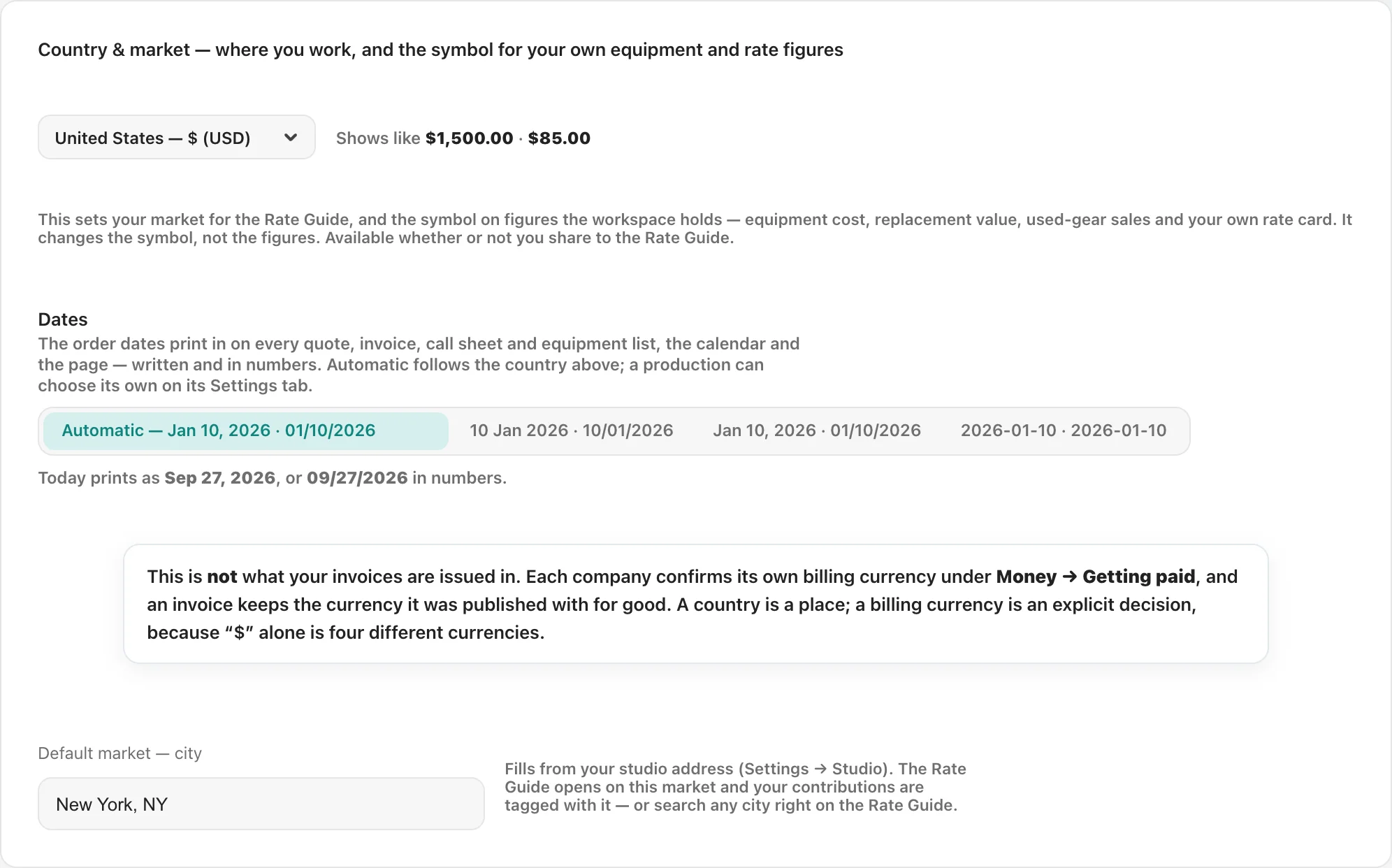
The Market
Free peer-to-peer used gear between members. Listings cost nothing, and payment is between you and the buyer.
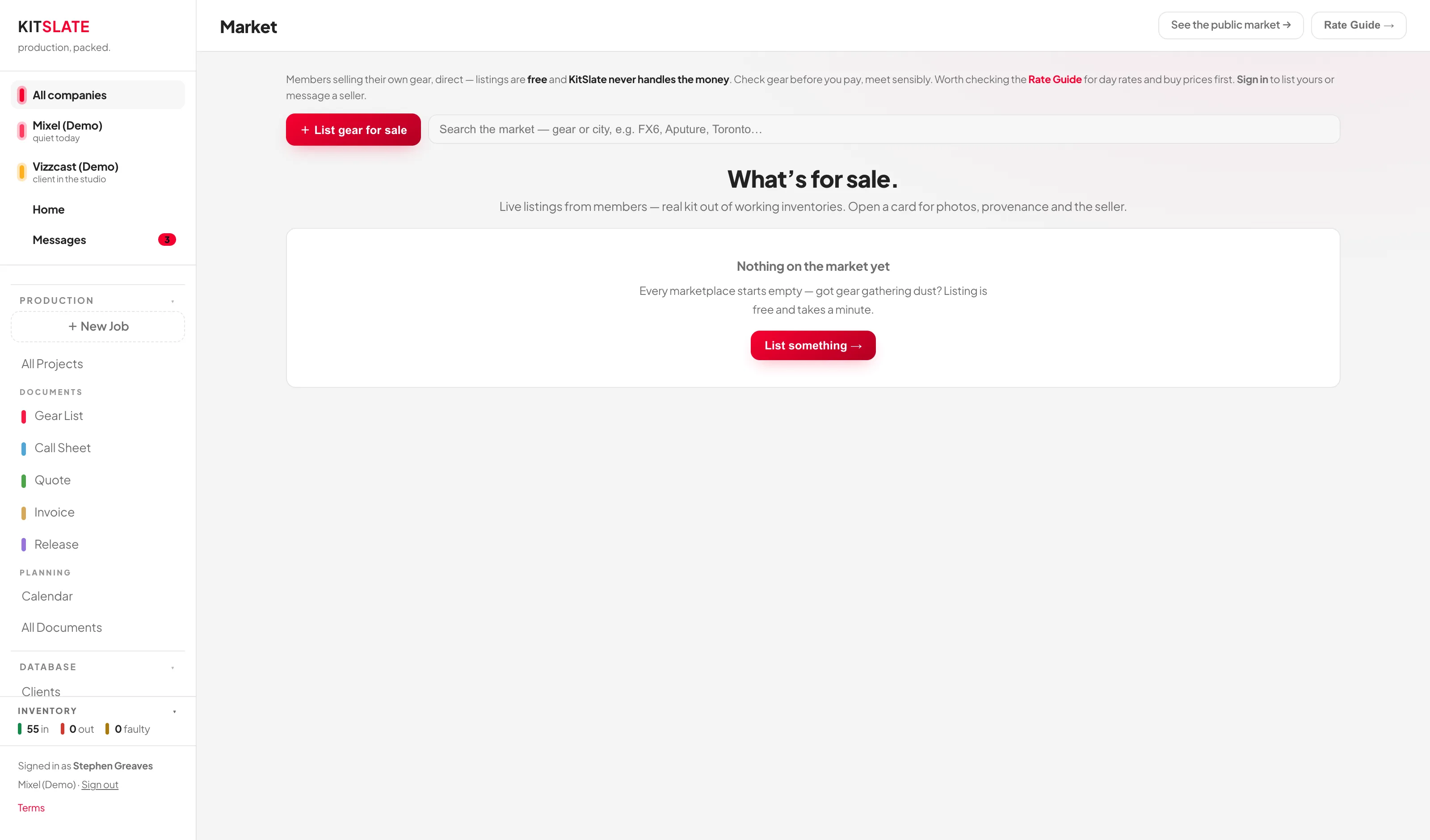
KitSlate never handles the money. You agree the deal and settle payment between yourselves. Check gear in person before paying, and meet somewhere sensible. There is no escrow, no buyer protection and no dispute process.
How buyers browse it
The public page at kitslate.app/market shows the same listings to anyone, signed in or not — the gear sits at the top, and the explainers are below it. Buyers narrow it with the search box (gear name, brand or city), the category chips, and an ordering row: Newest, Price low, Price high. Every tile is the same height; an older listing with no photo shows a stand-in naming the brand rather than the gear, because a picture in that slot would read as a picture of the item. New listings all require a photo. On a phone the grid shows two cards to a row.
Opening a card gives a quick view; Esc or the browser's Back button closes it. Share copies that listing's own address — every listing has a real page at /market/<id> that search engines can index.
Listing something
+ List gear for sale:
- Bringing over your own Craigslist post — paste the link into the field at the top of the form and press Import →. KitSlate fetches that page, reads it, and brings the photos across at full size (Craigslist keeps a 1200×900 beside the 600×450 it shows). They go through the same watermark and crop as an upload. Craigslist links only — anything else is refused, because an endpoint that fetches whatever URL it's handed is a security hole. Facebook isn't fetched at all: it refuses ordinary browser requests, so screenshot it instead.
An imported listing carries a CROSS-POSTED chip and a banner naming where it came from — Imported from Craigslist, or Facebook Marketplace, or wherever — with a View original listing → button underneath that opens the original in a new tab. The address itself is kept on the listing but never printed: a marketplace URL is a wall of characters and it told a reader nothing the button doesn't. A listing brought over by screenshot names its site but has no button, because a screenshot carries no link. That chip is grey, not green — it's information, not a KitSlate endorsement. The banner says what's actually been checked and no more: KitSlate can confirm the photos appear on that other post, but not that the account there belongs to the seller, and it says so out loud. The "these photos match that live listing — KitSlate checked" line only appears once the reverse-image check has actually been done and found the match; until then it stays off. - Already listed somewhere? — the form opens in three parts: this import box, then The listing, then Photos & proof, so it's clear what happens in what order. Everything to do with bringing a listing over is in the one box at the top — the Craigslist link field and the big paste area together. Two ways in: screenshot the listing page and press ⌘V in the box (or drag the file in, or use + Screenshot…), or select the listing text and paste that. The screenshot route is usually easier — Facebook's listing text is awkward to select in one go. Fill the form from this → sends it to AI, which sorts it into the fields below. A screengrab is shrunk in your browser before it leaves, read once, and never stored — and it is not a listing photo; the reader ignores the browser chrome, seller card and thumbnails around the listing, and judges condition only from what the page prints, never from how the gear looks. KitSlate never visits the other site — you paste what you can already see, so this stays clear of scraping and of other marketplaces' terms. It never overwrites something you already typed, phone numbers and email addresses are stripped out of the description (buyers message through KitSlate), and the seller name always stays yours. If the paste isn't a piece of gear for sale it fills in nothing rather than guessing. Photos are the one thing it can't do — add those yourself.
It reads each site on its own terms rather than expecting one layout: Craigslist glues the price and neighbourhood onto the title, so both get cut; where a listing quotes two prices ("Retail $1,849.79. Selling for $1,400") it takes the one being asked; and a bare neighbourhood is turned into the city a buyer would actually search. Condition is the one to watch — Craigslist listings often don't state one, and when that happens the form says so and leaves Good sitting at its default. Set it yourself, or you've made a claim about the gear the listing never made. - What is it? — with catalogue type-ahead. Matching is optional, but it is what puts your listing on the Buy-prices page. Press Enter on a part code and AI resolves the full name.
- Asking price — the placeholder suggests the used median, or roughly 62% of new.
- Condition — Like new / Good / Well used / For parts.
- Category — the ten filter buttons buyers browse the market by. It fills itself in from the catalogue match, or failing that from the name, and says so underneath; tap another to overrule it. A category is required — a listing with no category would sit under Other, where the gear is effectively unfindable.
- Brand — optional — filled from the catalogue when it recognises the gear, otherwise type it. It is searched alongside the name.
- Description — what's included, hours, marks, box.
- Location — optional — prefilled with your town or city; it helps local buyers.
- Photos — up to 8. The first is the cover; drag a photo onto another to drop it into that place, or use ‹ › (which is what you need on a phone — touch screens don't do drag-and-drop). Dropping image files onto the box still adds them, as before. AI fill from photo reads your first shot and suggests the name, description and price — always check it. Images are downscaled and watermarked.
- Prove it — optional — upload the purchase receipt as a PDF. AI checks the product and buyer name and you get a VERIFIED BY RECEIPT tag. Buyers only ever see the tag, never the receipt.
Then List it →. You need a name, a price above zero, your first name set, a category, and at least one photo — photo-less listings aren't allowed.
Sell this → on any inventory item fills the listing from what the shelf already knows, so you retype nothing: the name (snapped to the catalogue by model number when the name alone missed), the model, SKU and purchase date into Description, the item's photo, and a Category read off the shelf it sits on (a catalogue match overrules that, and you can overrule both). It also attaches provenance the app can vouch for — how long it has been in your inventory, how many jobs it has done, how often it was rented out — shown to buyers as TRACKED IN KITSLATE.
The receipt comes across too. If a receipt is already filed against that item, it goes through the same AI check as a manual upload without you uploading anything, and the provenance line upgrades from "purchase receipt on file" to verified with the original receipt — plus sold by the original owner when the buyer name on it matches yours. Receipts whose PDF was too large to keep still verify from their saved text copy.
Two things it will not do: your Notes and serial numbers never go into a public listing, and the carried photo is flagged — if it is a stock product shot, replace it with the actual unit. A stock image cannot earn the PHOTOS CHECKED badge, and buyers expect to see the real thing. Buyers only ever see your first name; your email address is never displayed.
Messaging, and marking things sold
Message the seller → needs a free account — pressed while signed out, it offers one, and once you are in you come back to the same listing. Threads live in a MARKET MESSAGES panel at the top of the Market page — kept out of your job inbox — with archive and delete per thread. Neither side ever sees the other's email address.
Mark as sold asks what it actually sold for, not the asking price, and offers to remove the item from your inventory (on by default). That real figure feeds the community used-price median anonymously.
Remove takes the listing off the market for everyone straight away, with no undo in the UI. Use Mark as sold for actual sales; save Remove for withdrawing a listing.
Deleting a message thread is one-sided: your copy goes for good, the other person keeps theirs.
What happens to an archived listing
Removing or selling a listing archives it. The record is kept for ever — title, price, condition, city and dates stay in your history, and a real sold price keeps feeding the anonymous used-price median.
The photos are deleted permanently 90 days later and cannot be restored. Photos are almost the entire weight of a listing and serve nobody once it has been off the market for three months. The clock starts the moment it is archived; relist inside that window and the photos stay.
Your photo, company pictures and logos are deleted immediately. Remove one and republish your page, and it is gone from the published page in the same moment — there is no retention window, because those pictures live in the page itself rather than in an archive.
A listing keeps whatever currency symbol your account had when you posted it. Nothing is ever converted.
Settings
Five categories with their tabs inside them, and an Overview that opens first. You will spend time in four and never think about the rest.
Settings opens on Overview. Every setting in one list. Search settings, at the right end of the bar on every Settings page, finds a setting by what you want to change — type time, dates, logo or Stripe, or a whole question — and each result says where it lives, opens it, and links to the manual or feature page where there is one. On any other tab the results open in a panel under the box, over the page; on Overview they fill the list. Enter opens the first. I want to… lists the usual starting points. Browse sections… opens the same section picker as the control at the top. Billing still goes straight to Plan & subscription.
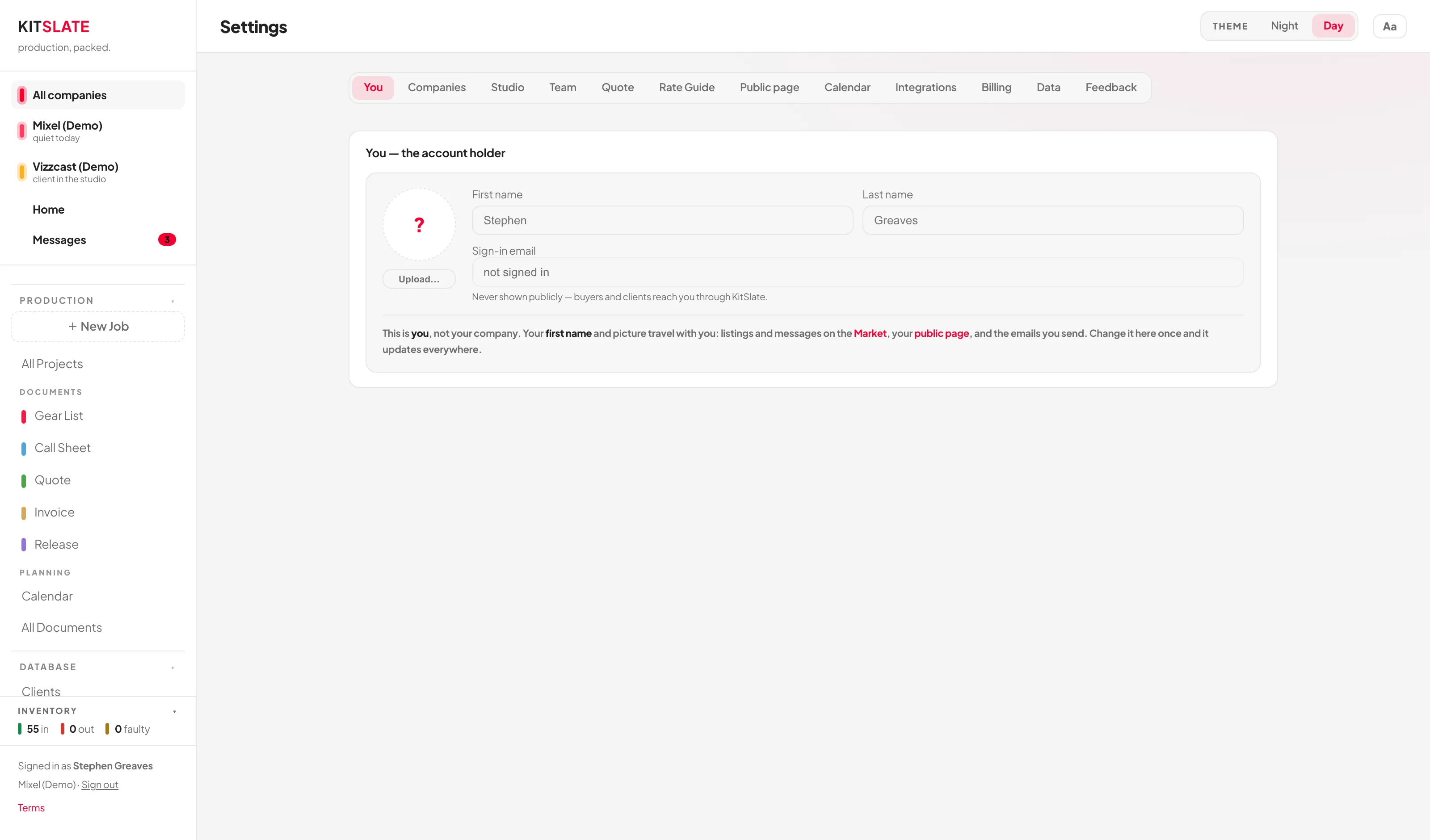
Settings has three controls and they never move. The category button, top left, reads Category — Tab — Your business — Companies & branding, say. Click it for every tab under its category, each with a line saying what it is for. The section row sits along the top beside it and lists the sections of the tab you are in. Nothing else changes position between tabs, so the content always starts in the same place. When a tab has more sections than the row can hold — Your public page has fourteen — the ones that do not fit are listed under More ▾ at the end of the row, so none of them sits hidden past the edge of a laptop screen. If the section you are on is one of them, More shows its name, highlighted.
Four tabs — Your public page, Studio, Rate Guide and Agreements — put every section on one scrolling page instead of swapping between them, because those are the ones you fill in top to bottom rather than dip into. There the section row is a set of jump links: click one and the page scrolls to it and flashes what you jumped to.
Nothing was removed when this grouping arrived — every tab is the tab it was, under a heading that says what it is for. Team & access appears only if you are the workspace owner.
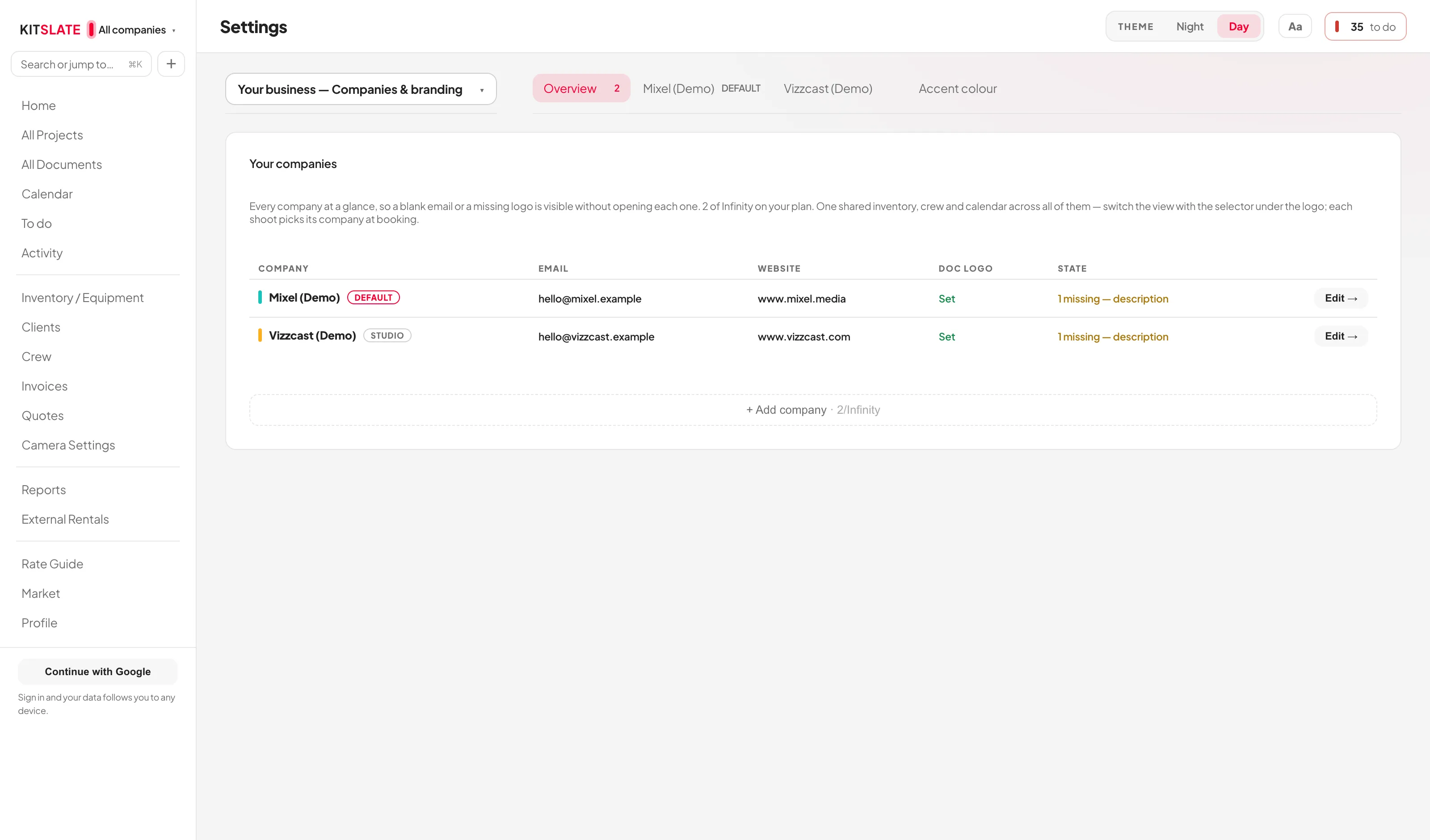
| Tab | What's in it |
|---|---|
| You — your account and how KitSlate looks | |
| Profile & account | Your photo, first and last name, and a read-only sign-in email. Your first name and picture travel to the Market, your public page and your emails. Your email is never used as a public name. |
| Preferences | Defaults that belong to you rather than to a company or a job. Time format — 12-hour or 24-hour, for every time KitSlate shows (call sheets and their PDFs, schedules, the crew's pages and emails, the calendar, project times; typing is unaffected). New projects — the length, where the gear works and whether rates show on a new gear list. Where other defaults live — a map to the owner of everything else. |
| Your public page | Live/off, both handles, both addresses, and all the public-page content — see Profile. Also reachable from NETWORK → Profile in the sidebar. |
| Plan & subscription | The Current plan line, the plan cards and Manage billing. |
| Feedback | Send a bug, idea or question with up to three screenshots. |
| Your business — the companies you invoice as | |
| Companies & branding | An Overview table with every company as a row, then one section per company: name, EIN / Tax ID, address, email, reply-to, phone, website, logo, brand colour (document headers and totals), a one-line description for your public page, and the email footer. One is marked Default brand and fills any blank field on the others' documents. Also the app accent colour. |
| Team & access | Seats and permissions — see Plans, billing & team. Owner only; it does not appear at all for anyone else. |
| Studio | Studio name and address (Use <company>'s address copies the company's in one click), how many rooms, minimum booking, then per room: per hour, half day, full day and size in sq ft with a $/sq ft sanity check. Plus bundles, full-building rates, and podcast / multi-camera / green-screen rates. |
| Money — quoting, invoicing and getting paid | |
| Quotes | Quote numbering per company — prefix, minimum digits, next number, issued at a quote's first send — then the defaults behind every quote: Quote defaults (which sections show), Equipment & lines, your own Misc lines and Presets. Terms and payment details live on Invoices and Payments; the tab points there. |
| Invoices | What a new invoice starts with, per company — Invoice numbering, Terms & due dates, Notes & footer and Document display. In the default notes, {days} becomes the number of days from the terms, and within {days} days reads on receipt when nothing is owed later. On an invoice, changing its terms moves the days its payment sentence states — Net 30 to Net 15, and back from on receipt — and nothing else it says. Not invoice editing; that belongs to the document itself. |
| Payments | Per company: billing currency, whether online payment starts on, and a card for each method you accept — Online card payment (Stripe), Credit cards, American Express, Bank transfer (ACH), International wire, Zelle and PayPal / Venmo. Each has an on/off toggle, a percentage and a fixed fee, and a standing You absorb it / Add to the invoice answer. Below them, the bank details that print on the document: bank, account name and number, routing, SWIFT / BIC, IBAN, bank address, intermediary bank, Zelle, Venmo, PayPal and cheque payee. A second section, Banking fee lines, holds the one-off fee catalogue — that one is shared across every company, the method cards are not. |
| Expenses | Expenses & fees — the default production fee and your expense categories — and the Crew wrap-up email. See Expenses. |
| Accounting | Ledger accounts, Country & market (where you work, and the symbol your own equipment and rate figures carry) and Export. The same card sets the date order — 10 Jan 2026, Jan 10, 2026 or 2026-01-10 — that every quote, invoice, call sheet, calendar day and page prints in; Automatic follows the country. A production can choose its own under its Settings tab, with a link back to the default. |
| How you work — documents, calendar and rates | |
| Agreements | Defaults, Templates & presets, Optional clauses and Signing — see Agreements. |
| Call sheets | The Confidentiality line every new call sheet starts with — printed at the foot of the sheet, its PDF and the crew’s page; {company} stands for the letterhead company. Each sheet keeps its own copy on its Notes card. |
| Messages & wording | Email templates — the wording of every email KitSlate sends, in one place and searchable: quote, invoice, equipment list, call sheet, agreement copy, crew requests, the receipts-and-invoice upload email, the crew wrap-up email and the Activity reply. Each box starts with KitSlate’s wording and is yours once you change it; Save as default in any sending box saves here too. {name}, {company} and {project} fill in per send. Document wording links to the wording that prints on documents. The Call sheets, Invoices, Quotes, Requests, Agreements and Expenses tabs each link straight to their email’s box. |
| Requests & approvals | Whether answers from clients and crew are held for your approval, how long request links live, and when To do offers a reminder — see Requests & approvals. |
| Calendar | A signpost, not a settings page. The calendar's own settings are a workspace of their own — see Calendar. |
| Rate Guide | The pool (sharing toggles), your market, the where-you-fall scale, and which rental terms you offer clients. |
| Connections & data — other software, and your data | |
| Integrations | Connected services — Stripe (one account per company), Google Calendar, ShareGrid and Email, which KitSlate sends through for you (Send test email checks it). QuickBooks, Wave and Xero appear here as file exchange only: KitSlate reads and writes their CSV formats and does not connect to any of them. Data in & out is a full table of every import and export in the app. |
| Data & backup | Backups, restore, the per-module resets and the danger zone — see below. |
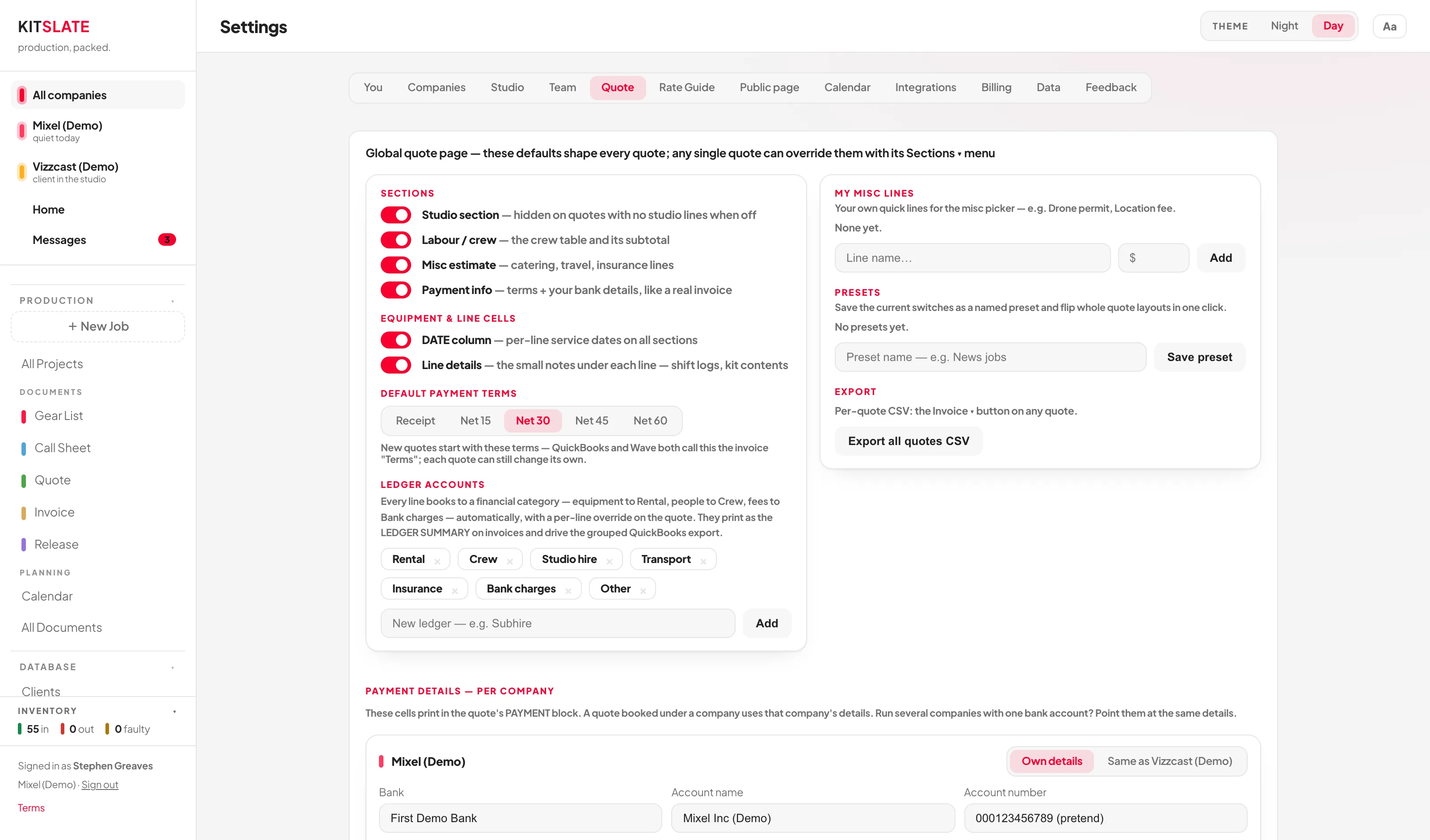
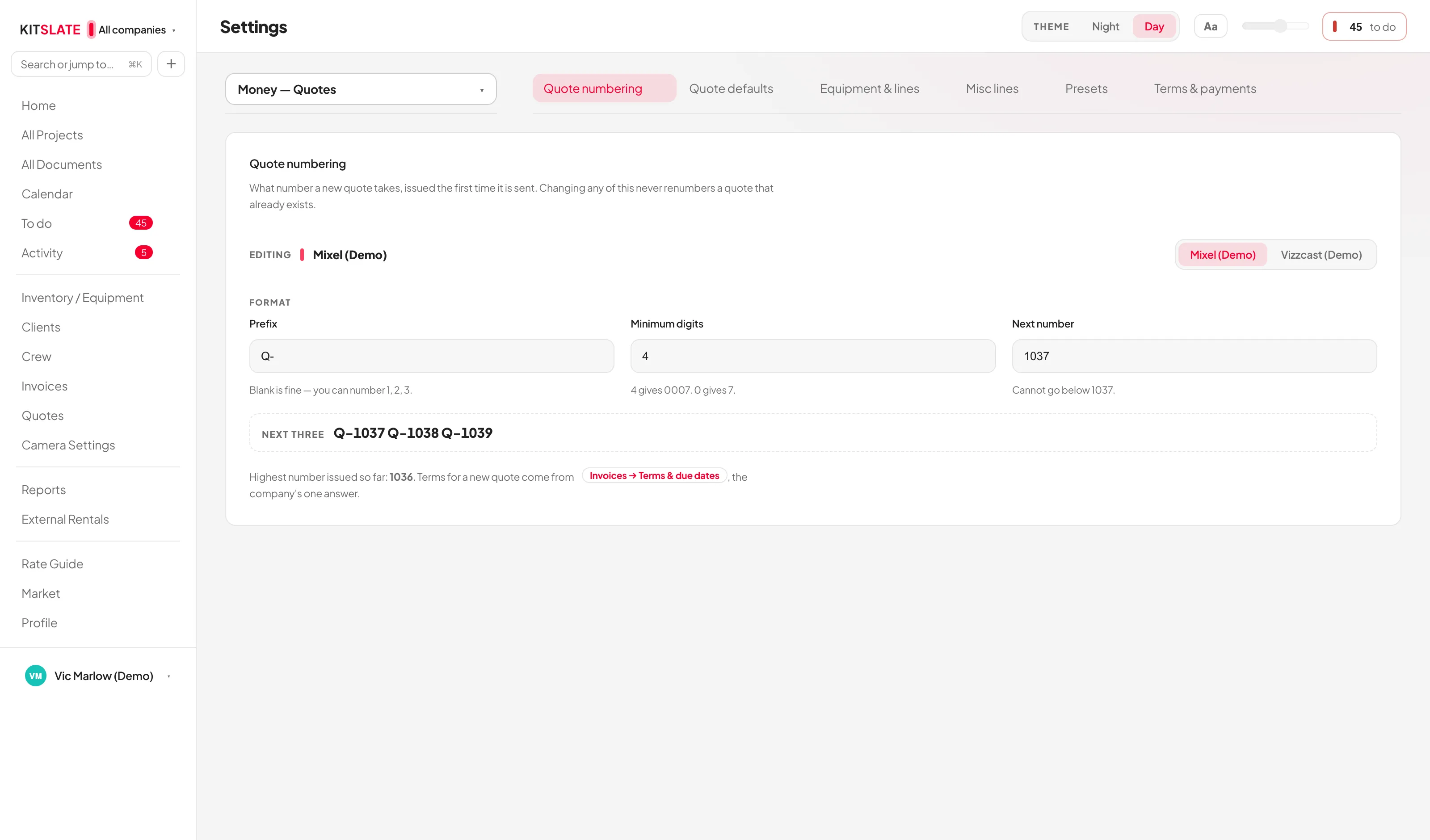
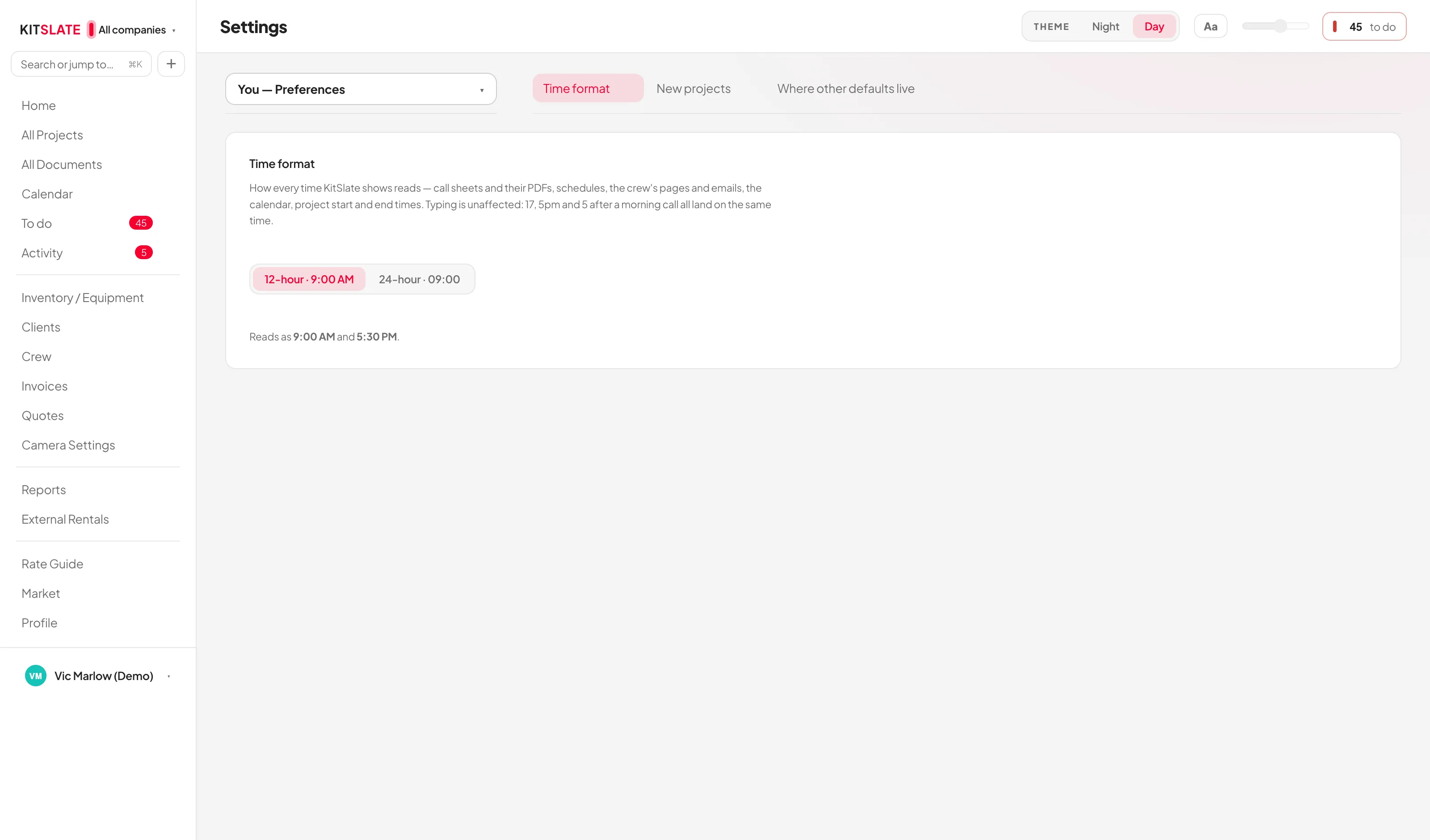
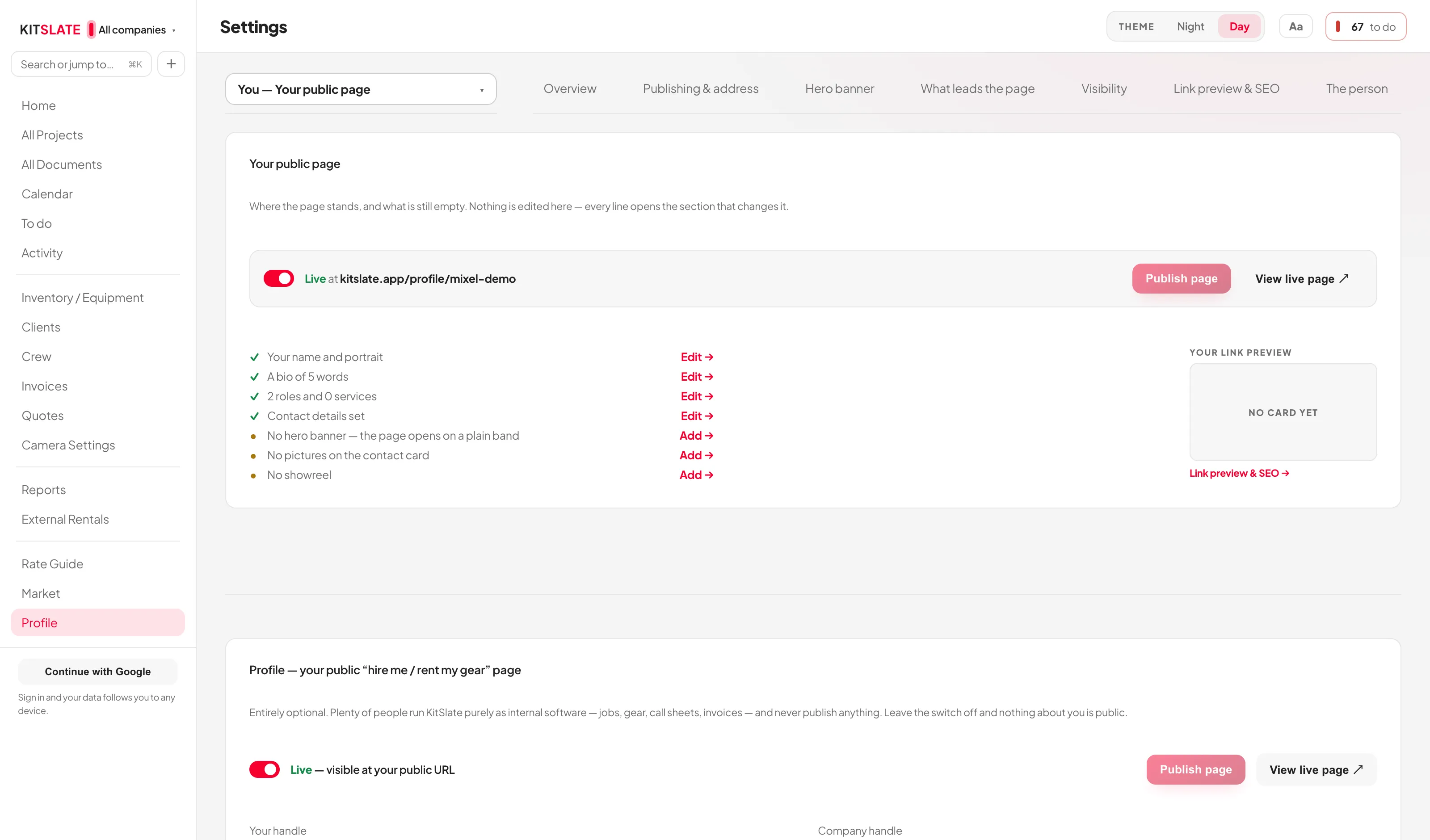
One colour picker
Anywhere KitSlate asks for a colour — a company's brand colour, the app accent, a calendar's colour, the fallback behind your public page's banner — you get the same control: a dot showing the colour it is now, which opens a small panel holding the house palette and one spectrum dot for anything else. It opens against the dot you pressed, and Esc closes it.
Where two tabs once wrote the same value, one of them was removed rather than kept in step. Payment terms are on Invoices; ledger accounts are on Accounting; bank details and method fees are on Payments. Quotes points at all three instead of repeating them, and the calendar's settings exist in exactly one place.
Send feedback from Settings → You → Feedback — pick a topic — Report a bug, Help using KitSlate, An idea, Account & sign-in, Plans & billing, Marketplace & listings or Something else, attach up to three screenshots (drag, browse, or just paste with ⌘V), and press Send feedback →. Replies from the KitSlate team arrive as a thread on Activity, not by email.
Your data & backups
The most important section in this manual. Read it once, properly.
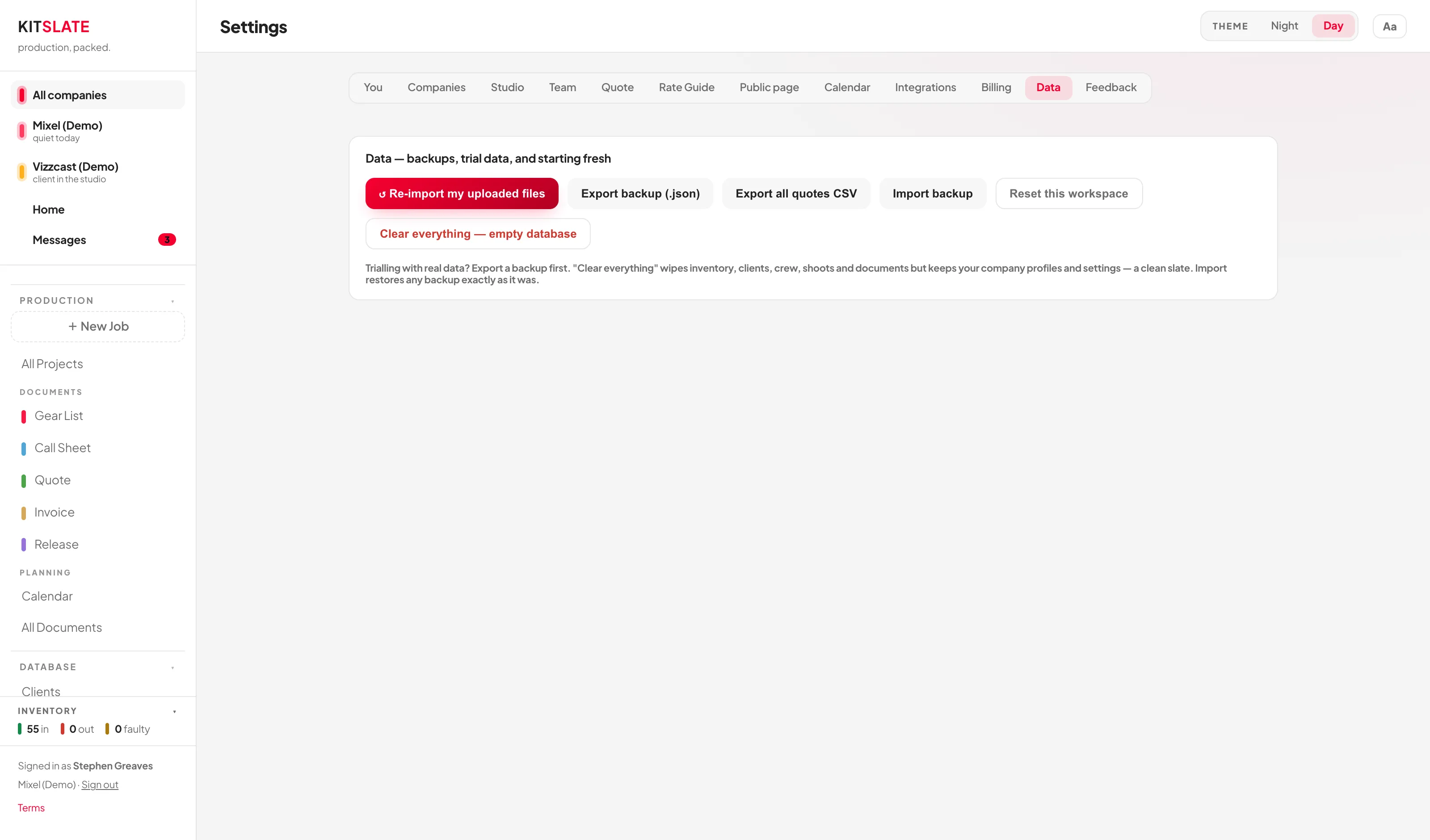
Where your data actually lives
Everything — inventory, clients, crew, jobs, quotes, invoices, settings — is held in your browser's local storage as one blob.
If you are signed in, the same data is also written to the server a couple of seconds after every change, and the server copy is the real one. Sign in on another machine and your work is there.
Open KitSlate signed out and what is on screen is still yours to look at, but anything that would edit it brings up the sign-in card instead, so nothing new is saved. The only part of KitSlate that works without an account is the sandbox: sample data, reset from time to time, and nothing placed in it is stored.
Watch the last row of the status panel, top right of every page. Saved to your account 5m ago is healthy. Saved on this device means you are signed out, and the workspace is read-only until you sign in. Offline — saved here, syncs when back is fine and will catch up.
"⚠ Not saving — browser storage is full. Your recent changes are only in this tab and will be lost if you reload." Do not reload. Press Export a backup now first, then free space by dropping receipt PDFs.
The routine to actually follow
- Sign in. That alone gets a server copy of everything.
- Leave cloud sync alone — it is automatic. Clicking the sync row in the status panel opens the sync window, which has a Sync now button if you want to force it.
- Export a
.jsonevery week anyway — and always before a big import, a bulk price change, or anything in the danger zone on Data & backup. - Keep exports somewhere that isn't this laptop. A backup on the machine that dies with it is not a backup.
Exporting and importing
Export backup (.json) downloads the whole workspace as kitslate-backup_<date>_<time>.json.
Import backup checks the file is a real KitSlate backup, then tells you what is in it and asks you to confirm — Replace my data. Anything that isn't a backup is refused and nothing changes. But once you confirm, it replaces everything in this workspace and there is no undo. Export your current state first, every time.
Without an account
There is no signed-out way to keep real work. Signed out, your workspace is read-only, so there is nothing new to back up; sign in and the server copy is kept for you. To try KitSlate without an account, use the sandbox — it is sample data and is never stored.
The three sections of the tab
Settings → Connections & data → Data & backup has its own rail with three sections, and they are ordered by how dangerous they are.
- Backup & recovery — safe. Nothing on it removes a record, and it says so at the top. It also tells you the date you last exported a backup, or that you never have. If this device ever held changes that hadn't reached the server when a newer copy took over (you signed in again, or another device saved first), the server's copy wins and nothing is asked: the device's changes are set aside here under CHANGES KEPT FROM THIS DEVICE, with when and why, and Download them gives you the file to look through, restore with Import backup, or send to support.
- Workspace data, under RESET — one card per module, each resetting on its own. You never have to clear everything to clear one thing.
- Clear everything, under DANGER ZONE — the two whole-workspace actions.
Resetting one module at a time
Each card names the module, counts what is in it right now, and lists Deletes beside Keeps before you touch anything.
| Card | Deletes | Keeps |
|---|---|---|
| Inventory | Equipment items, kits, categories, storage locations | Productions and their gear lists, clients, crew, quotes and invoices |
| Clients | Client records, their contacts and addresses, outstanding client requests | Productions — they keep the client name as typed — and quotes and invoices already written |
| Crew | Crew records, roles, rates and contact details, outstanding crew requests | Call sheets (they keep the rows already on them), productions, clients |
| Productions | Every production, their gear lists, call sheets, quotes, invoices and agreements, and the expenses attached to them | Inventory, clients, crew, studio, presets and templates |
| Quotes & invoices | The quote and the invoice on every production, plus imported income-tracker invoices | The productions themselves, gear lists, call sheets and agreements, clients, ledger accounts |
| Documents | Call sheets, agreements, and the send history on every document | Productions, quotes and invoices, gear lists, templates and clauses |
| Studio | Rooms and spaces, bundles, hourly / half-day / full-day / buyout rates, the studio address | The company the studio trades under, productions booked into it, Rate Guide sharing settings |
| Presets | Packing presets, call-sheet templates, agreement templates, clauses and profiles, saved misc lines and quote presets, remembered import column mappings | Everything they were used to build — productions, documents and inventory are untouched |
Three of the cards carry a warning worth reading before you press anything. Clients: quotes and invoices that referenced a client fall back to the plain name, and the contact block on those documents empties. Productions: a production owns its documents, so resetting productions takes all five with it — reset Quotes & invoices or Documents instead if that is what you meant. Quotes & invoices: an invoice already published to a client lives on the server and is not removed by this; unpublish it from the invoice itself.
Two things the page reports but offers no reset for. Marketplace listings are managed where they are sold, so the card links to the Market instead of deleting them here. Notes are a field rather than a module — on an item, a payment, a quote line, a call sheet — and go with the record that carries them.
The destructive actions
| Action | What it does |
|---|---|
| Clear everything | Empties the workspace in one action — inventory, kits, clients, crew, productions, quotes, invoices, call sheets, agreements and presets, with the exact count of each listed before you confirm. Not deleted: companies and branding, your account and sign-in, plan & subscription, integrations, global settings and preferences, and backups you have already exported. No undo and no staged rollback. |
| Reset to starter data | Discards this workspace entirely and rebuilds it from the starter inventory KitSlate ships with. Separate from Clear everything: that one leaves you empty, this one leaves you with sample data. The page reloads. |
Every destructive action on this tab, module resets included, goes through the same gate. A button opens it; the gate itself is what carries out the action.
- A module reset and Reset to starter data ask you to type RESET.
- Clear everything asks you to type DELETE EVERYTHING and to type the email address this workspace is signed in as. KitSlate has no password to re-enter, so the account address is the second check. If the workspace is not signed in there is no account to check against, and the page says so — the typed phrase is the only gate.
The final button stays disabled until both fields match exactly; the address is compared without regard to case, the phrase is not. Cancel closes the gate and does nothing. The gate is the guard — clicking the button that opened it is never enough on its own.
Plans, billing & team
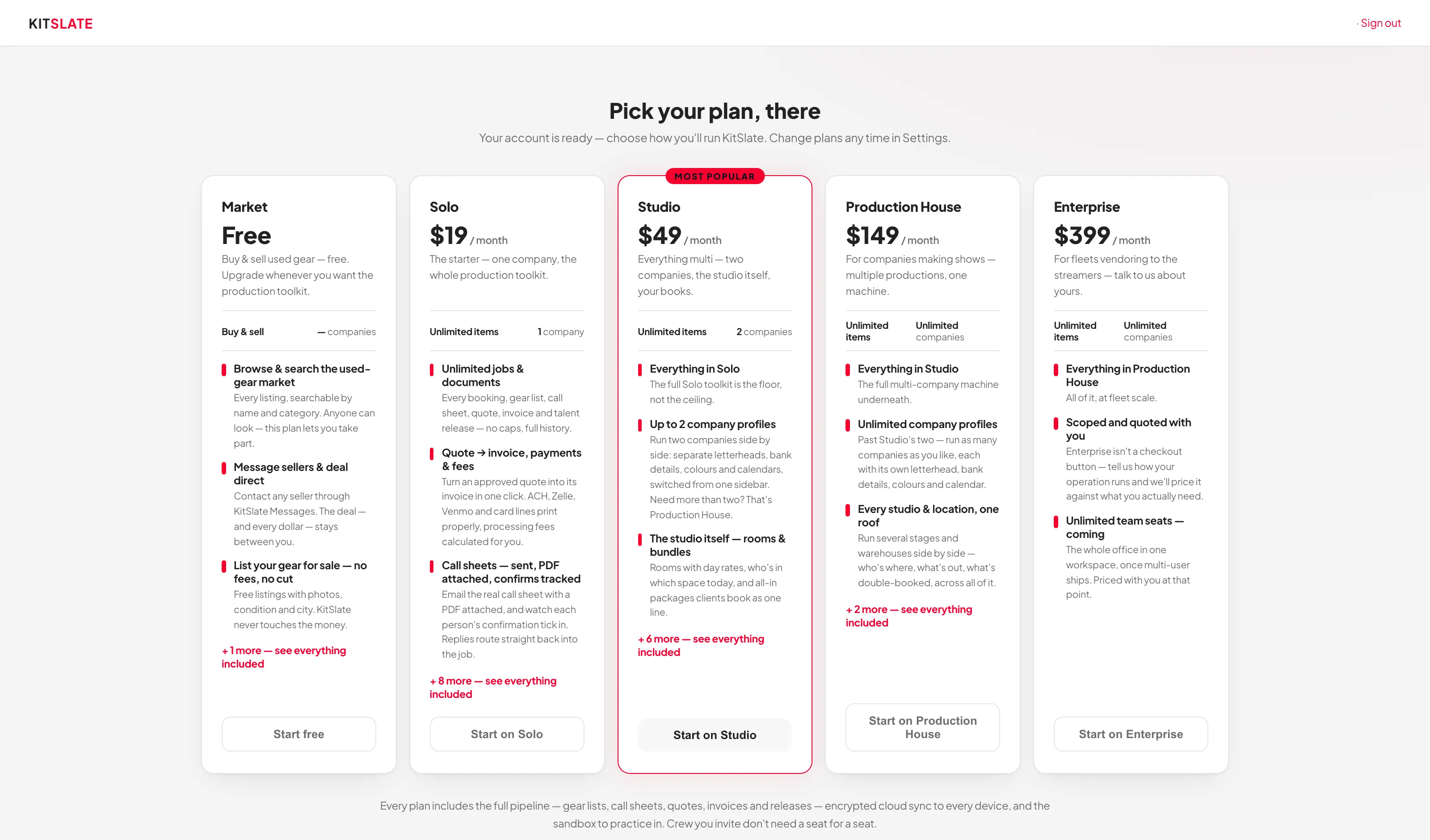
| Plan | Price | Companies | Team seats included | File transfer | MXF → proxy · transcripts a month |
|---|---|---|---|---|---|
| Profile | Free | Personal profile | — | 5 GB per transfer · 25 GB storage | Not included — camera proxies and MP4s still play |
| Solo | $19/mo | 1 company | 1 seat — you | 500 GB per transfer · 500 GB storage | 300 min · 600 min |
| Studio | $49/mo | Up to 2 companies | 3 seats | 1 TB per transfer · 1 TB storage | 1,000 min · 3,000 min |
| Production House | $149/mo | Up to 2 companies | 8 seats | 1 TB per transfer · 4 TB storage | 3,000 min · 10,000 min |
| Enterprise | Custom pricing | Up to 2 companies | Custom seats | 1 TB per transfer · 10 TB storage | 10,000 min · 20,000 min |
Seats are logins for the people who manage your business. Crew, clients and anyone you send a private link never need a seat. Seats are sold only as part of a plan — a workspace at its allowance keeps every member working and can't add another until someone is removed or the plan grows.
The free Profile tier leads with your own public profile page, plus buying and selling used gear — the production toolkit starts at Solo. The profile is free: it is the page a buyer checks before handing money to a stranger, so it would be self-defeating to charge for it. Activity is open on the free tier too, for the same reason: your page carries a contact form and the market lets buyers write to you, so the page those arrive on cannot be behind a paywall. What is genuinely gated: the company-profile cap, the studio features (Studio and up), bulk CSV export and gear-list import (Studio and up), and the rest of bulk import — clients and invoices, and crew from a PDF — (Production House and up). Crew CSV import is on every paid plan.
The full JSON backup is on every plan, the free one included. The calendar .ics export and B&H receipt import come with the production toolkit and are on every paid plan, not saved for a higher tier. Your data is not held hostage to a plan.
Checkout is Stripe, and Manage billing opens the Stripe portal for card changes and cancellation. To go back to the free plan, press Move to Free on the Free card: one confirm cancels your card subscription at the end of its period, and you keep everything on your plan until then. Until that day the card says Moves to Free on the date, with Keep my plan to undo it. After it, links you’ve already sent keep their dates and files, new links last 3 days, and Trim and the other Pro tools lock on your pages — transcripts already made stay; links set never to expire get an end date 30 days out. A plan given to you has no card subscription to cancel, so the button stays greyed, with the reason under it. In the sandbox nothing can charge you. It opens with every feature unlocked, and each plan card's Try in the sandbox switches the whole sandbox to that plan's limits — the free profile's four-row sidebar, the company and seat limits, the Media Center allowance. The banner says which plan you are trying; Switch plan changes it and Reset sandbox goes back to every feature. To subscribe for real, use Subscribe from your real workspace under the cards.
If your plan was given to you
A plan can also arrive as a gift — an invitation with a few months of Studio on it, say. There is no card and no subscription behind one, so there is nothing to cancel and nothing that renews. Settings → You → Plan & subscription says so on the Current plan line at the top of Plan & billing: Complimentary — no charge. if it is open-ended, or Complimentary — ends Mar 3, 2027, then drops to the free plan. if it has an end date.
On its date the account drops to the free Profile tier. Nothing is deleted and nothing is charged — the paid features stop, and subscribing normally picks them straight back up. Take the date on that line at face value; it is the day it happens.
Adding people to your workspace
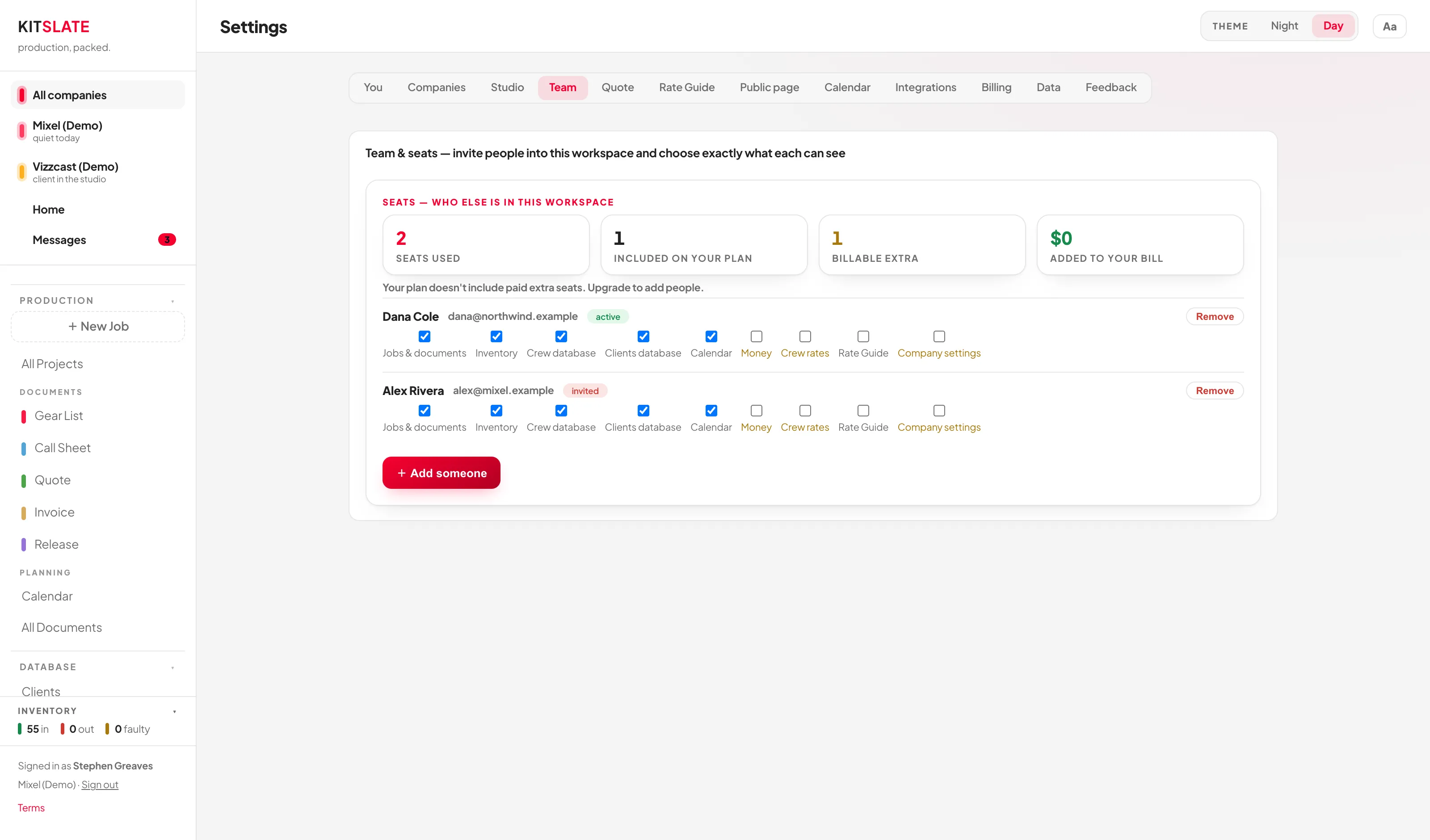
Team & access has four sections down its rail:
- Overview — included seats, seats used, available, pending invitations, plus your plan, your companies and a line telling you exactly what will happen if you send another invitation.
- People — everyone who can sign in, you included. Each person shows their role, whether they hold a seat, their email, when they joined and when they were last active.
- Invitations — people you have invited who have not signed in yet, with Resend, Copy link and Cancel.
- Roles — what each of the five roles opens, and what a role does not do.
This is the number that catches people out. A seat is taken by you plus every active member, but an invitation that has not been accepted is also holding one — so three included seats with two invitations out means one person can still be invited, not three. The Overview tiles count it that way, and so does the check that decides whether the next invitation can go.
Cancel an invitation and its seat is free immediately.
The machinery is live: role templates, invitations, the nine permissions, suspend/reactivate and the single-editor lock all work, and each plan includes the seat allowance in the table above.
Seats are never billed one by one. Seats beyond your plan's allowance aren't sold: a workspace at its allowance keeps every member working and can't add or reactivate anyone until a seat frees up or the plan grows.
+ Invite someone takes their name and email, then their role — Administrator, Producer, Studio Manager, Bookkeeper or Read only. A role sets nine areas at once: five are normally on (Jobs & documents, Inventory, Crew database, Clients database, Calendar) and four normally off, three of them sensitive (Money, Crew rates, Rate Guide, Company settings). Change any single area afterwards under Manage access and the role reads Custom — the areas are what the app actually reads.
They get an invite email with Accept your seat. It expires in 14 days and must be accepted while signed in as that email address. Invite the same person twice and KitSlate stops you and offers to resend the first one instead, because a second invitation would hold a second seat for one person.
If an invitation cannot be accepted, the person is told why and what to do, never a code: a link that came through incomplete (Open it again from the email, or ask them to send a fresh link), one already used, a workspace with no seat free (Ask the owner to free a seat or upgrade, then open the link again — it stays valid), or a fault on KitSlate’s side (Open the link again in a minute. It stays valid.).
Roles and areas decide what the app offers someone — which pages open, which buttons exist. They are not record-level isolation, and there is no per-company restriction: everyone with a seat can work under every company in the workspace. Give someone a seat because you trust them with the business. If you genuinely need someone kept to one letterhead, that is a separate workspace today.
Members with permission can edit. Because the workspace saves as one document, KitSlate uses a single-editor lock: if someone else is in a record you see "<Name> is editing — you're viewing only." with Ask to edit, and they get Let them in. Owners can Take over.
Crew and clients you email call sheets, quotes, agreements or handoff forms to never need an account or a seat. Only people working inside your workspace do.
Suspending, reactivating and removing
Open anyone under People → Manage access. Both destructive actions ask first.
- Suspend ends their access straight away and frees their seat. Their role, permissions and everything they created stay exactly as they are, and they are not told why — so it is worth a word with them. Reactivate puts them back, provided a seat is free.
- Remove takes them out of the workspace and cancels any invitation still outstanding for their address. Nothing they created is deleted.
Transferring ownership is not built. The owner is stamped on every record, invoice and subscription in the workspace, so it has to be one deliberate, reversible move rather than a button — it is on the list, not in the product.
Things that catch people out
Every warning in this manual, in one list. Worth skimming before you trust the app with a real job.
Data
- Signed out, nothing new is saved — the workspace is read-only until you sign in. Sign in, and still export weekly.
- Import backup asks you to confirm, then replaces everything. There is no undo — export first.
- Browser storage holds about 5 MB; KitSlate compresses the workspace to fit, and signed-in receipt originals live in your cloud workspace. Heed the red banner.
Deleting
- Deleting from the Gear List tab deletes the whole production and all five documents. Every other tab deletes just that document. To take a job off the board without losing anything, archive it instead.
- Deleting a quote also deletes its invoice.
- Deleting a camera preset happens immediately, with no confirmation. Deleting an inventory item asks once and can't be undone.
- Deleting a category deletes its items.
- Deleting a client can blank contact details on an already-issued quote or invoice.
- Remove on a Market listing is public and immediate. Use Mark as sold for sales. The record is kept for ever; its photos are deleted after 90 days and cannot be restored.
- Profile and company pictures are deleted immediately when you remove them and republish — no retention window.
- Deleting a rental row before pressing Return leaves that gear marked out forever.
Things that overwrite or reset
- Reset statuses on a gear list wipes every packing mark and puts it all back in storage.
- ⧉ Duplicate project resets packing statuses and clears send tracking.
- A returned assigned document overwrites, it does not merge. The one exception is a crew address-book request, which fills blanks only and parks anything that disagrees.
- Deleting a linked equipment line on a quote also removes that item from the gear list.
- Changing the pricing term rewrites the DAYS figure on every equipment line.
- Hand-editing a camera-settings field detaches that sheet from its preset.
Things that don't do what you'd assume
- The CREATE launcher on Today starts blank drafts; with a production open, the workflow cell in its header switches tabs.
- Blank drafts you never type into are discarded.
- Clicking a bar in the Calendar month view opens the Call Sheet, not the gear list.
- Double-booking is a warning, not a block — and it covers gear, kits and crew on other call sheets, never studio rooms or the External Rentals ledger; a person on two overlapping jobs shows as Also booked on the Calendar.
- Calendar feeds are read-only in; the .ics export is a one-time file, not a live subscription.
- An empty page usually means a company is switched off in the sidebar.
- "RENTED INCOME" in Earnings & payback is internal booking revenue, not the external rental ledger.
- Inventory CSV import skips duplicates; Clients and Crew import fills blanks on them.
- Country selection changes the currency symbol on your own equipment and rate figures only — it converts nothing, and it never sets what a company invoices in.
- Publishing your public page is a snapshot — but the Live/Off switch acts the moment you click it, and it hides rather than unpublishes: your address and everything on the page are kept.
- The item quantity field does not exist — multiples are separate rows.
- Marking a document not required does not delete it. It stays on the production, struck through, and restores untouched. Deleting is a separate, destructive action.
- An invoice reading Blocked is not an error — it is waiting on the quote being approved.
- Archived jobs leave the date buckets on All Projects entirely and stop counting toward attention. Nothing is deleted.
- Recently Updated on Documents lists real events only — a document nobody has sent, approved or paid carries no time at all.
What is real
- Remote signing is real: ✎ Send for signature mails a private signing link per person. ✉ Send a copy is the separate one — it emails the agreement as a PDF for the record and collects no signature.
- Signing uses KitSlate's own engine. There are no third-party signing providers.
- Rate Guide figures are approximate community benchmarks, labelled with their source on every row.
- Team seats work and each plan states its included allowance. Seats beyond the allowance aren't sold — a full workspace can't add more people until a seat frees up or the plan grows.
Send it from Settings → You → Feedback with a screenshot — replies come back as a thread on your Activity page. And if you just want to try something risky first, do it in the sandbox.