How KitSlate works

One production.
Everything connected.

A job arrives, gets held on the calendar, picks up a crew and a gear list, turns into a quote, a call sheet and an agreement, goes out to the people who need it, gets shot, and gets paid. In KitSlate that is one production the whole way through — so the same information carries forward instead of being re-entered on each document.

How it worksUnderstand the workflow. You are here.
The sandboxExperience it. A full workspace, no account.
The manualLearn to operate it, screen by screen.
THE MODEL — how it all hangs together

A production is the container.

You create the job once. The client, the dates, the studio, the crew, the equipment and every document after that belong to that production — which is why the call sheet already knows the call time, the invoice already knows the lines, and the answer to “did they confirm?” is on the job rather than in your sent folder. Not every production uses all of it. The ones it does use are already filled in.

CALENDARDates & holdsOn the calendar from the moment it is a hold.
CLIENTCompany & contactFrom the clients database, not retyped.
THE PRODUCTIONFall Campaign — LookbookNovelle Beauty · Studio A · 2 daysStage — Crew confirmed
CREWRoles & call timesPulled from the crew database.
EQUIPMENTThe gear listPicked out of your own inventory.
QUOTEPriced from the jobGear, crew, studio and fees.
CALL SHEETThe shoot dayTimes, venue, schedule, contacts.
AGREEMENTSAnything signedTalent and location releases.
INVOICEThe billRaised from the approved quote.

Nine things, one job. You do not create nine documents that happen to share a name — you create the production, and each document is drawn from what it already holds.
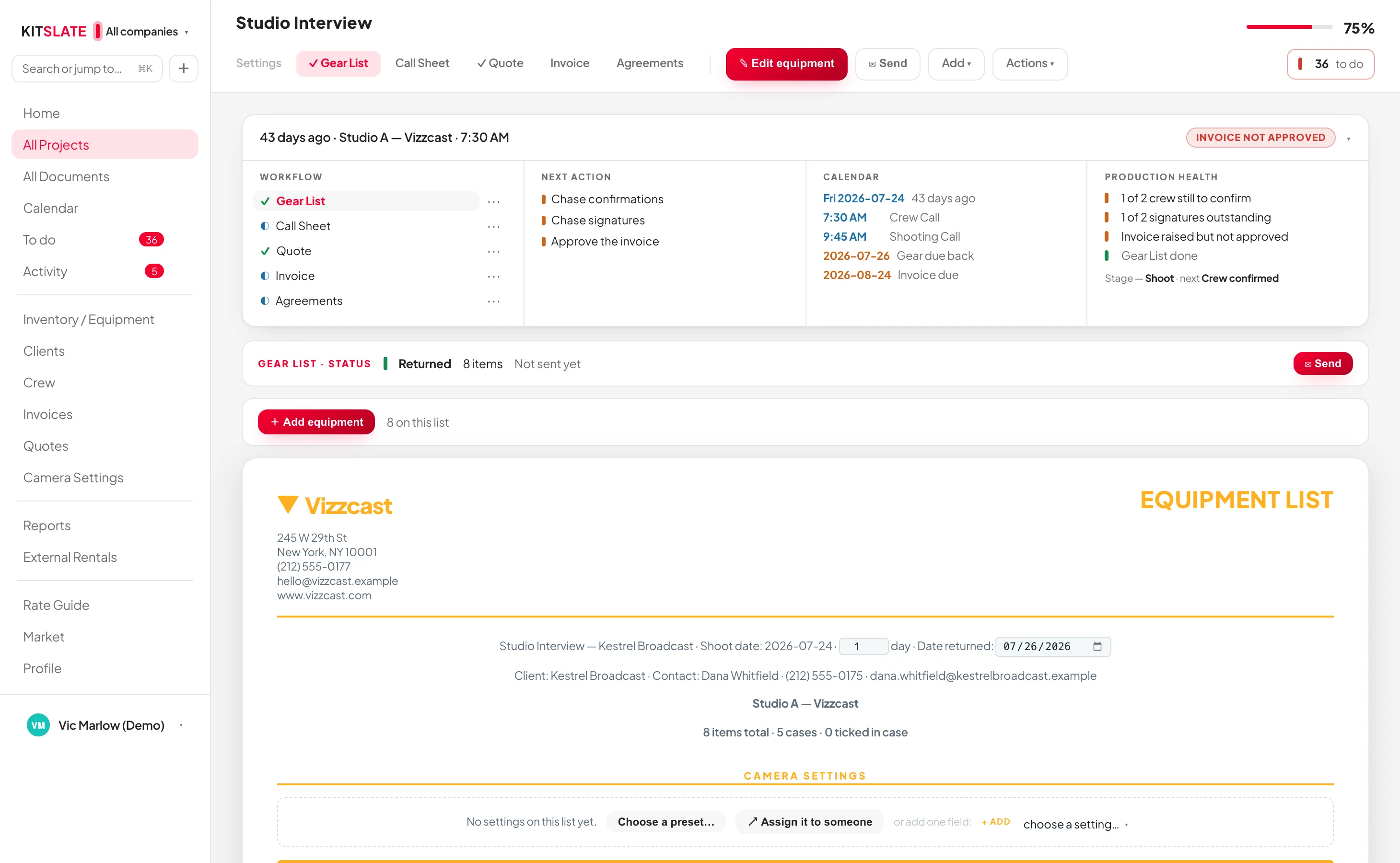
kitslate.app/app · a production
One production open in KitSlate — the five-document workflow down the left with each document's real state, the next actions, the day's call times on the calendar, production health, and a checklist where every line links to the thing it names
One screen: what is done, what is next, what is wrong, and where the job has got to
Draft
Quote sent
Approved
Call sheet sent
Crew confirmed
Gear packed
Shoot
Invoice sent
Paid

The nine stages KitSlate actually tracks. You never set one — each is reached by something really happening: a document sent, a crew reply, a case packed, a payment recorded.

01 · PLAN — the work arrives

It starts on the calendar, long before it is a job.

Most work is a maybe first. KitSlate holds it as a maybe: a 1st, 2nd or 3rd hold, a pencil booking, a client meeting, a scout, travel, a gear reservation, a studio day out for maintenance, a delivery deadline. Each carries its own status — inquiry, hold, quoted, awaiting approval, confirmed — and each one that turns into real work becomes a production, which is where everything after this happens.
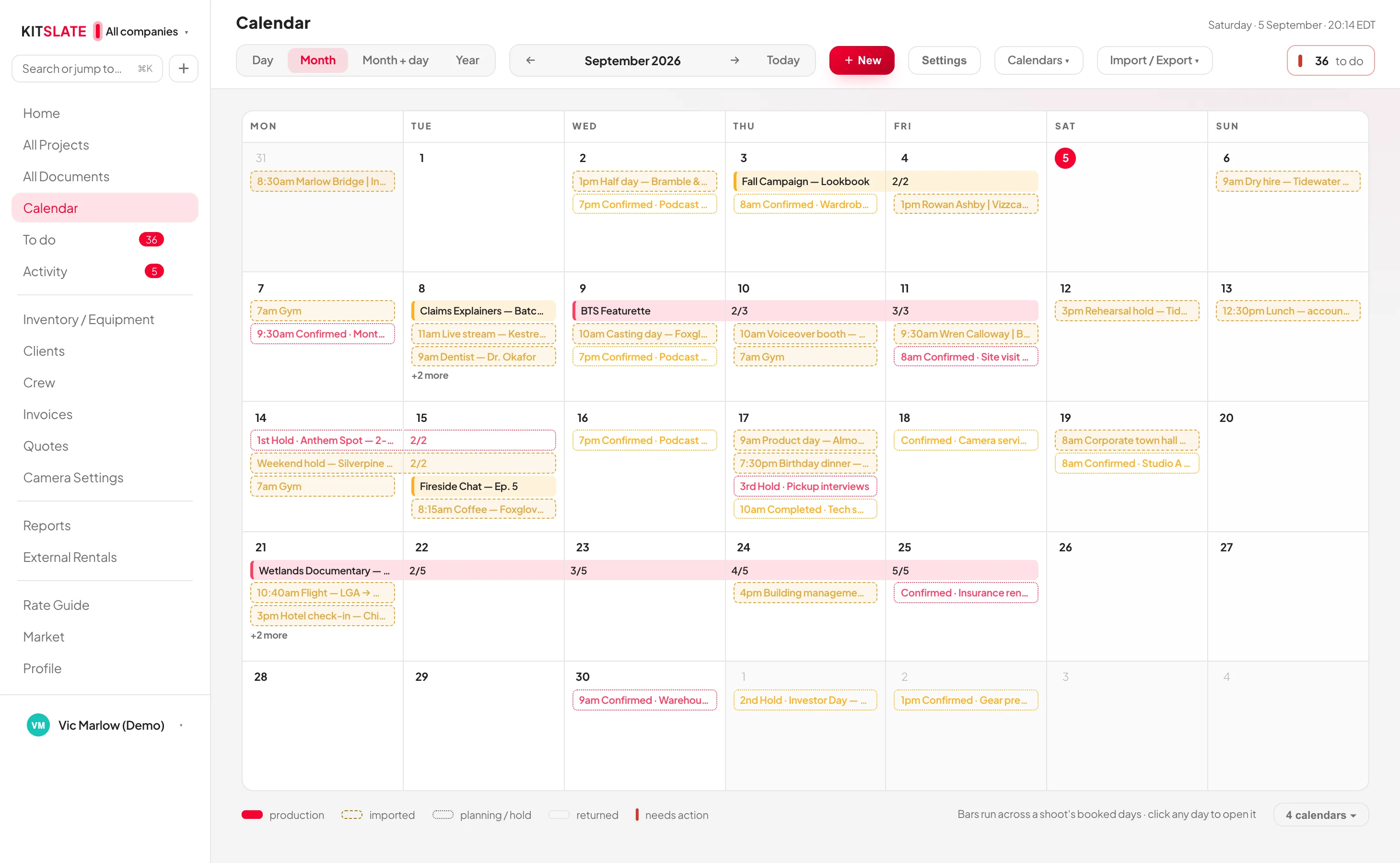
kitslate.app/app · Calendar
The KitSlate calendar in month view — every company in its own colour, confirmed shoots as solid bars, holds and pencils outlined, calendars imported from elsewhere shown as imported, and a legend naming each
Day, month, month-and-day and year — and calendars you already keep can be brought in beside your own. Each company connects its own Google account with Google sign-in (OAuth), so a studio with two companies keeps them apart, and every save reaches Google within seconds. Any other calendar comes in by its address, and the same calendar can be on both sides without anything appearing twice.
1 · THE ENQUIRY

Somebody asks

By email, by phone, or through the contact form on your public page — which arrives in your KitSlate inbox, ready to answer.

2 · THE HOLD

Pencil it in

A hold or a pencil booking sits on the calendar with the date genuinely marked, so a second enquiry for the same day is not a surprise.

3 · THE PRODUCTION

It becomes the job

Holds and pencils are the two things that turn into a production. From here the container exists, and everything else attaches to it.

4 · THE PEOPLE

Crew and client

Both come out of databases you already have: the client’s company and contact, and the crew’s role, rate, pronouns, dietary needs and paperwork.

5 · THE CLASH

Before you commit

Book gear, a kit or a crew member already committed to an overlapping job and KitSlate names each clash and the job that has it, before anything is saved.
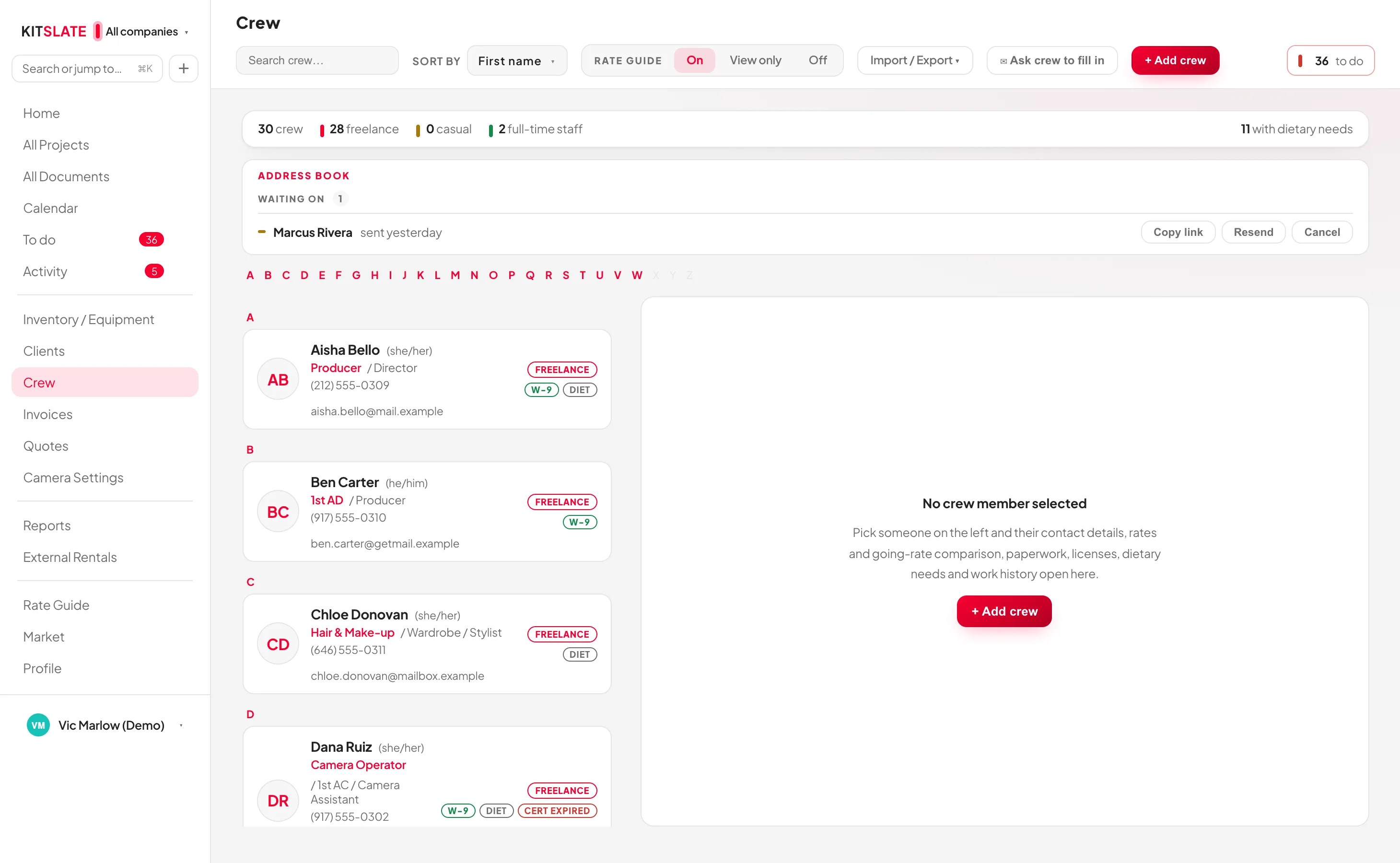
THE CREW DATABASE
kitslate.app/app · Crew
The crew database — each person with their roles, pronouns, phone and email, whether they are freelance or staff, address-book requests still waiting on a reply, and counts across the top including how many have dietary needs
Roles, rates, pronouns, licences and dietary needs — entered once, used by every sheet
CONTACT → PRODUCTION → DOCUMENT
Add someone to the job and their role, rate and contact details come with them — you are not retyping a phone number onto a call sheet.
The call sheet builds itself from that — crew table, call times, contacts and the meal count all read the same records.
Ask them to fill it in — send a crew member a link to complete their own details, and what comes back merges into their record rather than overwriting it.
Clients work the same way — the company, its contact and its address are on the production, so quote and invoice already carry them.
Credentials are watched — an insurance certificate or licence about to expire shows up on the production, not on the day.
02 · PACK — inventory and gear lists

Inventory is everything you own. A gear list is what this job takes.

That distinction is the one thing worth being clear about. Your inventory is built once — every camera, lens and light with its serial, its case, its day rate and what the market says it is worth — and it stays put. A gear list is a selection out of it, made for one production, and it is what gets packed, priced, sent and returned. Building the inventory itself comes last in this stage — because an invoice can do most of it for you.

  1. EVERYTHING YOU OWN

    Built once, and it stays built.

    Gear grouped by category, by location (cases included) or by kit, with serials, day rates and an in, out or faulty status on each item. Bundle the things that always travel together into a kit — an A-cam package, a lighting package — and the kit is one thing to pick from then on.

    Carries forward: rates, serials and cases
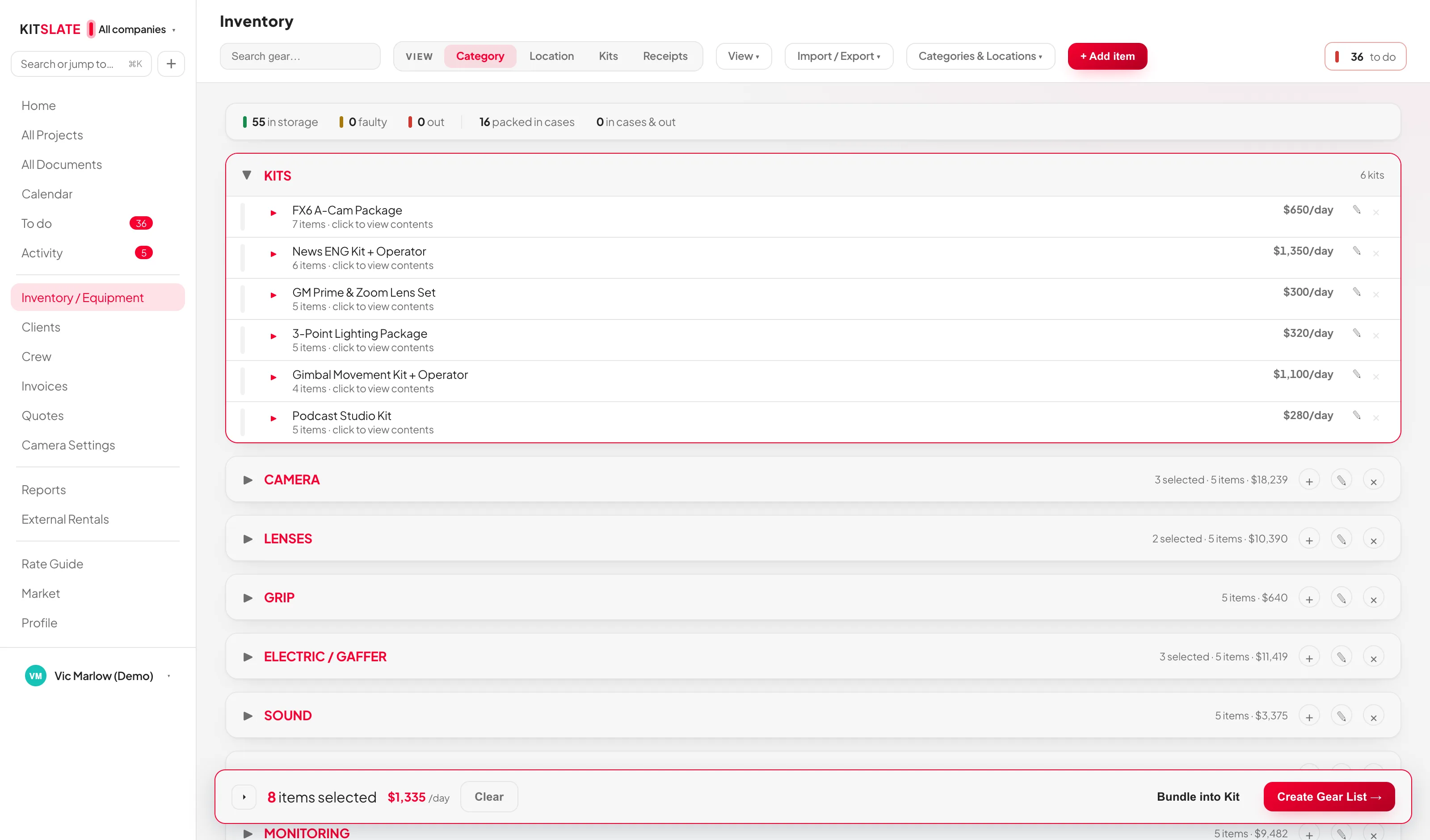
    The inventory, item by item — Camera and Lenses open, each item with its model, serial, case, day rate, cost, replacement value and age, and a status line on the right
    ↔ drag the picture sideways to read it
  2. WHAT THIS JOB NEEDS

    Tick it, and it collects.

    Open the production’s equipment picker and your whole inventory is there. Tick items and kits and they gather into a tray on the right — grouped by category, priced as you go, with the day’s equipment total so far. Save it, and it is that production’s gear list.

    Carries forward: the line items the quote is priced from
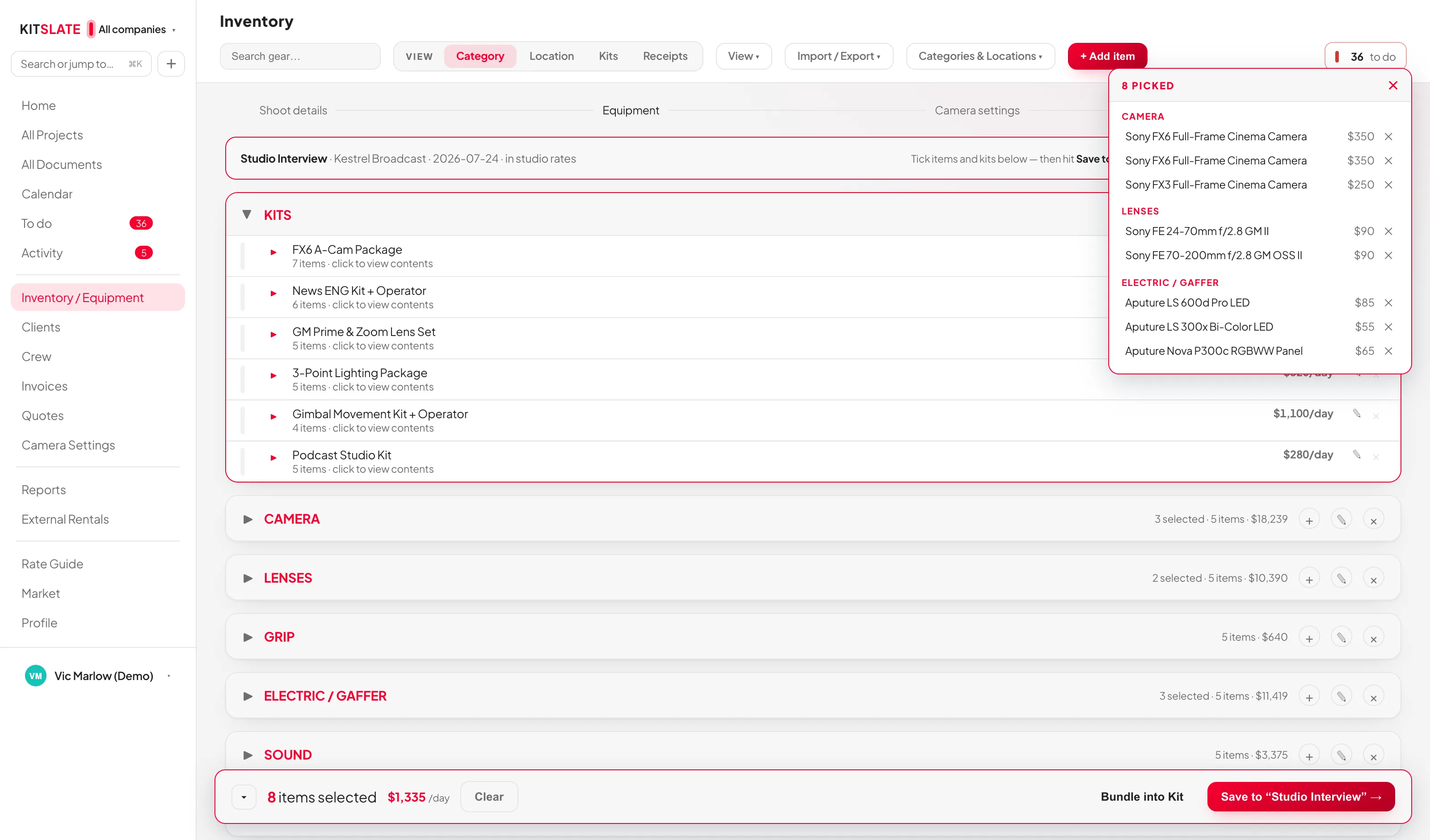
    The equipment picker on a production — the inventory on the left and the gear list tray on the right, filling with what this production takes
    ↔ drag the picture sideways to read it
  3. PACKED, SENT, RETURNED

    The list has a state, all the way back.

    A gear list is built, then packed — ticked off case by case — and after the shoot, returned. It can be sent as a document too, to a rental house or whoever is collecting. Anything still out, or faulty, is a count on the dashboard rather than something you remember to check.

    Carries forward: what is still out after the job
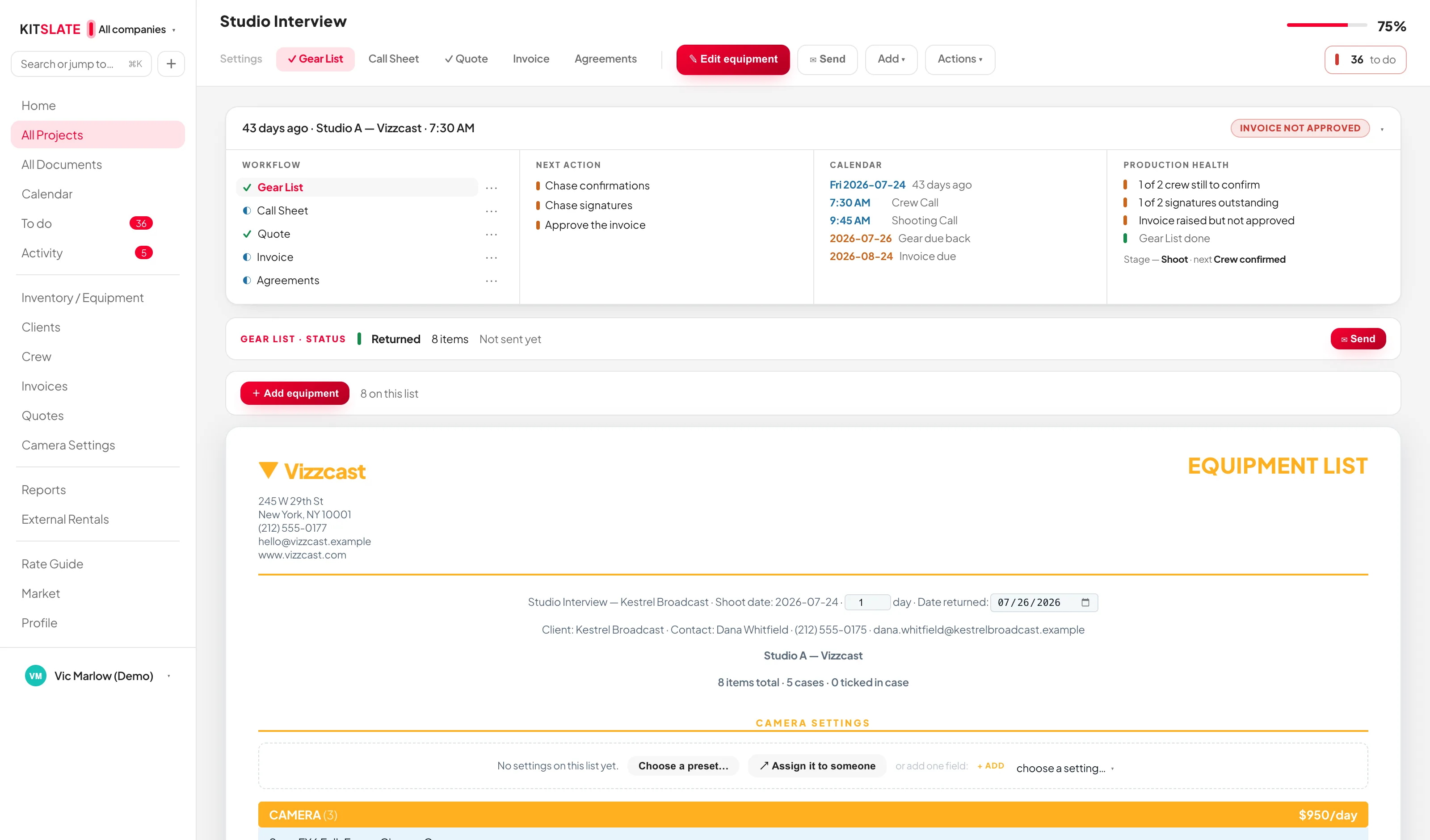
    The production's gear list — its status band reading returned, the production checklist beside it, and the equipment list itself below
    ↔ drag the picture sideways to read it
The inventory, item by item — Camera and Lenses open, each item with its model, serial, case, day rate, cost, replacement value and age, and a status line on the right The equipment picker on a production — the inventory on the left and the gear list tray on the right, filling with what this production takes The production's gear list — its status band reading returned, the production checklist beside it, and the equipment list itself below
Inventory · everything the workspace owns
Create Production×
How would you like to start this production?
IMPORTS & INTEGRATIONS
Studio BookingTurn a booking into a production.›
Import ProductionRead a call sheet CSV or PDF.›
Import InvoiceStart from an invoice you already have.›
→
Import invoice×
↓
Drop your invoice here
An invoice PDF, or a CSV your accounting software exported. KitSlate reads what it can, shows you what it found, and nothing is saved until you say so. You do not have to tell it which system the file came from.
Browse files
PDFinvoice_INV-0628-01.pdf
Review the import — choose what comes in×
Nothing is added until you press Import. Untick anything you don’t want. The invoice itself is saved to the Invoices page as an imported invoice — read-only, kept apart from the invoices you raise, with the original document attached.
NEW JOBS FILE UNDER
Fernway (Demo)Copperline (Demo)
WHAT TO BRING IN
Equipment linesonto each job’s quote and gear list
The moneytotal, paid status and due date into the Income tracker
Show it on the jobthe job gets a read-only Invoice tab — the invoice stays your accounting system’s
LINE BY LINE
Invoice INV-0628-01Foxglove Films Ltd · 3 lines · $1,138.00 · no production matches its accounting reference — a new one is created for Foxglove Films Ltd
Beaconlink 300S06.28.26 · Beaconlink 300S encoder field unit with 5G modemsEQUIPMENT$650.00
Beaconlink 300S06.29.26 · Beaconlink 300S encoder field unit with 5G modemsEQUIPMENT$450.00
Online Processing Fee3.4% + $0.60 transaction fee · Credit Card Processing FeeOTHER$38.00
Cancel — bring nothing inImport selected →
Equipment found on this invoice×

1 invoice read — 1 new job created under Fernway (Demo) (they sit at the bottom of All Projects as history).

2 equipment lines added — 0 recognised as items you own, so that income now counts toward per-item earnings, payback and the Home tiles.

The full invoice is tracked too: $1,138.00 · Unpaid · due 2026-07-30 — it’s in the Income tracker, and the job got its Invoice tab.

NOT RECOGNISED — ADD TO YOUR INVENTORY?
Tick the real equipment — services, labour, shipping and fees are unticked already, so nothing is added unless you ask for it. Fix the name, pick a shelf: each ticked row is created in your inventory and this invoice’s income links straight to it.
NAMECATEGORYDAY RATEPAID (COST)
Beaconlink 300SCAMERA650—
Beaconlink 300SCAMERA450—
CancelAdd ticked to inventory
All Projects
WRAPPING UP
Fireside Chat — Ep. 4Kestrel BroadcastCrew confirmed
Foxglove Films Ltd — INV-0628-012026-06-30Invoice · IMPORTED
Created by the import — dated, companied, its accounting reference already set.
→
Foxglove Films Ltd — INV-0628-01
Gear ListQuoteInvoice · WAVE
INVOICED OUTSIDE KITSLATE
This job was invoiced in Wave. KitSlate has no invoice of its own for it, and does not create one — that would be a second invoice for the same work.
INVOICEINV-0628-01 DATED2026-06-30 · due 2026-07-30 TOTAL$1,138.00  UNPAID ORIGINALView original ⬇ Download PDF
The file as it arrived from Wave — stored with the record, read-only, kept apart from the invoices you raise.
Reports · Income tracker
INVOICEDUETOTALSTATUS
INV-1041 Wave2026-08-26$2,385PAID
INV-0628-01MATCHED2026-07-30$1,138UNPAID
Reads the files you upload — no connection to Wave, QuickBooks or Xero. Overdue is counted, not remembered.
→
The job · Gear List
IMPORTED FROM AN INVOICE2 items
Beaconlink 300S$650/day
Beaconlink 300S$450/day
On the job’s quote too — what the invoice billed is what the job carries.
InventoryImport / Export ▾   + Add item
CAMERA7 items
Sony FX6 Full-Frame Cinema CameraSN S01200-03720 · Camera Case A$350/day
Beaconlink 300SAdded from an imported invoice$650/day
Beaconlink 300SAdded from an imported invoice$450/day
Yours now — and linked back to the imported job, so this invoice’s $1,100 of equipment income already counts in per-item earnings and payback.
AND THE FASTEST WAY IN

Drop in an invoice.

One invoice, and the rest starts filling itself in — from Create Production, straight into the drop.

Review the import.

Nothing comes in until you hit Import: the equipment lines, the money and the job — each yours to untick, line by line.

One import. Several things done.

A job created, the money tracked — and you decide which equipment becomes yours. Fees and services are already unticked.

The job exists. The invoice stays an invoice.

Filed with All Projects as history — and a read-only Invoice tab with the original attached.

The money is tracked. The gear is on the job.

Total, status and due date in the Income tracker — and every line on the job’s quote and gear list.

And what you own starts earning.

The items you ticked are inventory now — this invoice’s income counts toward per-item earnings and payback.

One document. More than one job done.

The job with its days on the calendar, the invoice read-only with its PDF, the money in the tracker and in Reports, the equipment in your inventory — each where it belongs, ready for the next production.

AND THE FASTEST WAY IN

Drop in an invoice.

One invoice, and the rest starts filling itself in. It begins where every job begins — Create Production › Import Invoice — and takes an invoice PDF or a CSV your accounting software exported. You never have to say which system the file came from.

Import InvoiceStart from an invoice you already have.›
↓
Drop your invoice here
KitSlate reads what it can, shows you what it found, and nothing is saved until you say so.

Review the import.

Nothing comes in until you hit Import. Three choices — the equipment lines onto the job’s quote and gear list, the money into the Income tracker, the read-only Invoice tab on the job — then whether it was already invoiced elsewhere, then every line, ticked or unticked, with KitSlate telling equipment from fees.

Equipment linesonto each job’s quote and gear list
The moneytotal, paid status and due date into the Income tracker
Show it on the joba read-only Invoice tab
Invoice INV-0628-01Foxglove Films Ltd · 3 lines · $1,138.00 · a new production is created
Beaconlink 300SEQUIPMENT$650.00
Beaconlink 300SEQUIPMENT$450.00
Online Processing FeeOTHER$38.00

One import. Several things done.

Import selected, and before you’ve typed a thing: a job created and filed with All Projects as history, the equipment lines on its quote and gear list under IMPORTED FROM AN INVOICE, and the money — $1,138.00 · Unpaid · due 2026-07-30 — in the Income tracker, with a read-only Invoice tab on the job and the original PDF attached.

1 invoice read — 1 new job created (they sit at the bottom of All Projects as history).

2 equipment lines added — 0 recognised as items you own.

The full invoice is tracked too: $1,138.00 · Unpaid · due 2026-07-30 — it’s in the Income tracker, and the job got its Invoice tab.

You decide what you own.

Fees and services are unticked already. Tick the real equipment and each row is created in your inventory — and this invoice’s income links straight to it, counting toward per-item earnings and payback.

NAMECATEGORYRATEPAID
Beaconlink 300SCAMERA650—
Beaconlink 300SCAMERA450—
Add ticked to inventory

Then follow it anywhere.

The invoice did not disappear: the job carries a read-only Invoice tab with View original opening the PDF you dropped, the Income tracker carries the money, the gear list carries the lines — and the equipment you ticked is inventory now, already earning against this invoice. The job’s shoot days sit on the calendar, Reports carry it under Imported from files with what has been paid against it — and because you said it was already invoiced elsewhere, KitSlate never asks you to approve or send one of its own.

Foxglove Films Ltd — INV-0628-012026-06-30Invoice · IMPORTED
TOTAL$1,138.00  UNPAID ORIGINALView original
IMPORTED FROM AN INVOICEon the job
Beaconlink 300S$650/day
Beaconlink 300S$450/day
CAMERAinventory · yours now
Beaconlink 300SAdded from an imported invoice$650/day
Beaconlink 300SAdded from an imported invoice$450/day
One document, more than one job done — the job, the invoice, the money and the equipment, each where it belongs.

Once it’s in KitSlate, the information keeps moving.The production the import just created is the same production the paperwork is built from.

03 · PAPERWORK — quotes, call sheets, agreements

Each document inherits the one before it.

This is the part that usually costs an afternoon: the same names, dates, rates and addresses typed into three different files. Here each document is drawn from the one before it — starting from the gear list you just built.

THE JOB

Production

Client, dates, studio, crew — and the gear list you just watched fill.

hands on → everything below
PRICING

Quote

Equipment, crew, studio and fees, priced from the gear list.

hands on → lines and totals
THE DAY

Call sheet

Times, venue, schedule, contacts, safety, meals — and the weather.

hands on → the cast and crew
SIGNING

Agreements

Talent and location releases, or wording of your own.

hands on → who is cleared
BILLING

Invoice

Numbered and dated, frozen from the approved quote.
ends at → paid
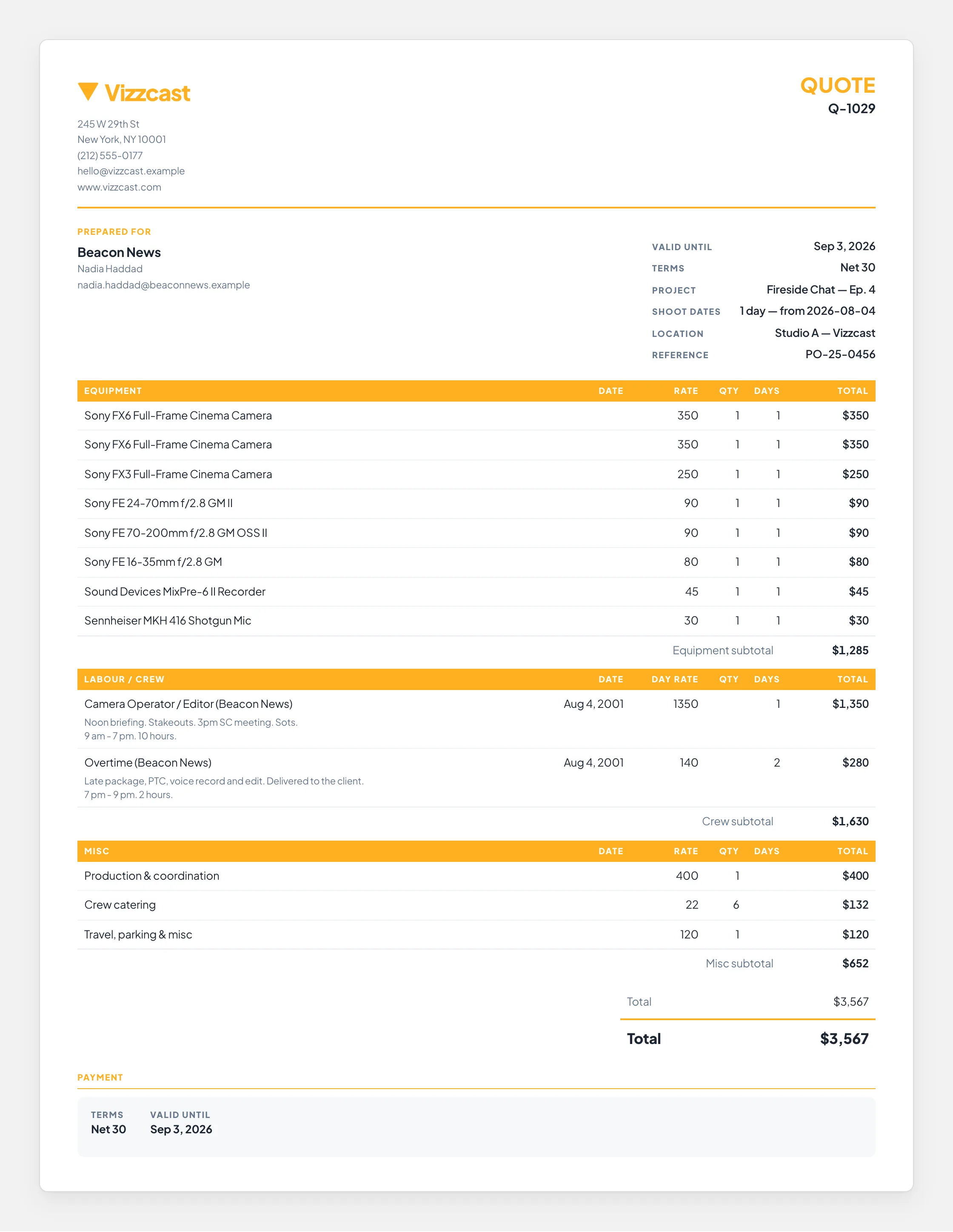
THE QUOTE THAT GOES OUT
Quote · Copperline (Demo)
A branded production quote — the company and client at the top, then equipment, labour and miscellaneous line items with their subtotals, then the total and the payment terms

The top — the company sending it, the client, the production and the terms

The middle — equipment, labour and misc, line by line, with subtotals

The bottom — the total, and when and how it is to be paid

The quote in full — the company and client, every line item with its subtotals, the total and the terms

Goes out as branded email from the company that owns the job, with a PDF attached.
↔ drag the document sideways to read the amounts
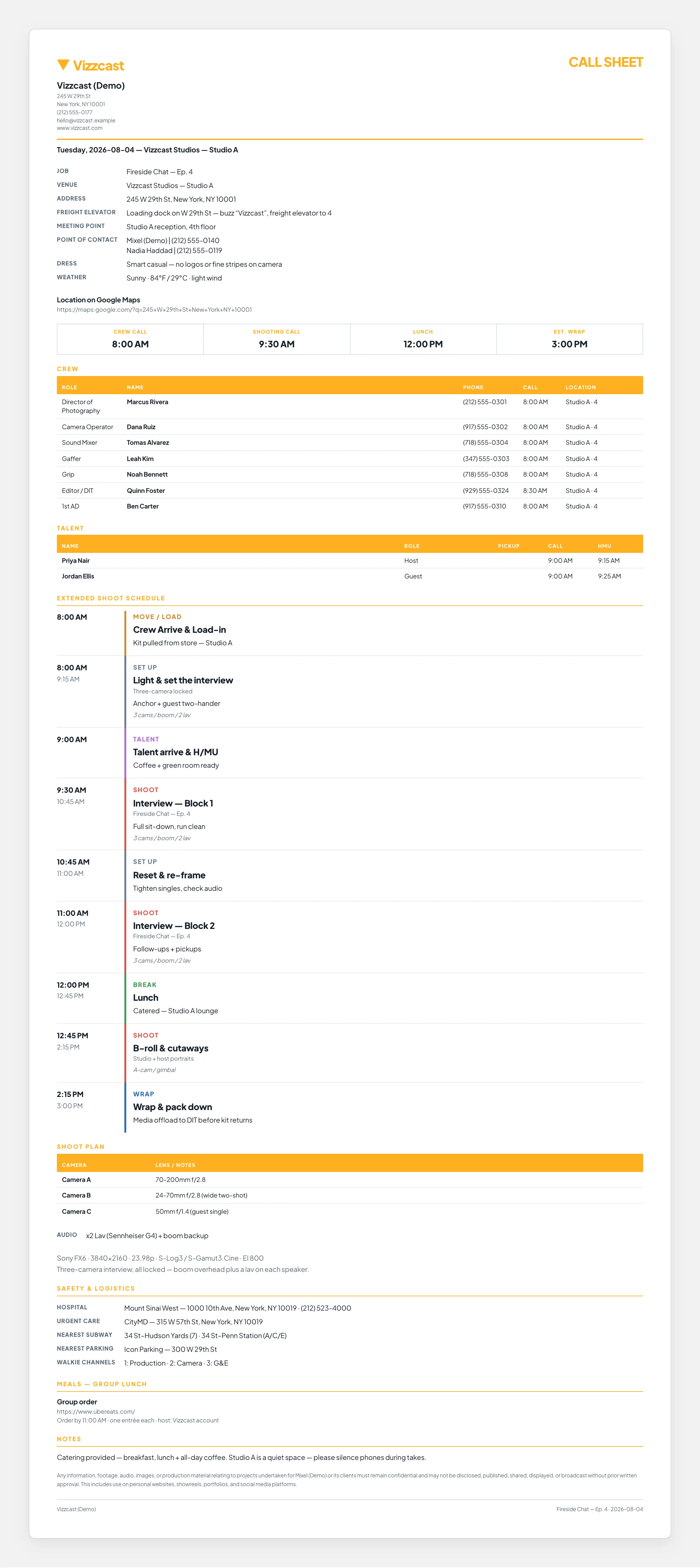
THE CALL SHEET THAT GOES OUT
Call Sheet · Copperline (Demo)
The finished branded call sheet — the production, venue, address and key call times at the top, then the crew and talent tables and the shoot schedule, then the rest of the day with safety notes and meals

The top — production, venue, the address and the four call times

The middle — crew and talent with their own call times, then the schedule

The bottom — the rest of the day, safety, meals and the notes

The call sheet in full — call times, crew and talent, the schedule, and the safety, meals and notes below it

Goes out as branded email with a PDF attached — and each recipient also gets their own live page.
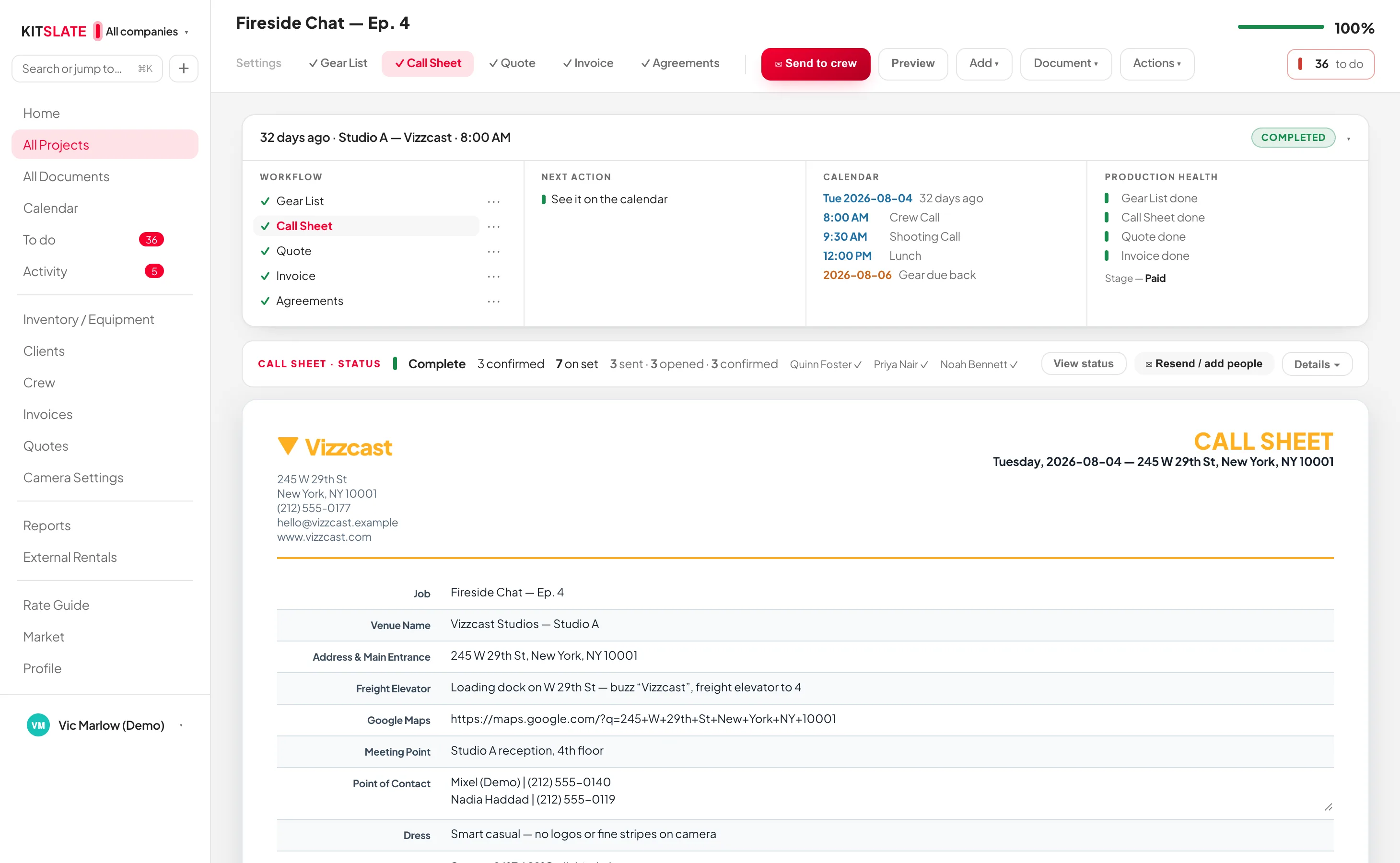
↔ drag the sheet sideways to read the columns
kitslate.app/app · Call Sheet
The call sheet editor in the app — the production's workflow and next actions above, per-recipient confirmation tracking, and the sheet built on cards below with the printed sheet previewed at the foot
You build it here, card by card; the sheet above is what it renders to, previewed at the foot of the page
AGREEMENTS

Anything that needs signing, signed on a phone.

A talent release, a location release, a studio hire, a production services agreement or wording of your own — one signing system for all of them, and on a production that already has a call sheet, one tap pulls the cast in. Each signer gets their own private link; nobody creates an account, and minors are flagged for a guardian’s signature.
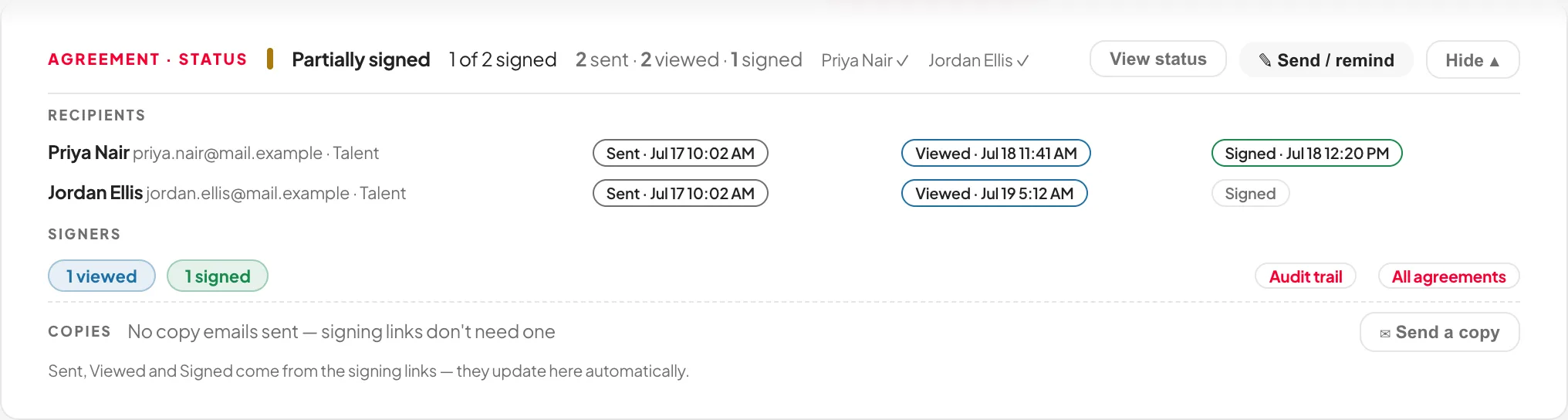
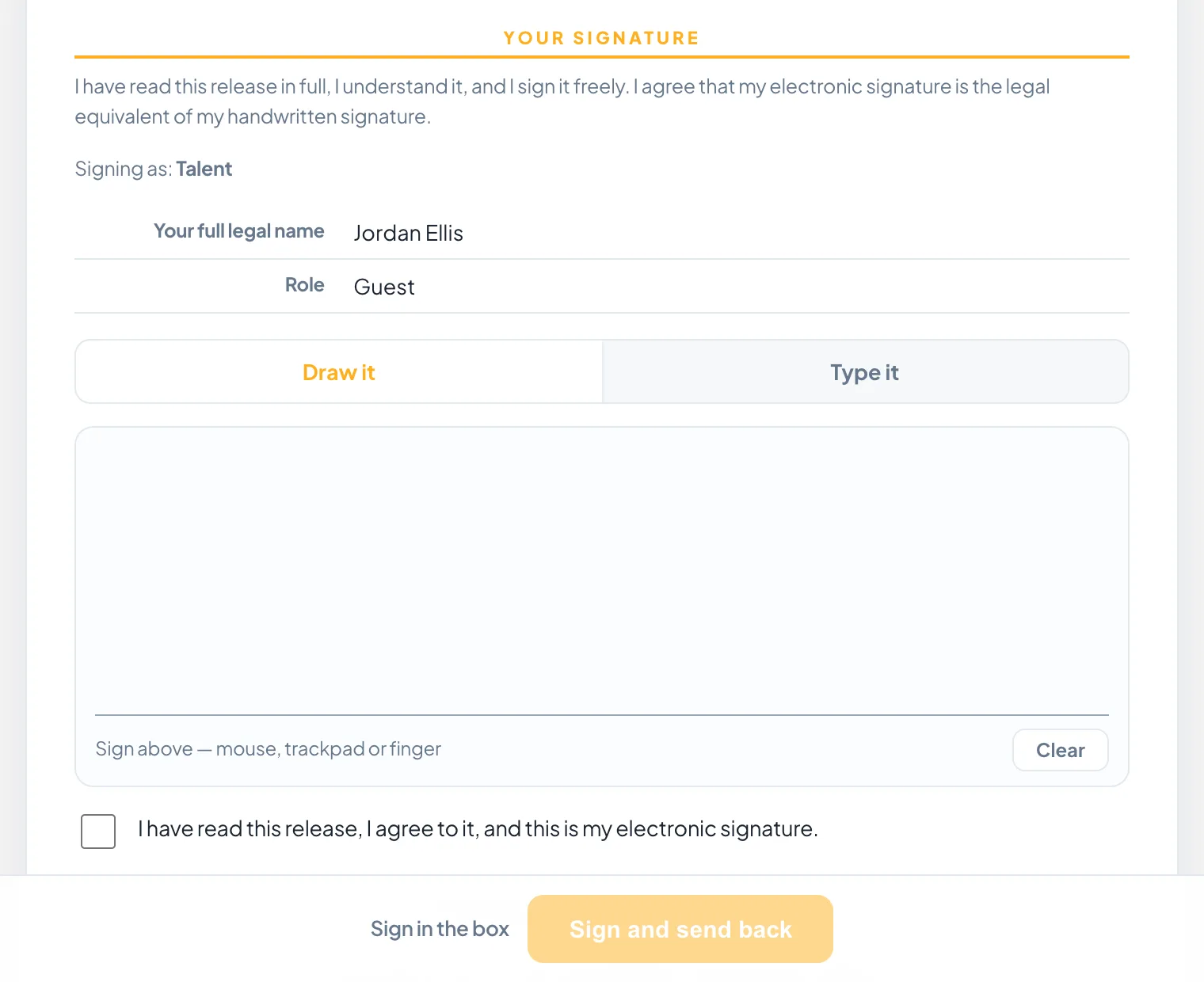
WHO HAS SIGNED
kitslate.app/app · Agreements
The agreement status card — partially signed, one of two, with Sent, Viewed and Signed stamped with times against each signer by name
Sent, viewed, signed and still out — name by name, with times
WHAT THE SIGNER OPENS
kitslate.app · sign
The signing page a recipient opens — the consent statement, who they are signing as, their name and role, a draw-or-type signature pad and the agreement tick
Their own link — no login, no account, phone or laptop
WRITTEN ONCE

The template holds the wording. The production fills in the rest.

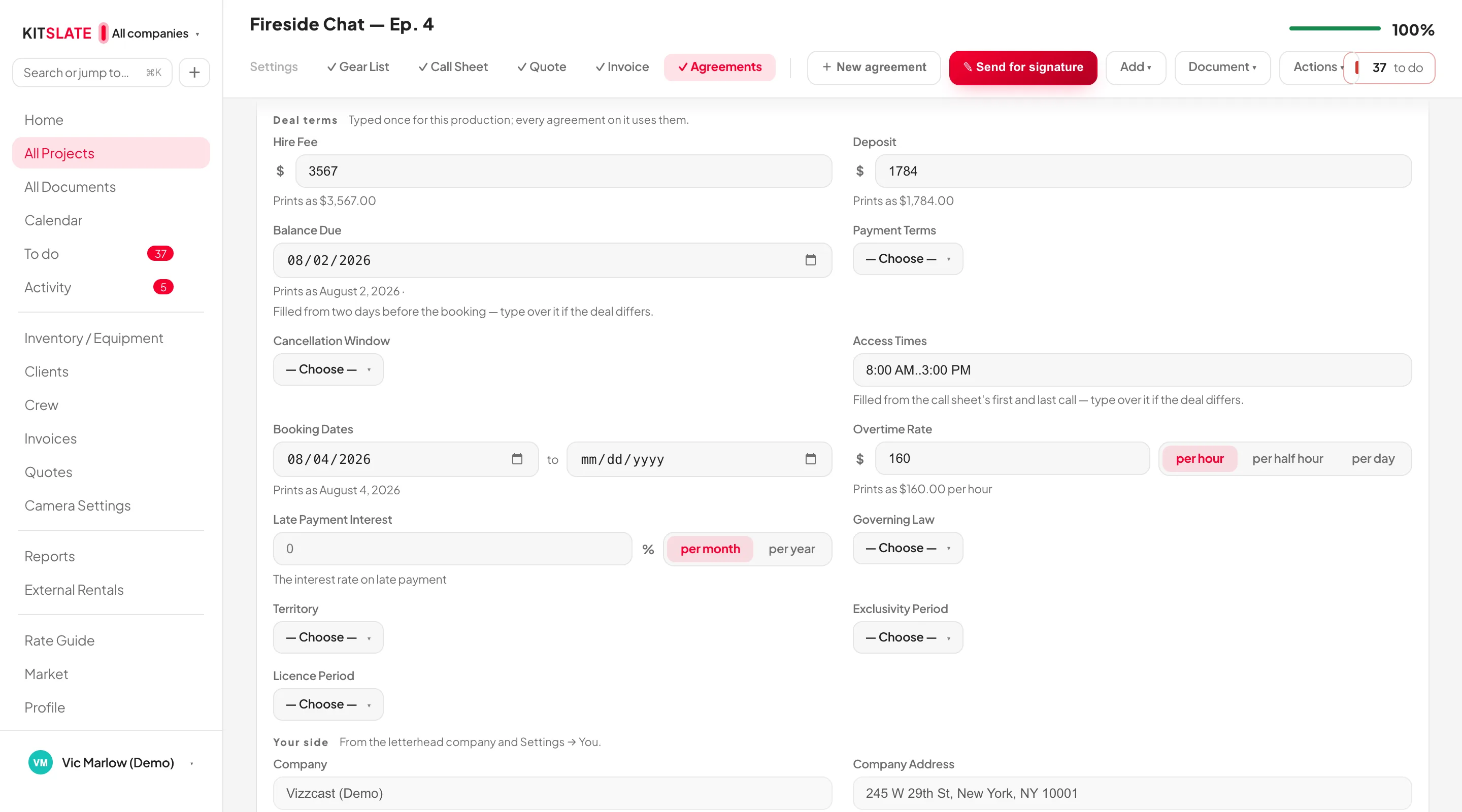
A template belongs to no company and no job. Every field it cannot know — whose company it is, the fee, the booking dates — is marked in amber in the editor, and takes its value from the production the agreement is created on. The deal terms arrive already filled from the quote, the booking and the call sheet, each one saying where it came from, each one yours to type over.
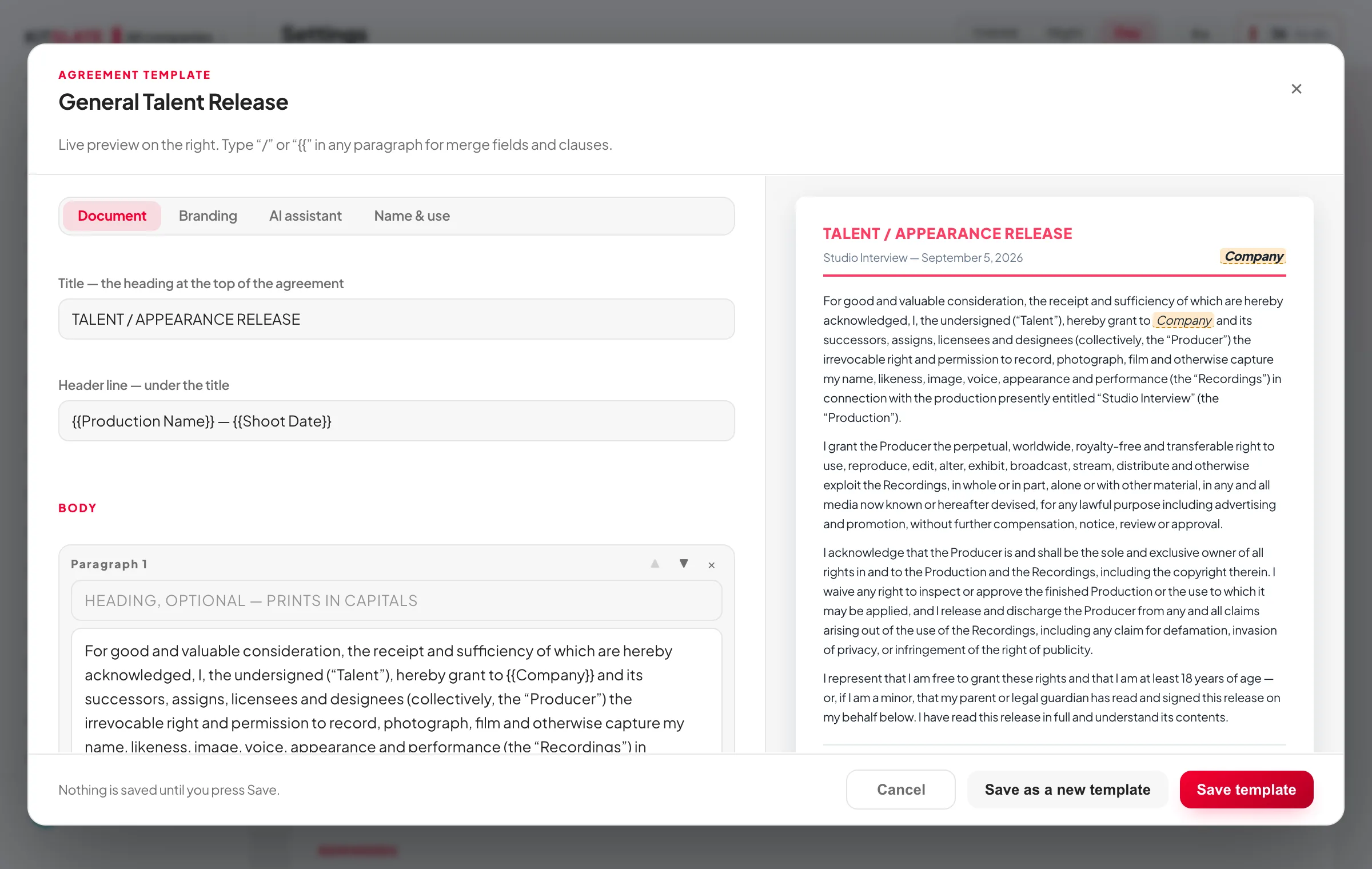
THE AMBER FIELDS FILL THEMSELVES
kitslate.app/app · Agreement template
The agreement template editor: the Document tab with title, header line and body paragraphs on the left; on the right the live preview, where Company is highlighted in amber wherever it appears because the template holds no company
Company and deal terms — marked in the template, supplied by the job
THE DEAL TERMS, ALREADY IN
kitslate.app/app · Agreement details
The agreement details panel on a production, at the Deal terms group: hire fee and deposit filled from the quote, balance due two days before the booking, access times filled from the call sheet's first and last call, booking dates and an hourly overtime rate — each filled value with a line saying where it came from
Fee from the quote, dates from the booking, access times from the call sheet
04 · SEND & CONFIRM — what the ticks mean

You send it. KitSlate follows it.

That paperwork is only worth anything once it reaches people. You can send straight from KitSlate instead of downloading a PDF and attaching it yourself. Documents go out as branded email from whichever company owns the job — and then keep telling you what happened to each one, per person, without you asking anybody.
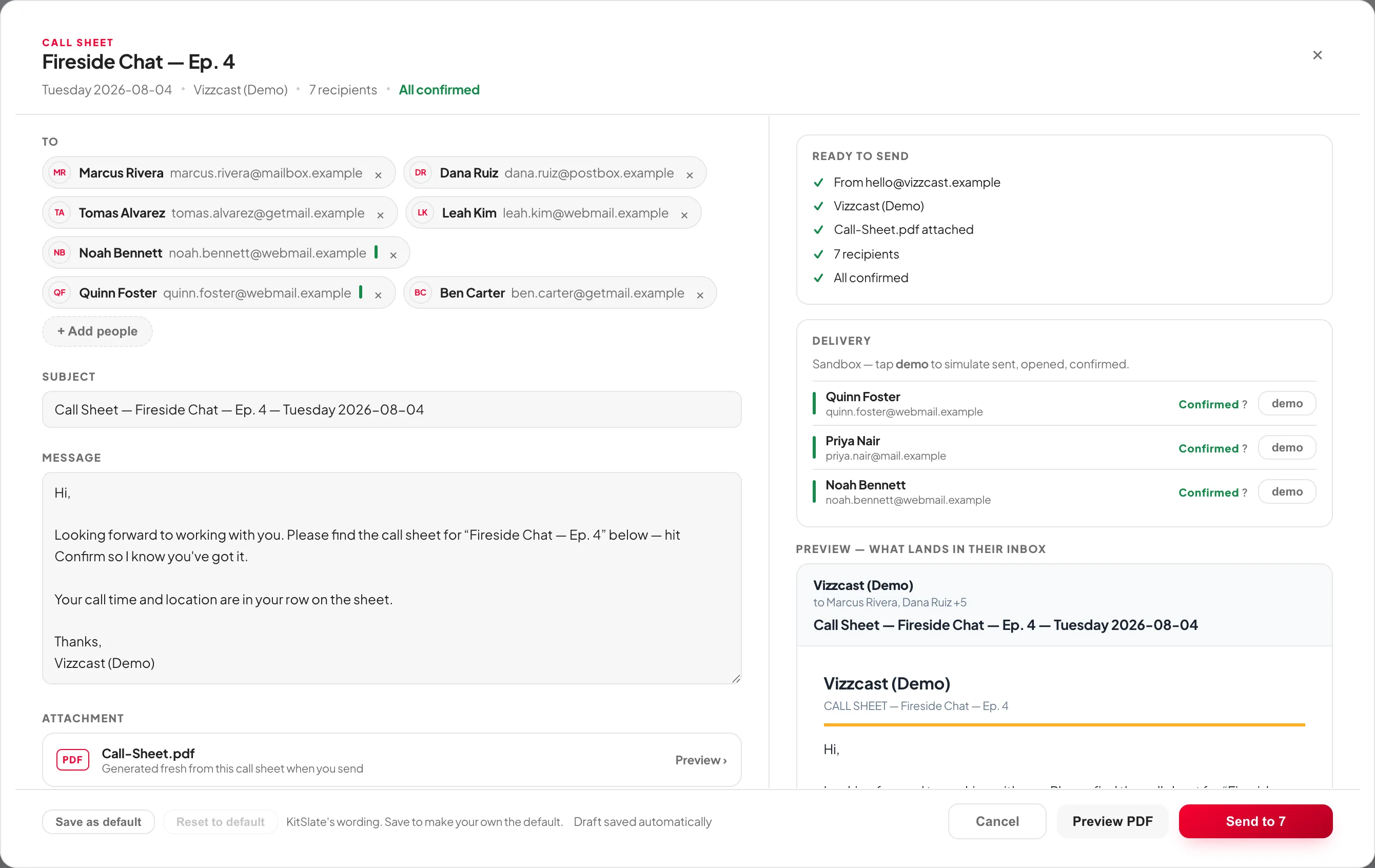
ONE TAP — EVERY RECIPIENT AT ONCE
kitslate.app/app · Send call sheet
The send window — every crew member as an individual recipient, the subject and message, the PDF attached, the sending company, per-recipient delivery states, and a live preview of what arrives in their inbox
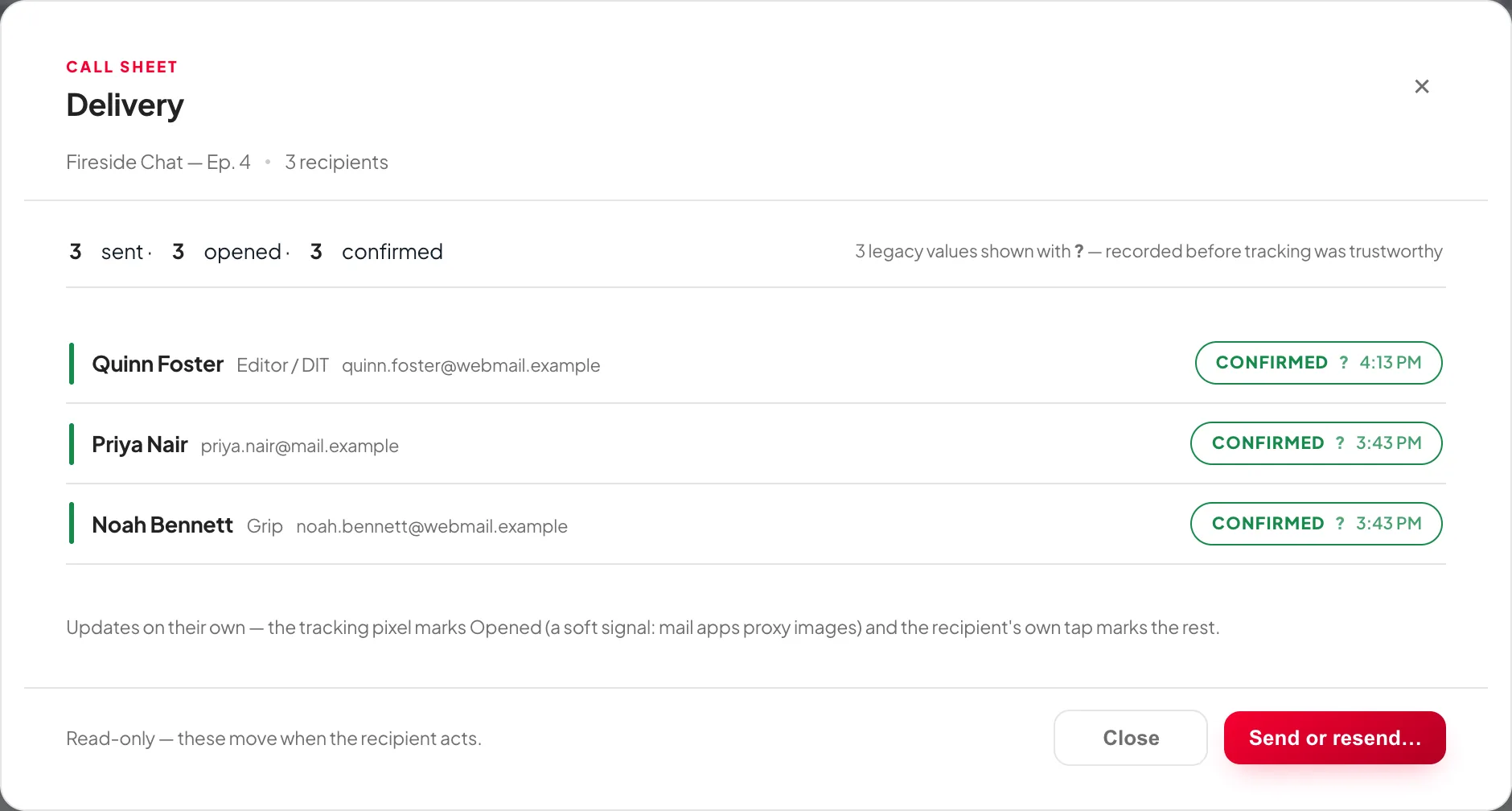
AND WHAT CAME BACK
kitslate.app/app · Delivery
The delivery window — sent, opened and confirmed with the state and the time against each crew member's name
Moves on its own, name by name, with the time it happened
ONE EMAIL

Everything you need from one person, in one send.

Their details, the quote, the agreement, the invoice — Send with… puts them in one email, and each stays its own KitSlate document, signed, paid and tracked exactly as if sent alone. They get one page that shows what is done and what is left, and every form they finish offers the way back to it.
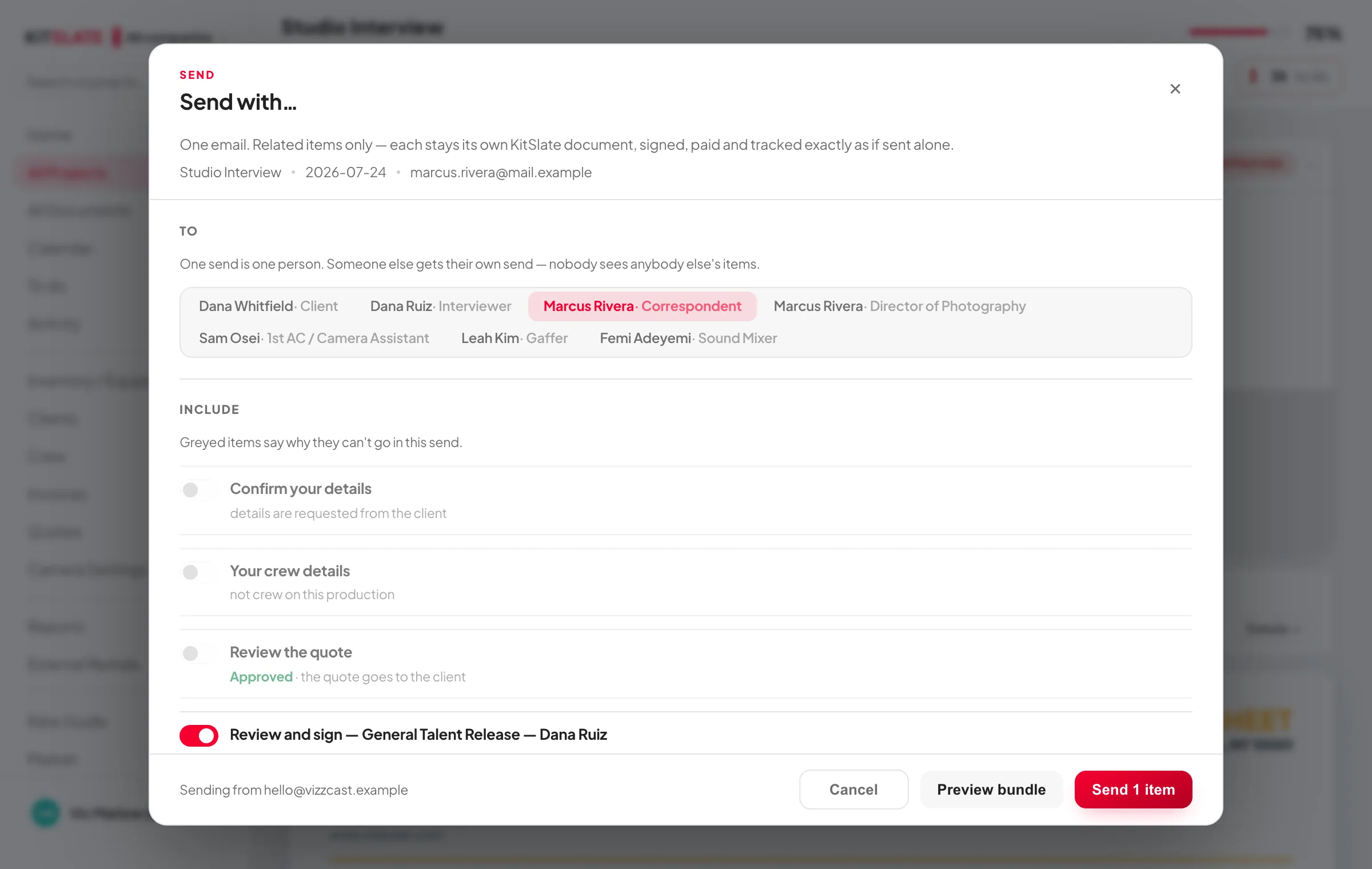
WHAT YOU PICK
kitslate.app/app · Send with…
The Send with… dialog: the people on the production to choose from, then a switch per item — confirm your details, crew details, review the quote, review and sign the agreement, pay the invoice — with greyed rows saying why an item cannot go, and a Send 1 item button
A greyed item says why it cannot go — already approved, already paid, not a signer
WHAT THEY GET
kitslate.app · their page
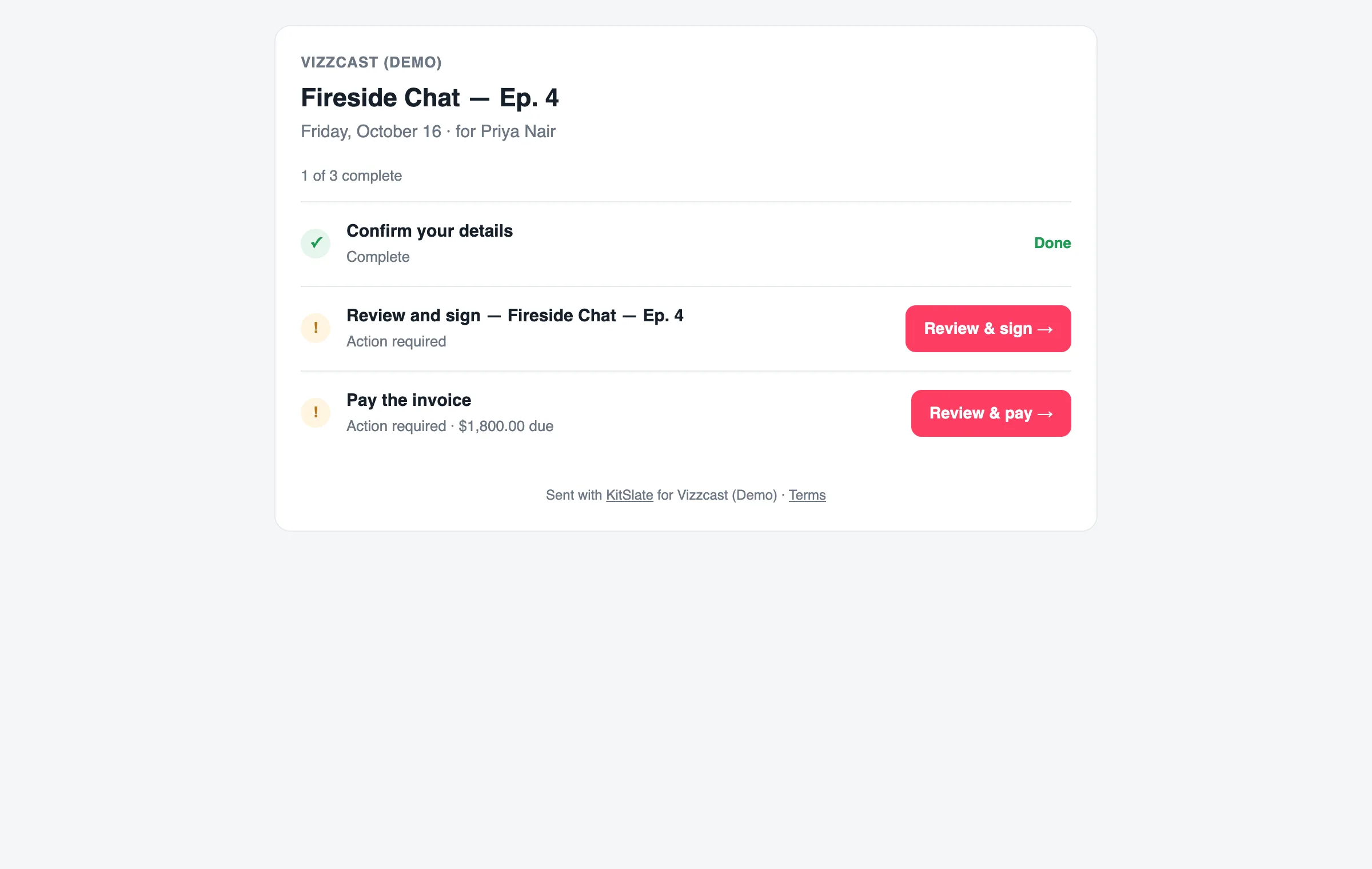
The recipient's page: the production and date, 1 of 3 complete, then three rows — confirm your details marked Done, review and sign with a Review & sign button, pay the invoice with the amount due and a Review & pay button
Done, still to do, one button each — at a link that does not go stale
WHAT COMES BACK

When they finish, they get a receipt. So do you.

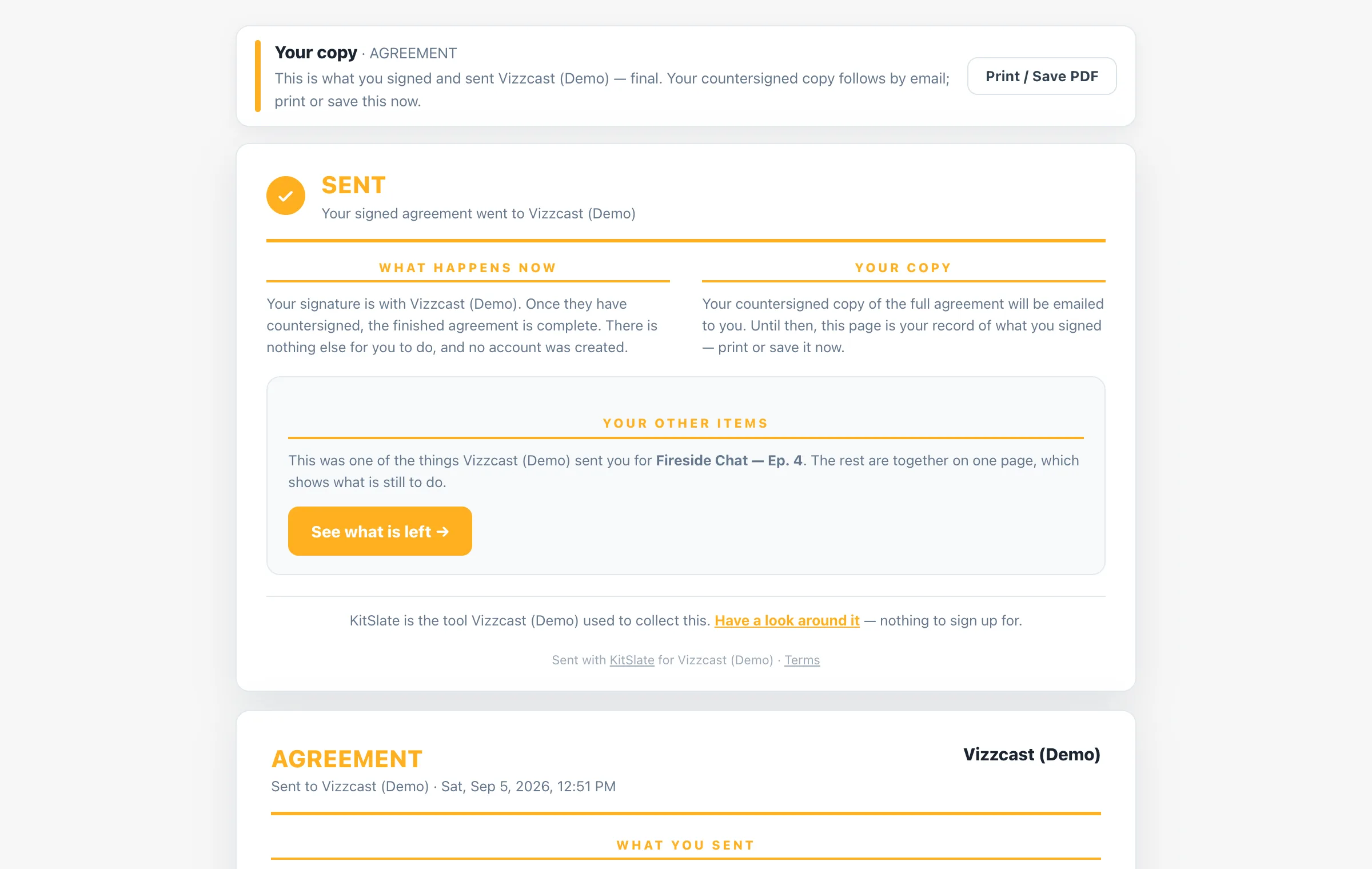
Every form ends the same way: a Sent card saying what went to you and what happens now, the way back to their other items, and the complete form as they sent it — with print or save as PDF offered only now, when there is something final to print. A copy reaches their inbox at the same moment, and the answer goes to your production.
THEIR RECEIPT
kitslate.app · receipt
A signer's receipt after submitting an agreement: a Your copy banner with a Print / Save PDF button, a SENT card with What happens now and Your copy columns, a Your other items panel with a See what is left button, and the complete agreement as sent beneath
Sent on top, the details below, the way back to the rest
YOUR SIDE OF IT
kitslate.app/app · Agreements
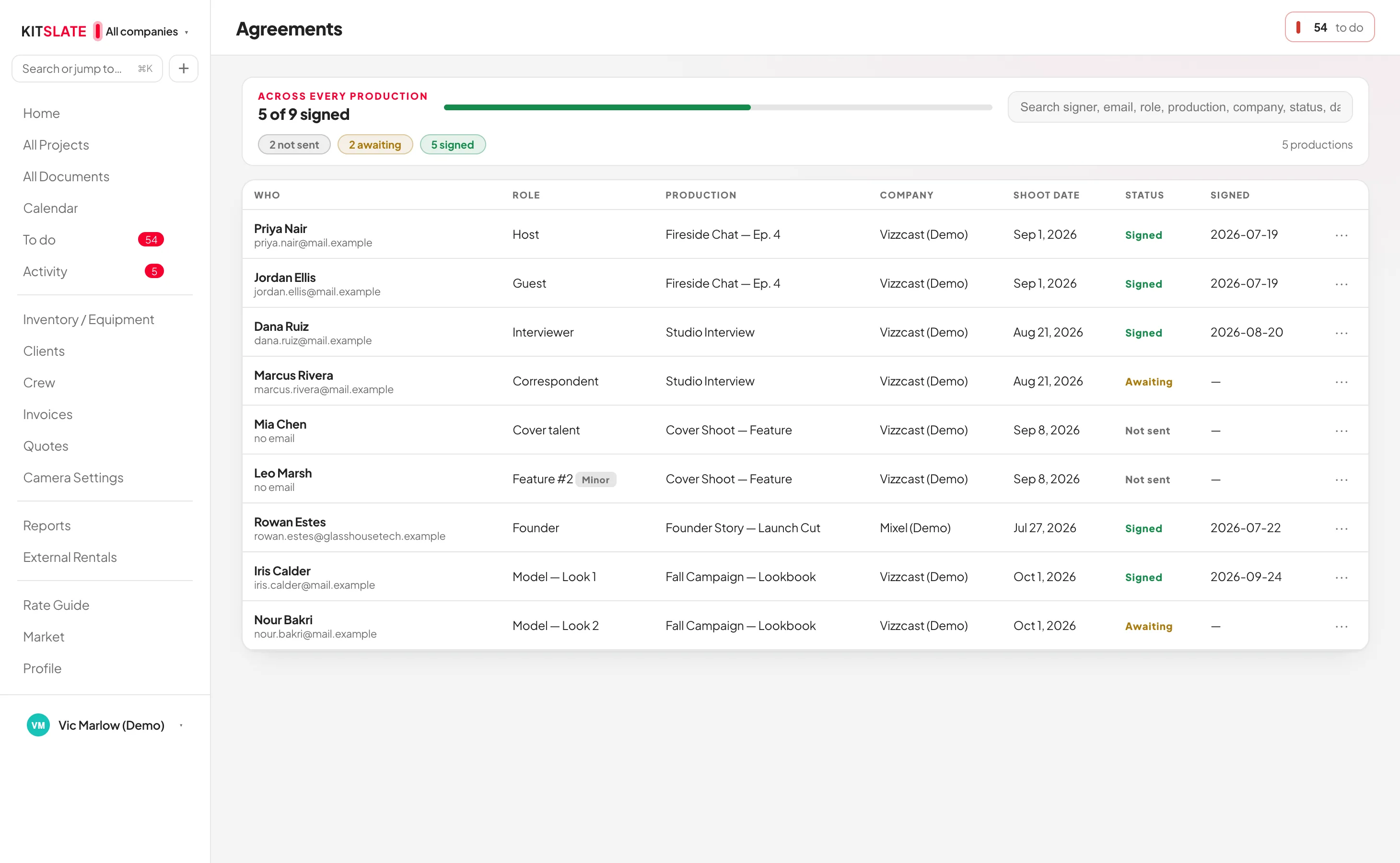
The Agreements list across every production — five of nine signed, with Not sent, Awaiting and Signed counts; both signers on Fireside Chat, Ep. 4 now read Signed with the date, beside the ones still awaiting
Signed, with the date — moved on by itself, beside everything still out
WHAT ARRIVES

Every send arrives two ways.

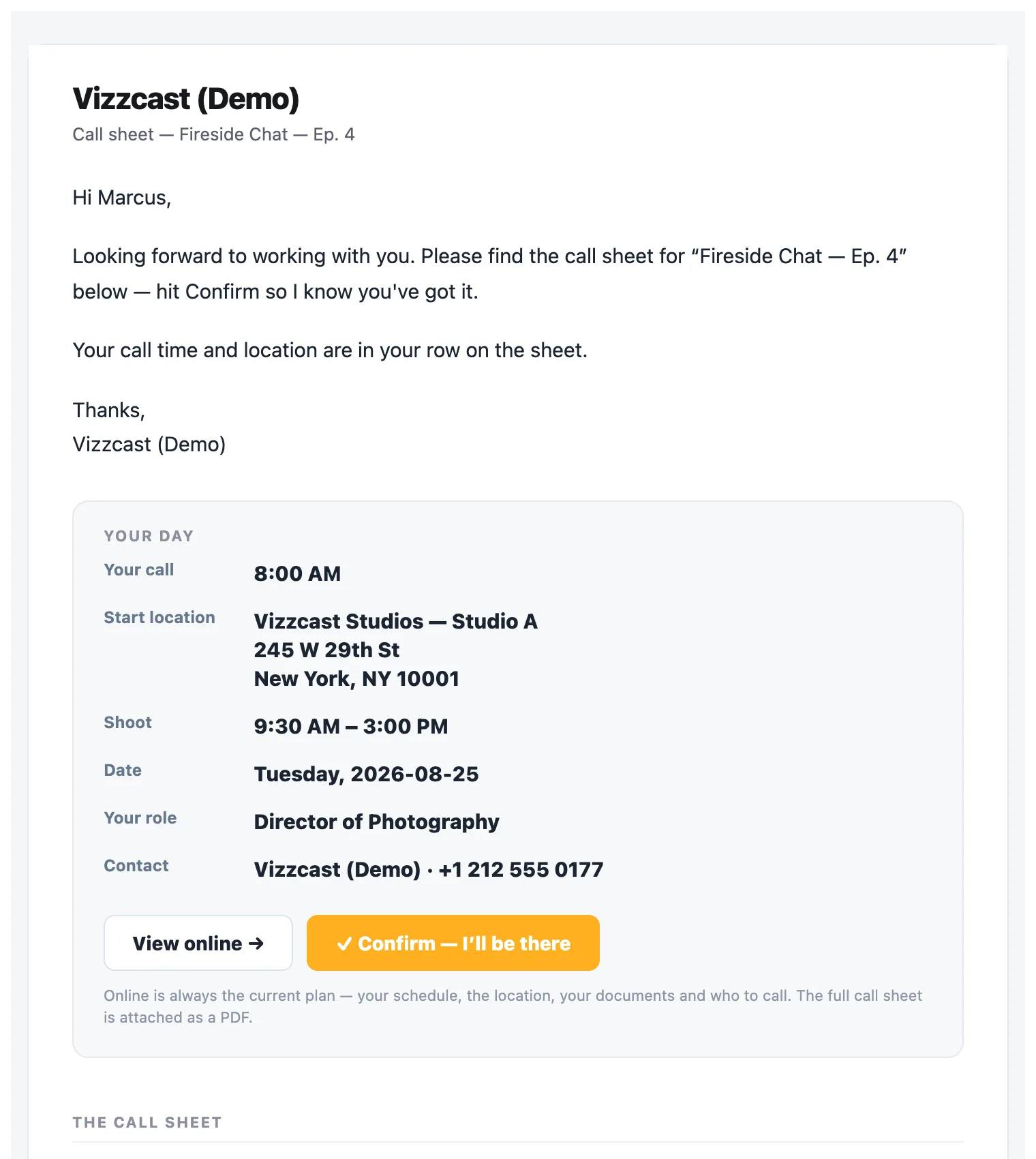
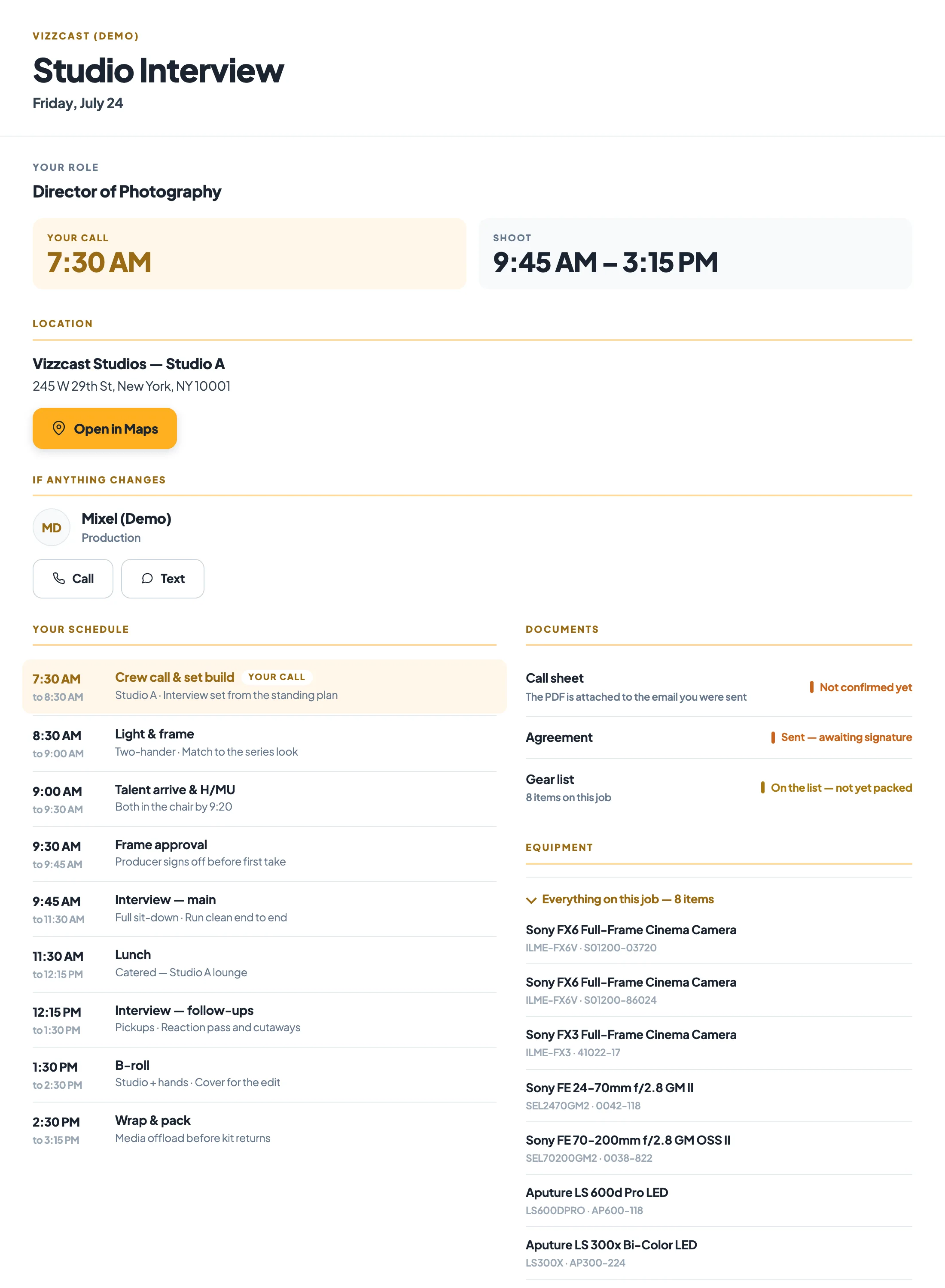
The same call sheet reaches a person as a PDF they can keep, print or forward, and as their own live page — the current plan, their call time, their schedule and their documents, at a link that does not go stale. One send, one token, both.
THE EMAIL, PDF ATTACHED
Inbox · Call sheet — Fireside Chat — Ep. 4 · Call-Sheet.pdf
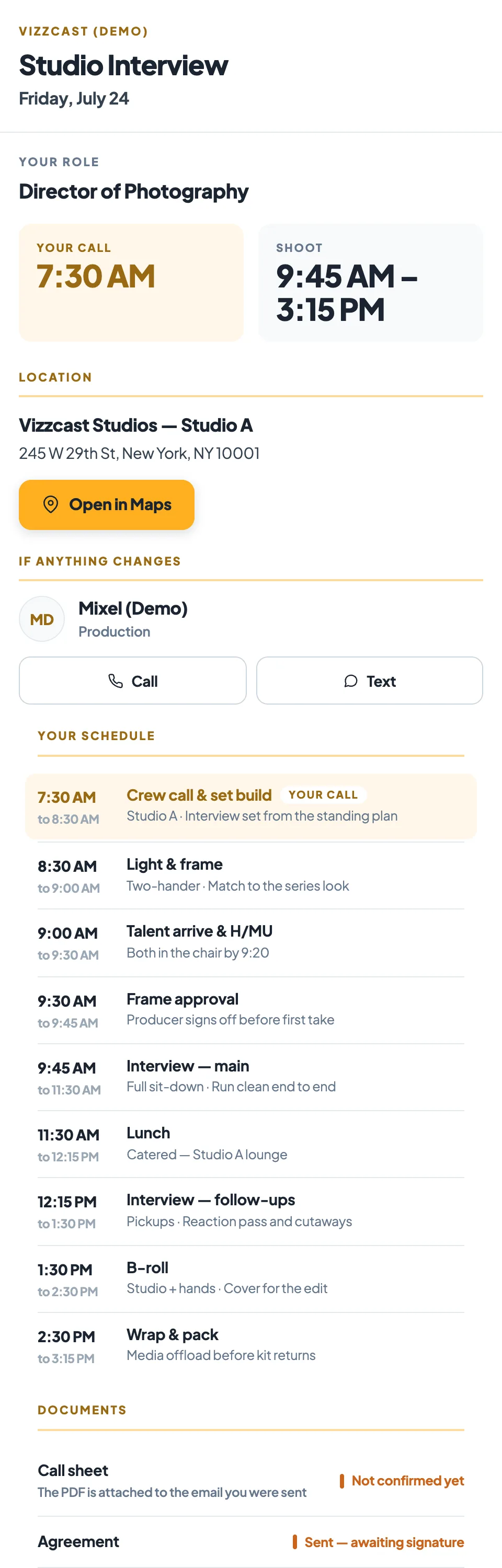
The call sheet email as it arrives: the company, a greeting by first name and the message, then a Your day card with their own call time, start location, shoot hours, date, role and who to call, and View online and Confirm — I'll be there buttons; the full call sheet is attached as a PDF
Their own call time on top, Confirm a tap away, the whole sheet attached as a PDF to keep
AND THEIR OWN LIVE PAGE
kitslate.app · their production brief
The same production brief on a laptop — the production and date, the recipient's role and call time, the location with a maps link, who to call if anything changes and their schedule
The same brief on a phone — one responsive page, not a separate mobile copy
The same page on whatever they are holding — the plan as it stands now
THEIR BRIEF — AND THE CONFIRM ON IT
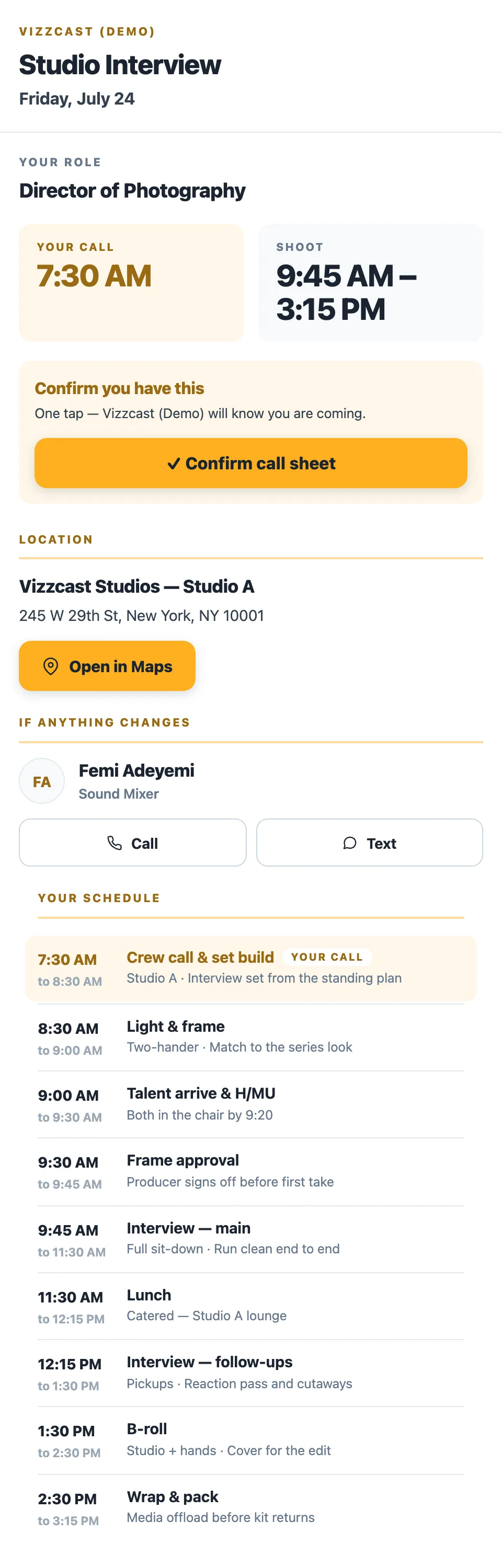
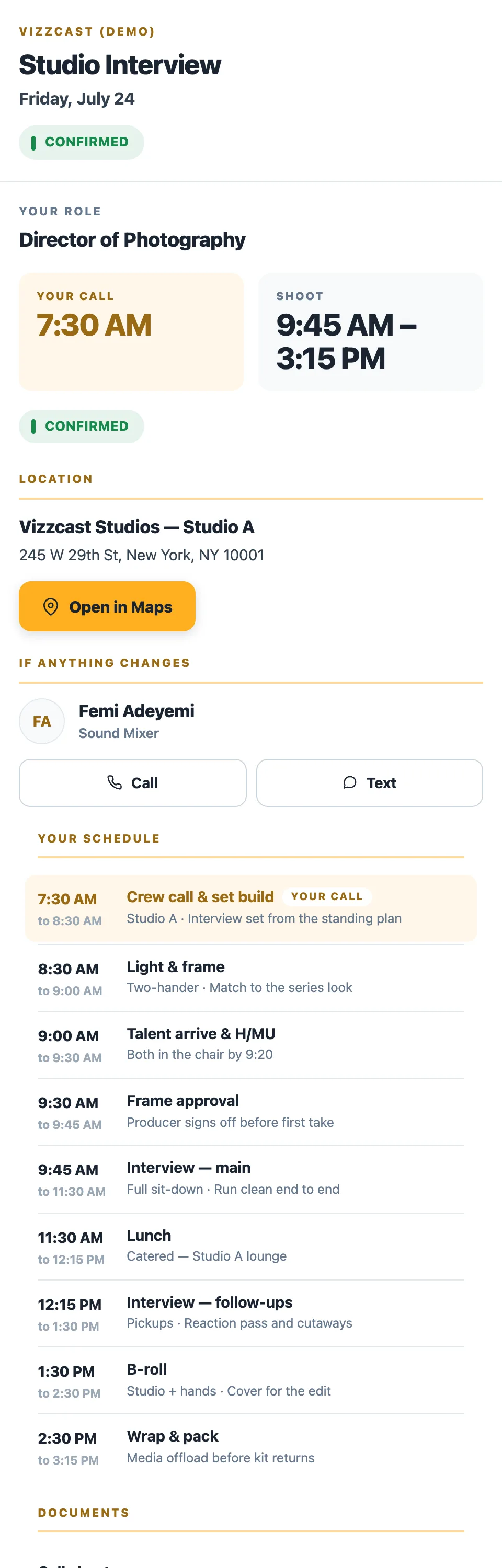
A recipient's production brief on a phone — their role and call time, then a Confirm you have this bar with a Confirm call sheet button, then the location, contacts and their schedule The same brief after tapping — the bar replaced in place by a CONFIRMED chip

Their link opens their brief — and the confirm sits on it, under their call time

One tap — and the button becomes the state, in place. No login, no account, nothing to install.

AND WHAT KITSLATE SHOWS YOU
ONE SEND · CALL SHEET Fall Campaign — Lookbook
5 sent · 0 opened · 0 confirmed
Marcus RiveraDirector of PhotographySENT
Leah KimGafferSENT
Quinn FosterSoundSENT
Priya NairProducerSENT
Noah Bennett1st ACSENT

Each person gets their own email, addressed to them, with their own call time and their own start location up top — the main location unless theirs differs — with the sheet below it and a PDF attached — no group thread and no reply-all. Their link opens their own production brief: the schedule, the contacts and the documents that are theirs, and the place they confirm. Opened and Confirmed arrive on their own, name by name — Noah has not opened his yet, and the page says so rather than guessing.

THE STATUSES

Every document has its own finish line.

The ticks are not decorative and they are not all the same. Each kind of document has its own ladder, ending where that document is genuinely done — and KitSlate only claims the rungs it can actually observe.

Call sheetto crew and talent
SENTOPENEDCONFIRMED
Signature requesttalent & location releases
SENTVIEWEDSIGNED
Invoiceto the client
SENTVIEWEDPAID
Quoteto the client
SENTREPLIED
Equipment listto a rental house or driver
SENTREPLIED

KitSlate only shows a status it can actually measure. Where a document has no real open tracking it says so rather than printing a nought nobody counted, and anything that fails to deliver says Failed, against the name it failed for.

05 · THE DAY — the day itself, and the record

The job does not go quiet once the paperwork is out.

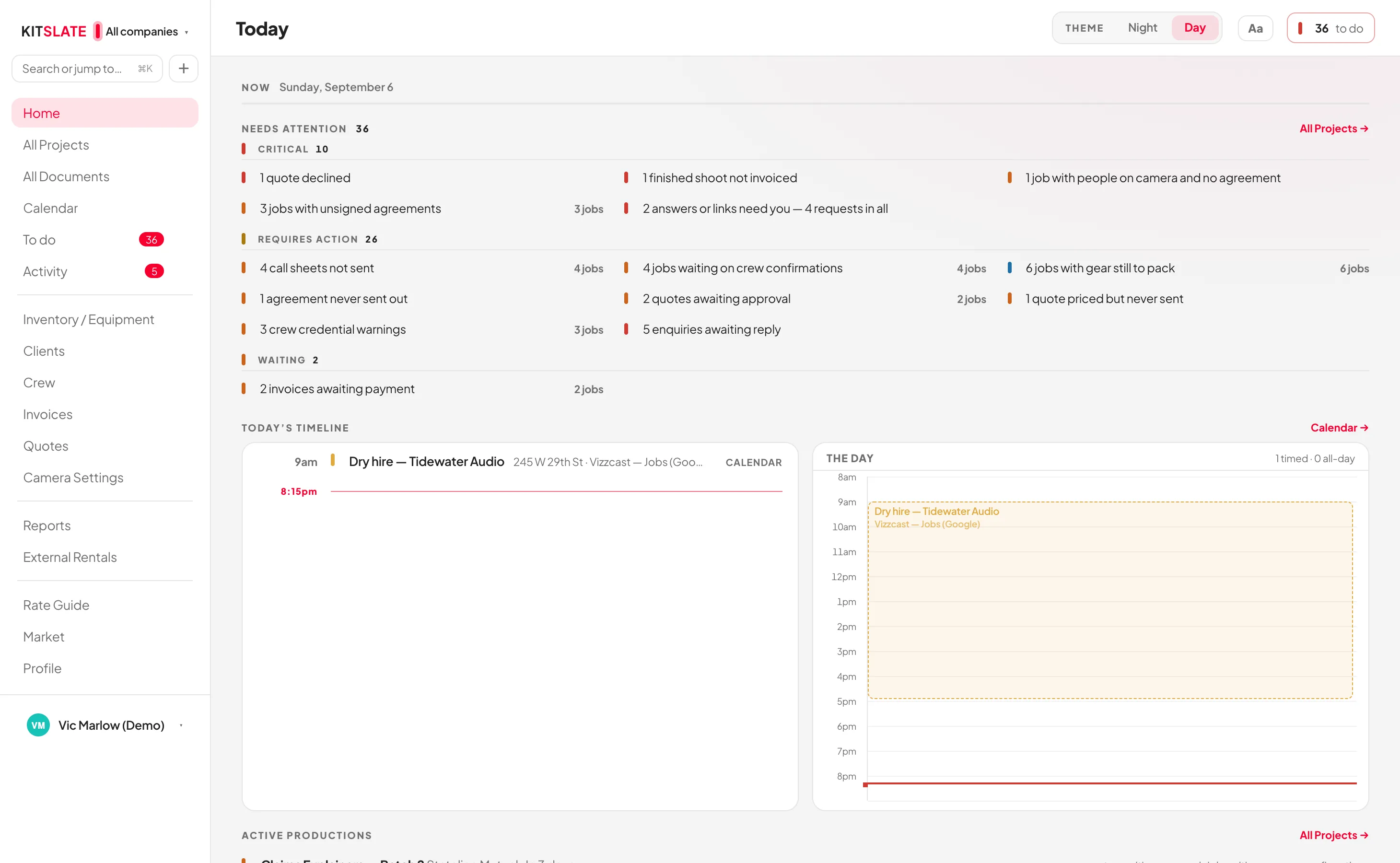
On the morning of a shoot the question is not “what did I send?” but “what is happening today, and what still needs a hand?” Today answers that first: what is shooting, who is working, what is still out of the store, what is unread, and two lists: what needs you, critical first, and what is waiting on others.
kitslate.app/app · Today
The Today dashboard — operations, inventory and communications counts across the top, an attention list grouped into critical, requires action and waiting, and the day's timeline with call times beside an hour-by-hour view of the day
The day’s timeline reads from the productions themselves — crew call, shooting call, lunch, wrap
THE RECORD — ACTIVITY
kitslate.app/app · Activity
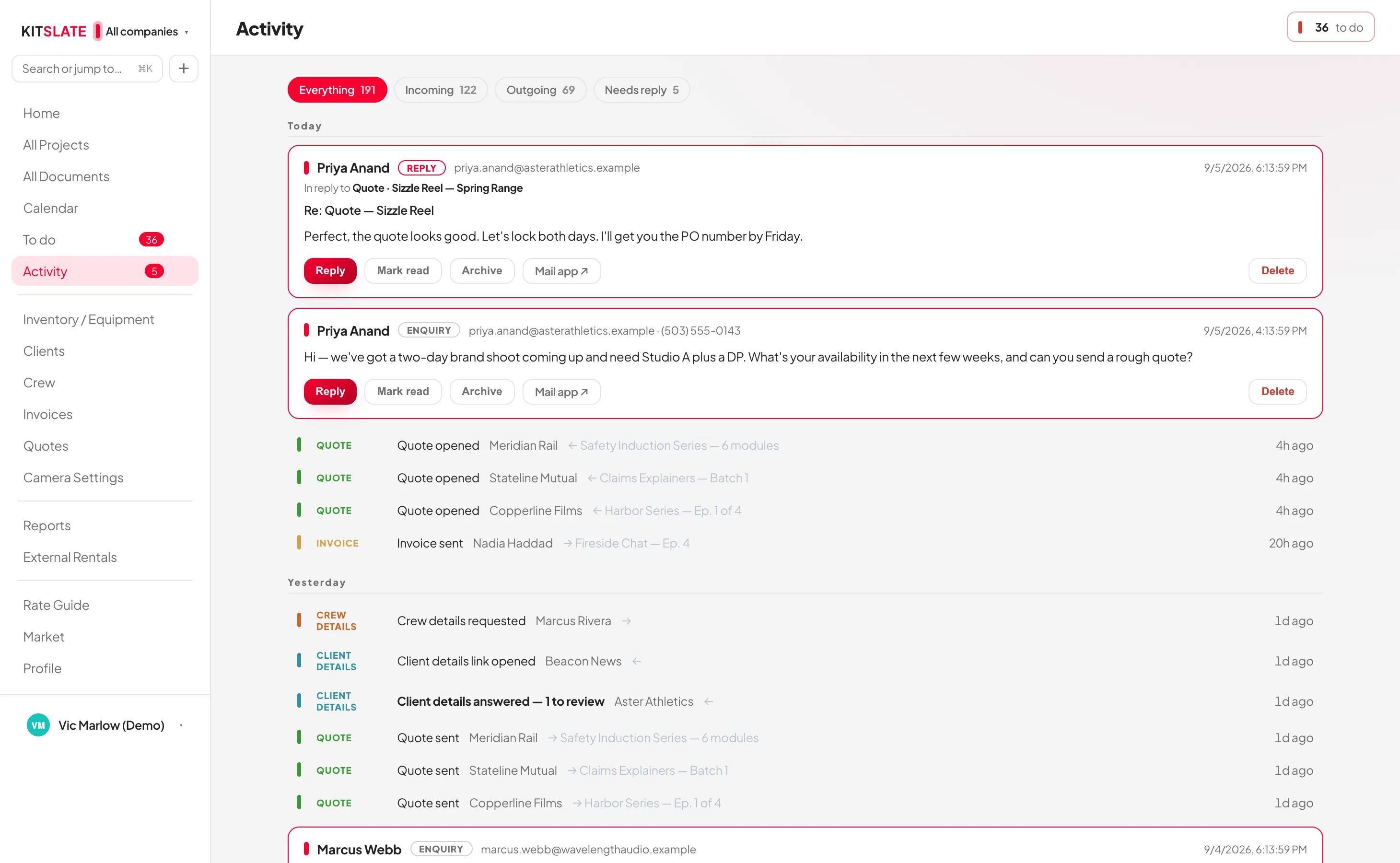
The Activity feed — enquiries and replies alongside every document sent, filterable to everything, incoming, outgoing or needs reply, with per-recipient opened and confirmed status
Filter to incoming, outgoing or needs reply — and reply without leaving KitSlate
WHAT IT SAVES YOU REMEMBERING
What was sent, and when — every document, with the company it went out from.
Who it went to — individually, not as a group address.
Who opened, confirmed or signed — each stamped with the time it happened.
What they wrote back — enquiries and replies sit in the same feed as the documents.
What is still owed — payments recorded against the invoice, not worked out in your head.
Where the job got to — the production keeps its own stage, so a job you have not touched for a month explains itself.
RECEIPTS FROM THE DAY — their phone, your approval

The crew photograph their receipts. You approve them from your desk.

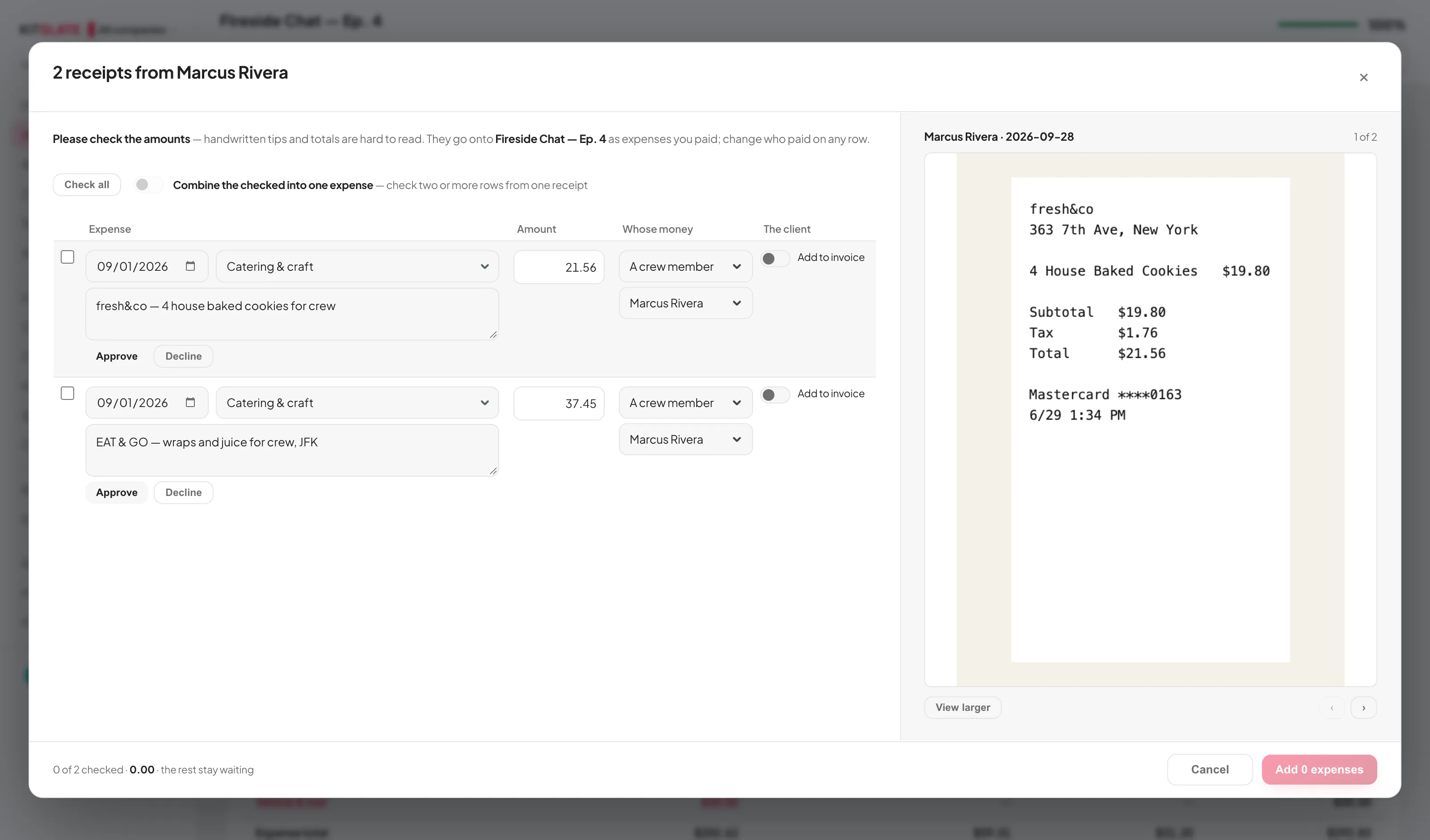
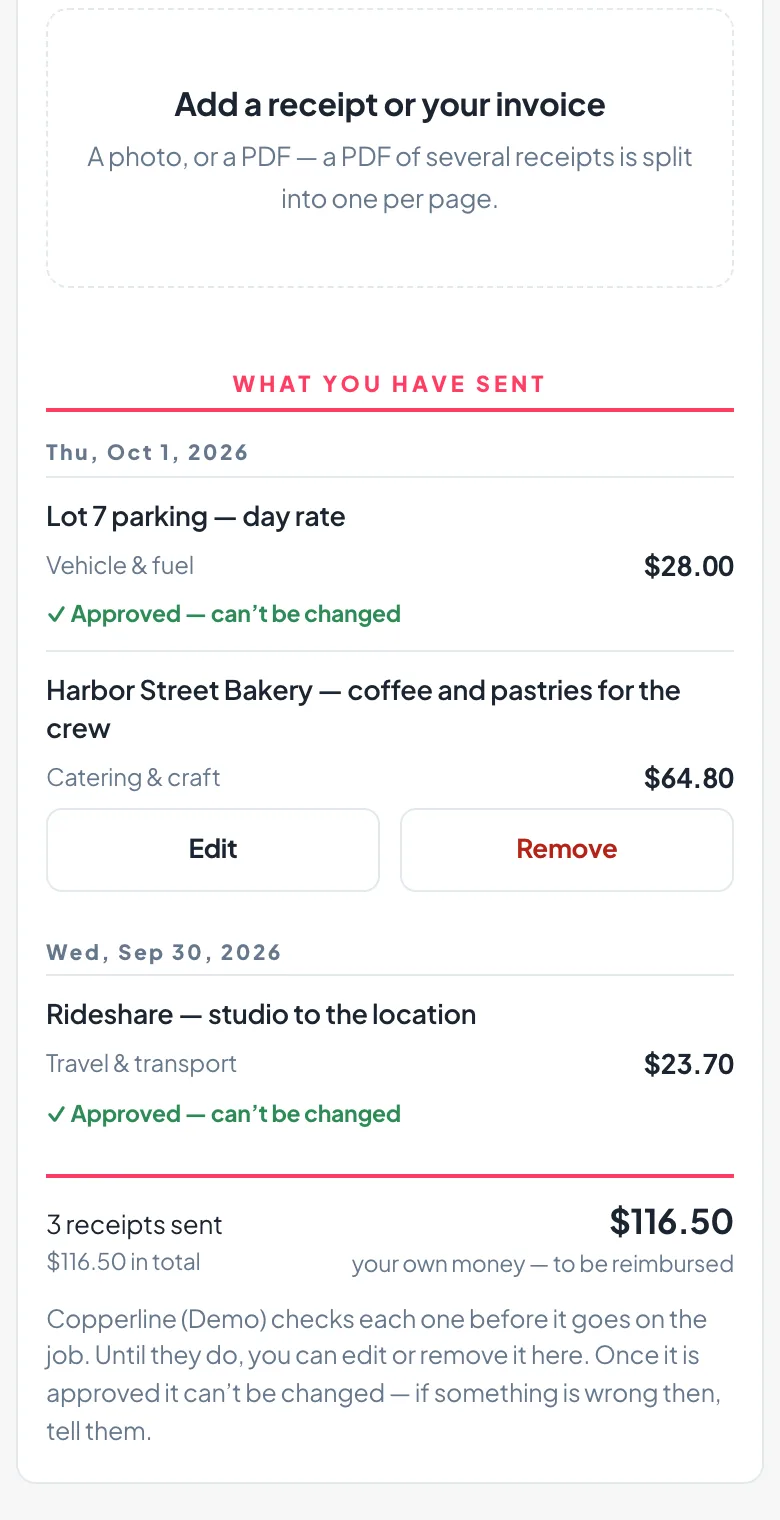
Give anyone on the job a receipt link. On the day they take a photo of the paper, KitSlate reads it into the form, they say whose money it was, and send — no sign-in, no app. It arrives on the job’s Expenses tab waiting to be checked: the rows on one side, the receipt on the other, click to zoom on the total. Add, and it moves from awaiting check to approved in the ledger.

THEIR PHONE — THE RECEIPT LINK
Receipts · Fireside ChatCopperline (Demo) asked for your receipts
Take a photoChoose a fileSend
IMG_4412.jpeg
DateJun 29
CategoryCatering & craft
Amount$44.53
Whose moneyMine
Send 2 receipts
WHAT YOU HAVE SENT
Jun 29 · 2 receipts$81.98 · your own
Jun 28 · 2 receipts$92.42 · company card
Sent2 receipts · $81.98 · your own money
POKE BOWL - 7TH AVENUE
333 7TH AVE
NEW YORK, NY
29-Jun-2026 1:11P
2 Plenty Bowl$32.90
2 Teas$8.00
Subtotal$40.90
Sales Tax 8.875%$3.63
Total$44.53
YOUR DESK — THE JOB’S EXPENSES TAB
kitslate.app/app · Fireside Chat — Ep. 4 · Expenses
Receipts sent in · Marcus Rivera2 receipts · $81.98 · their own money
Check
Spend by category
CategoryApprovedAwaiting checkTotal
Catering & craft $72.30$72.30$154.28 —$81.98— $72.30$154.28$154.28
Travel & transport$100.32—$100.32
Vehicle & fuel$30.00—$30.00
2 receipts from Marcus Rivera
06/29 · Catering & craftPoke Bowl — 2 plenty bowls, 2 teas
$44.53
06/29 · Catering & craftEAT & GO — wraps and juice, JFK
$37.45
Add 2 expenses
POKE BOWL - 7TH AVENUE
333 7TH AVE
NEW YORK, NY
29-Jun-2026 1:11P
2 Plenty Bowl$32.90
2 Teas$8.00
Subtotal$40.90
Sales Tax 8.875%$3.63
Total$44.53
2 expenses added
OR DROP THE STACK ON YOUR DESK
kitslate.app/app · Expenses · Import receipts
The receipt check: the expense rows on the left, the selected receipt fitted on the right with View larger, the sender named in the title
The same check for a stack you drop yourself — PDFs and photos together, read into rows, each beside its receipt
WHAT THE CHECK DOES
Read on arrival — date, supplier, amount and a category from your own list, from the picture and the words together.
The receipt beside the row — fitted whole; click to zoom on the total, click to zoom out.
Nothing counts until you add it — an unticked receipt stays waiting; Decline leaves one out, on the record.
Whose money, named — a crew member’s own receipt is money you owe them, and Who owes who says so.
One switch to bill it — Add to invoice puts it on the invoice as its own line, with the receipt attached.
A WRONG PRICE, FIXED ON THEIR PHONE
WHAT THEY HAVE SENT
The receipts page on a phone: What you have sent, two receipts reading Approved — can't be changed and one still waiting, with Edit and Remove buttons under it
EDIT
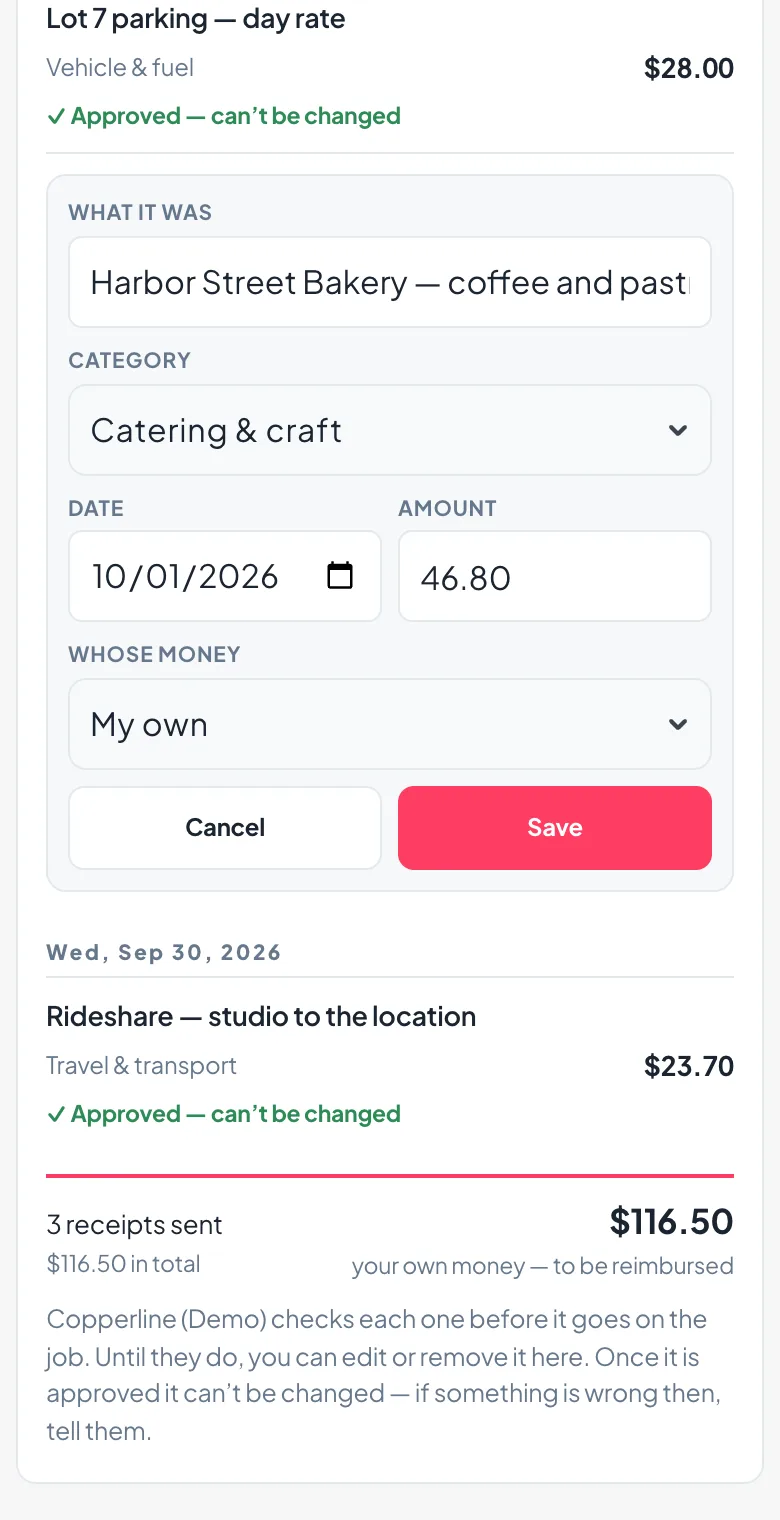
The waiting receipt open for editing: what it was, the category, the date, the amount corrected, whose money, and Cancel and Save
REMOVE
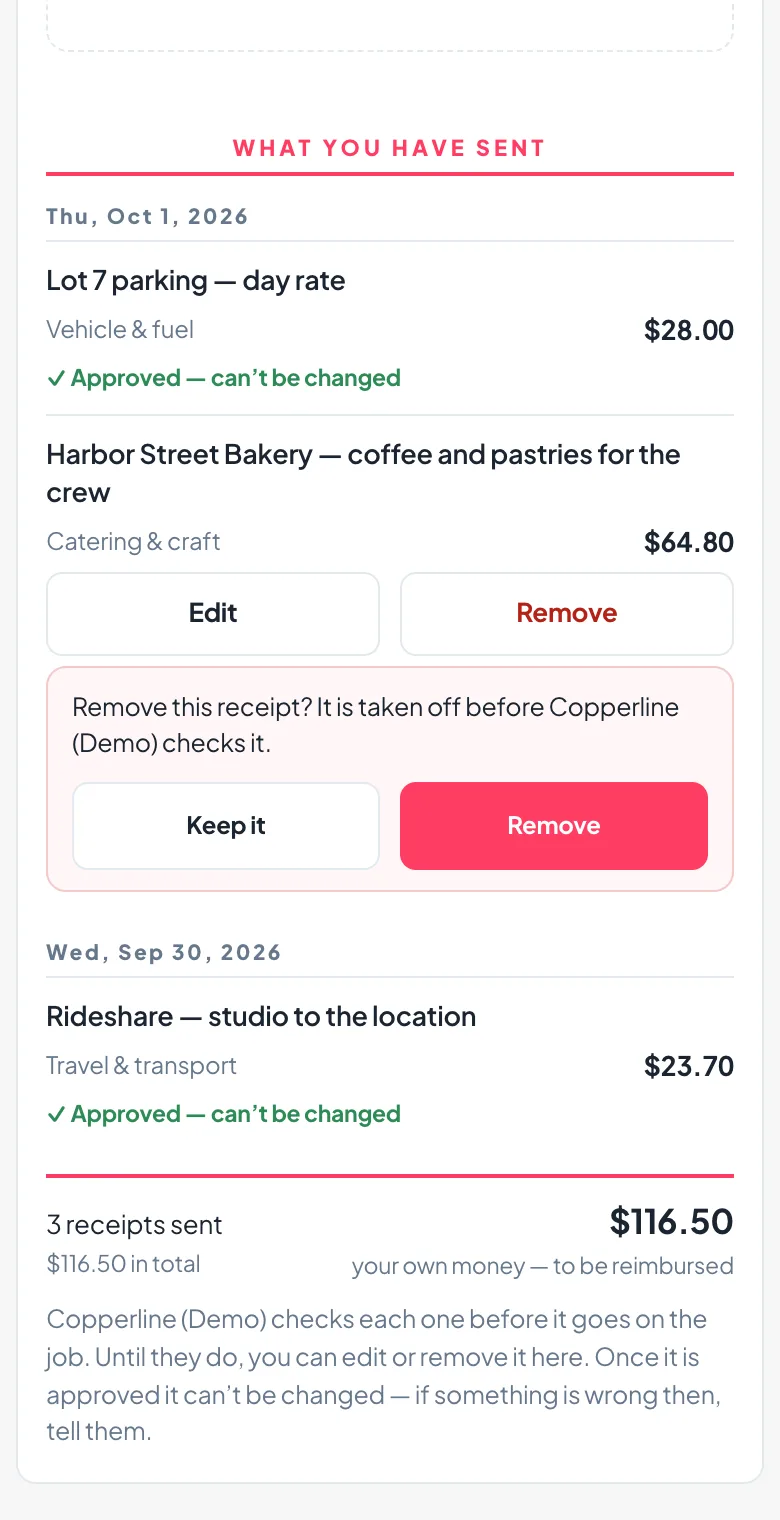
Remove this receipt? asked on the page, with Keep it and Remove side by side
Until you check it, a receipt they sent keeps Edit and Remove; once you approve it, it is locked
BEFORE YOU CHECK IT
Fix it, don’t send it twice — the wrong amount, category, date or whose money is corrected on the same page it was sent from.
The photo never changes — only what it says is edited; the receipt stays as it was sent.
You see what changed — your check shows Edited by them — was $64.80 beside the new figure.
Remove asks first — and a removed receipt never reaches your check.
Approved can’t be amended — it reads Approved — can’t be changed, and the server refuses an edit even from an old tab.
THE RUSHES GO OUT — up to 1 TB, by email or link

Send the day’s files to the client from the same place.

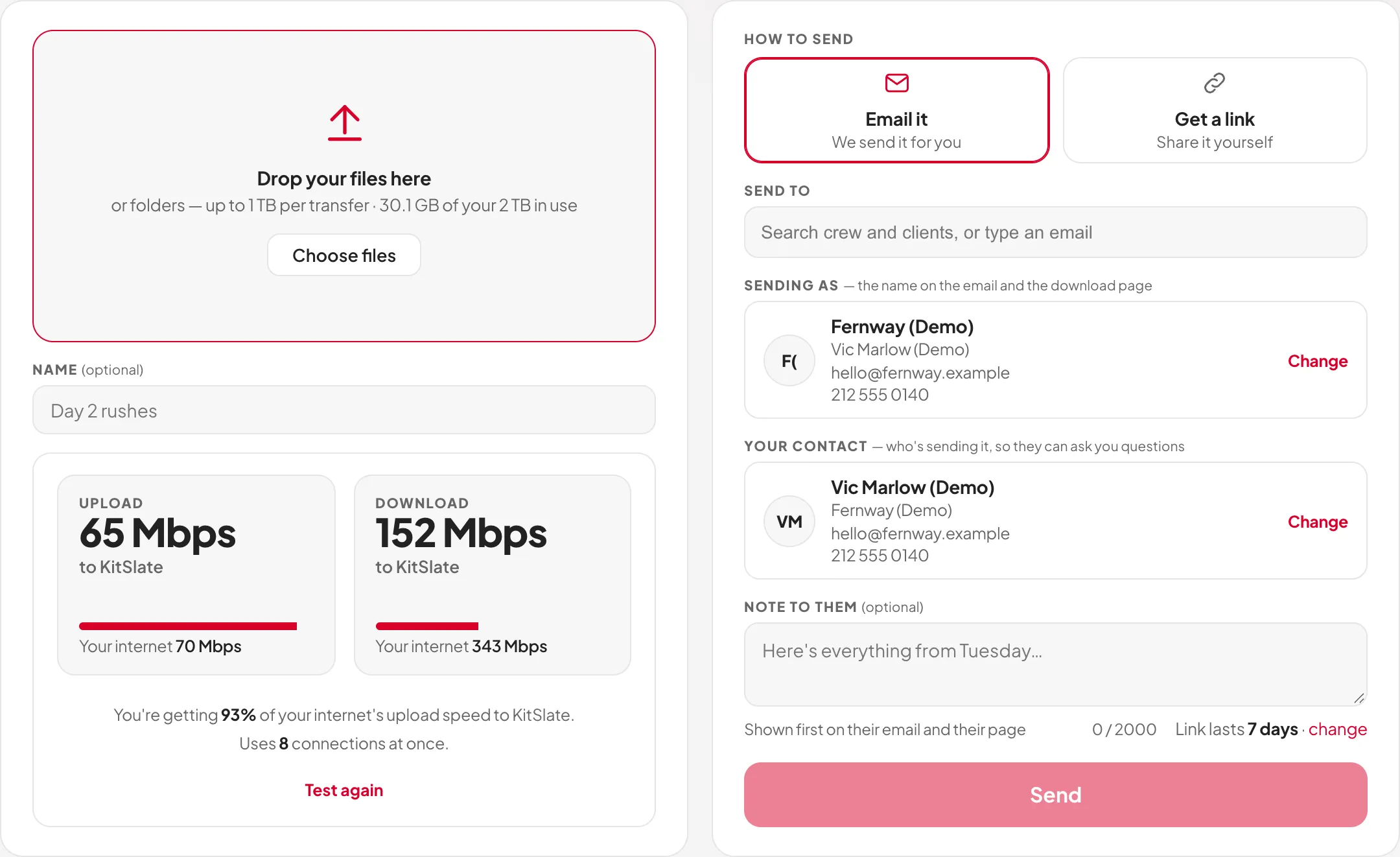
Drop the folder on the Send page — 5 GB per transfer on the free profile, 500 GB on Solo, 1 TB on Studio and above — and KitSlate emails each person their own link or hands you one to share. The client gets a page that plays the clips, where they pin a note to a timecode and the two of you message back and forth; on paid plans each clip can carry a transcript too, every line at the clip’s own timecode, to search, quote and trim from. You see who opened it, who downloaded, and how fast. Links last 1 to 30 days on a paid plan, up to 3 on the free profile; the files are deleted when a link ends.
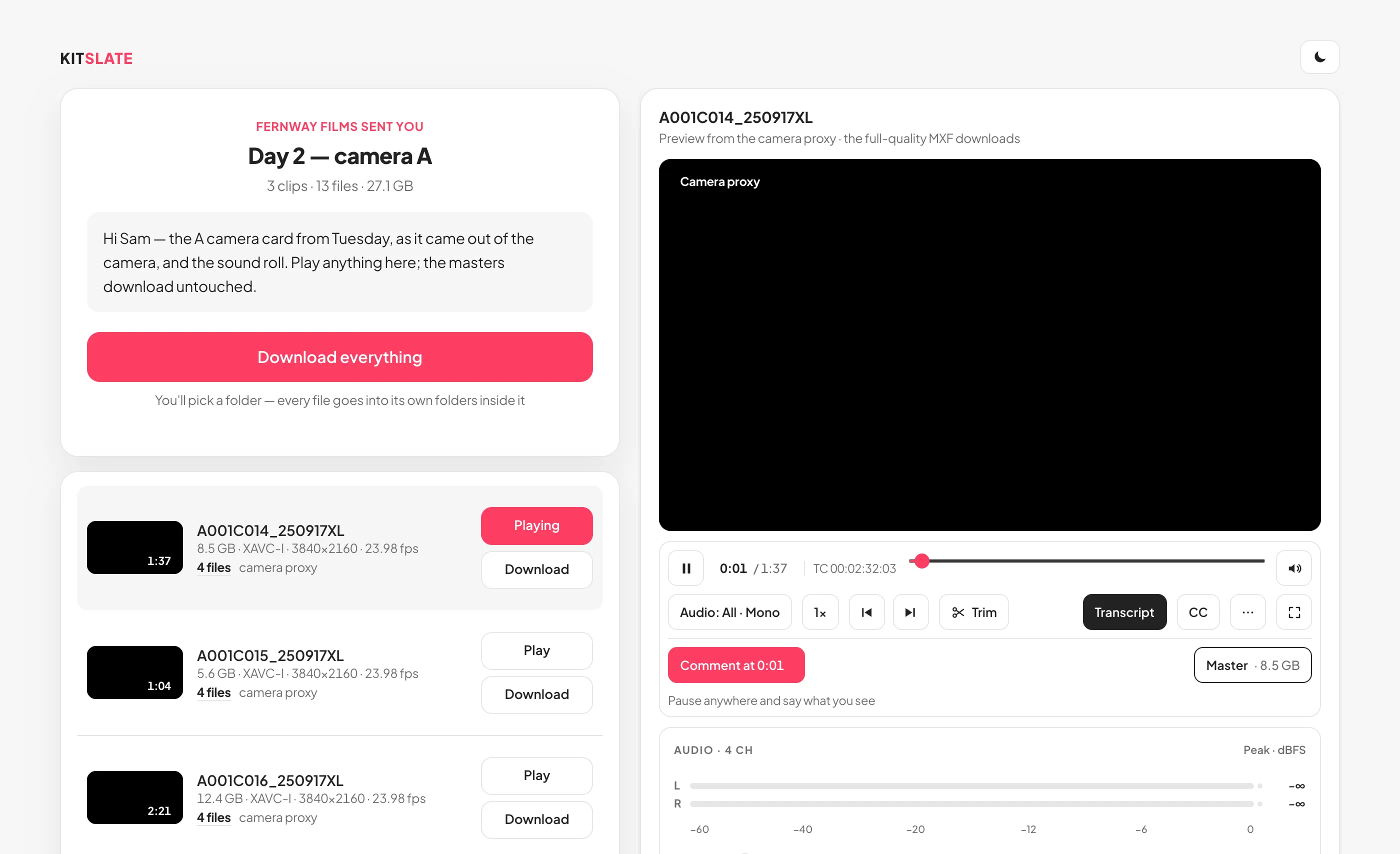
YOUR SIDE — THE SEND PAGE
kitslate.app/app · Media Center
The Send page: a drop zone, the transfer’s name and a speed test on the left; Email it or Get a link, who it goes to, who it is from, a note and the Send button on the right
Files and a speed test on the left, who gets it on the right — nothing to scroll
THEIR SIDE — THE DOWNLOAD PAGE
kitslate.app/t/…
The download page: the sender’s note, Download everything, the file list with codec and frame-rate chips, and a clip playing beside it with a comment pinned to a timecode
Plays in the browser; Comment at pins a note to the paused frame; replies reach your inbox and the Sent tab
AND THEN THE NEXT ONE

Finish one production. Start the next further along.

The first job you set up in KitSlate takes the longest, because it is where the inventory, the crew and the clients get entered. Everything after that is a selection rather than a rebuild.

Duplicate the production

Copy a job that went well — the crew, the schedule and the pricing come with it. Or copy just the call sheet: the sheet arrives unsent with the crew still properly linked, and the quote stays empty.

Kits and presets

Bundle gear that always travels together into a kit and add it in one pick. Quote presets, call sheet templates and agreement templates do the same for the paperwork.

People stay entered

Crew, clients and their contact details, rates and roles live in their own databases. A new production draws on them; it does not re-ask for them.

Rates carry

Day rates sit on the items and the people, so the next quote prices itself from the same numbers — and the Rate Guide shows where those numbers sit against the market.

AND WHEN THE ROOM IS DARK

Most of this work does not happen at a desk at noon.

So KitSlate has a Night mode with a depth to it, one switch in the top bar — and one thing it leaves alone.

  1. IT IS 1AM

    A white screen in a dark room.

    An edit bay with the lights down. A red-eye with the cabin dark. A van at 5am waiting for a location to open. Day is the default and it is where most people stay — right up until the point it is not.
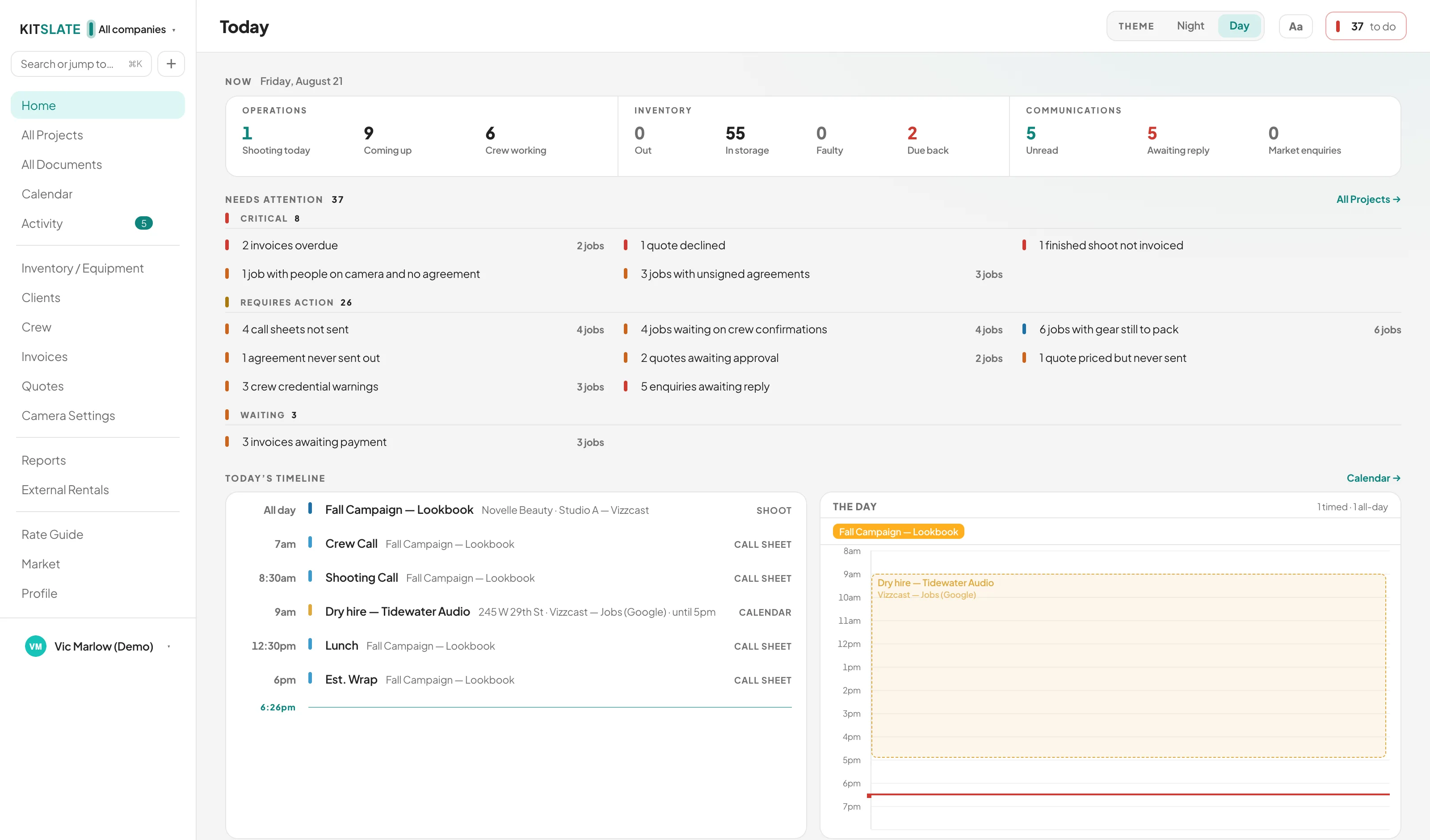
    The Home dashboard in Day — a light workspace, with the THEME switch in the top bar set to Day
    ↔ drag the picture sideways to read it
  2. FLICK IT

    One tap, and how far down is a slider.

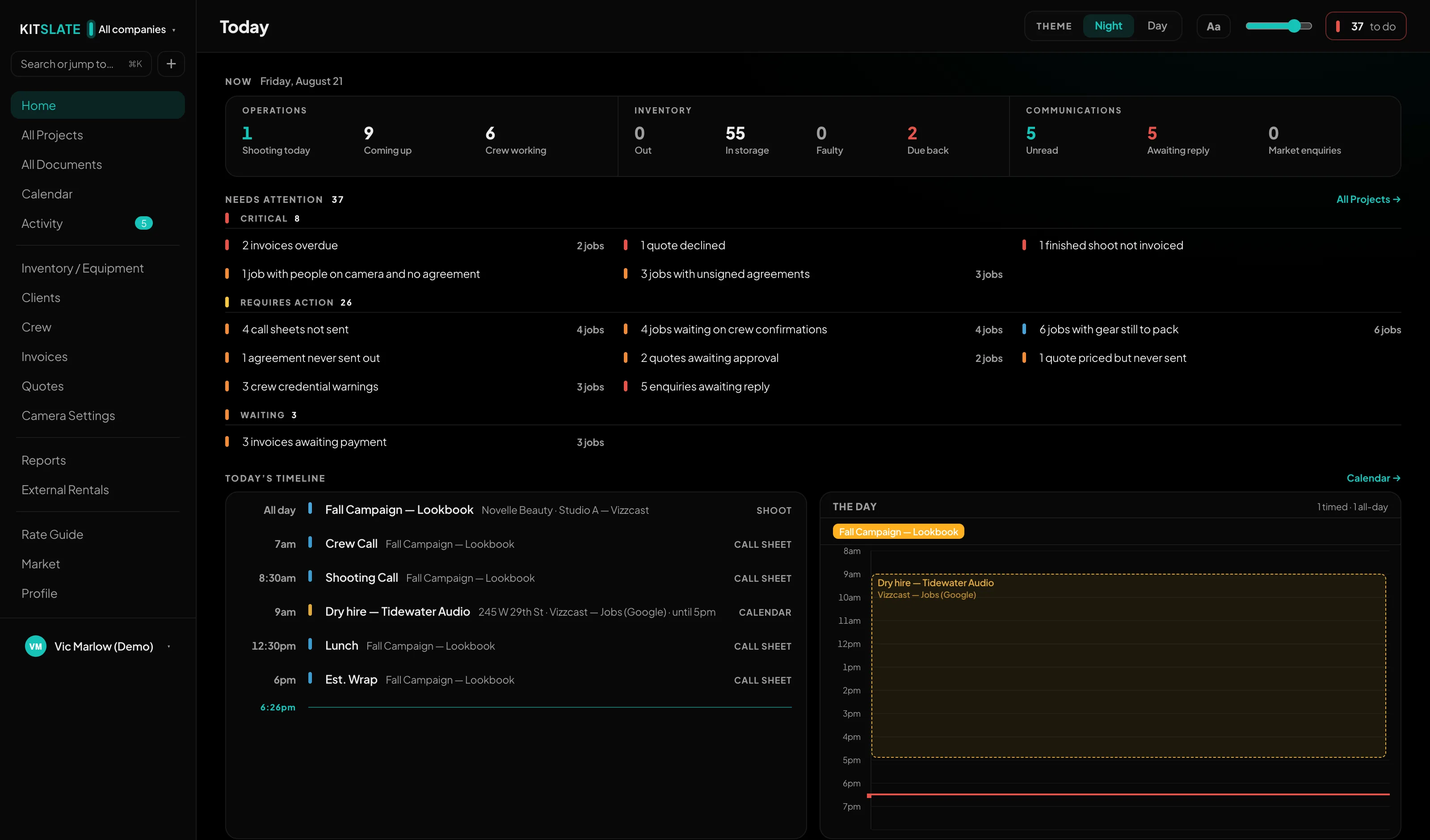
    THEME · Night · Day sits in the top bar on Home and again in Settings — the same control in both places, never two that drift apart. The whole workspace follows it. Night also has a depth: one slider slides every surface down together, from a soft grey through the default to true black, for an OLED screen or a bay with the lights off. It only works at Night; in Day it greys out, because there is nothing for it to do.

    The workspace top bar at Night — THEME with Night lit, the Aa high-contrast button, and the depth slider at 100
    The bar itself, at Night, with the depth at 100. Aa beside it pushes text to pure white at Night and pure black in Day.
    The same Home dashboard at Night with the depth at 100 — every surface pitch black
    ↔ drag the picture sideways to read it
  3. AND WHAT DOES NOT MOVE

    The tool goes dark. The document does not.

    The call sheet, the quote, the gear list and the invoice stay on white paper at every depth. Night is how you look at your own workspace, not a second design for your paperwork — so what a client opens, what prints, and what is attached to the email is the same document either way. If you would rather edit on dark paper too, that is its own switch, and it stops at the editor.
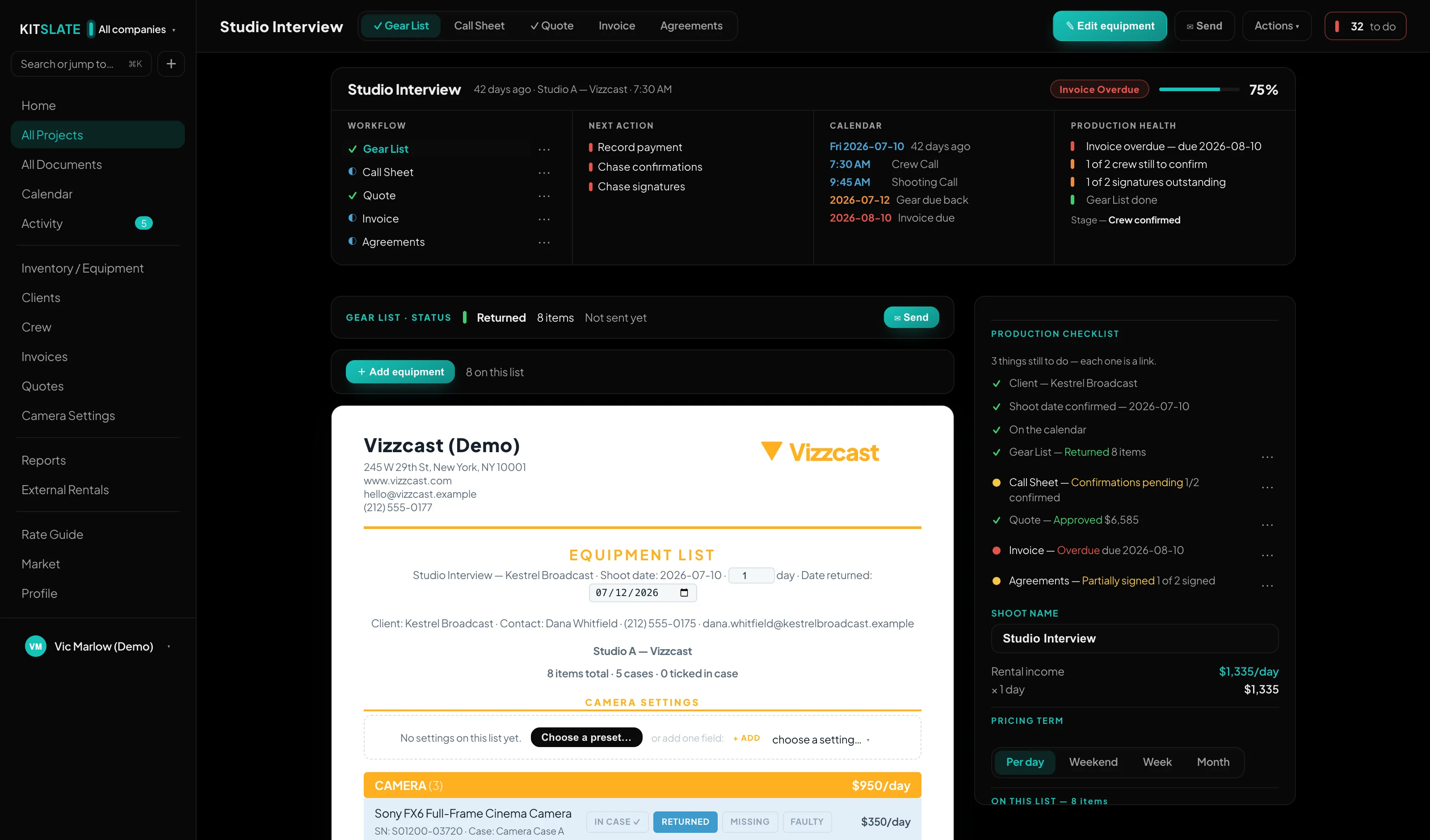
    A production's gear list at Night — the workspace around it black, the document itself still on white paper
    ↔ drag the picture sideways to read it
The Home dashboard in Day — a light workspace, with the THEME switch in the top bar set to Day The same Home dashboard at Night with the depth at 100 — every surface pitch black A production's gear list at Night — the workspace around it black, the document itself still on white paper
Day · the default, and where most people stay

And Day is the same tap back. The setting is stored with your workspace, so the next machine you sign in on opens the way you left it — and this page has the same switch in its own top bar, if you would rather see it happen here than read about it.

The same top bar in Day — Day lit, and no depth slider, because in Day there is nothing for it to do
AROUND THE WORKFLOW

The parts that are true of every job.

Branding, the AI that fills the forms, the free public side, and the two promises that make the rest safe to rely on.

One workspace, every company.

Have more than one business? Each keeps its own jobs, calendar, branding and books — and every document above prints and sends under whichever company owns the job.

Fernwayquote & invoice on fernway.example letterhead
Copperlinesame documents, copperline.example branding & bank details
Switch the company and the logo, colours, sender name, reply address and footer all follow — automatically.
Automatic branding

The paperwork wears the right hat.

You never pick a template. The company that owns the job sets the letterhead, colours, bank details, and the name and reply address on every email — so a client only ever sees the business they hired.

The AI does the typing.

It reads the paperwork you already have and fills the forms. It does not decide anything, and it never acts on its own.

AI built in

Drop a receipt.
Paste a call sheet.

The AI lives inside the flows you already saw — it fills the forms so you don’t. You watched an invoice become inventory back in PACK; the same reader takes the rest of the paperwork. Paste any production’s call sheet — from an email, a PDF, whatever — and the crew, schedule and venue go onto your job’s sheet. Even a photo of a gear list becomes inventory. Every one of these arrives as a filled-in form you review and save: nothing is written to your workspace until you say so.

Receipt in → items + serials + prices in inventory, with the receipt filed beside them.
Photo of a gear list in → structured inventory, each item in its category.
Any call sheet in → crew, times and locations mapped to your sheet.
Somebody else’s CSV in → their columns matched to yours before a single row is imported.
You always review it — every read comes back as a draft to check, never a change already made.
Read once — a receipt you import is filed with its items; any other file is read for that import and not stored, and only what the read cost is recorded.
AI IMPORT — A DAY'S TRAFFIC
Supplier_receipt_1099.pdf → 12 items + serialsREAD WITH AI
"Tomorrow's crew" email → call sheetMAPPED
Gear-list photo → 9 items, sorted into your categoriesINVENTORY
Market listing receipt → checked, verdict onlyVERIFIED
One rule everywhere: read for the import and reviewed by you; only a receipt you import is kept.

The public side — free for everyone.

Everything above is the job. These two sit outside it: the page that gets you hired, and the market you sell idle kit into. Neither costs anything, and neither needs the production toolkit.

Your public page

Be findable by the people who need to hire you.

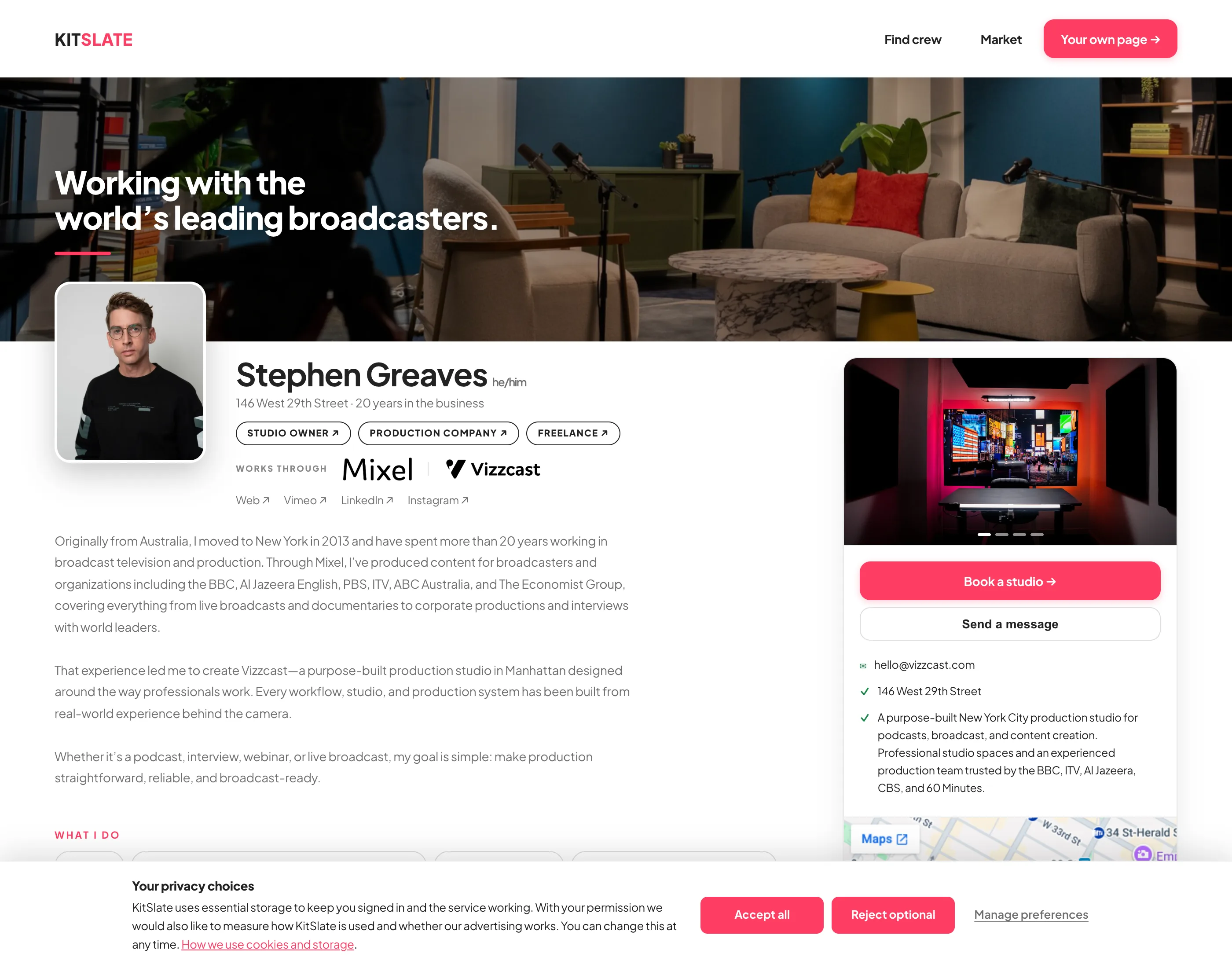
Publish a page at kitslate.app/profile/you — your photo, the roles you work, the city you are in and the kit you own, with your showreel embedded from Vimeo or YouTube. It is the same workspace underneath: an enquiry from the contact form arrives in your KitSlate inbox, ready to answer.
Contact form in → an enquiry in your KitSlate inbox, not an email to remember.
Your address is not published — the form reaches you without exposing your email address.
Listed in Find crew — searchable by role, kit and city.
What you have for sale — your market listings appear on your own page.
kitslate.app · a published member page
A published KitSlate member page — cover, photo, roles, the companies worked through, the bio, a contact card with Book a studio and Send a message, and a map
scroll the page inside the frame
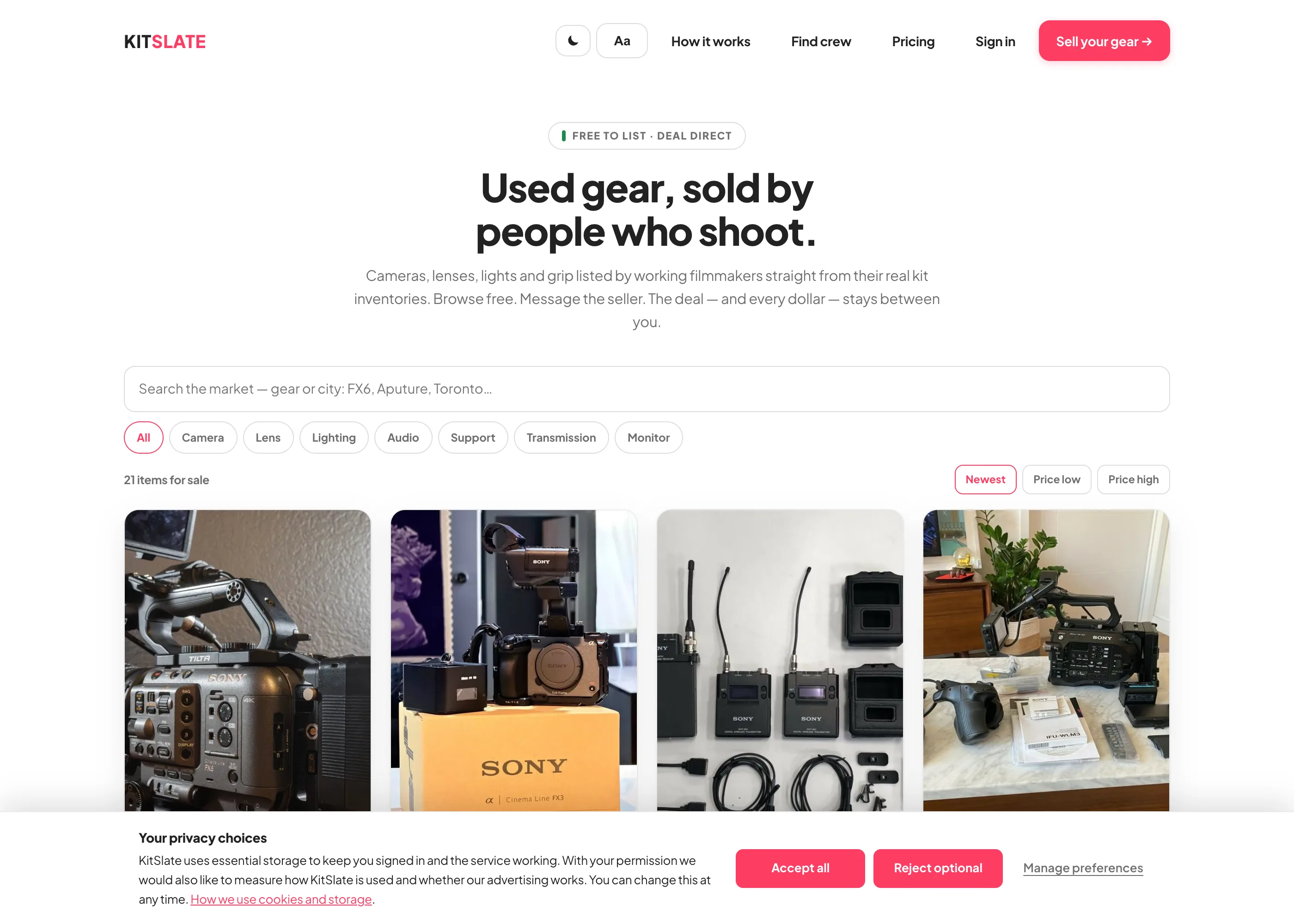
kitslate.app · the public market
The KitSlate used-gear market — real member listings with photos, asking price, condition, seller and city, with category filters and sorting
The used-gear market

Gear that stopped earning,
sold to people who shoot.

List an item straight from the inventory you already built — the name, photo and model carry across, so a listing takes about a minute. Listings are public, so anyone can browse; buyers sign in free to message you directly. KitSlate never handles the money: the deal stays between the two of you.

Free to list and to buy — no commission taken on a sale.
Photos checked by AI — reverse image search flags a stock or lifted shot.
Receipts verified — the AI reads your purchase receipt and buyers see only the verdict.
Photos watermarked — so a listing shot cannot be lifted off you.
Browse the market →  ·  How market & rates work →

Shared rates & your data.

Two promises that make everything above safe to rely on — price against the market without guessing, and never get locked in.

RATE GUIDE — SHARED RATES

Price against the market, not guesswork.

What it isAnonymous day rates pooled from real owners in your country — crew, gear and studio — so you can see where your pricing actually sits, with weekly estimates for gear. How sharing worksGive to get: share your own rates and the benchmarks unlock. Opt out any time and they grey off at once; rejoining after you leave waits a week or more. What's sharedYour rates, plus city and country. Never your name, your clients or your jobs. Where it's atLive in the app on researched benchmarks today; the real community pool fills in as early-access owners join.
YOUR DATA — IN, OUT, YOURS

Everything you put in, you can take out.

What comes inDrop a supplier receipt or invoice — PDF or a photo — and it becomes real inventory, with the receipt filed beside it: line items, serials and totals and all. A CSV of anything else is mapped column by column on the way in. What goes outEvery document prints to PDF. Clients, crew, inventory, income and expenses export as CSV that Wave and QuickBooks import — including an invoice CSV in QuickBooks’ own import format, and one grouped by ledger account. Bulk CSV export starts on the Studio plan. The backupYour entire workspace exports to a single file — one click, no lock-in. Kept privateSynced over encrypted connections to every device you sign into, encrypted at rest, and access-controlled to your workspace. Your separate workspace backup is encrypted in your browser before it is stored.

Coming over from the spreadsheet?

If you keep your kit in Gear List for Video Professionals — or any gear sheet with categories, serials and prices — your whole inventory crosses in one CSV. You don't map columns and you don't retype anything.
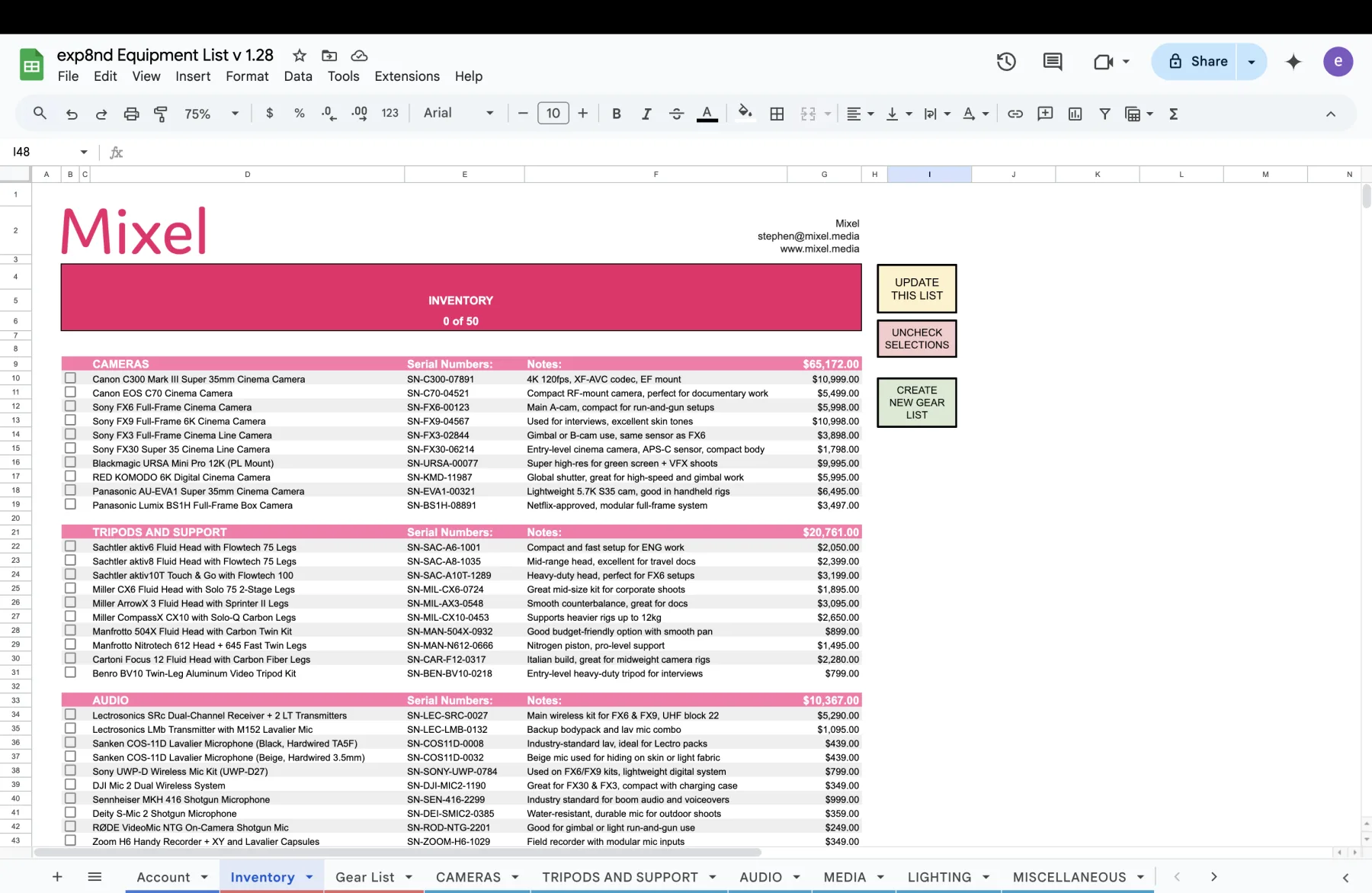
docs.google.com · Inventory
The spreadsheet Inventory tab: pink category header bands for CAMERAS, TRIPODS AND SUPPORT and AUDIO, each row a checkbox, item name, serial number, note and price.
Your Inventory tab — one export covers every category
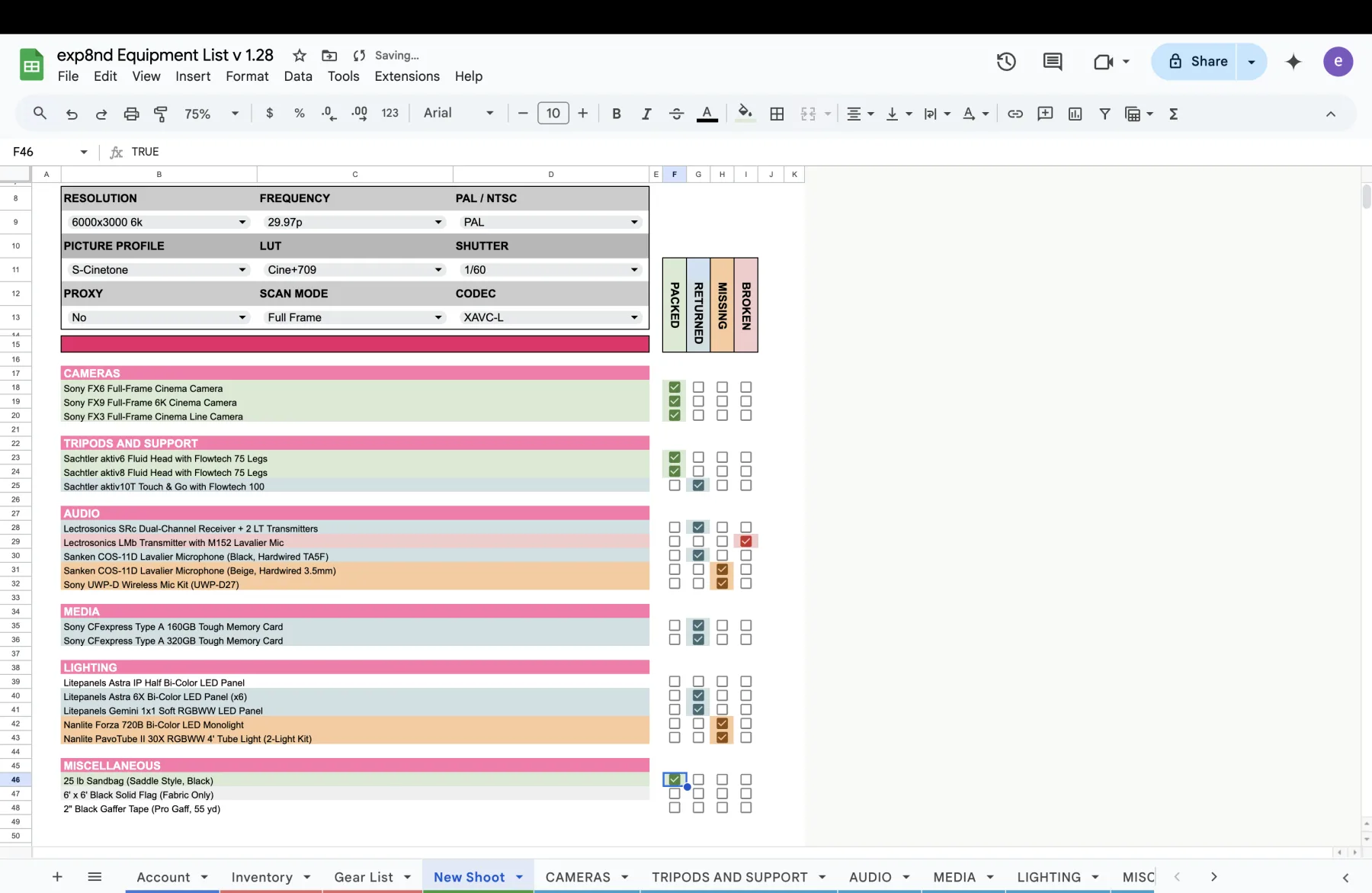
docs.google.com · New Shoot
A saved shoot tab in the spreadsheet with camera settings across the top and every item colour-coded by its packed, returned, missing or broken checkbox.
Packing and returns become buttons on the job
THE MOVE — ABOUT TWO MINUTES

Three steps, and your kit is in.

1 · ExportOpen your Inventory tab, hit UPDATE THIS LIST, then File → Download → Comma-separated values (.csv). Google exports whichever tab is in front. 2 · ImportIn KitSlate open Inventory, then Import / Export → Import… and drop the file in. Several files at once is fine. 3 · Check, then commitYour pink category bands are read as real categories. The preview says how many are new, how many already exist and which categories it will create. Nothing is written until you press the button. Import it twiceAnything with the same name and serial is flagged EXISTS and skipped, so re-importing after you add more gear only brings in the new rows. No sheet to handPaste a plain list, upload a PDF equipment list, or photograph a purchase receipt — the same import door takes all three, with AI standing by for anything the standard reader can’t shape. Receipt import is on every paid plan.
Full import instructions →

See it move.

The sandbox is a full, populated workspace — open a production, build a gear list, send a call sheet and watch the statuses change. No account, nothing to install.

← Back to the overview  ·  See pricing