Features · Media Center

Send, play and review camera files.

The Media Center is where your rushes go after the shoot. Send up to 1 TB by email or link. Your client gets a page that plays camera files, MXF included, shows what the camera recorded, lets them comment at the exact frame, read a transcript of what was said and talk to you on the same page — and you see everything they see. It is on every plan, the free profile included: open the app and press Media Center.
kitslate.app/t/… · the client's page
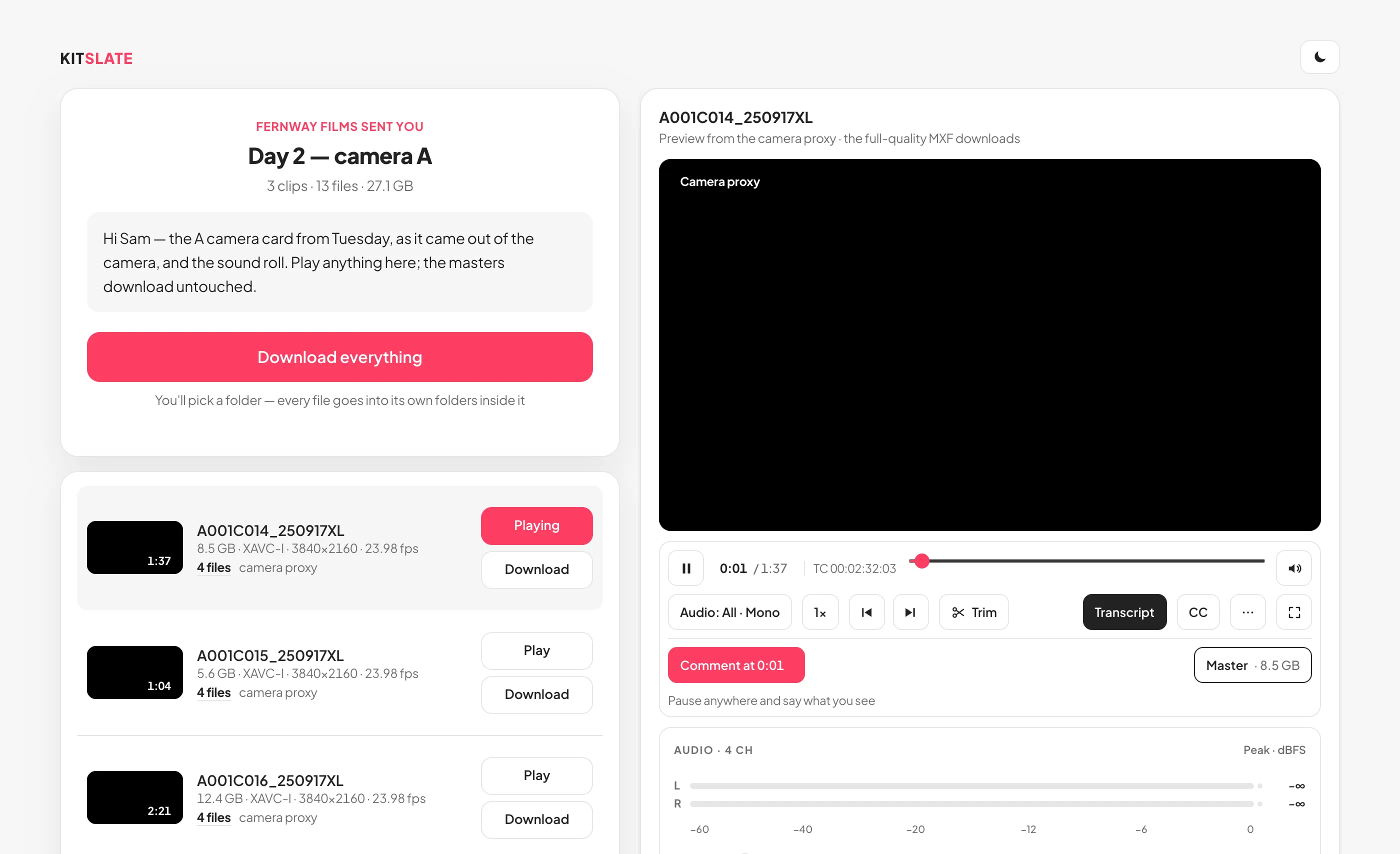
The download page with a clip playing: the files on the left, the player on the right with its controls under the picture, Comment at the paused moment, and the clip's video and audio specs beneath
The client’s page: the files, the player, and a comment at the paused frame.
01 · SEND — from the job, not a separate app

Up to 1 TB. The link works from the first second.

Drop a camera card, a folder or a single file — 5 GB on the free profile, 500 GB on Solo, 1 TB on Studio and above, up to 500 files in one transfer. Pick who gets it from your crew and client books, or type an address, and the email goes out under your company with your name and number on it. Or take one link and share it anywhere. The link exists the moment the upload starts: paste it while the files are still on their way, and their page shows what has arrived and fills in the rest as it comes. The email goes out when the last file is up.
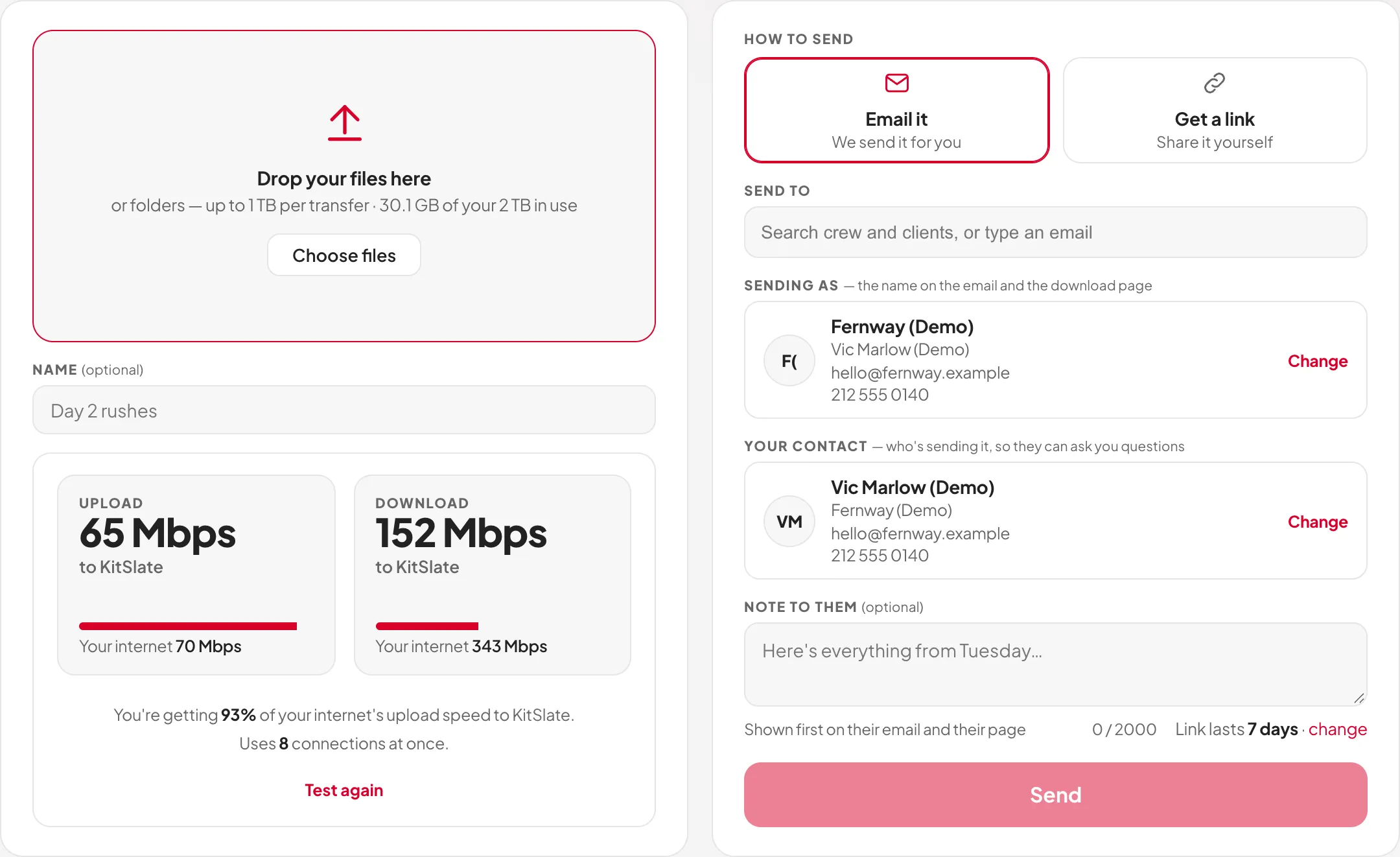
Email it, or get a linkKitSlate emails each recipient their own link, or hands you one link to share however you like.
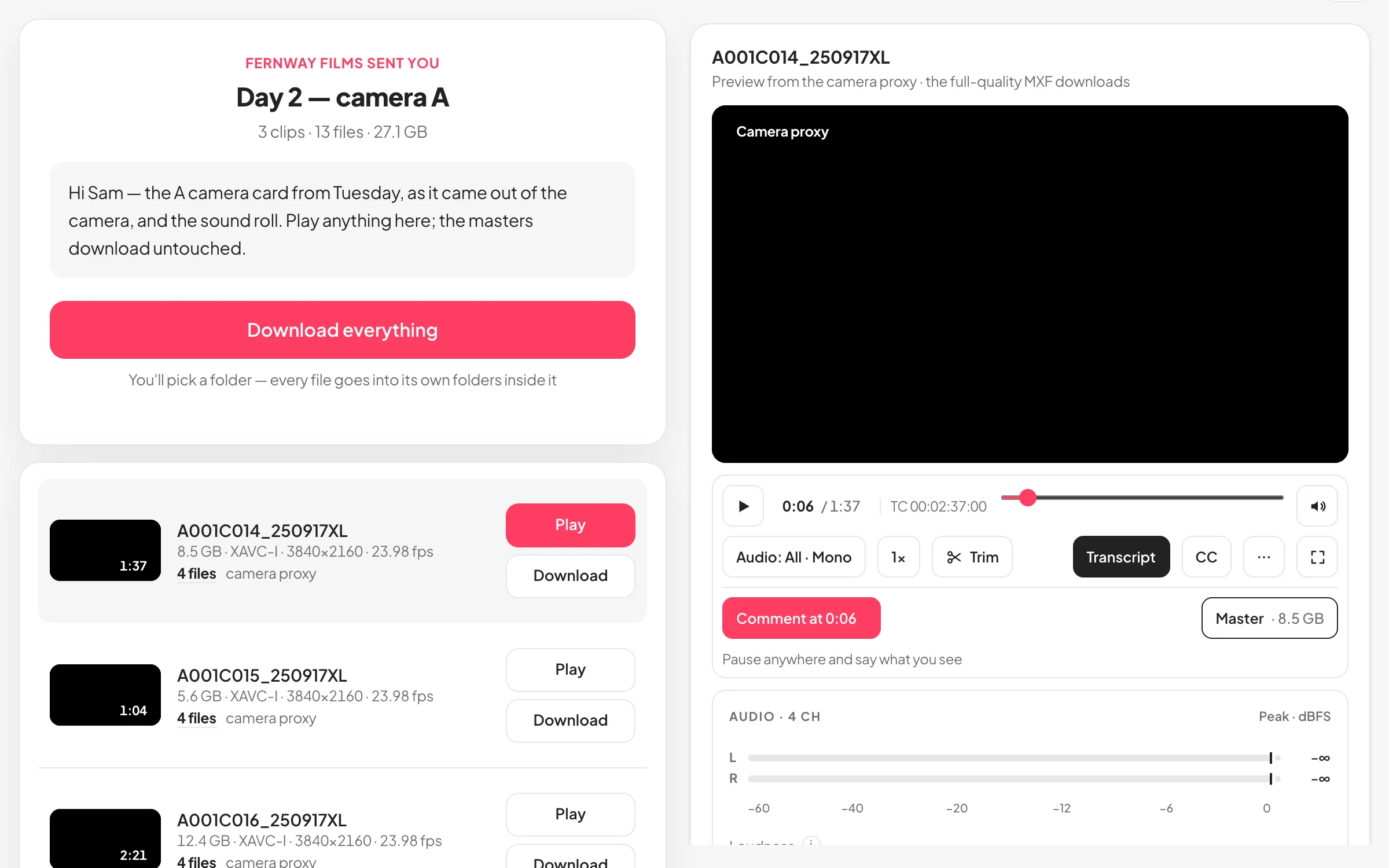
A camera card arrives as a cardSony XDCAM and XAVC cards group by clip: master, proxy, thumbnail and metadata on one row. On Chrome and Edge, Download everything saves the folders as they left the camera.
A speed test firstYour internet and your route to KitSlate storage, upload and download, so you know how long it will take before you start.
Picks up where it stoppedIf the connection drops, the upload resumes from the last part that was saved.
A note at the topUp to 2,000 characters, shown at the top of the email and of their page.
Links that last 1 to 30 daysSeven by default. When a link ends the files are deleted; keep your own copy.
kitslate.app/app · media center · send
The Send page in the sandbox — drop zone, the transfer's name and the speed test on the left; Email it or Get a link, who it goes to, Sending as, your contact, a note and the Send button on the right
Files and the speed test on the left, who gets it on the right.
Copperline sent you Interview B-roll, day 2
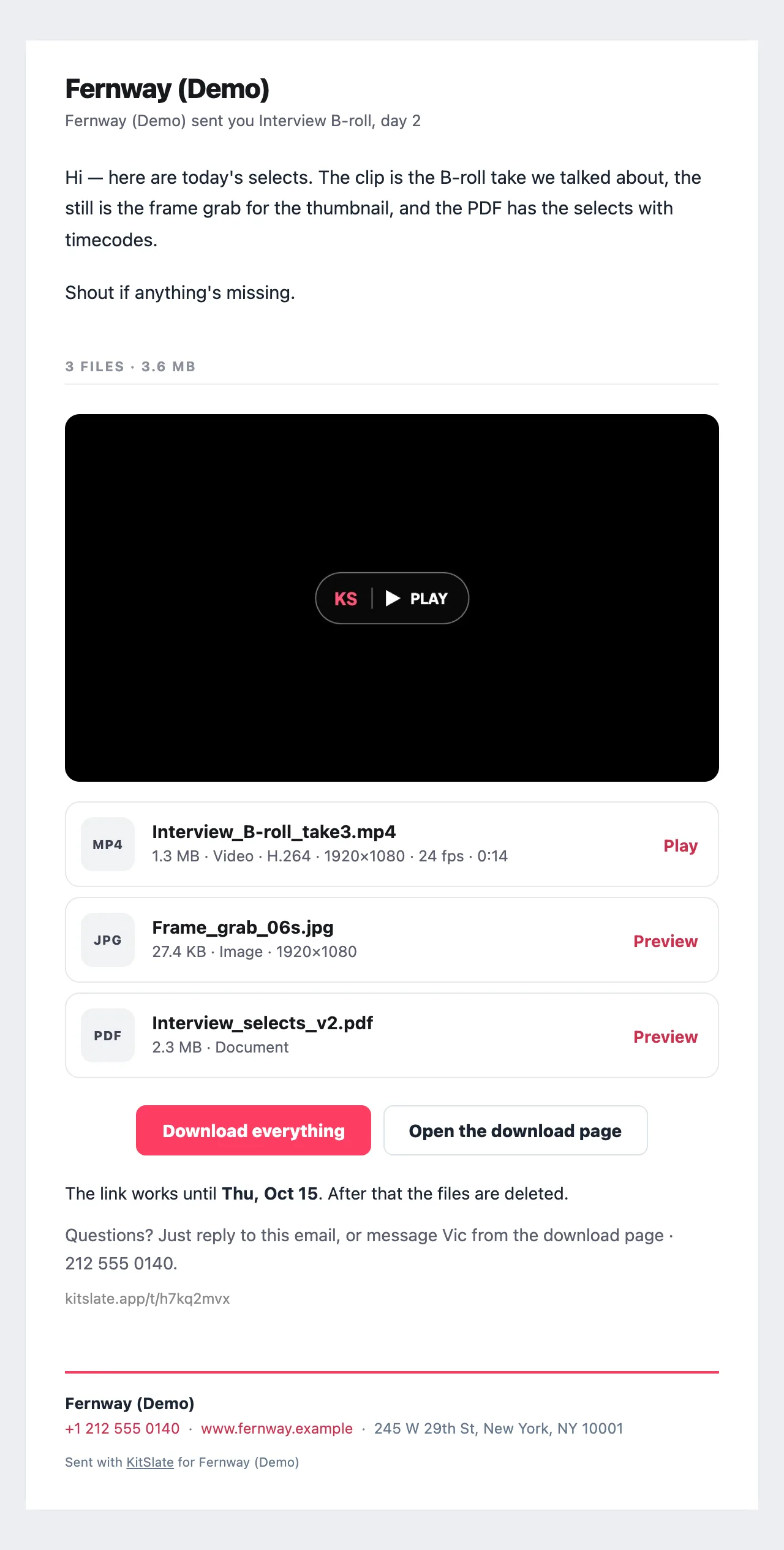
The file transfer email from Copperline on a computer: the note, a still of the first clip with a KS Play mark, a card per file with a type badge, name, size and specs and a Play or Preview link, Download everything and Open the download page buttons, the link date and the short link
The email they get: a picture of the first file, every file as a card, two buttons
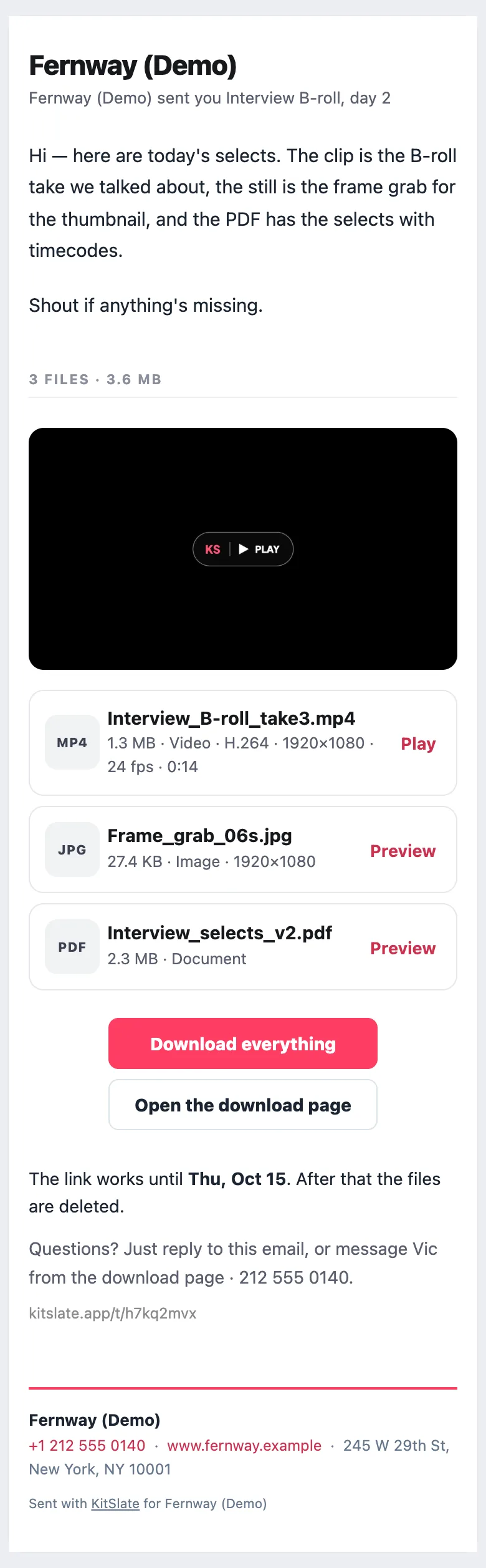
the same email on a phone
The same file transfer email on a phone: the still, the file cards and the two buttons stacked
On a phone the cards and buttons stack
02 · PLAY — camera files, on the page

Camera files play on the page. MXF too.

A browser can’t play MXF, so KitSlate makes a preview from the camera file and the page plays that. When the camera recorded a proxy beside the clip, the proxy plays at once; when it didn’t, the preview is ready a few minutes after upload, and the page shows how far it has got — copying, encoding, ready. Whatever plays, the download is always the untouched master. Under the picture, the spec sheet reads the file itself — the MXF header, the camera’s XML, a WAV’s bext and iXML — and lays it out in three groups: Picture, Sound and Source.
The master downloadsDownload master saves the camera original byte for byte. Download preview (MP4) saves the lightweight copy, labelled as a copy for watching, with its size.
Previews on paid plansFrom Solo up, each plan includes preview minutes every month, and the Send page shows how many are left. Turn proxy recording on in the camera and every clip plays as it arrives, on any plan.
PictureCodec, bit depth, resolution, scan, frame rate and bit rate.
SoundChannels, tracks and their names, sample rate, bit depth, and what you are listening to right now.
SourceLength, start timecode, the camera or recorder and its serial, scene and take, the master’s size and the preview’s.
Thumbnails firstEach clip shows the camera’s own thumbnail, or the preview’s still as soon as there is one.
kitslate.app/t/… · a camera card
The download page for a camera card: one row per clip with its thumbnail and specs, the camera proxy playing in the player, and a comment pinned to a timecode
One row per clip, the proxy in the player, the specs under it.
03 · SOUND — every track the camera recorded

Hear every track, one at a time or together.

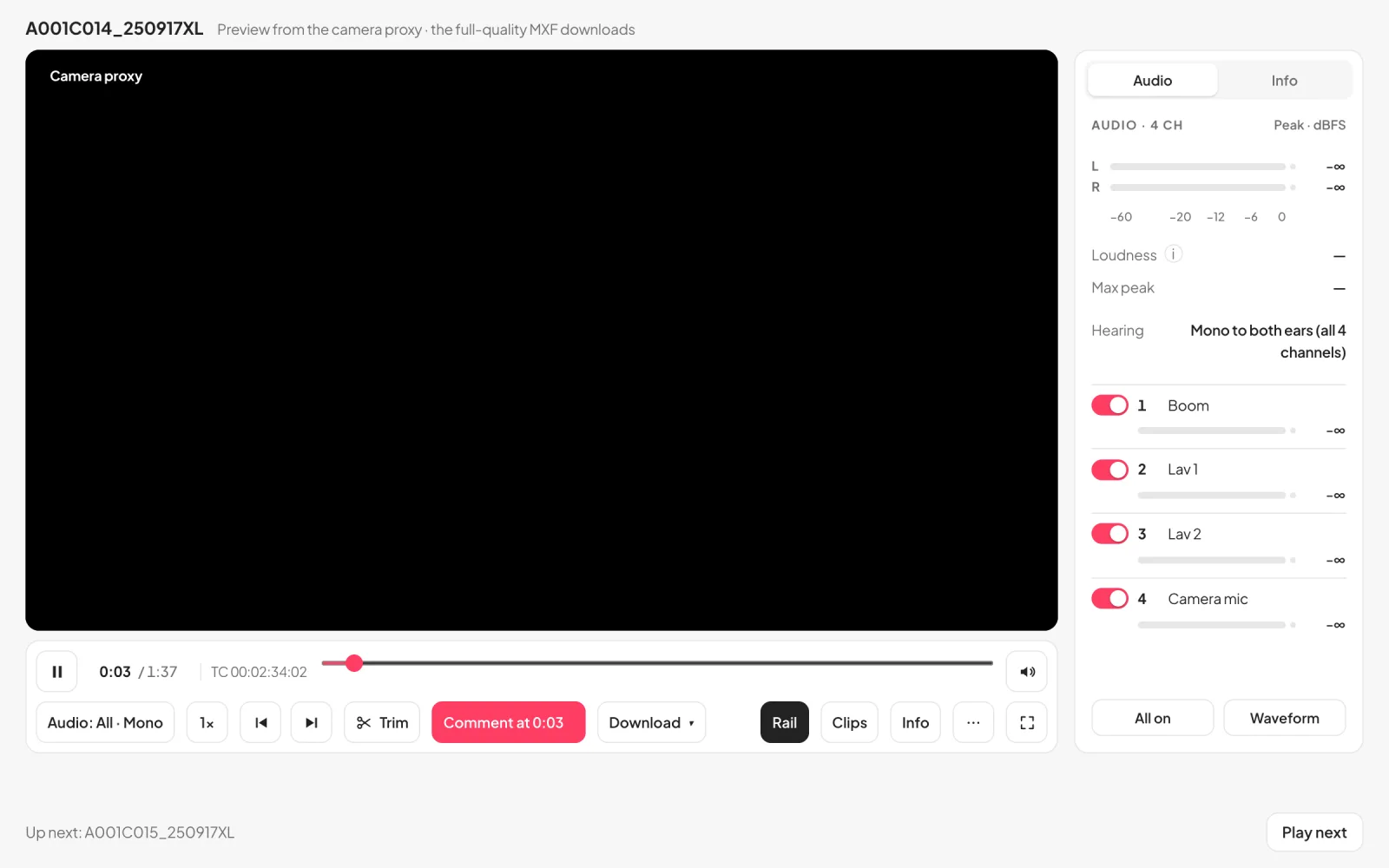
Camera files often carry four or eight separate tracks: the boom on one, a lav on another, the camera mic on a third. Each gets its own lane with a switch, a solo button and a slim meter with peak hold, dBFS and loudness. One Audio menu, laid out like VLC’s, picks the tracks and how they reach your ears — Stereo, Mono, Left, Right or Reverse.

Stereo or mono, for everyoneLav on the left and boom on the right? Mono puts both in both ears. Shift + M switches it from the keyboard.
Named from the mixerA sound recorder’s poly WAV shows the track names its iXML carries, with scene, take and start timecode.
One track, or all of them splitDownload a poly WAV whole, as one track, or split into a mono WAV per track — the original samples, cut in the browser.
A waveform when you want itOff by default; switch it on for a slim waveform of what you are hearing, to scrub by.
The limitOn the page, a camera file’s preview carries a stereo mix. Every track is listed with its name and level; the separate tracks come from the original file.
04 · LOOK — camera LUTs

Log footage, the way it was meant to look.

Footage shot in a log curve looks flat and grey on a normal screen. The player shows it as Rec.709, worked out from the camera’s own metadata, and labels where the look came from. A LUT the clip carries, or one included with the card, is used first; a show LUT you attach to the transfer comes before both, so everyone sees your look.

In this orderYour show LUT, then a LUT embedded in the clip, then one included with the card, then automatic Rec.709 from the log curve, then the original.
One switchLUT on or off in the player, with the source named beside it. The download is the untouched file either way.
Your defaultMedia Center Settings decides whether recipients see camera footage with its LUT first. You can change it for one send.
05 · REVIEW — notes at the exact frame

Pause, write, and it opens at that frame.

Pause anywhere and write. The note carries the clip’s own source timecode, drop-frame read as drop-frame, and reaches you as a chip that opens the clip at that frame. You answer on the same thread, and they see your reply on their page and in their email.
Markers on the scrubberEvery note sits on the scrubber at its moment; click one to go there.
Copy TCPuts the note’s timecode on the clipboard, ready for the edit.
Frame by frameThe , and . keys step one frame; J, K and L play backwards, pause and play faster; brackets set the speed from 0.25× to 2×.
A-B loop and snapshotsI and O set a loop around the moment in question. Shift + S saves the frame as a picture.
Picture toolsAdjust the picture, flip or rotate it, zoom to 100% or 200%, show aspect guides, and check for interlacing.
Every key on one sheetPress ? for the shortcuts. They work while the player has focus, never while you are typing.
kitslate.app/t/… · playing
The download page with a clip open in the player: Full screen and Expand above the picture, Comment at the paused moment under it, and the clip's codec, resolution, frame rate, length and audio beneath
Play it on the page, then comment at the moment.
06 · TAKE A PART — original quality where the file allows

Take just the part they need.

Drag the yellow handles on the filmstrip to set an in and an out, linked to the A-B loop, and download that part. What comes out depends on the file, and the menu says which before anything is made.

Original WAVThe samples between your in and out, exactly as recorded.
Original MP4 or MOVThe frames untouched, copied out of the file. A long-GOP clip starts on the keyframe at or before your in point; the menu tells you where.
Compressed MP4Any file with a preview, MXF included, gives a small MP4 of the part, made from the preview. Good for a message; not an original.
The limitsAn open-GOP part can start with a frame or two that won’t decode until the next keyframe. An MXF part comes as the compressed MP4.
07 · READ — what was said, at the timecode

Read what was said, at the timecode.

With the Pro review tools — every paid plan, and either side paying unlocks them — every audio and video file can have a transcript: what was said, one line at a time, each line with the clip’s own timecode. The words light up as it plays, a press on a line goes there, and a search narrows the lines to a word. It is made automatically on KitSlate’s side by Workers AI (whisper-large-v3-turbo), from the track with speech, and it is off until you switch it on.
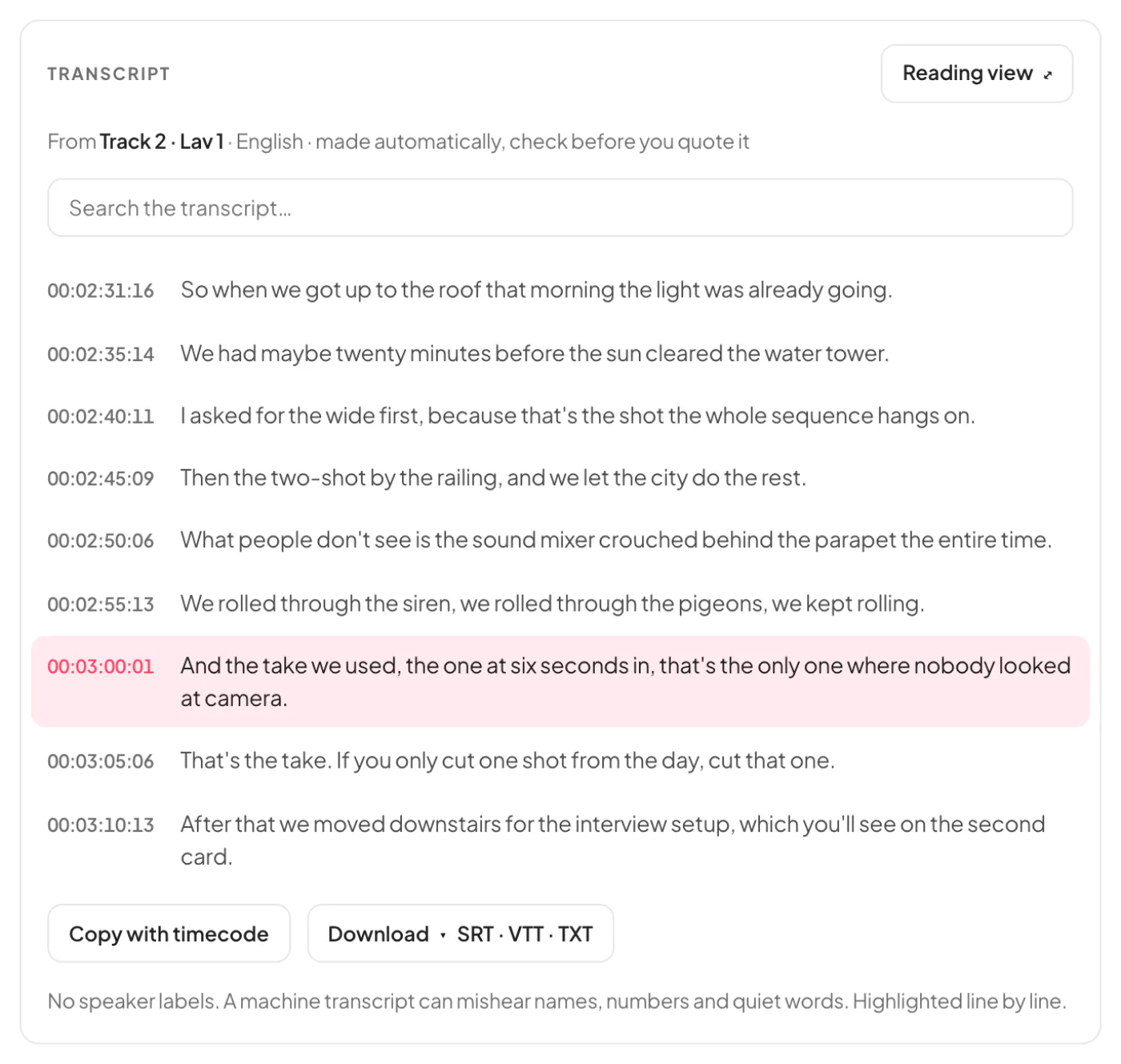
A transcript, at the timecodeThe source timecode, read from the file, leads every line. The line being heard is lit, and the word with it; press a line and the clip goes there.
Select words to trim to themSelect a few words or lines and a bar appears: Download this part takes exactly that stretch, Attach to a comment puts the range and the words on a note, and Copy text copies them with their timecode.
Reading viewThe transcript as the main view, in large type, with the picture small in a corner — for a paper edit. CC shows the line being said under the picture, never over it.
TXT, SRT or VTTDownload it as text with timecodes (one line each) or without (the words as paragraphs), or as SRT or VTT subtitles. Copy with timecode puts the whole thing on the clipboard.
Made automatically, so check itNo speaker labels, and a machine can mishear names, numbers and quiet words. The panel names the track it was heard from — a lav or boom by name where the recorder labelled it — and says so: check it before you quote it.
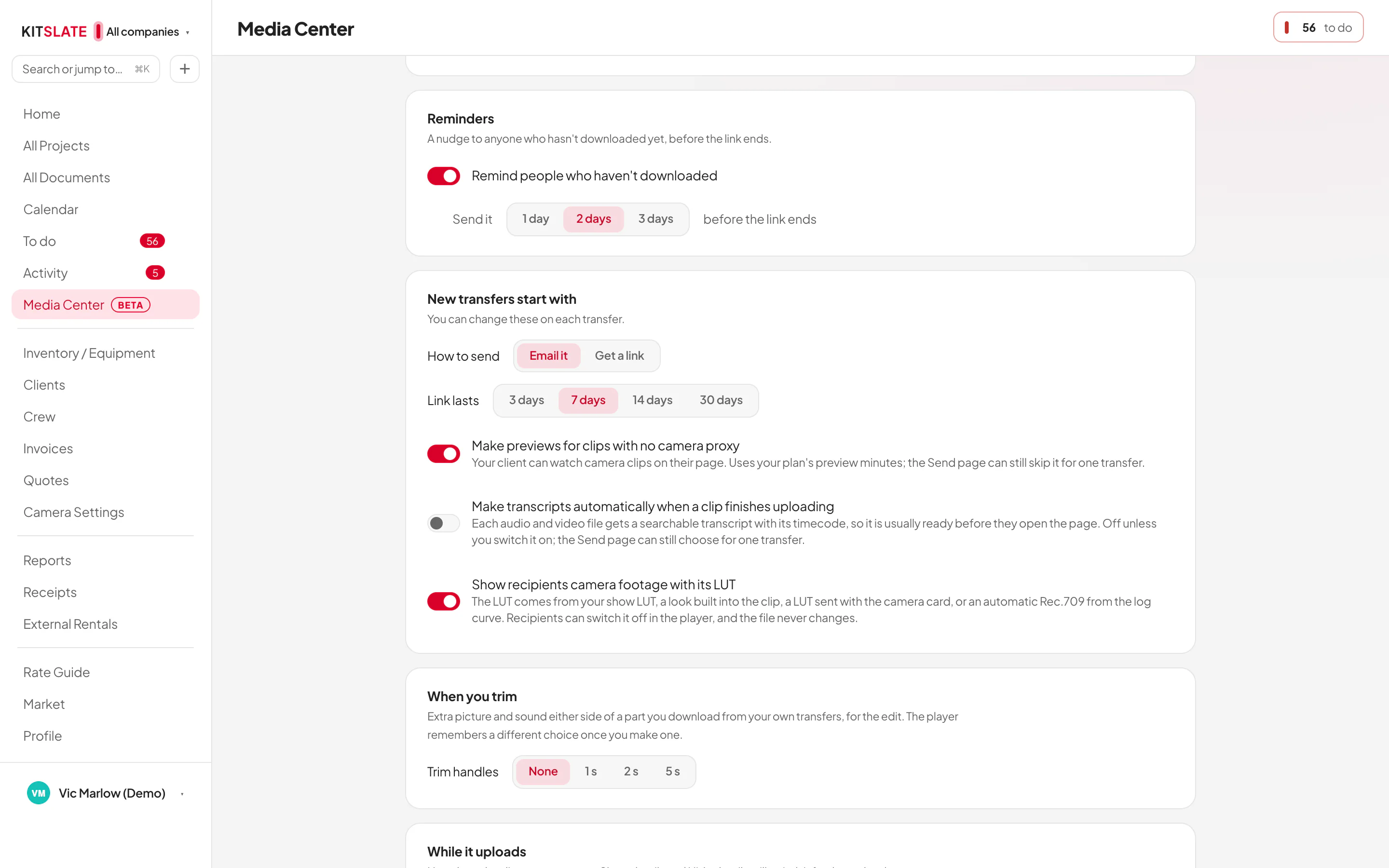
Off until you switch it onMedia Center Settings holds the default — Make transcripts automatically when a clip finishes uploading — and the Send page can choose for one transfer. Otherwise nothing is made until someone presses Make transcript on the page, and the tab says how many minutes of sound it is.
kitslate.app/t/… · the Transcript panel
The Transcript panel under the player: From Track 2 · Lav 1 · English · made automatically, check before you quote it; a search box; nine lines each led by the clip's timecode with the line at the playhead lit; Copy with timecode and Download SRT · VTT · TXT; and the note that there are no speaker labels
Every line at the clip’s timecode, the one being heard lit; the downloads under it.
kitslate.app/app · media center · settings
Media Center Settings, New transfers start with: How to send, Link lasts, Make previews for clips with no camera proxy, the switch Make transcripts automatically when a clip finishes uploading — off — with its note, and Show recipients camera footage with its LUT
The default, off until you switch it on; the Send page can still choose for one transfer
08 · WATCH — three ways

On the page, expanded, or full screen.

Three layouts, and every tool works in each. The page keeps the files, the player and the conversation side by side. Expanded fills the window: the picture takes the space, with the audio rail, the clips and the file’s info beside it, each one switchable — hide both for a cinema layout. Full screen is the picture alone, the controls tucked away until you move.

PageFiles on one side, the player, spec sheet and conversation on the other. On a phone they stack.
ExpandedThe player fills the window on one screen, no scrolling. A to show or hide the rail, C for clips and comments, Shift + I for the file’s info.
Full screenF, or the button. Comments slide in from the side; the controls hide while you watch.
The picture keeps its shape16:9, 4:3, 9:16 or anamorphic, from the file’s own metadata, sized before it loads so nothing jumps.
09 · YOU SEE — everything they see, and more

Their page, plus who did what.

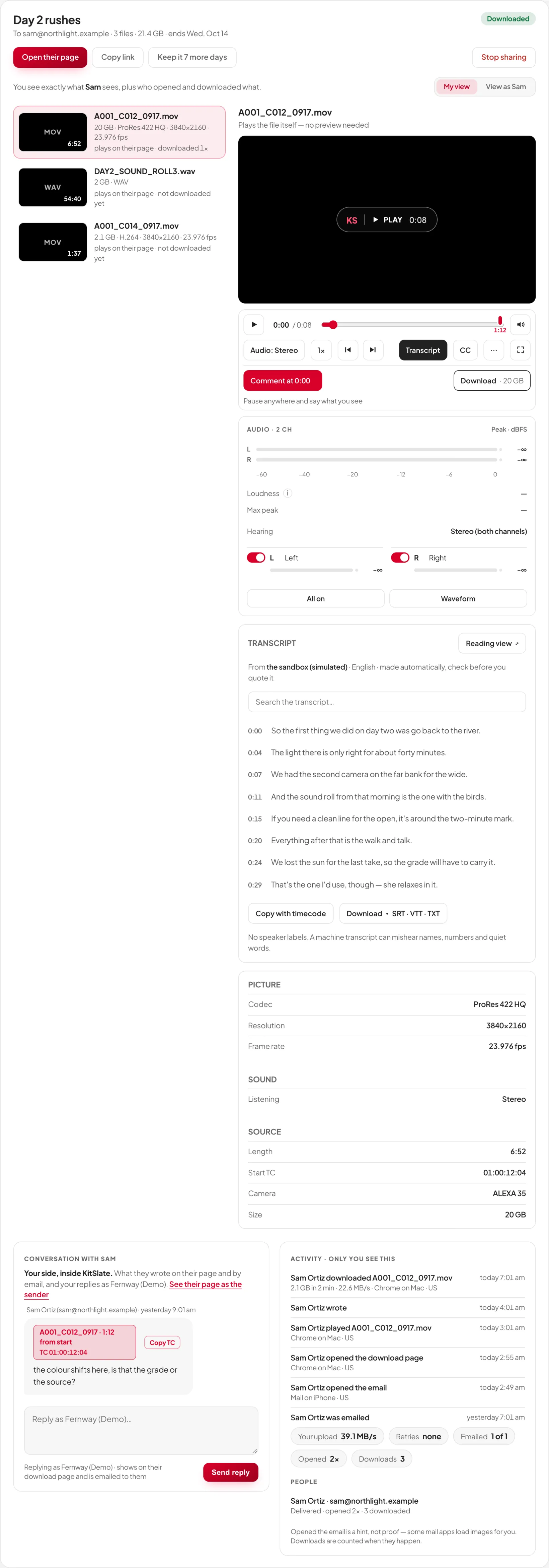
Open a transfer you sent and you get the page your client gets — the same player, the same tracks, the same spec sheet — with an Activity panel only you see: every open, play and download, with the time. The Sent tab reads in sentences: Downloaded everything · today 2:20 pm, Watched a preview · hasn’t downloaded yet. Their messages and yours read as one conversation, under the transfer, in Activity and in your inbox.
Automatic emails you chooseThe first time each person downloads, every download, or never; a note when someone writes back; a reminder before a link ends.
Stop sharing, keep it longerEnd a link early, or give it another week, from the Sent tab.
Send as either companySending as picks the company; the email, the page and the contact card carry its name and details.
Their speed, and yoursDownloads started and finished, how fast, how many tries — and your own upload speed.
kitslate.app/app · media center · sent
A sent transfer opened on the Sent tab: You see exactly what Sam sees, the files and the shared player with its audio panel and spec sheet, then the conversation with a timecode comment and a reply box beside Activity, only you see this, with every open, play and download
The sentence first; the numbers and the timeline under it.
10 · FREE AND PRO — either side paying unlocks it

Free to watch. Pro review tools with every paid plan.

Everyone you send to can play and review, comments at a timecode, the spec sheet, listen as stereo or mono and download the whole file, on any plan. Every paid KitSlate plan includes them — for you, and for the people you send to. When you send from the free plan, a client with a paid KitSlate plan of their own signs in on the page and gets them there.

Trim and original partsPick in and out like Apple Photos — original frames where the file allows, a quick MP4 where it doesn’t
Every audio trackA lane, a meter and solo for every track; one-track and split WAV downloads
Camera LUTsSee log footage as Rec.709 — the camera’s own LUT, a show LUT, or automatic
Frame-accurate reviewFrame step, A-B loop, snapshots, timecode display, picture tools, zoom and guides
TranscriptsWhat’s said, every line at its timecode — words light up as it plays; search it, trim by selecting text, download TXT, SRT or VTT
11 · HOW IT SENDS — measured on kitslate.app, not promised

As fast as the line it is sent from — here is how.

Your browser uploads straight into our storage, with nothing in between to slow it down. The file goes up in parts over as many as 32 parallel connections, so one slow stream never sets the pace. Before you start, the speed test on the Send page measures your line and the route to storage, and sets the part size and the connection count from what it finds. Measured from our office in Manhattan on a 2 Gbps fiber connection: 1.82 Gbps up to storage over 12 connections and 2.04 Gbps back down — 100 GB in about 8 min, 1 TB in about 1 h 21 min. Your times are your line’s; the test tells you before you start.

Straight into storageEach part goes from your browser straight into our storage on a signed address, with nothing in between. If storage cannot be reached directly from where you are, the upload goes through KitSlate instead and still arrives.
Up to 32 connections at onceParts go up in parallel, and the count steps up while it keeps helping. On the 2 Gbps line, 12 connections carried 1.82 Gbps — all of what the line gives.
The speed test sets the planIt measures your internet and your route to storage, then picks the part size and the connection count for this transfer.
Nearest to themRecipients stream or download from our network, from the location nearest them.
QUESTIONS — the ones people ask first

Before you try it.

How big can a transfer be?

Per transfer: 5 GB on the free profile, 500 GB on Solo, 1 TB on Studio and above, up to 500 files. Your live links share your storage — 100 GB on the free profile, 500 GB on Solo, 2 TB on Studio, 4 TB on Production House, 10 TB on Enterprise; on the free profile, when it is full the oldest live transfer ends to make room. A link lasts 1 to 30 days, seven by default, and the files are deleted when it ends.

Can my client play MXF straight off the camera card?

Yes. If the camera recorded a proxy beside the clip, the proxy plays at once. If it didn’t, KitSlate makes a preview from the camera file on paid plans, ready a few minutes after upload, and the page shows its progress. The master downloads untouched either way.

Is the preview the same quality as the master?

No. The preview is a compressed copy for watching, with a stereo mix of the sound. Download master always saves the original; Download preview (MP4) is labelled as the copy.

My camera recorded eight tracks. What do I hear?

Each track gets a lane with a switch, solo and a meter. A camera file’s preview carries a stereo mix; the separate tracks are in the original file.

Does it read my sound recorder’s track names?

Yes. A poly WAV shows the names its iXML carries — Boom, Lav 1 — with scene, take, start timecode and the recorder. Download it whole, one track, or split into mono WAVs.

Can the editor take just one section in original quality?

Yes, where the file allows. WAV parts are the original samples; MP4 and MOV parts are the original frames from the keyframe at or before the in point. Any previewed file can also give a compressed MP4 of the part.

Can I get a transcript of the interview?

Yes, with the Pro review tools (every paid plan; either side paying unlocks them). Every audio and video file can have one: each line at the clip’s own timecode, searchable, with TXT, SRT and VTT downloads, and you can select a few words to trim to exactly that part. It is made automatically by Workers AI (whisper-large-v3-turbo) with no speaker labels, so check it before you quote it. It is off until you switch it on — in Settings for every send, on the Send page for one transfer, or Make transcript on the page itself.

Does the timecode match the edit?

Every comment carries the clip’s source timecode, read from the file, with drop-frame kept as drop-frame. Copy TC puts it on the clipboard.

Will my log footage look right to the client?

Yes. Log footage shows as Rec.709, from the camera’s metadata, its own LUT or one included with the card — or the show LUT you attach. One switch shows the original.

My client is on the free plan. Do they get the Pro tools?

Yes, when you pay: pro review tools come with every paid plan, for you and for everyone you send to. When you send from the free plan, a client with a paid plan of their own signs in on the page and gets them there.

What does the client need?

A browser. No account and nothing to install: they open the link, play, comment and download. By downloading they accept the terms.

Where are the files kept?

On our storage in North America, for as long as the link lasts. They are deleted when the link ends and are not part of our backups, so keep your own copy.

How does it compare with Media Shuttle, MASV, WeTransfer and the rest?

Side by side, row by row: Media Shuttle, MASV, WeTransfer, Dropbox and FileZilla, from transfer size and speed to playback, review, terms and price. Each one’s figures come from its own pages, and where one of them leads, the table says so.

When can I use it?

Now, on every plan including the free profile: create a free account or sign in, then press Media Center in the sidebar. It is still in beta, so tell us anything that feels wrong. Anyone can try it in the sandbox without an account.

Send the next rushes from here.

The sandbox has a production at every stage, a transfer included, no account needed.