Big transfers finish.
Even when you walk away.
KitSlate Desktop is the same Media Center in a small app for Mac and Windows, signed in as you. Drop a card and it sends in parts, many at once, and keeps going through sleep, a closed window and a restart. Big deliveries arrive the same way, into one folder.
A browser is built to be closed. A card dump is not.
Browsers are excellent at pages and careless with a 200 GB job. Each of these has stopped a real transfer. The app is the same Media Center without the parts of a browser that give up. Everything still works in the browser, and the people you send to never need the app; it is for the jobs you cannot babysit.
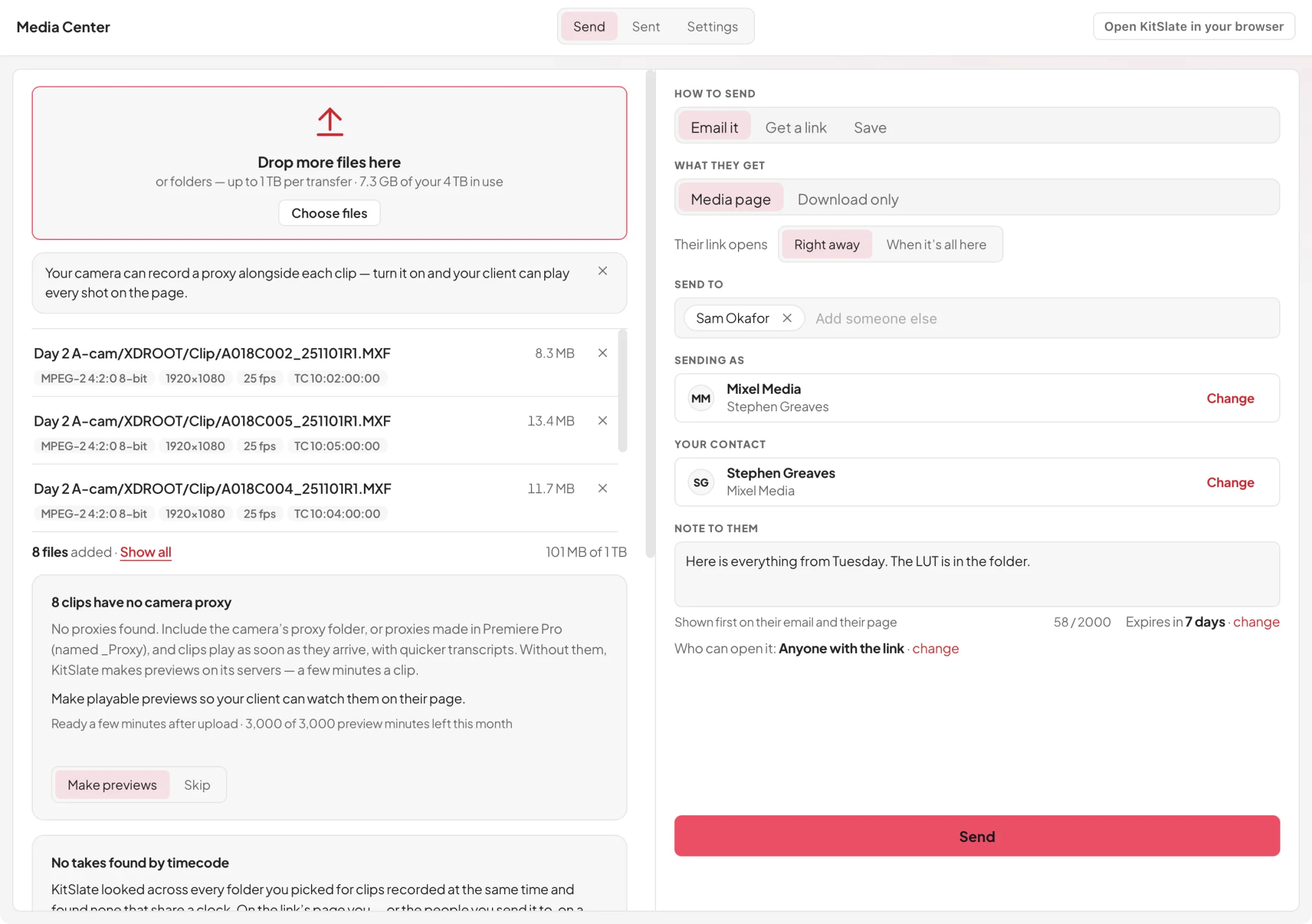
The same send page. Nothing to learn.
The app shows kitslate.app in a window of its own. Sign in once, through your own browser, and it stays signed in. Drop a camera card, a folder or a file, and the send page is the one you already know: who gets it, the note, how long the link lasts, a password, who may open it. Their link opens right away, so each file plays on their page the moment it is up.
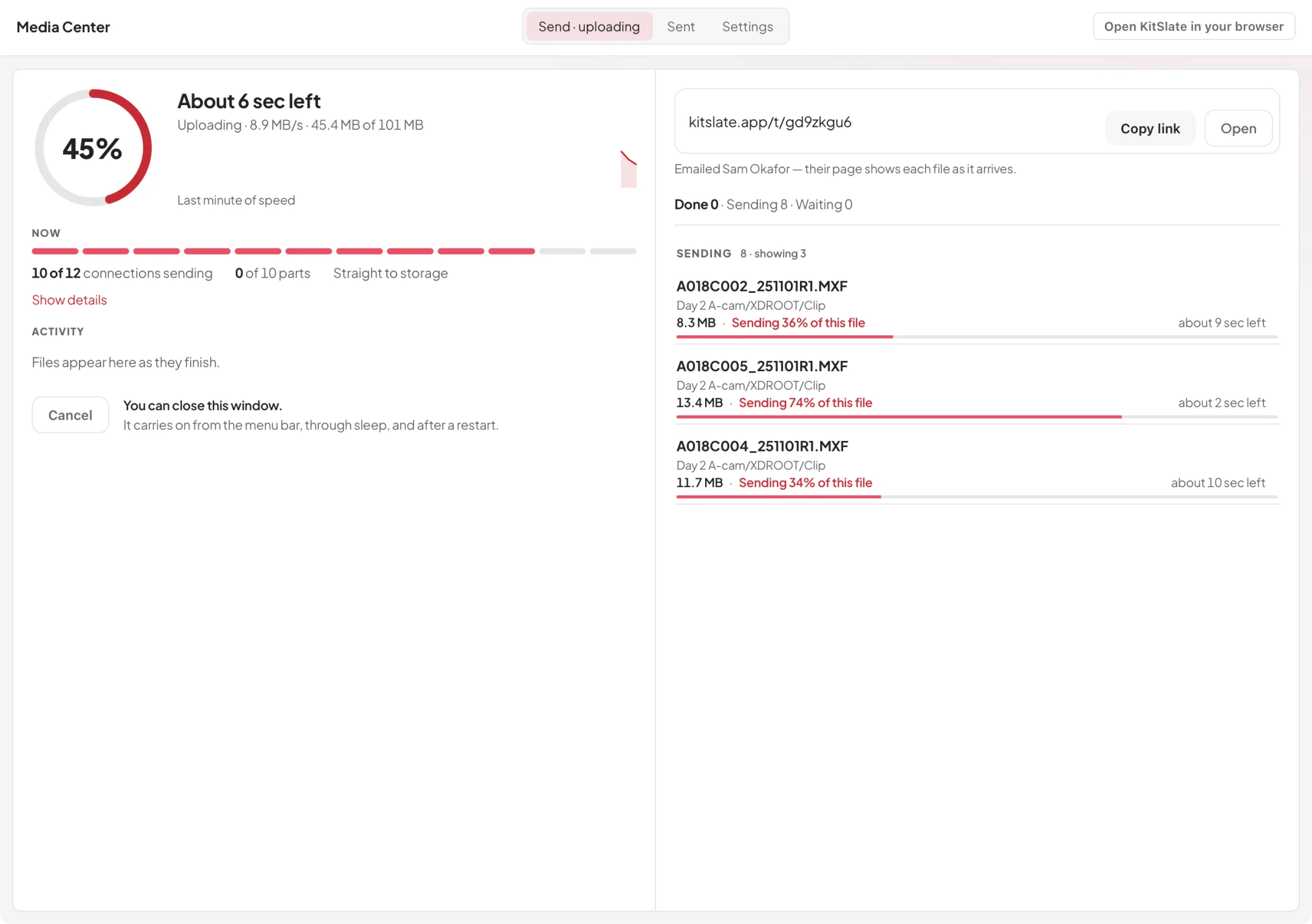
Walk away. It finishes.
Close the window and it carries on from the menu bar on a Mac or the tray on Windows. Shut the lid and it picks up when the laptop wakes. Quit it, or restart the computer, and it goes on from the last part that arrived. We tested exactly that: a 1 GB upload force-quit at 33% carried on by itself when the app reopened, and one with the window closed at 22% finished hidden.
Big deliveries arrive in one folder, and finish.
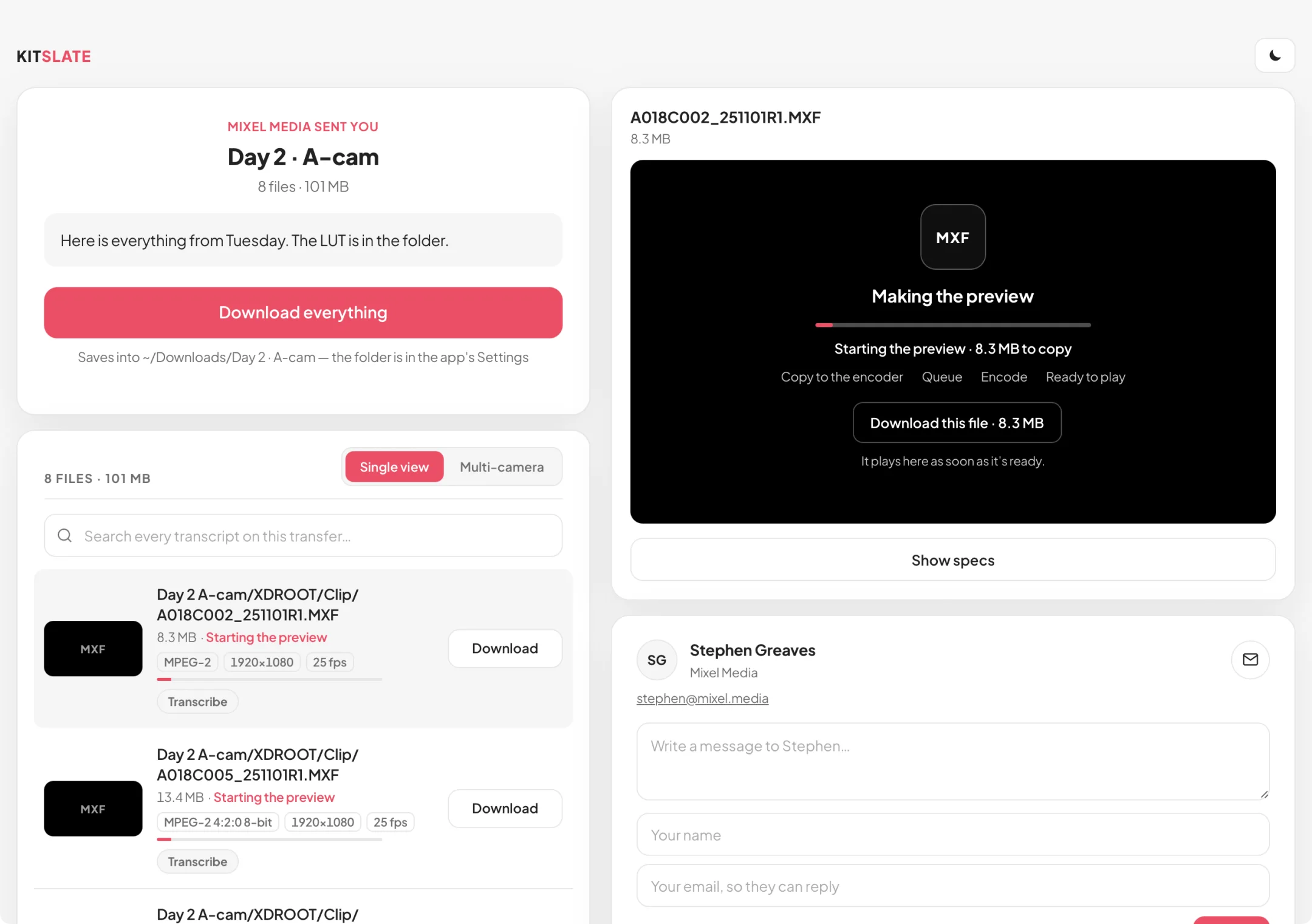
On a big transfer the download page offers Open in KitSlate. The page opens in the app, signed out, exactly as in a browser, and Download everything saves every file into one folder, in the sender’s own folders, over several connections at once. If the connection drops or the computer restarts, it carries on from the pieces already saved: in our test a 1 GB download killed at 39% picked up from there and finished.
No browser inside. It uses yours.
The app does not carry a browser of its own. It uses the one built into your Mac or PC and loads the site, so the installer is small and the pages are always the current ones: when kitslate.app changes, the app has changed. The native part, the part that reads files, sends and saves them and sits in the menu bar, updates itself.
What you get online, and what the app adds.
Everything in the Media Center works in a browser, on any computer, and the people you send to only ever need a browser. The app is the same Media Center with the parts a browser cannot do: the jobs you walk away from, and the work on files that are still on your computer.
| Feature | Online, in a browser | KitSlate Desktop |
|---|---|---|
| Send and receive, up to your plan’s size | Yes | Yes |
| Their link opens right away; files play as they arrive | Yes | Yes |
| Many parts at once, straight to storage | Yes | Yes |
| Keeps going with the window closed, through sleep and a restart | No | Yes |
| Never asks “Reload site?” in the middle of a send | No | Yes |
| Receives into one folder of your choice, carrying on after a restart | Chrome and Edge, and not every folder | Yes |
| Something to install | Nothing | One download, then it updates itself |
Before you try it.
Is it faster than the browser?
On most lines, no. The browser already sends many parts at once straight to storage, and your connection is the limit. The app sends by the same route at the same speed. What it adds is that the upload carries on when the window is closed, the laptop sleeps or the computer restarts.
Do I need it?
No. Everything on this page works in the browser except carrying on through sleep and a restart. The app is for long uploads you do not want to babysit.
Does it change my plan?
No. It is free to install, and your plan’s transfer sizes, link days and storage apply exactly as online.
Where do the settings live?
Online, in the Media Center. The app reads them and has none of its own, so a change made online is already made in the app.
Do the people I send to need it?
No. They open the link in a browser and play, comment and download as always.
How does it update?
The pages are the live site, so most changes reach the app the moment they reach kitslate.app. The native part checks for a new version when the app opens and installs it on the next launch.
How do I get the best speed out of it?
The app has no speed settings; it finds the pace of your line by itself. What moves the number is your upload rate, a cable instead of Wi-Fi, and the drive it reads from. The manual lays it out, including what happens when the lid closes.
Which computers?
Macs with Apple silicon or Intel, and 64-bit Windows. There is no Linux app.
Do I need to know whether my Mac is Intel or Apple silicon?
No. One Mac download carries both, and your Mac opens the half that matches its chip. If you are curious: Apple menu → About This Mac says Chip for Apple silicon and Processor for Intel.
Drop the card. Close the laptop. It finishes.
Free to install. Sign in with your KitSlate account, or try the sandbox inside it.