More than a transfer. A media center for your rushes.
Send up to 1 TB. Your client watches camera files right on the page, MXF included. They hear every audio track, see the camera’s specs, comment at the exact frame, and take just the part they need in original quality.
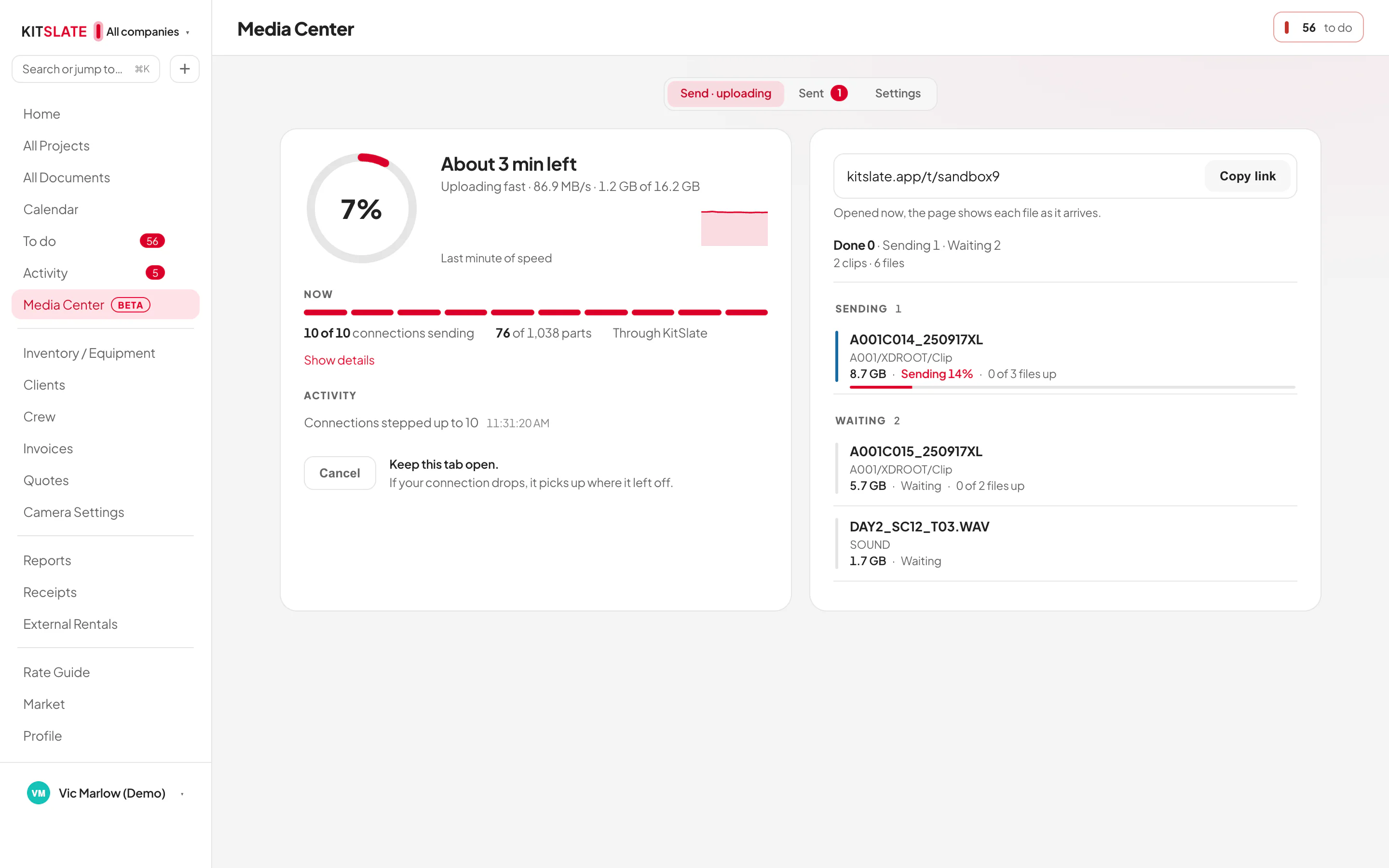
Uploads use as many as 32 parallel connections, so a transfer uses what your line can give. Measured from our office in Manhattan on a 2 Gbps fiber connection: 1.82 Gbps up to KitSlate storage over 12 connections, 2.04 Gbps back down. At that rate:
| 5 GB | about 24 sec |
| 100 GB | about 8 min |
| 500 GB | about 39 min |
| 1 TB | about 1 h 21 min |
| 100 GB on a 200 Mbps line | about 1 h 12 min |
What the Media Center does
Everything below happens on one page your client opens from the link. They need no account and nothing to install.
Up to 1 TB, and the link works from the first second.
Drop a camera card, a folder or one file — 5 GB on the free profile, 500 GB on Solo, 1 TB on Studio and above. Email it to the people on the job, or copy one link and share it anywhere.
The link exists the moment the upload starts, so you can paste it while the files are still on their way. Their page shows what has arrived and fills in the rest as it comes.
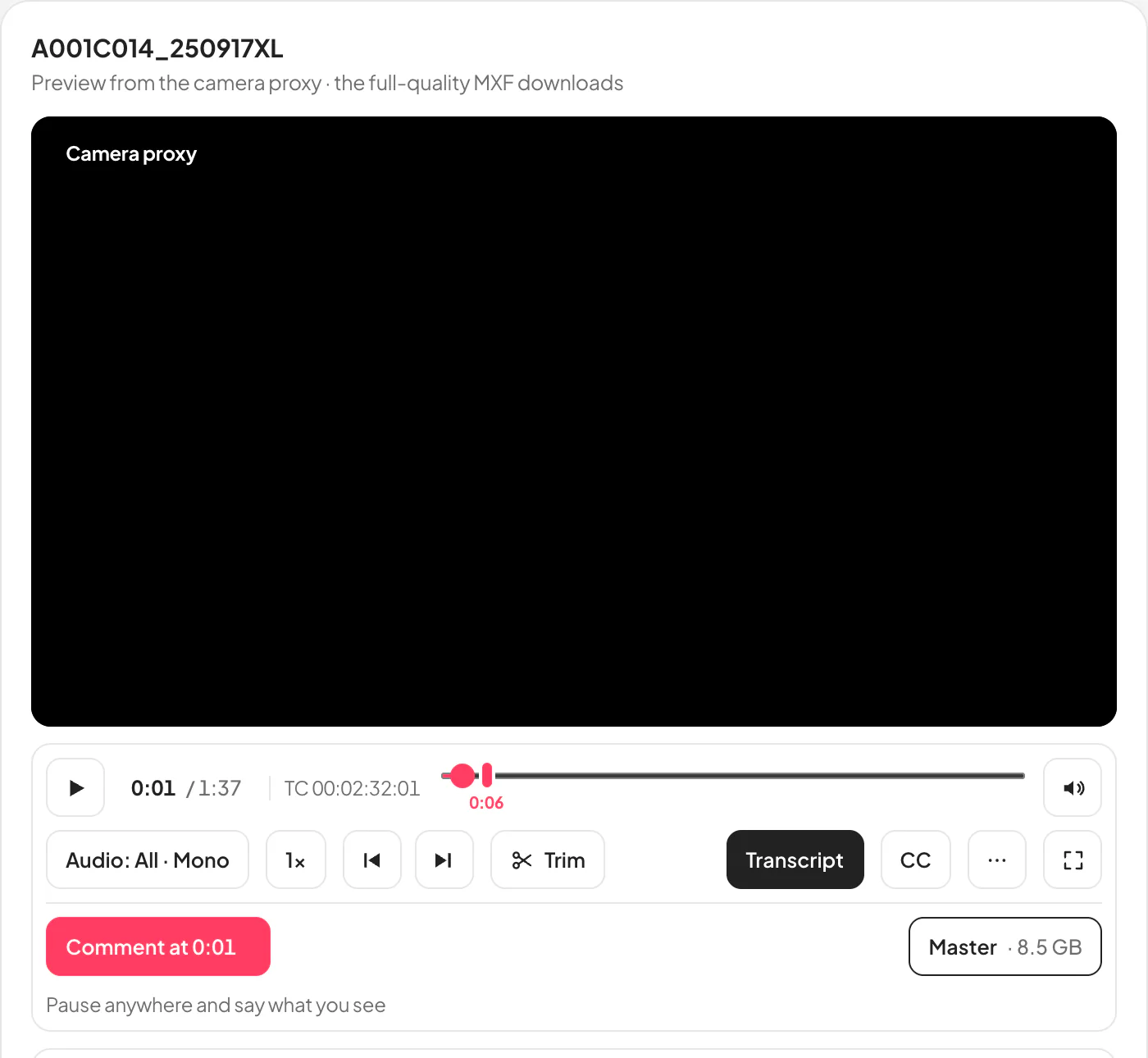
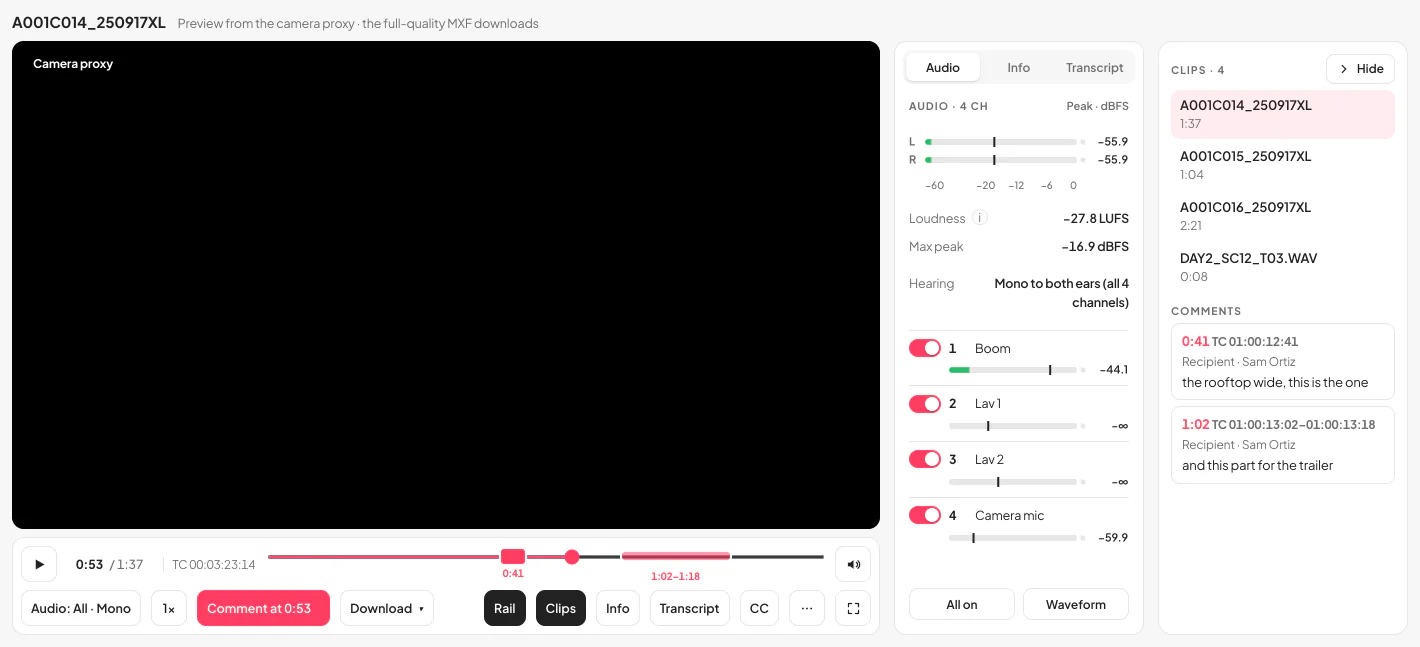
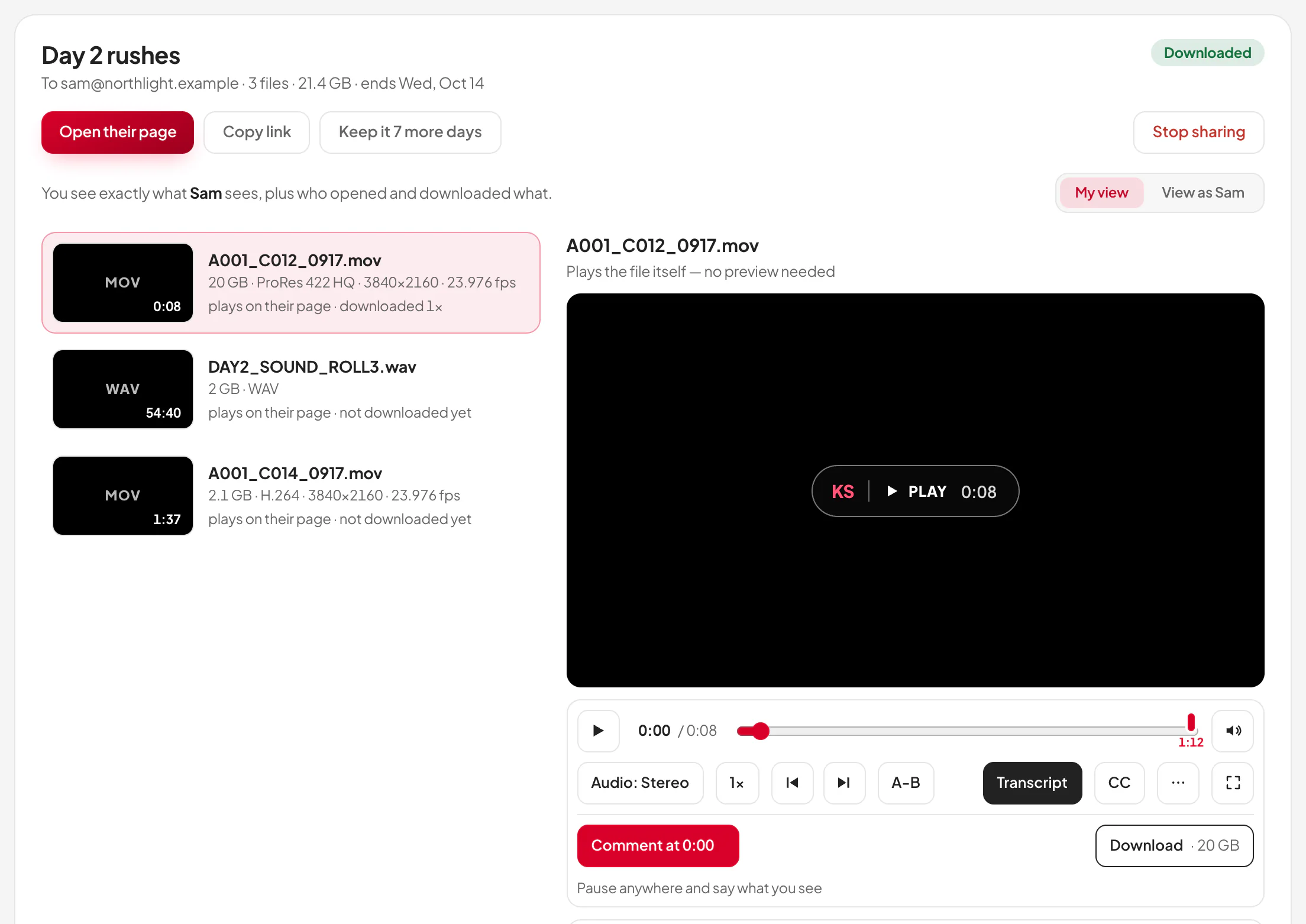
Camera files play on the page. MXF too.
A browser can’t play MXF, so KitSlate makes a preview from the camera file and the page plays that. When the camera recorded a proxy, the proxy plays at once. The download is always the untouched master.
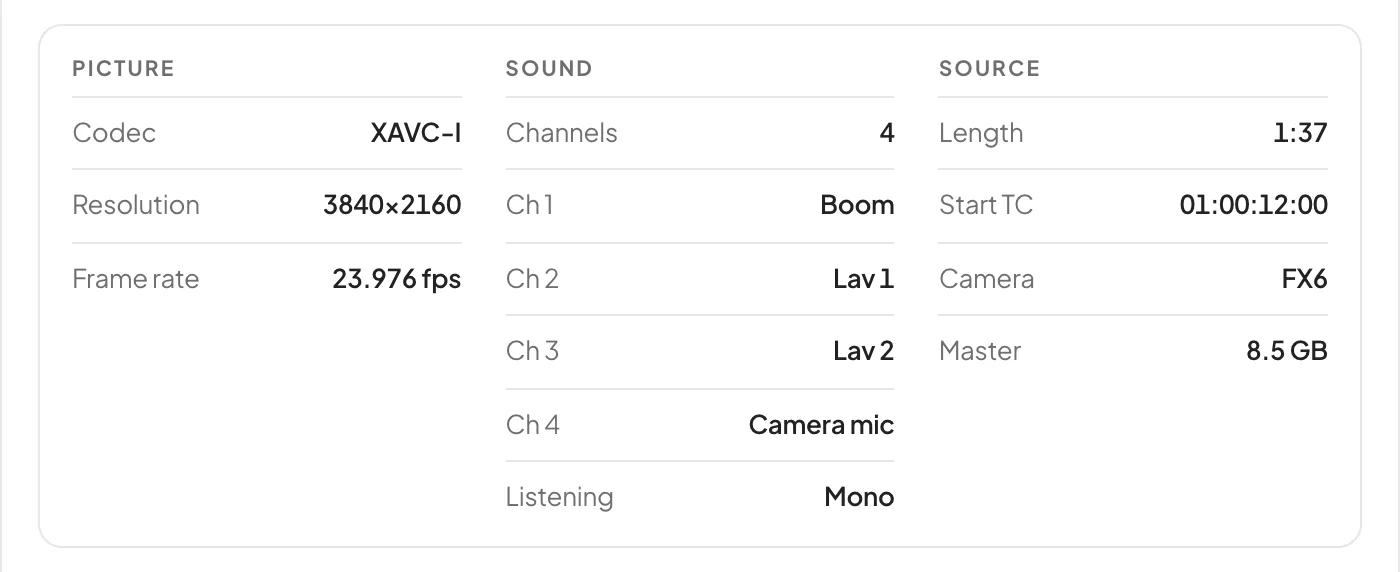
Under the picture, a spec sheet read from the file itself: Picture, Sound and Source, down to the start timecode and the camera.
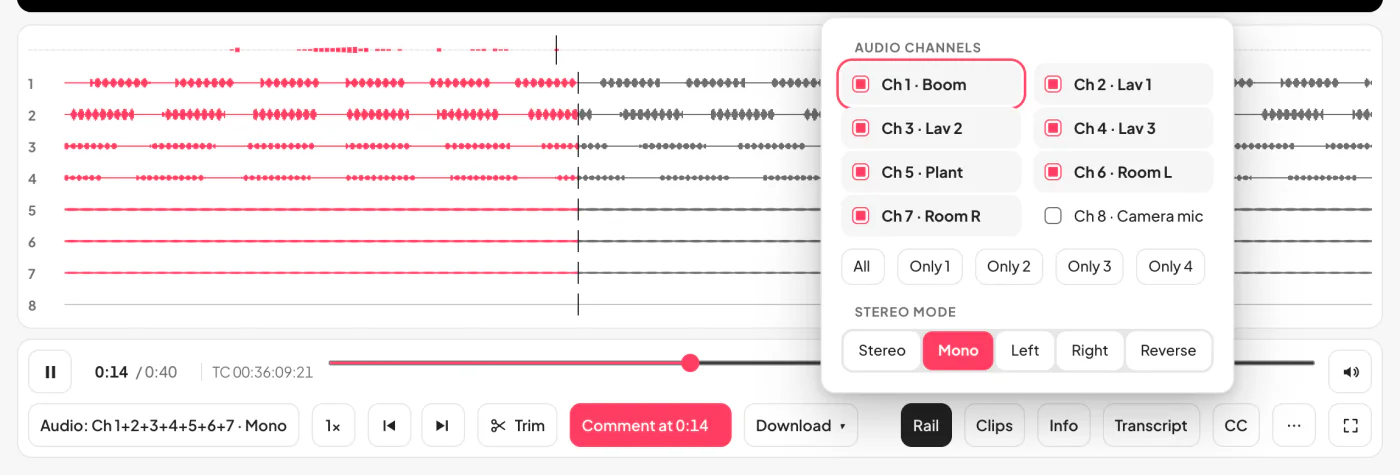
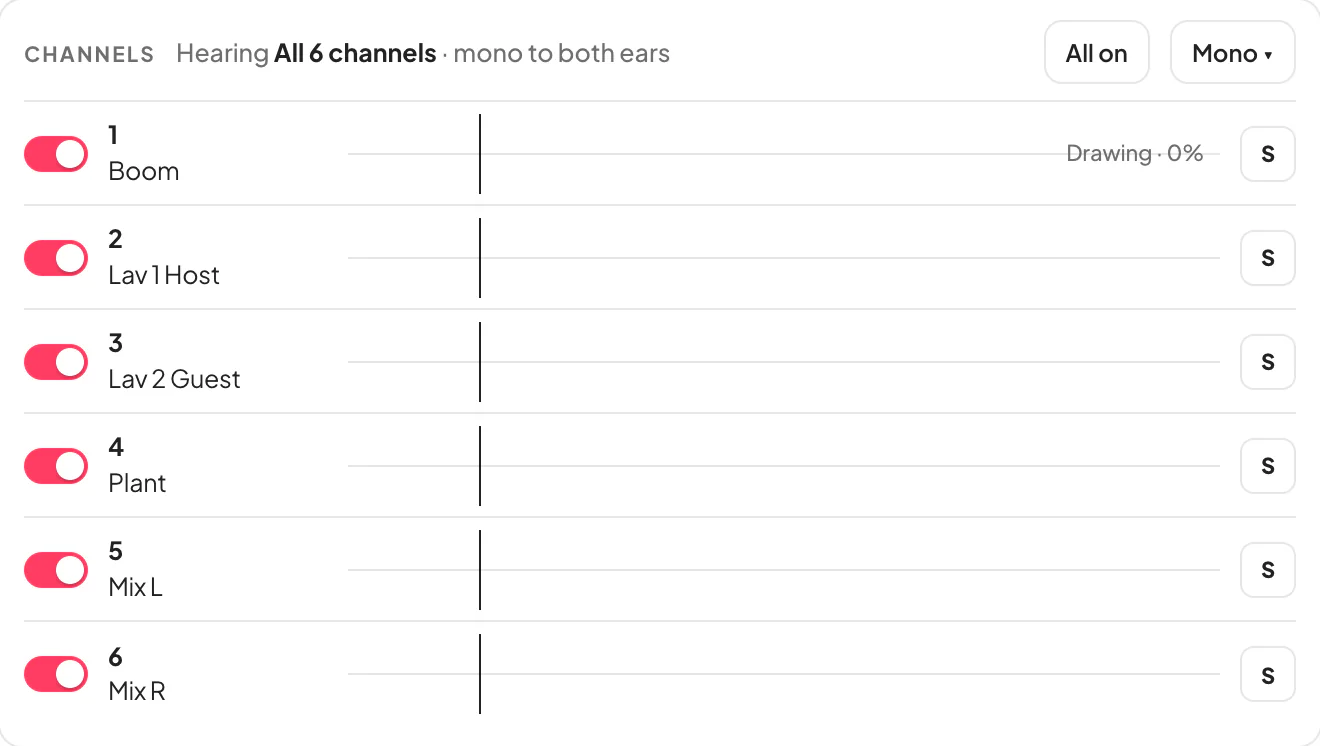
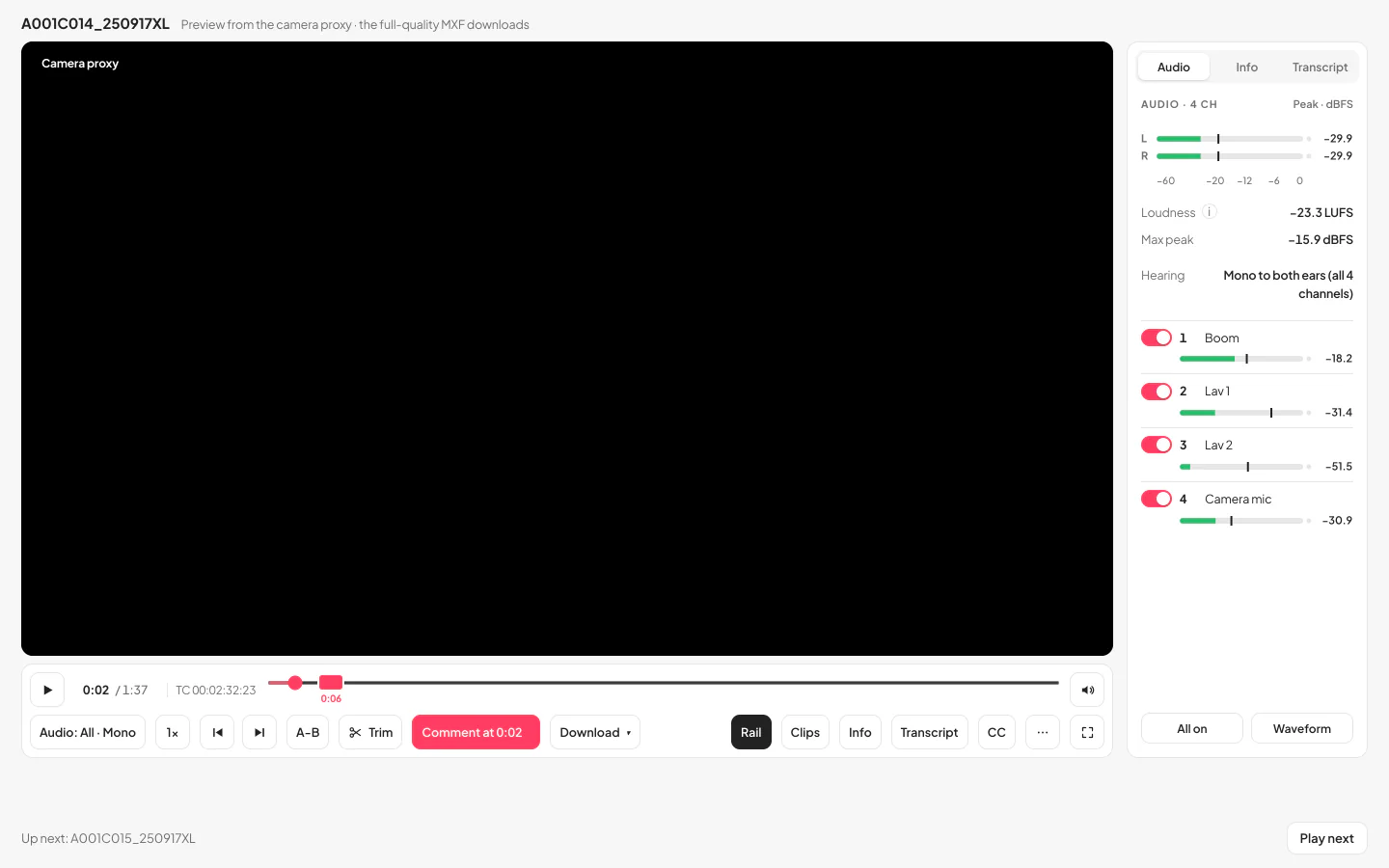
Hear every track the camera recorded.
Each track gets its own lane with a switch, a solo button and a slim meter with peak hold and loudness. One Audio menu, like VLC’s, picks the tracks and how they reach your ears: Stereo, Mono, Left, Right or Reverse.
A sound recorder’s poly WAV shows the mixer’s track names, and downloads whole, as one track, or split into a mono WAV per track.
Log footage, the way it was meant to look.
Clips shot in a log curve show as Rec.709, worked out from the camera’s own metadata. A LUT embedded in the clip or included with the card is used first, and a show LUT you attach to the transfer comes before both.
One switch shows the original, and a setting of yours decides which one recipients see first. The download is the untouched file either way.
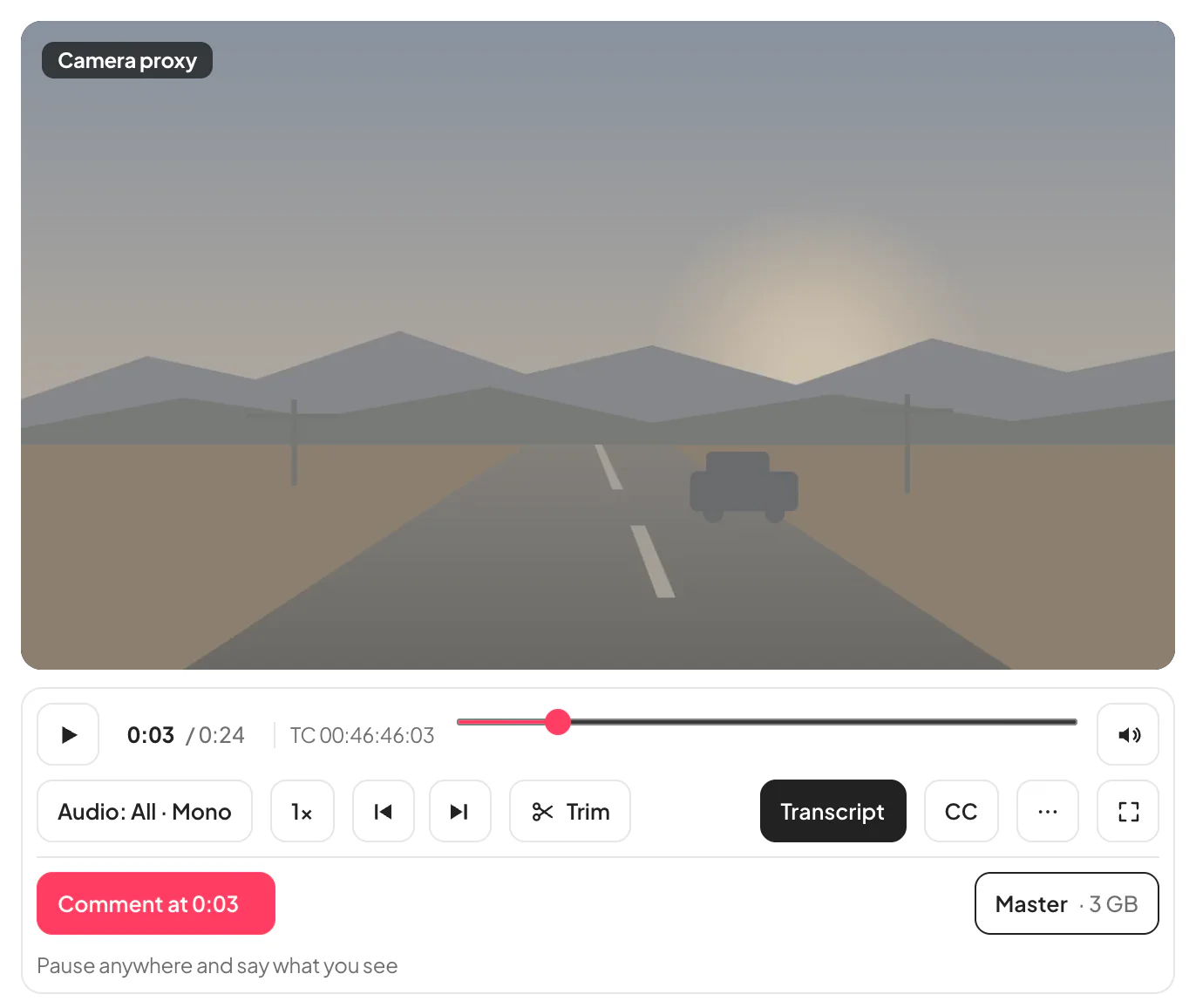
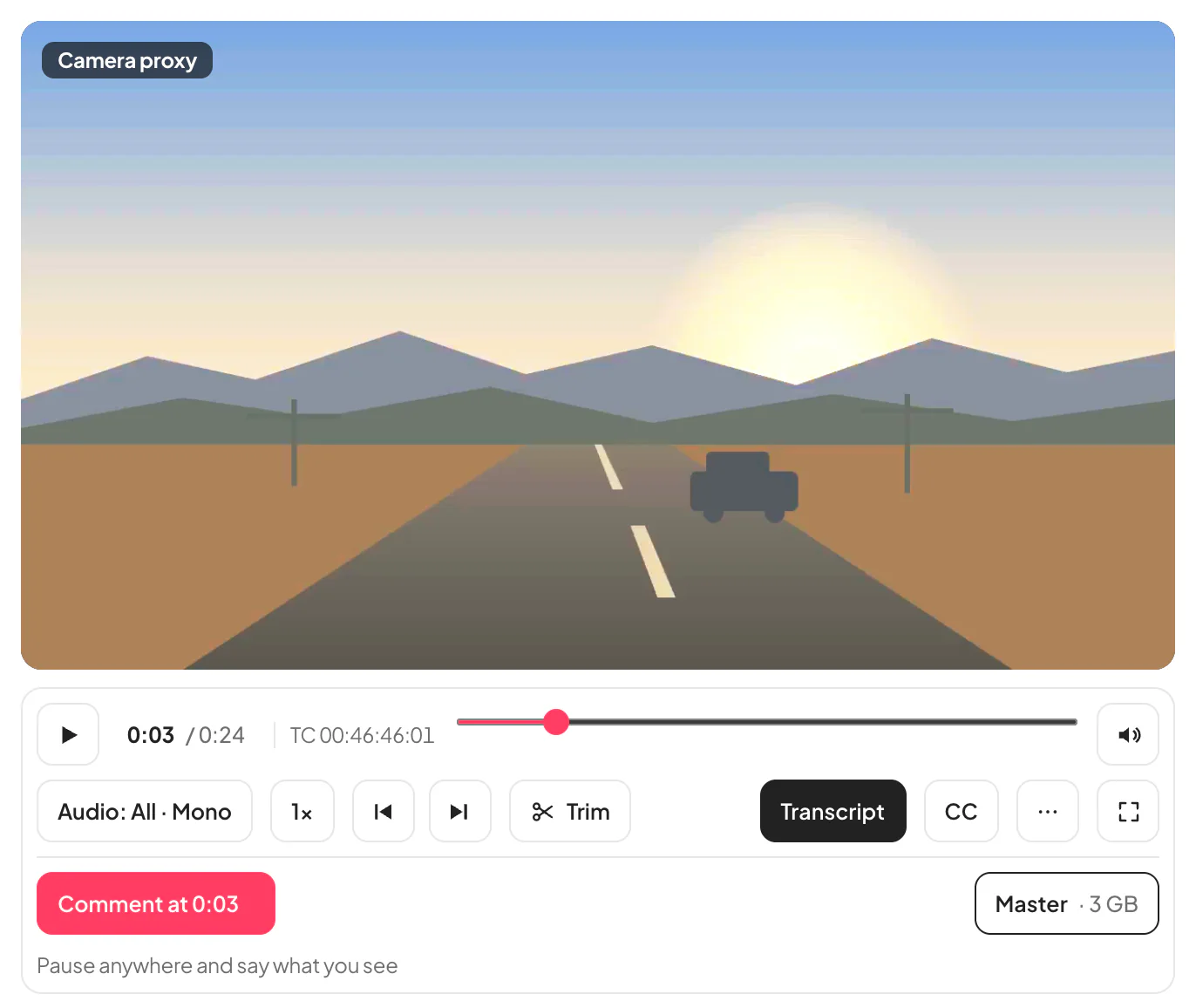
Illustrative frame drawn for this page, not camera footage.
Notes at the exact frame.
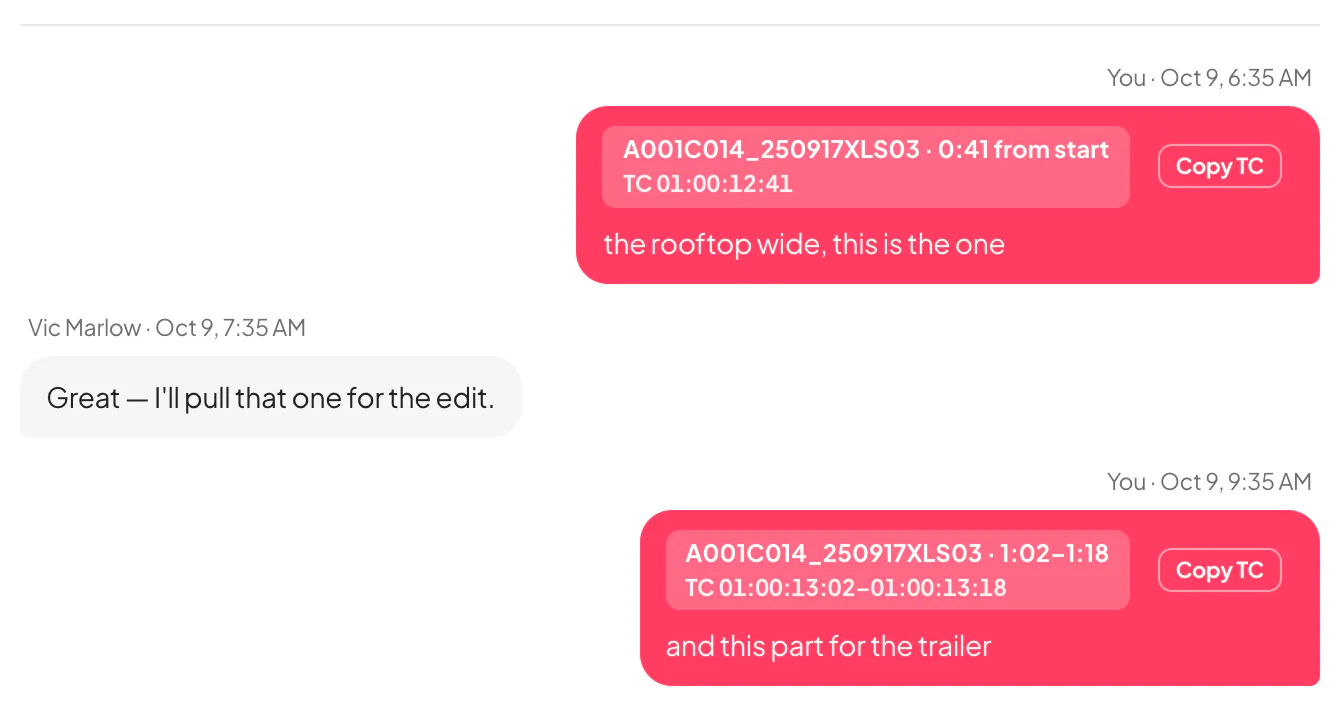
Pause anywhere and write. The note carries the clip’s own timecode and opens the clip at that frame for you; you answer on the same thread, and they see it on their page.
Each note sits as a marker on the scrubber, and Copy TC puts its timecode on the clipboard for the edit.
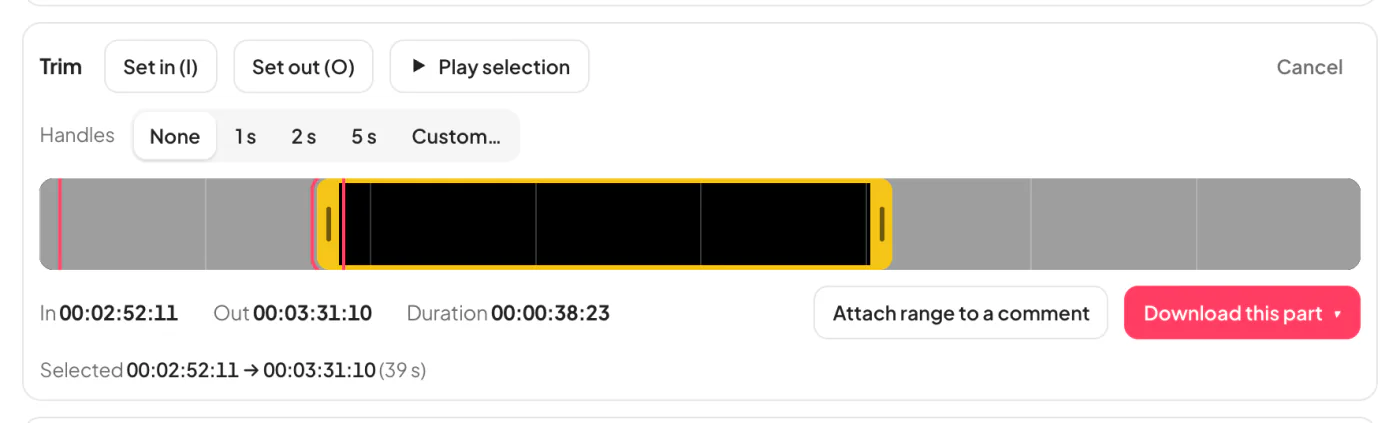
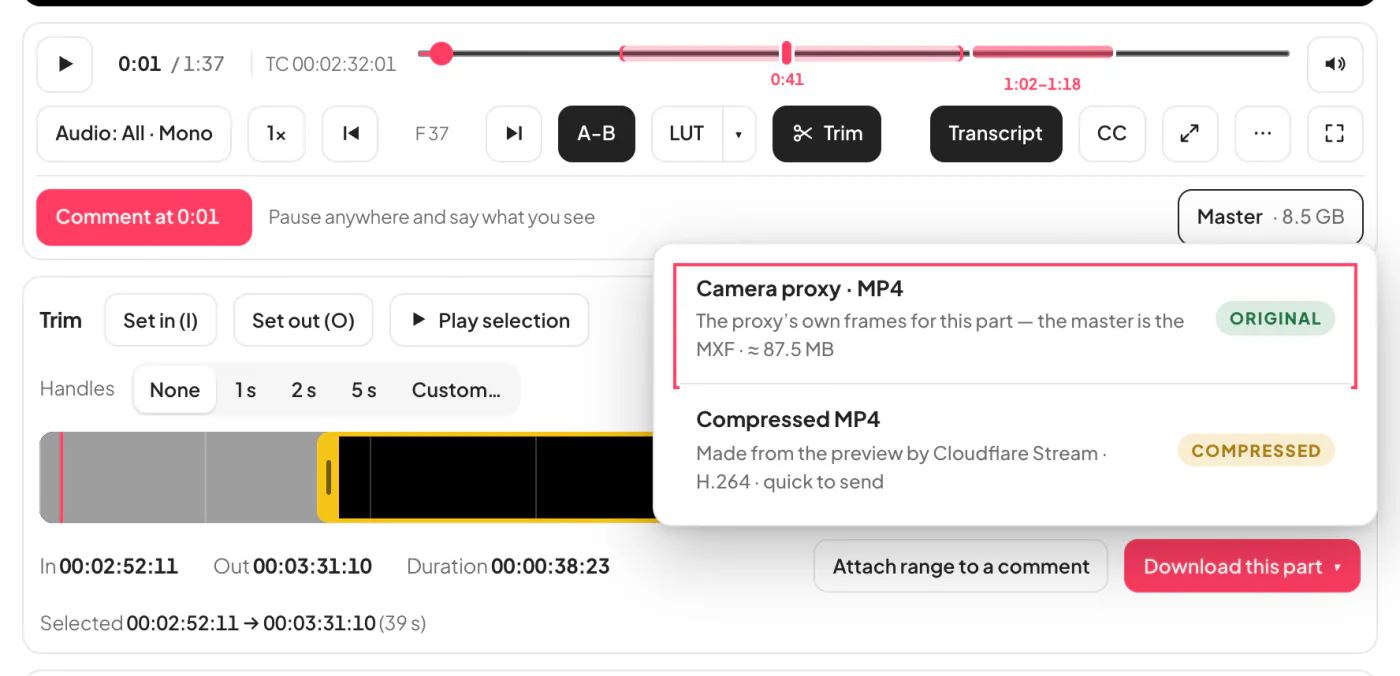
Take just the part they need.
Set an in and an out on the filmstrip and download that part. A WAV, MP4 or MOV comes out in its original quality, the frames untouched; a long-GOP clip starts on the keyframe at or before the in point. Any file with a preview also gives a compressed MP4 of the part, small enough to message.
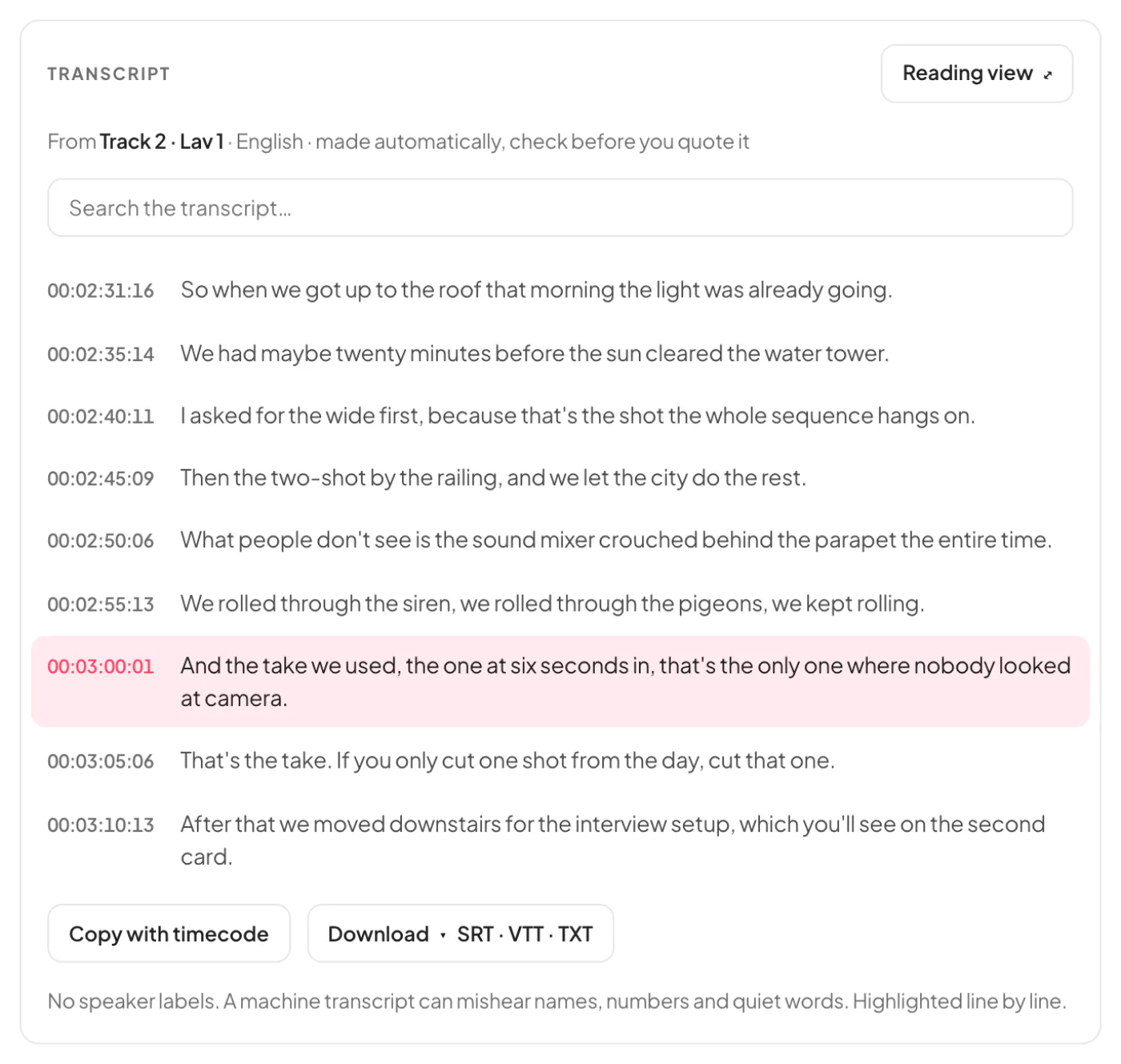
Read what was said, at the timecode.
A transcript of each clip, every line with the clip’s own timecode. The words light up as it plays; press a line to go there, search it, and select a few words to trim to exactly that part.
Download it as text with or without timecodes, or as SRT or VTT subtitles. A reading view puts the words first with the picture in a corner, for a paper edit. It’s made automatically, so check it before you quote it.
On the page, expanded, or full screen.
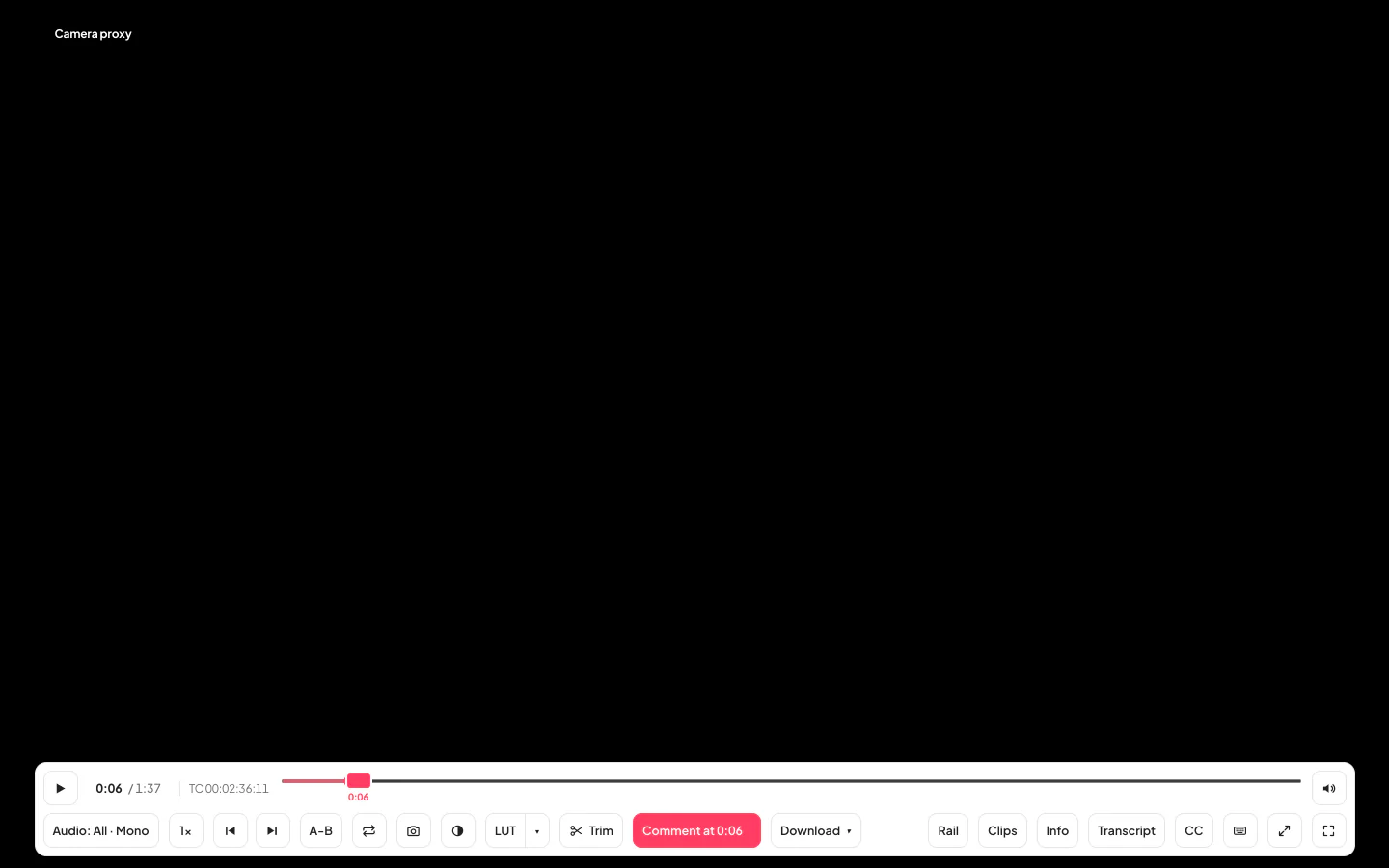
The page keeps the files, the player and the conversation side by side. Expanded fills the window and puts the audio rail, the clips and the file’s info beside the picture, each one switchable. Full screen is the picture alone, the controls out of the way until you move.
Frame step, an A-B loop, snapshots and J/K/L work in all three. Press ? for every shortcut.
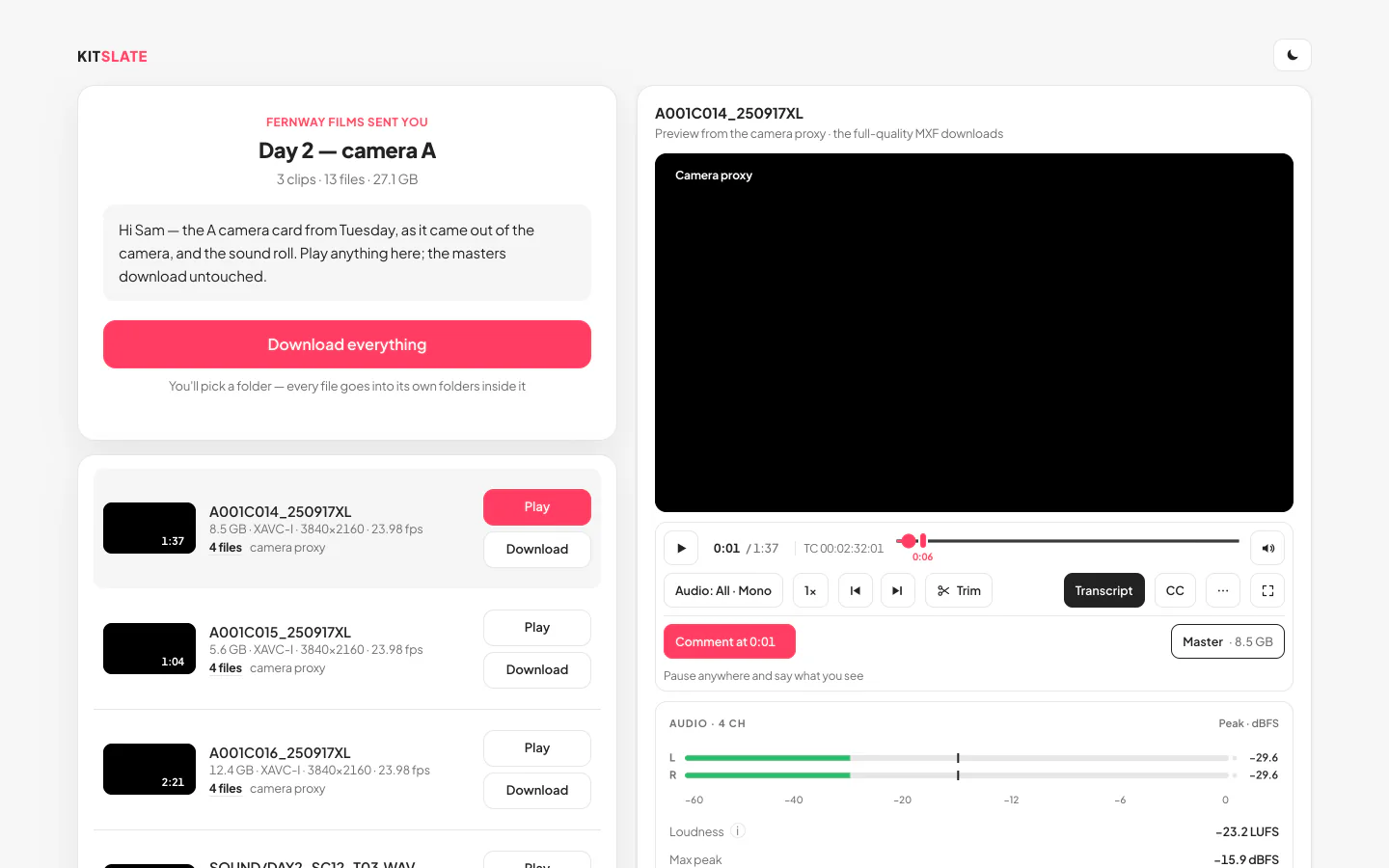
Their page, plus who did what.
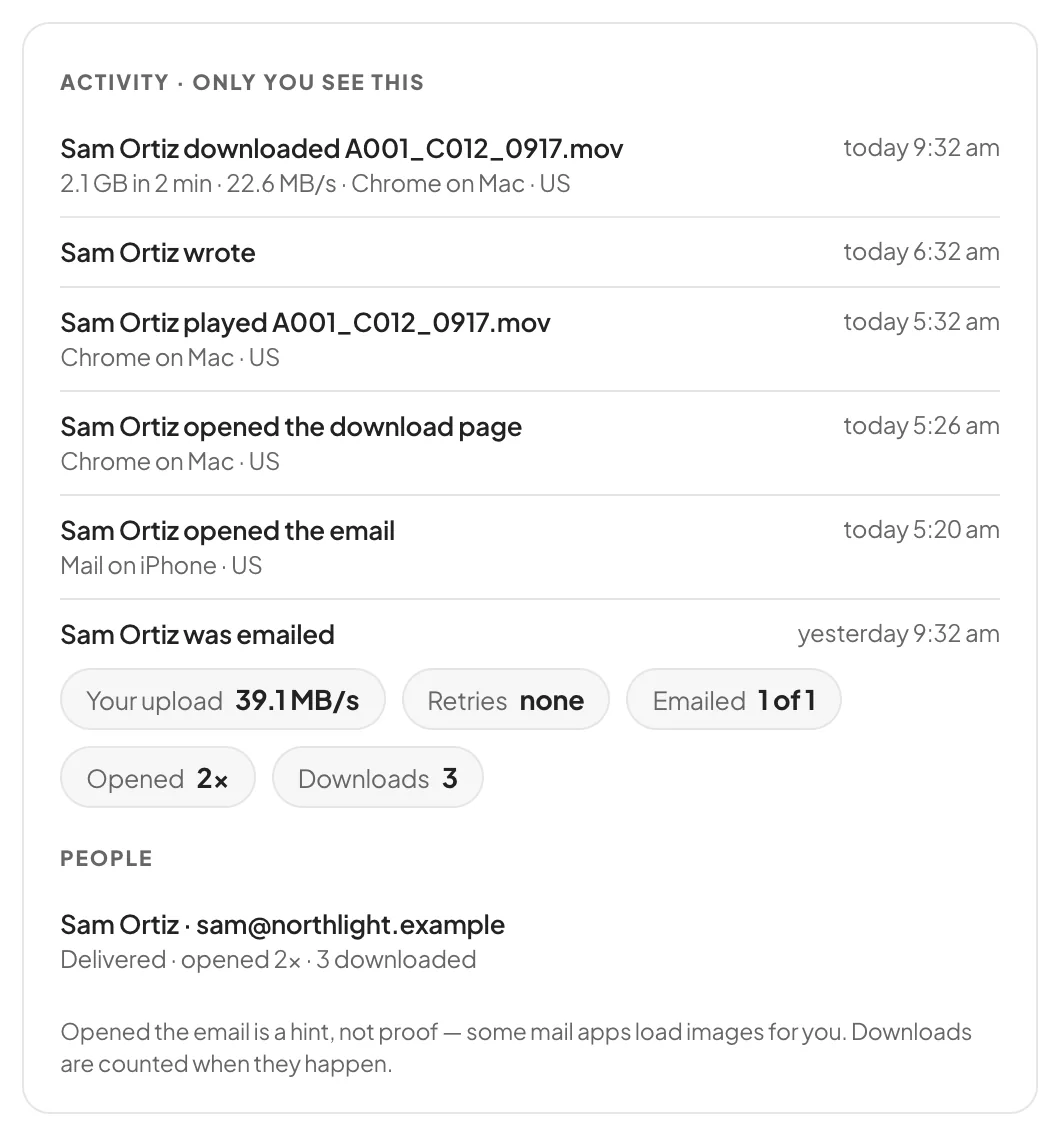
Open a transfer you sent and you get the page your client gets: the same player, the same tracks, the same spec sheet. Beside it, an Activity panel only you see: every open, play and download, with the time.
Their messages and yours read as one conversation, on the page for them and under the transfer for you.
Free and Pro review tools
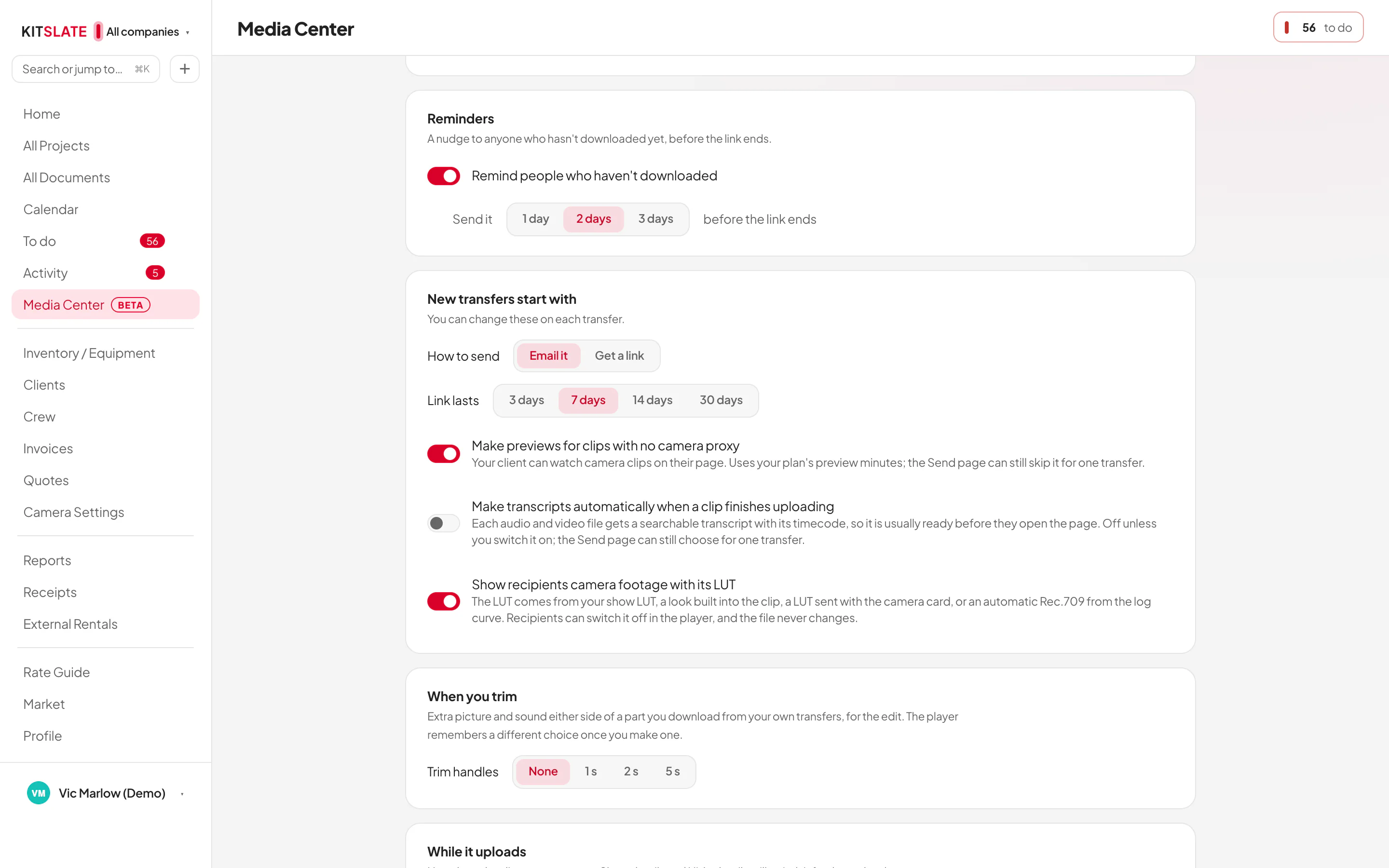
Every paid KitSlate plan includes them — for you, and for the people you send to.
- Send up to 5 GB per transfer100 GB of storage
- Play and reviewPlay, scrub, volume, speed, full screen and expanded view
- Comments at a timecodeComment at a moment, copy its timecode, markers on the scrubber
- The spec sheetPicture, sound and source, read from the file itself
- Listen as stereo or monoAnd a sound file’s waveform as one combined lane
- Download the whole fileThe original, exactly as it was sent
- Trim and original partsPick in and out like Apple Photos — original frames where the file allows, a quick MP4 where it doesn’t
- Every audio trackA lane, a meter and solo for every track; one-track and split WAV downloads
- Camera LUTsSee log footage as Rec.709 — the camera’s own LUT, a show LUT, or automatic
- Frame-accurate reviewFrame step, A-B loop, snapshots, timecode display, picture tools, zoom and guides
- TranscriptsWhat’s said, every line at its timecode — words light up as it plays; search it, trim by selecting text, download TXT, SRT or VTT
- Much bigger transfers500 GB per transfer on Solo · 1 TB on Studio (5 GB on the free plan)
Large file transfer for video, with nothing for the recipient to install
Rushes, grades, deliverables, up to 1 TB per transfer. Drop the folder, add the recipients, and KitSlate emails each one their own download link or gives you a transfer link to share. Recipients need no account and nothing to install: they open the link, play the clips in the browser, and download into a folder they pick, with a download that resumes if the connection drops.
KitSlate reads each clip’s codec, frame size, frame rate, source timecode and length from the file itself, so a producer can see what arrived before anything is downloaded. A speed test before you send measures your line and your connection to storage, so you know how long it will take.
Transfer limits by plan
| Plan | Per transfer | Storage |
|---|---|---|
| Profile · free | 5 GB | 100 GB |
| Solo | 500 GB | 500 GB |
| Studio | 1 TB | 2 TB |
| Production House | 1 TB | 4 TB |
| Enterprise | 1 TB | 10 TB |
Up to 500 files per transfer. Expiration is 1 to 30 days, 7 by default; files are deleted when the transfer expires. On the free profile, when the 100 GB is full the oldest live transfer ends to make room for the new one. Included in every plan, with no charge per gigabyte.
How it sends
Straight into storage. Your browser uploads each part of the file straight into our storage on a signed address, with nothing in between to slow it down. Parts go up over as many as 32 parallel connections, so one slow stream never sets the pace, and the count steps up while it keeps helping. If storage cannot be reached directly from where you are, the upload goes through KitSlate instead and still arrives.
Measured, not promised. Before you start, the speed test measures your line and the route to storage and sets the part size and the connection count. If the connection drops, the upload resumes from the last part that was saved. Recipients stream or download from our network, from the location nearest them. From our office in Manhattan on a 2 Gbps fiber connection: 1.82 Gbps up to storage over 12 connections, 2.04 Gbps back down.